Discounts and messages
Nội dung này hiện chưa có sẵn bằng ngôn ngữ của bạn.
Discounts (coupons)
Section titled “Discounts (coupons)”Open Sales activity → Discounts. This is where you run promotional discounts.
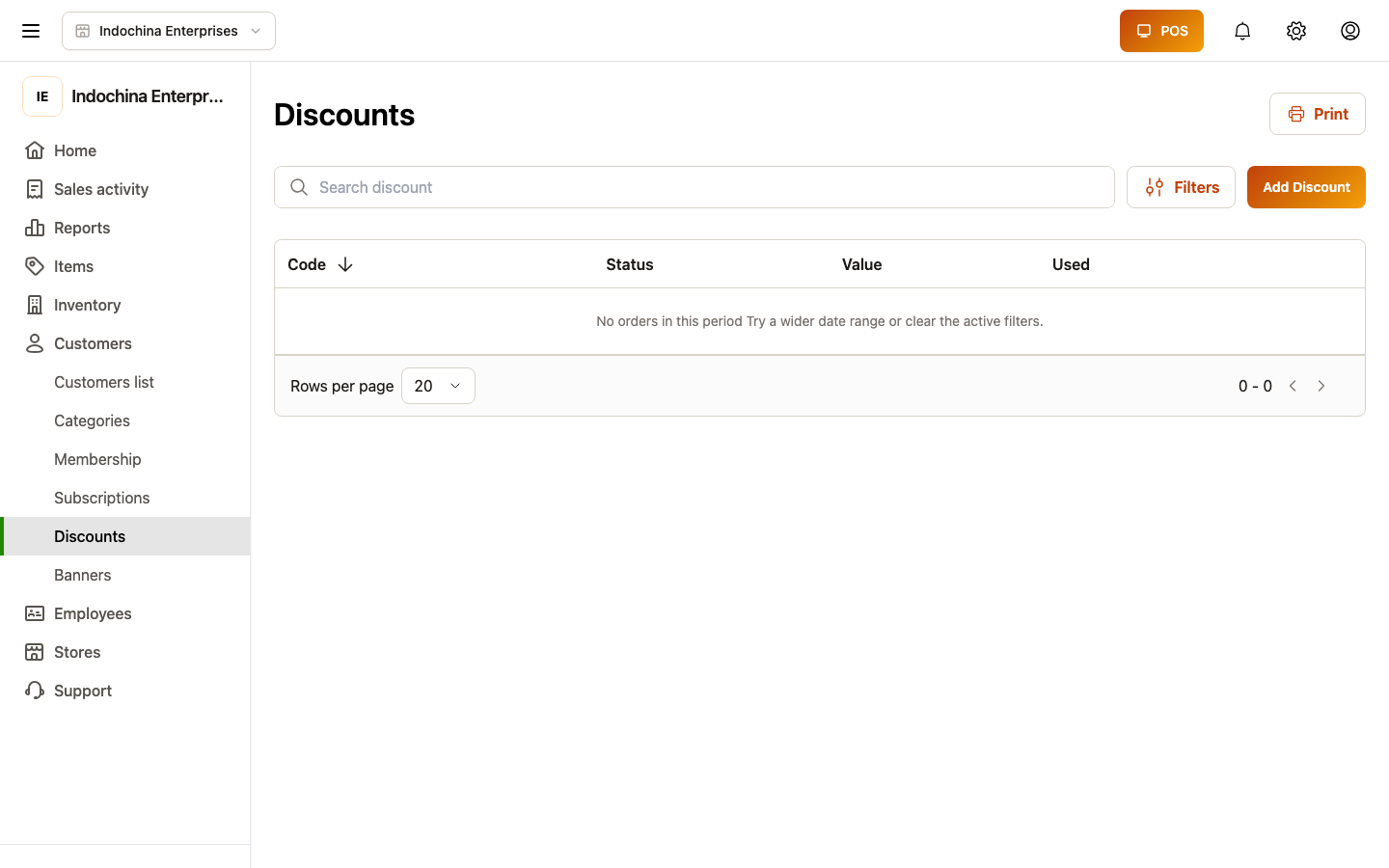
What a coupon is
Section titled “What a coupon is”A coupon is a code (e.g. SUMMER20) customers show at checkout. It maps to either:
- A percentage off (e.g. 20% off the order total),
- A flat amount off (e.g. 30,000 off),
- Buy X get Y (e.g. buy 2 get 1 free),
- Free shipping (delivery orders).
Coupons can be limited to:
- A store, a category, or specific products.
- A time window (start / end date).
- A usage count (max redemptions).
Create a coupon
Section titled “Create a coupon”- + New coupon — give it a clear code the customer types or scans.
- Pick discount type and amount.
- Pick scope — applies to the whole order or restricted.
- Pick validity — start / end / max uses.
- Save.
Tracking performance
Section titled “Tracking performance”Open any coupon to see live usage:
- Redeemed today / this week / all-time.
- Discount given (sum).
- Net revenue impact (sales tied to redemptions).
Deactivate a coupon by setting Status = Inactive. Existing redemptions still count; new ones are blocked.
Messages (preview)
Section titled “Messages (preview)”Open Sales activity → Messages. This screen shows your inbox for internal comms.
Note: the Messages screen is a UI demo with hardcoded contacts at the moment — it’s not a production messaging backend. Don’t rely on it for store comms. Use email / phone / your regular chat tool until a real integration lands.
This screen may change or be removed in a future release.
Common questions
Section titled “Common questions”Coupon won’t apply at checkout. Check:
- Status is Active.
- Validity window covers today.
- The order has at least one line that matches the scope (category / product).
- The customer hasn’t hit the max uses rule.
- Excluded items aren’t being discounted (the cashier app shows a hint).
Removing a coupon. Set status to Inactive. It stays in your list for history but cannot be redeemed.
Use coupons from the lane? Yes — both POS workspace and classic POS honour coupons. The cashier pastes the code or scans the barcode (if printed).
Related
Section titled “Related”- POS / Checkout — how coupons reach checkout.
- Orders — coupon on a placed order.