Timesheets and time cards
Nội dung này hiện chưa có sẵn bằng ngôn ngữ của bạn.
What you’ll find here
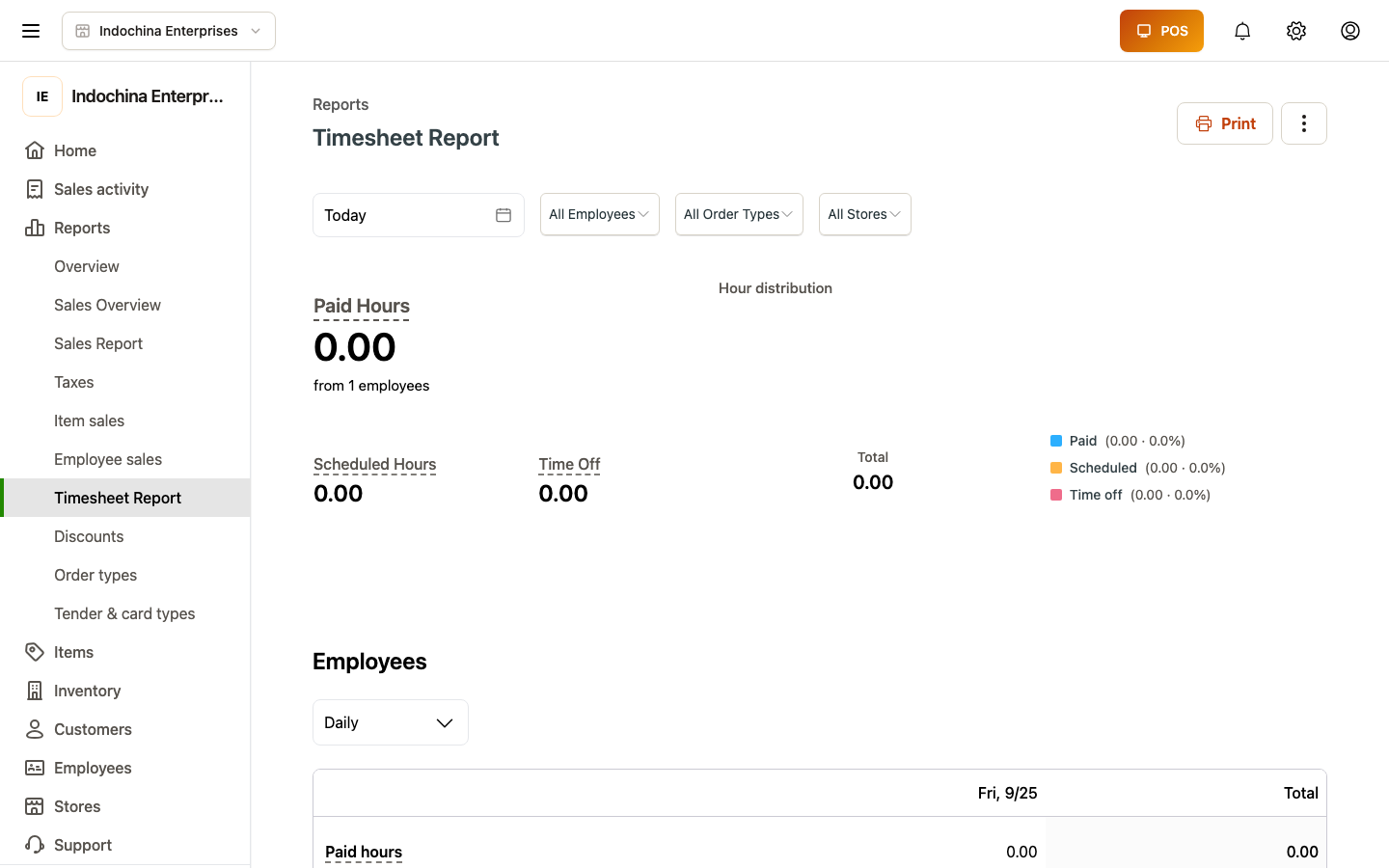
Section titled “What you’ll find here”Timesheets shows when each employee clocked in / out, took breaks, and earned tips. Use it to:
- See who is on shift right now.
- Review a single day across the team.
- Add or correct a time card manually (forgot to clock in / out).
- Spot issues: late, absent, missed clock-out, overtime.
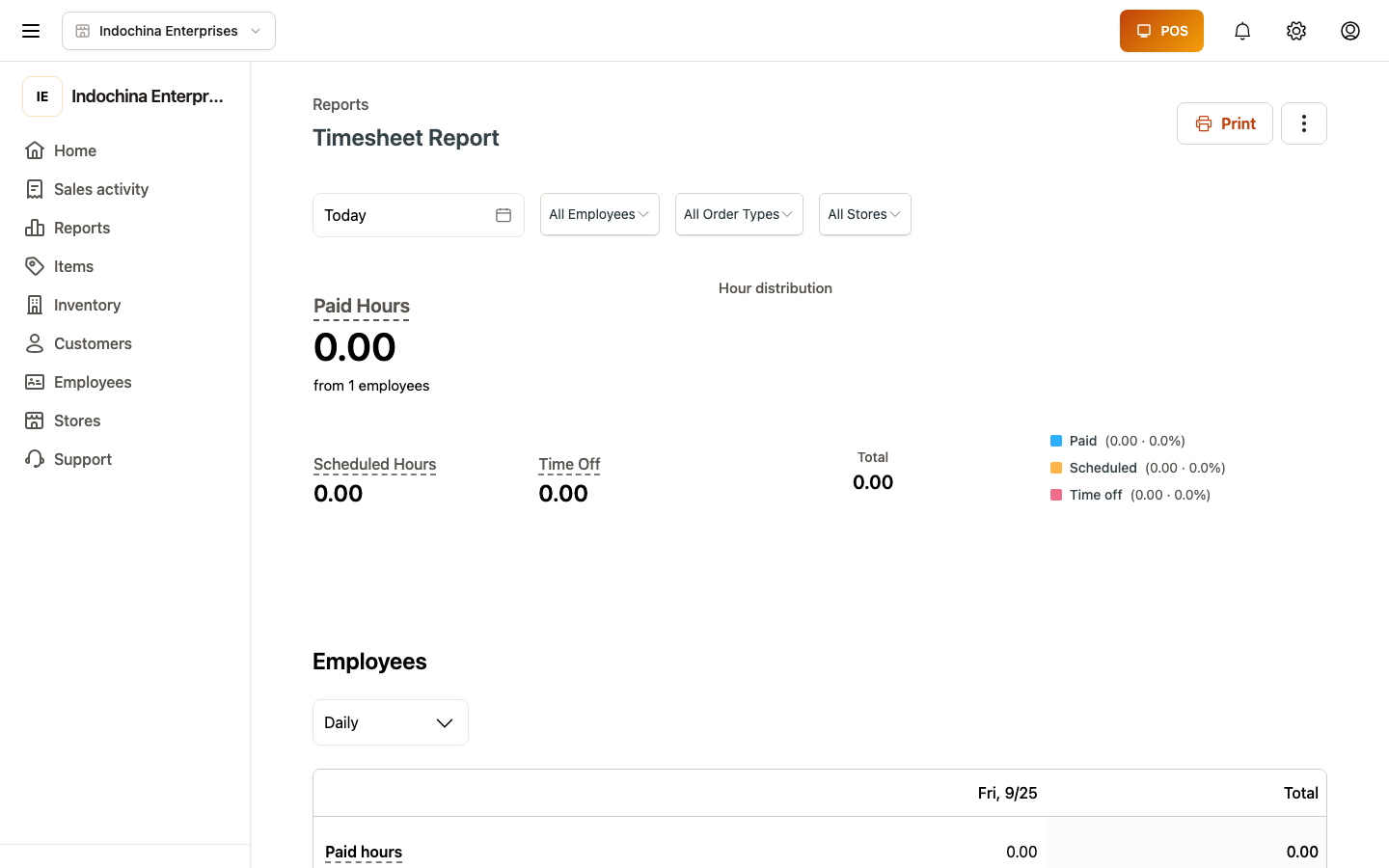
Open HR → Timesheets. Pick Day or Pay period.
Day view — what you see
Section titled “Day view — what you see”By default shows today (store timezone). At the top:
- Date picker.
- Filters drawer — team members, roles, Issues.
- Tabs — All and Needs review.
Each row is an employee for that day:
- Clock in / out with worked hours.
- Break minutes (split into paid / unpaid).
- Tips — cash and credit.
- Issues badge if anything is flagged.
Clicking a row opens Add / Edit time card with the full breakdown.
Pay-period view
Section titled “Pay-period view”Switch the toggle to Pay period, then pick the period (week / biweekly / monthly per your store config). Useful for payroll prep.
Add or edit a time card
Section titled “Add or edit a time card”From any row, click Edit time card (or + Add time card for a missing day).
| Field | What to enter |
|---|---|
| Employee | Who’s missing / correcting. |
| Role | Their role for that day (optional — defaults to current role). |
| Clock in / out | Times and dates. |
| Breaks | One row per break — paid or unpaid, start, end. |
| Cash tips / Credit tips | Tip amounts received during the shift. |
| (optional) evidence | Photo or GPS check-in (manual cards often have none). |
Saving writes the time card and adds it to the audit log.
Quick actions on a row
Section titled “Quick actions on a row”- Resolve issue — acknowledge a flag without opening the edit modal.
- Delete time card — only when an attendance day already exists. Audit-logged.
Filter by issue
Section titled “Filter by issue”Use the right-hand Filters drawer to narrow:
- All — every time card that day.
- Needs review — rows with one of: late, absent (stored), uninformed, overtime, missed clock-out, pending leave.
You can also pick a single issue (e.g. only late) to focus on one problem.
Leaves and time off
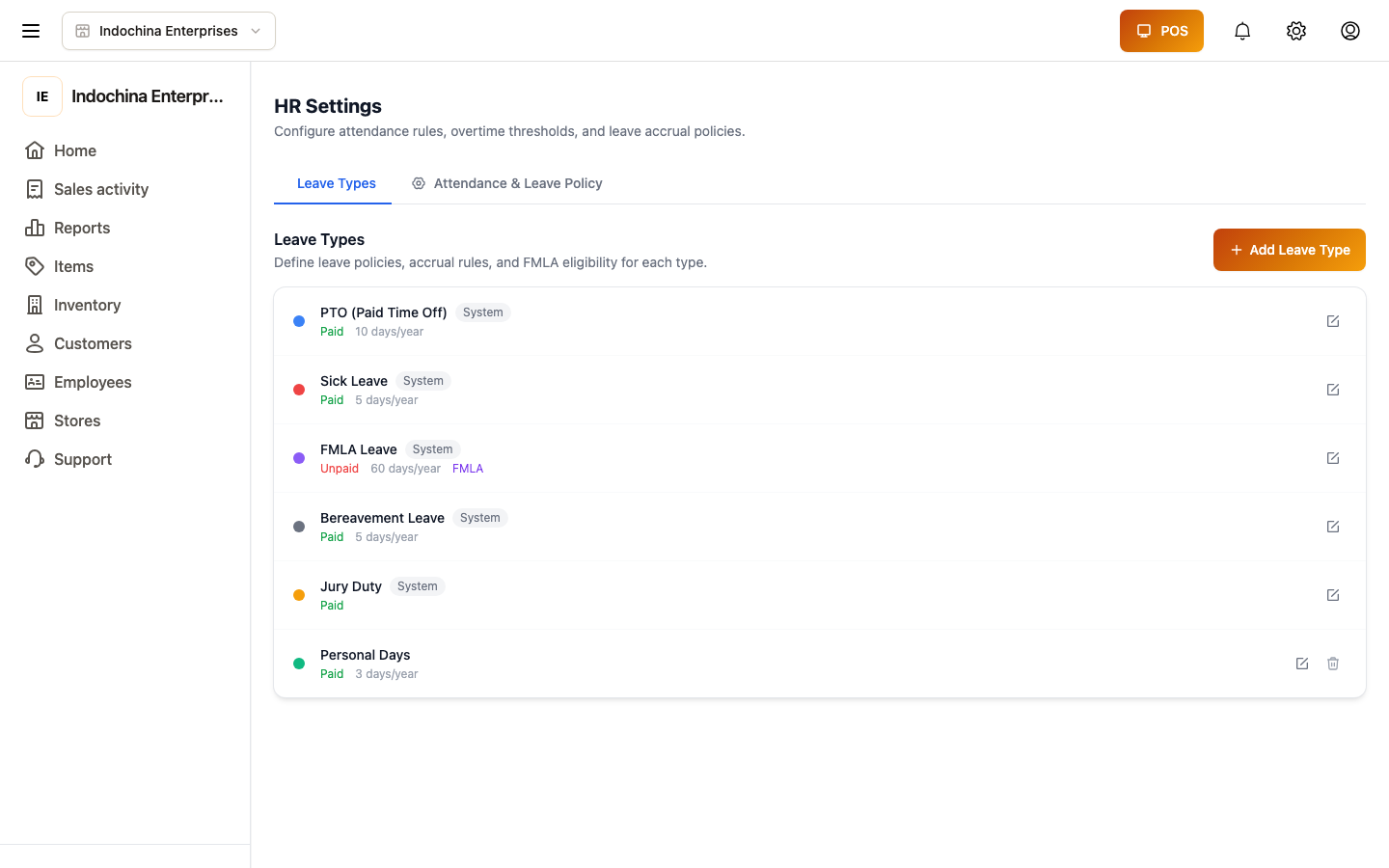
Section titled “Leaves and time off”Managers review leave requests alongside timesheets — for absences with pay, sick days, or unpaid time off. Open HR → Leaves to see the queue.
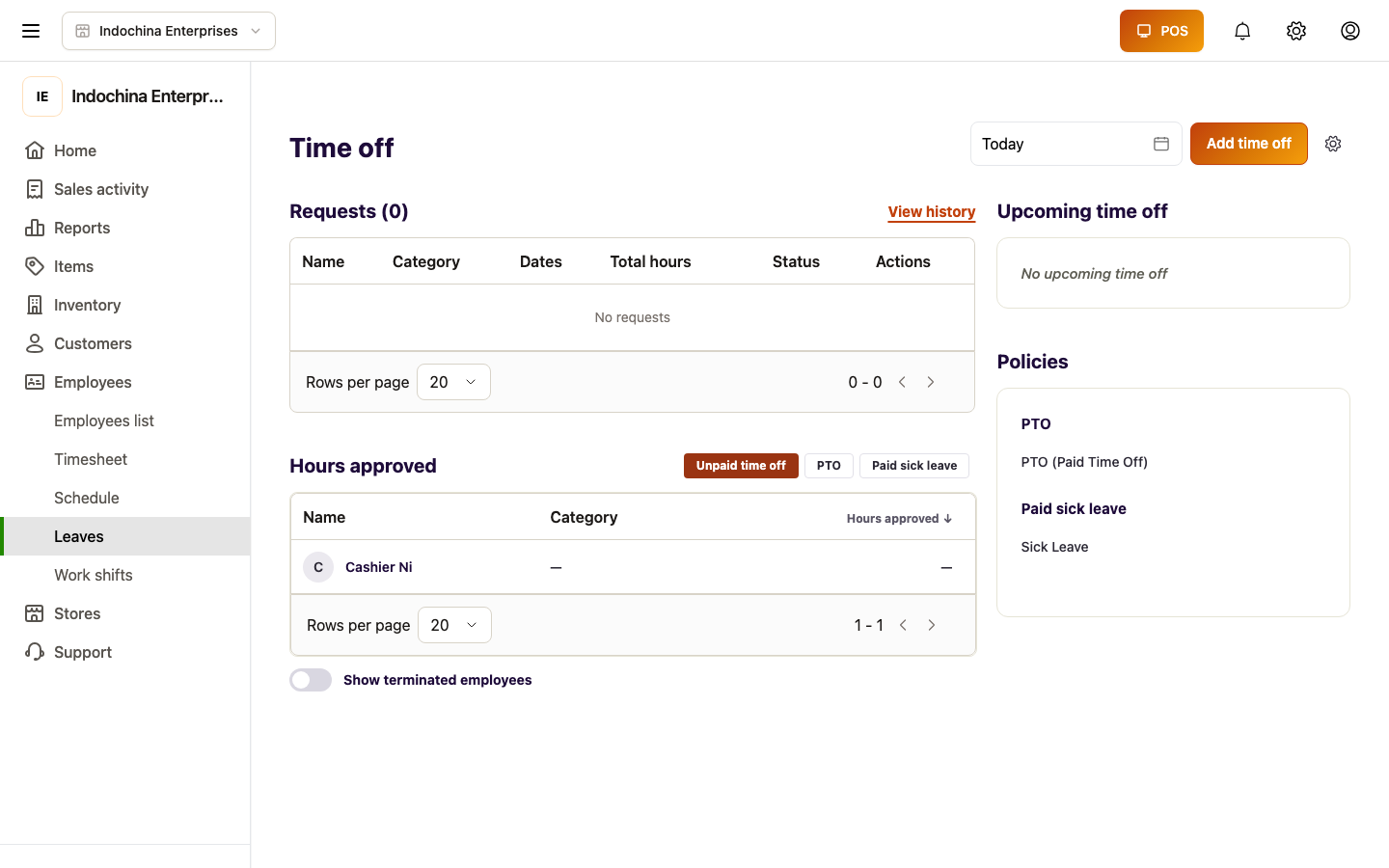
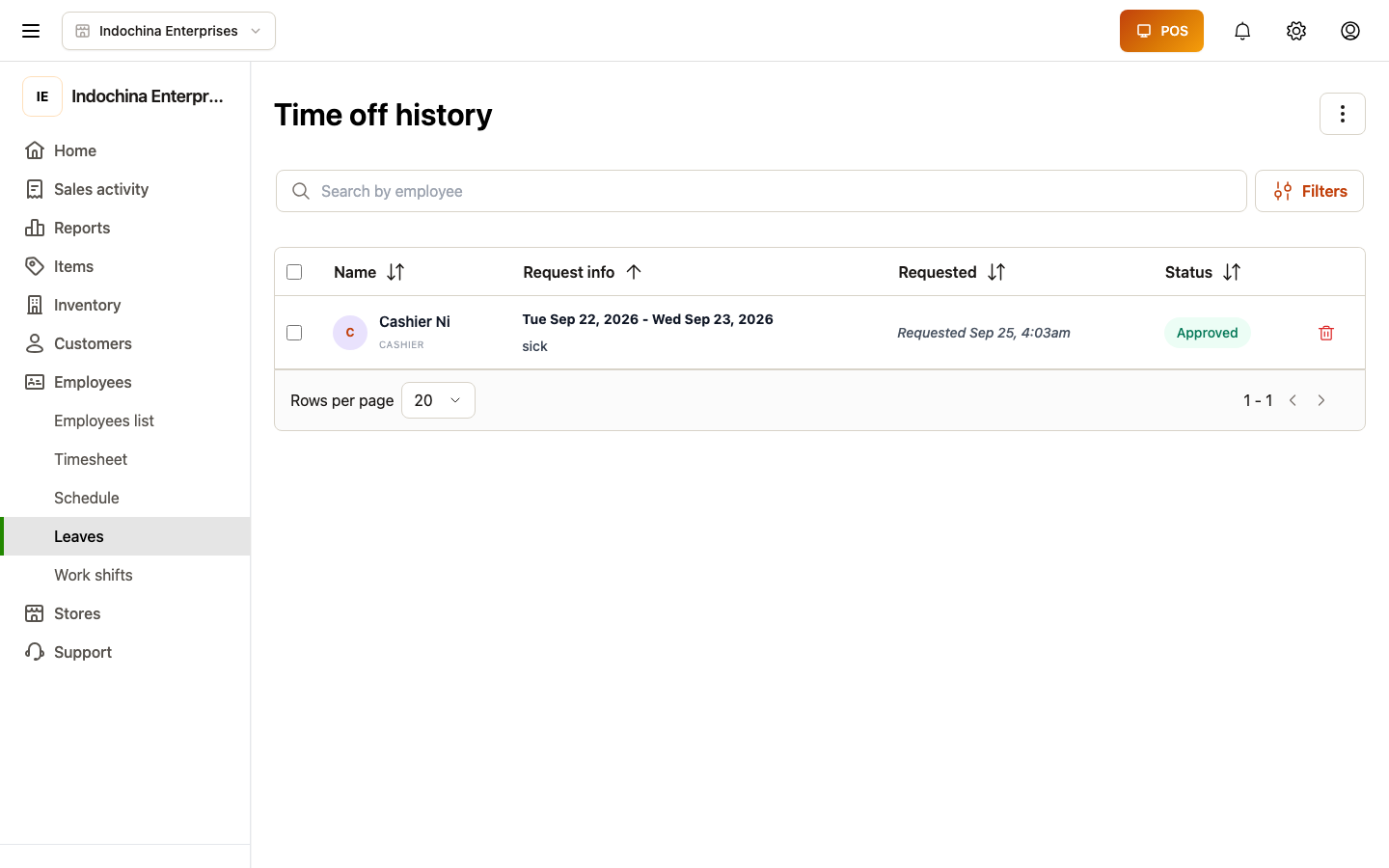
Each row has a status: pending, approved, rejected, or cancelled. Approving moves the request onto the employee’s calendar; rejected ones stay in the list with a reason.
Common questions
Section titled “Common questions”An employee shows “Needs review — absent” but they were here. Edit the time card and add the clock-in / clock-out. Save — the issue clears.
Break minutes are negative. Total worked hours subtract unpaid breaks. If someone forgot to clock back in, edit the break row.
Tips missing from a card. Add them via Edit time card → Tips. The amount rolls into the Cash / Credit tips summary.
Pay period doesn’t match payroll. Ask your owner to confirm the pay period start in Stores → Configuration.
Related
Section titled “Related”- Employees and stores — role and store assignment.
- Work shifts — drawer / lane sessions (separate from timecards).
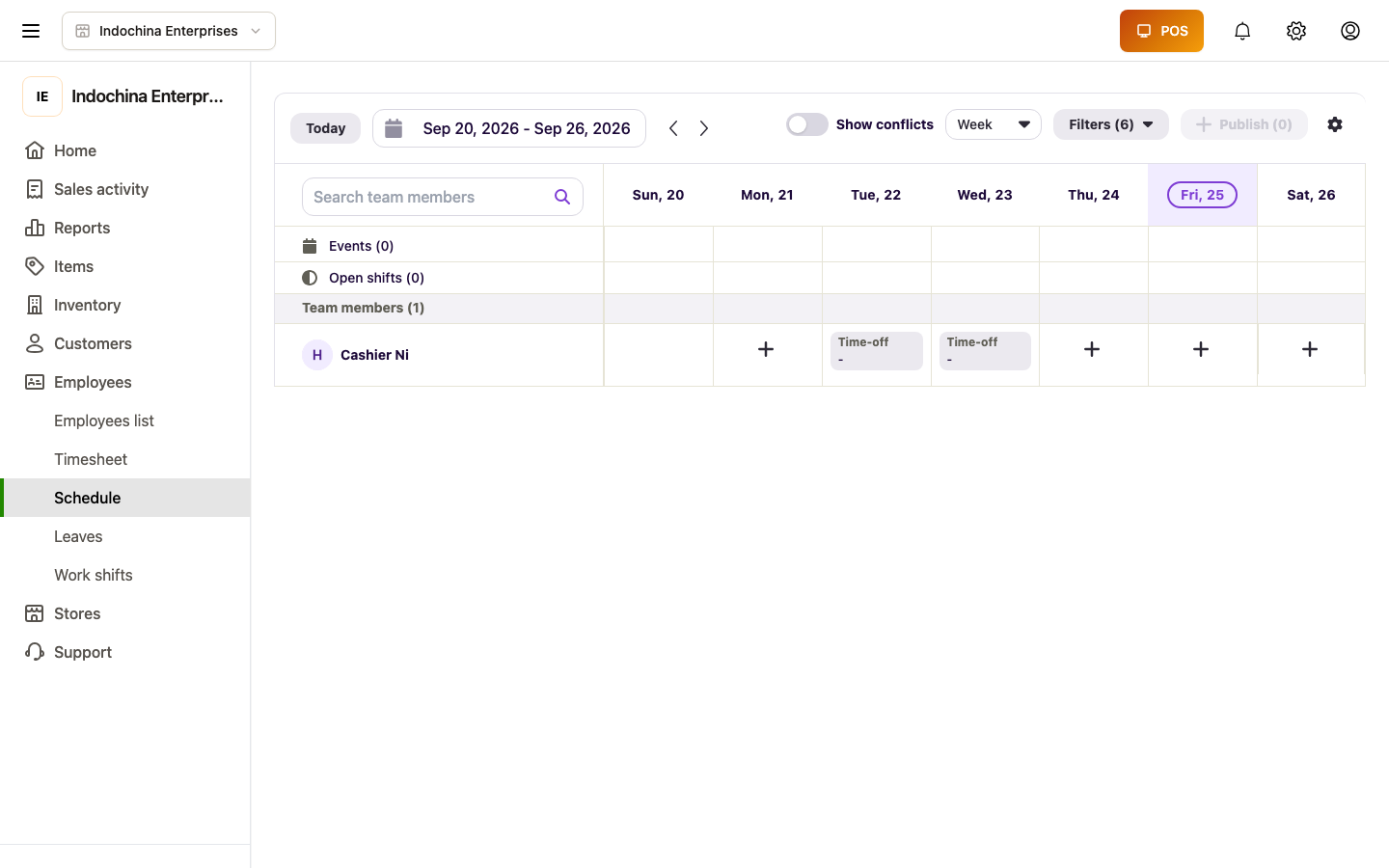
- HR Dashboard & Schedule — schedule planning and shift templates.