Support tickets
Nội dung này hiện chưa có sẵn bằng ngôn ngữ của bạn.
When to raise a ticket
Section titled “When to raise a ticket”If you can’t find the answer in Help, or you’ve hit a bug / data issue, raise a ticket to the operations team.
Use a ticket for:
- Bugs — something in the app doesn’t work right.
- Data questions — wrong totals, missing records, mismatched invoices.
- Account / access — locked out, role missing, lost device.
- Hardware — terminal not pairing, printer offline (after the basic checks).
- Suggestions — what would make your daily work easier.
Don’t use tickets for routine training — talk to your store manager.
Create a ticket
Section titled “Create a ticket”- Open Organization → Support (sidebar).
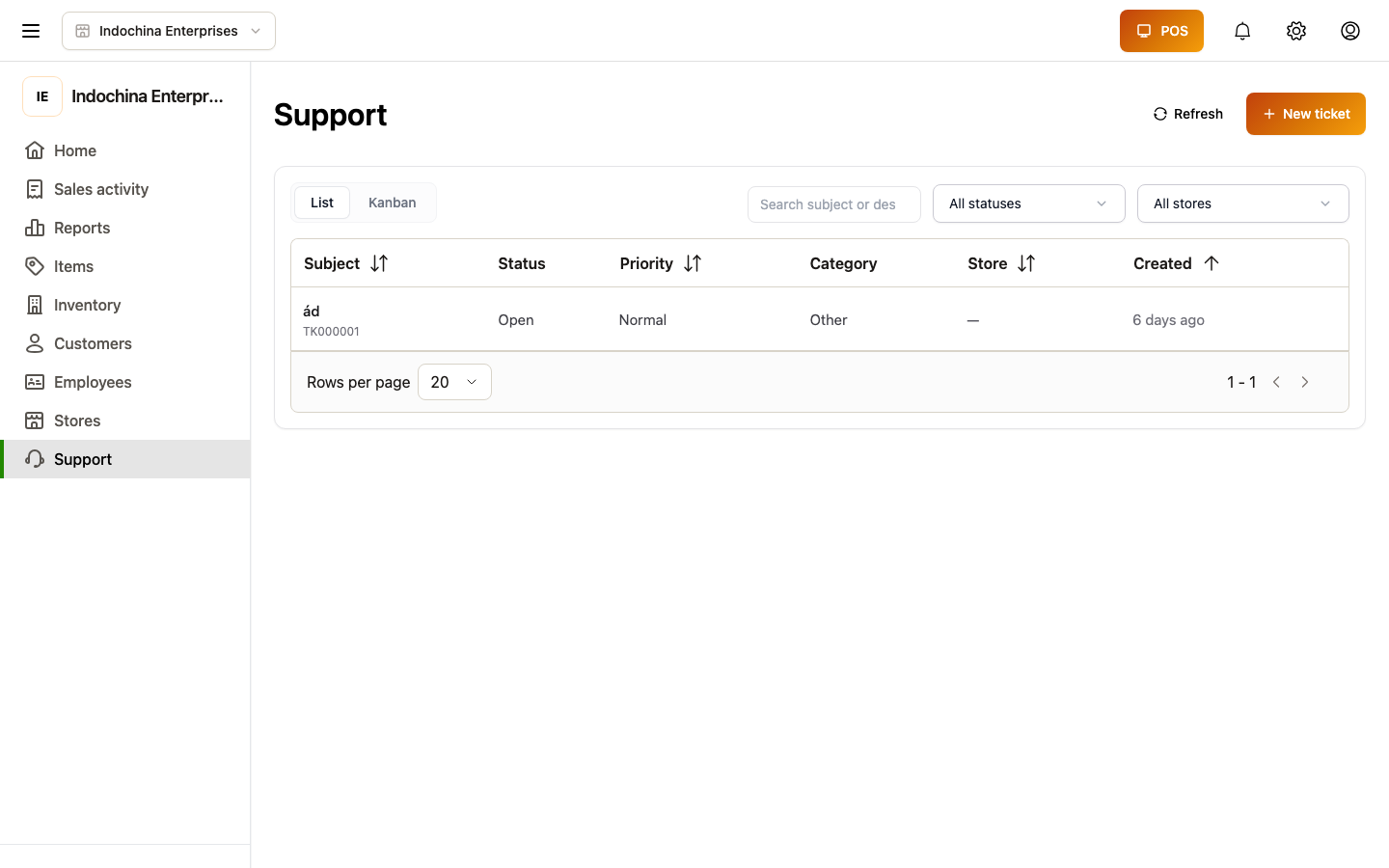
- + New ticket.
- Fill in:
- Subject — short, descriptive (e.g. “POS didn’t print receipt — Lane 2, 17 Apr”).
- Description — what happened, what you expected, what you tried.
- Priority — Low / Medium / High / Urgent.
- Category — pick the closest match (POS, Inventory, Finance, etc.).
- Store — which store it affects.
- Submit.
You’ll see your ticket in My tickets. Operations team replies by email and inside the ticket thread.
Reply on an existing ticket
Section titled “Reply on an existing ticket”Open the ticket → read the discussion → write your reply at the bottom.
- Replies show the author and time.
- A thin progress bar at the top means your message is sending.
- While messages load, you’ll see skeletons; flipping back to a previous page keeps the old messages visible (no flicker).
Track status
Section titled “Track status”Tickets move through:
- Open — operations team hasn’t picked it up yet.
- In progress — someone is working on it.
- Waiting on you — they need more info; reply and the status moves back.
- Resolved — fixed.
- Closed — closed by you or operations.
You’ll get a notification (bell icon) when status changes.
Common questions
Section titled “Common questions”My ticket’s been “Open” for a while. Check the priority you set — Low tickets can wait. If it’s urgent, send a polite bump reply with the new info.
I attached the wrong info. Reply on the ticket with the corrected text. Don’t create a duplicate ticket.
The reply won’t send. Check your network. The progress bar hangs if the request stalls; reload and retry.
Related
Section titled “Related”- Notifications, help & settings — first place to look for answers.