POS / Checkout
Two ways to check out
Section titled “Two ways to check out”LionPOS has two full-screen sale screens. Both sell the same items, take the same payments, and write the same orders.
| Screen | URL | Best for |
|---|---|---|
| POS workspace | /point-of-sale/sale | Tablets and touch screens, multi-tab sales, mobile cashier workflows |
| Classic POS | /pos | Desktop lanes, large screens |
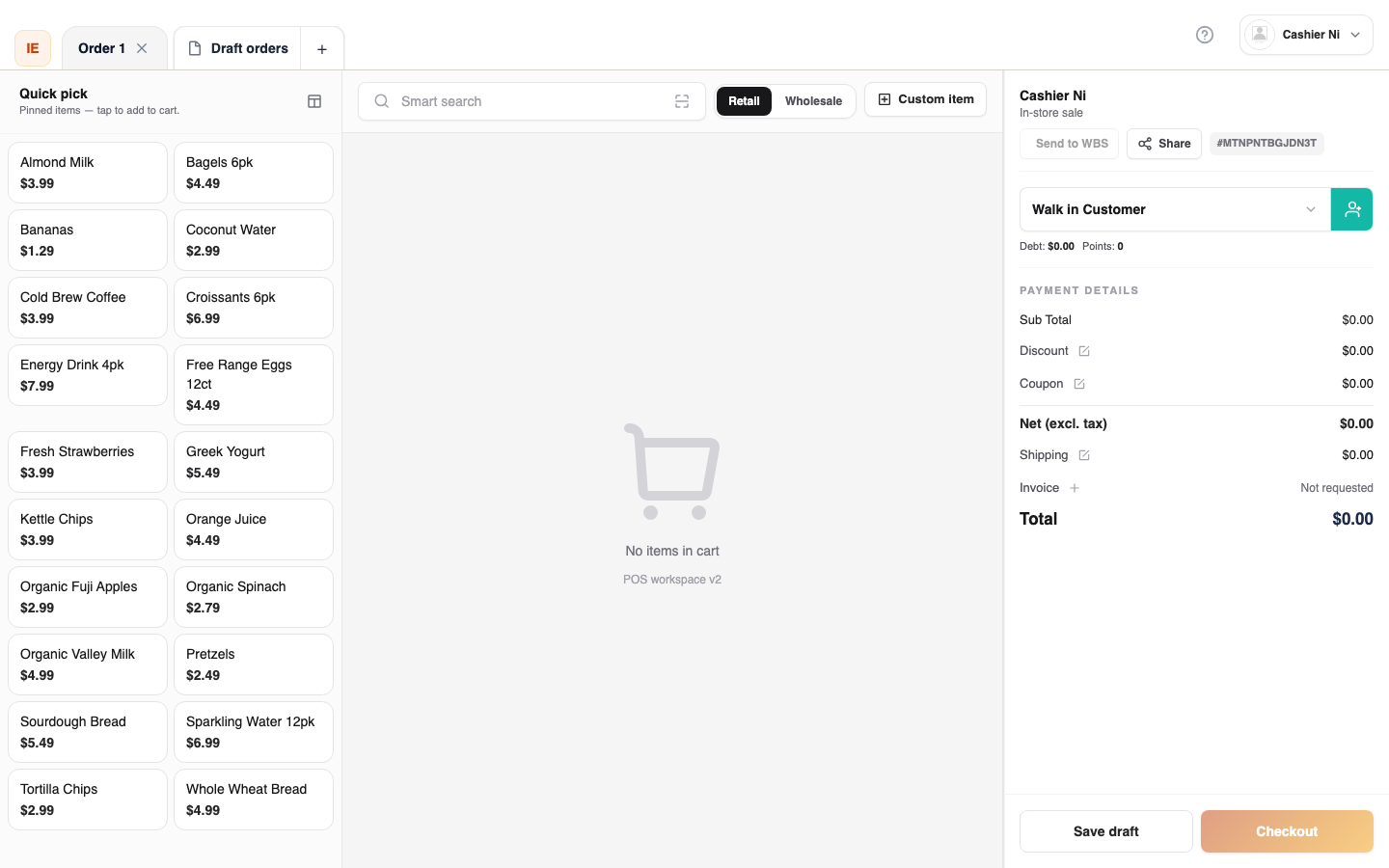
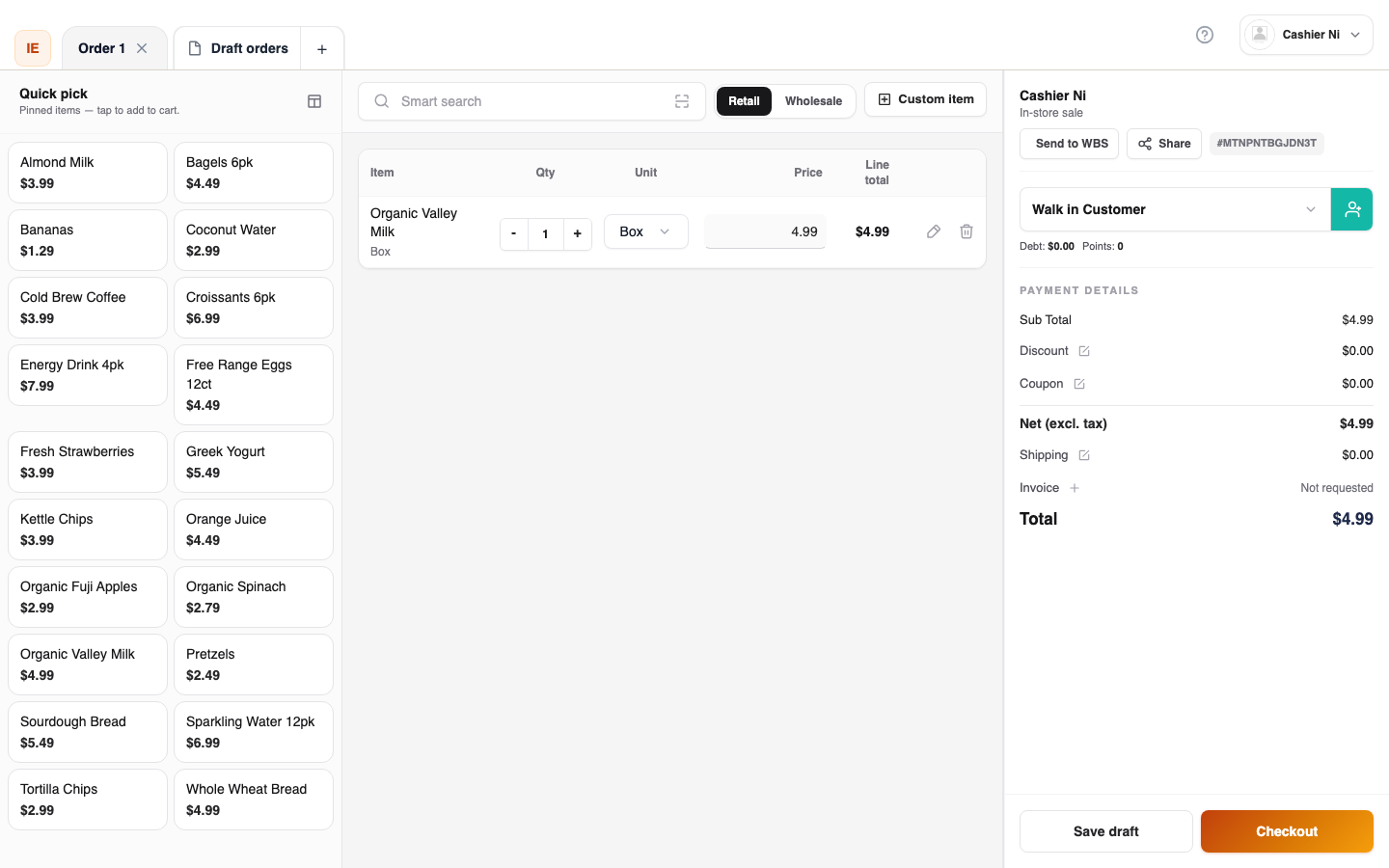
If you spend your shift on a single lane, both work the same. Pick whichever your store has set up — they share settings, hardware, and receipts.
For step-by-step cashier guidance, open the Cashier help center.
What you need before selling
Section titled “What you need before selling”- Store selected — the active store comes from the top-bar selector (POS workspace) or your login pin (classic POS).
- Lane / register — if your store has more than one lane, pick one before placing orders. Otherwise the lane banner will block checkout.
- Open work shift — drawer counts at the start, cash handover at the end. See Work shifts.
- Card terminal paired (if accepting cards) — set up under Notifications, help & settings → Devices.
What you can do
Section titled “What you can do”- Add items by category browse, search, or barcode scan (USB wedge keyboard or camera).
- Apply discounts / coupons before payment.
- Attach an optional customer (CRM profile or loyalty lookup).
- Add a custom line (ad-hoc item) for non-catalog products.
- Take cash, card, mixed, or record on account (debt) for a known customer.
- Print or preview the receipt.
- Save as a draft to come back later (POS workspace tab).
After checkout
Section titled “After checkout”- Orders appear immediately in Orders on the dashboard.
- The receipt can be reprinted from Orders → order detail → Receipt.
- Returns and refunds go through Order detail → Request return — see Orders.
- Card-pending orders poll until the terminal confirms or rejects — don’t close the tab until you see a confirmation.
Common questions
Section titled “Common questions”Cashier can’t open the sale screen. They probably don’t have the order or pos write permission. Ask your owner to grant it via Roles.
Order shows “Awaiting card confirmation.” The terminal hasn’t replied yet — wait or refresh. If the customer walked away, cancel payment and start over.
Customer wants to pay later. Attach them in the cart and pick Khách nợ (debt) — only works for a non-guest customer. See Customers.
Barcode scan does nothing. Make sure the cursor is not in a text field, or use the camera scan button in the cart toolbar.
Draft sale disappeared. Drafts save per store and per device. They don’t sync across devices unless the workspace “Draft orders” panel is enabled (server-stored drafts).
Related
Section titled “Related”- Cashier help center — full cashier step-by-step.
- Work shifts — open and close your drawer.
- Orders — review and manage placed orders.