Catalog and products
Nội dung này hiện chưa có sẵn bằng ngôn ngữ của bạn.
What you’ll find here
Section titled “What you’ll find here”The Catalog area covers everything you sell — and how it’s organized.
- Products — the items themselves (price, stock, barcode, variants).
- Categories — groups for browsing and reporting.
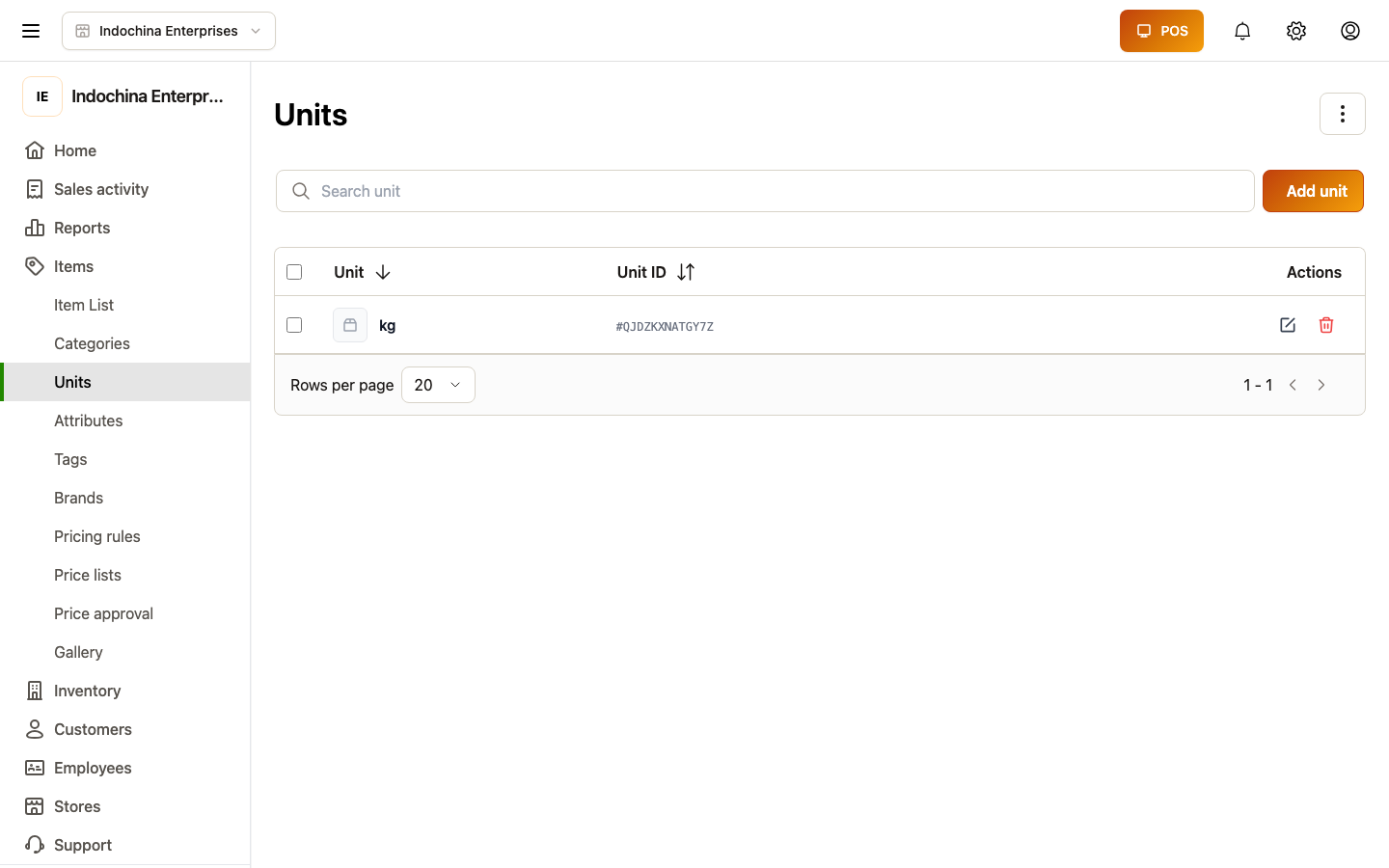
- Units — kg, pack of 24, each, etc.
- Attributes — color, size, material.
- Tags — labels (clearance, seasonal, featured).
- Suppliers — who you buy from.
Most stores only need Products + a small number of categories. The other lists are optional and grow with the catalog.
Product list — the main screen
Section titled “Product list — the main screen”Open Items → Products. You’ll see a paginated table with:
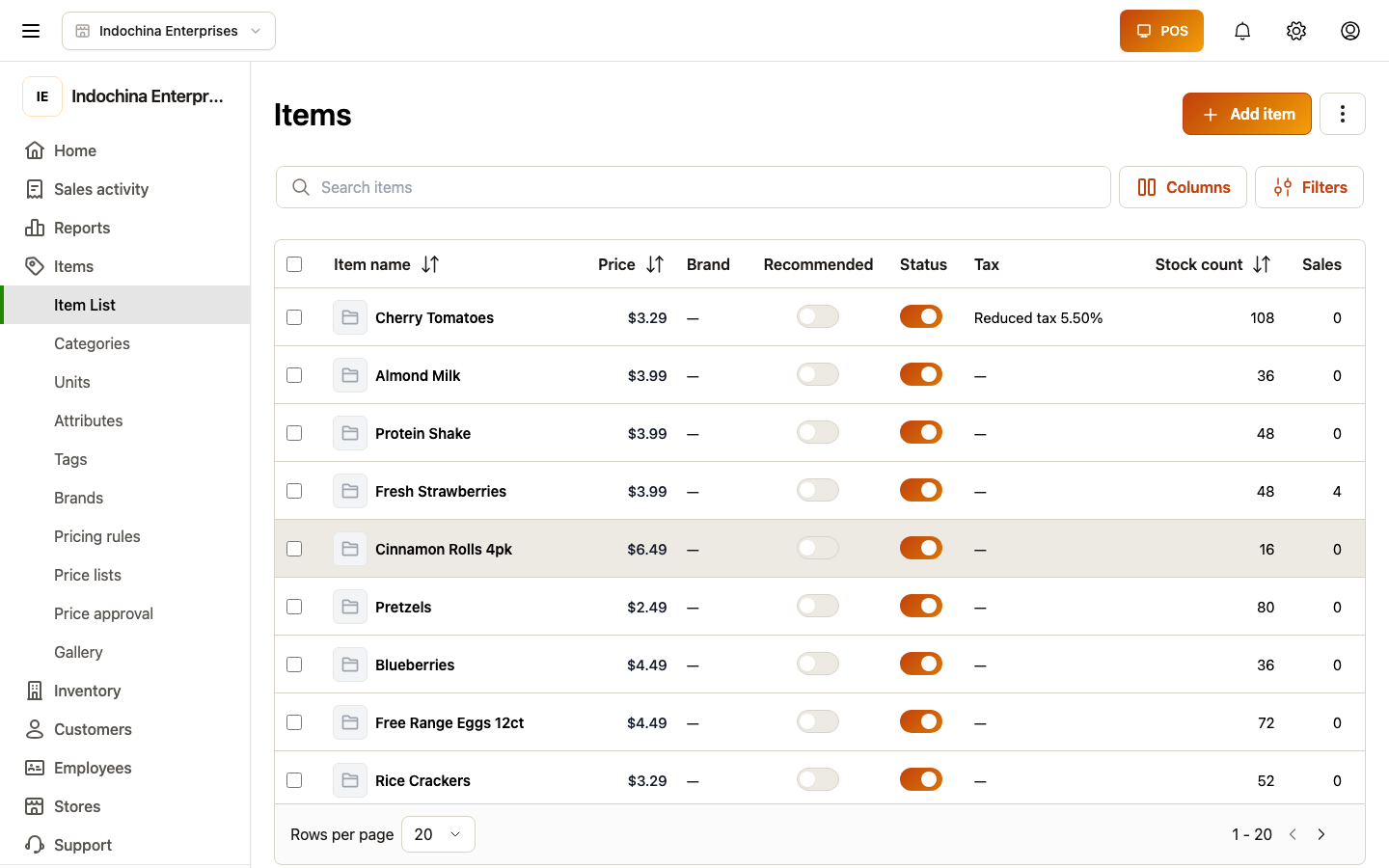
- Image, Name, SKU, Barcode.
- Category, Unit, Stock (current on-hand), Price.
At the top:
- Search — by name, SKU, or barcode.
- Filter — category, status (active / draft / archived), stock range, recommended.
- Bulk actions — toggle Active / Draft for many products at once. Up to 200 at a time.
- Sort — newest, cheapest, low stock first, etc.
Click any row to open the product detail screen with all tabs.
Create a product
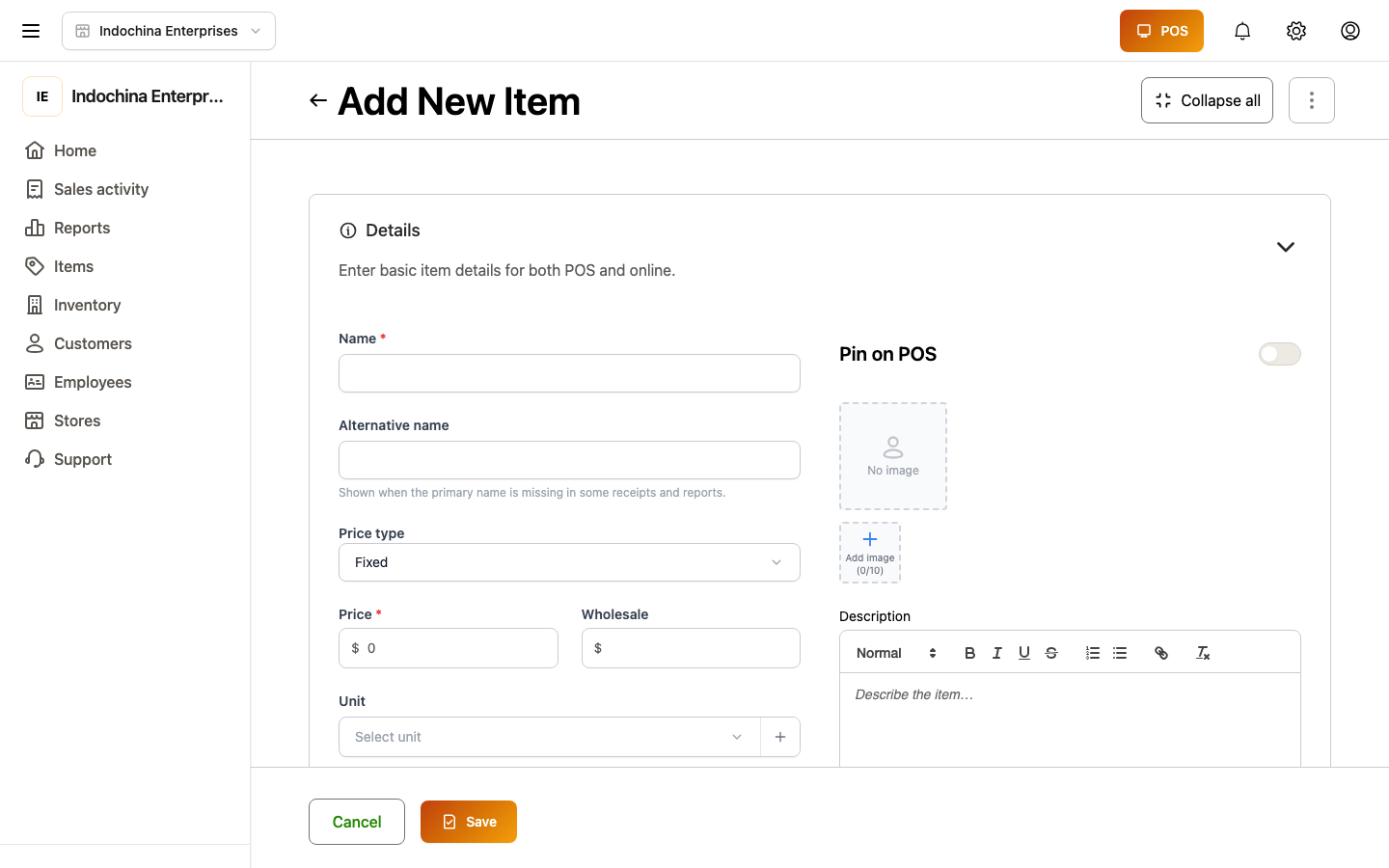
Section titled “Create a product”Click + New product. The most important fields:
| Field | What to enter |
|---|---|
| Name | Shown to staff and customers. |
| Category | One of your active categories (helps with reports). |
| Unit | Default sales unit (each, kg, pack of 6). |
| SKU | Your internal SKU (optional but recommended). |
| Barcode | EAN-13 / Code128 — what scanners read. |
| Retail price | Default sell price. |
| Wholesale price (optional) | Wholesale-channel price. |
| Stock | Starting on-hand qty (0 for services / not-tracked). |
| Tax | Pick a tax profile or leave blank. |
You can also add variations (size, color) — each variation gets its own price, SKU, and barcode.
Recommended / featured: the toggle on the product row makes it appear in Featured lists on POS.
Edit a product
Section titled “Edit a product”Open the product → Edit. Changes take effect immediately. Three history tabs on the detail screen help you track:
- Selling price history — every retail price change (who changed it, when, from what).
- Purchase cost history — what suppliers charged per lot (one row per delivered lot).
- Sold on orders — actual unit prices customers paid (paginated).
Categories, units, attributes, tags
Section titled “Categories, units, attributes, tags”These are small lists with Create / Rename / Delete. Deleting one that’s in use by a product blocks you from removing it.
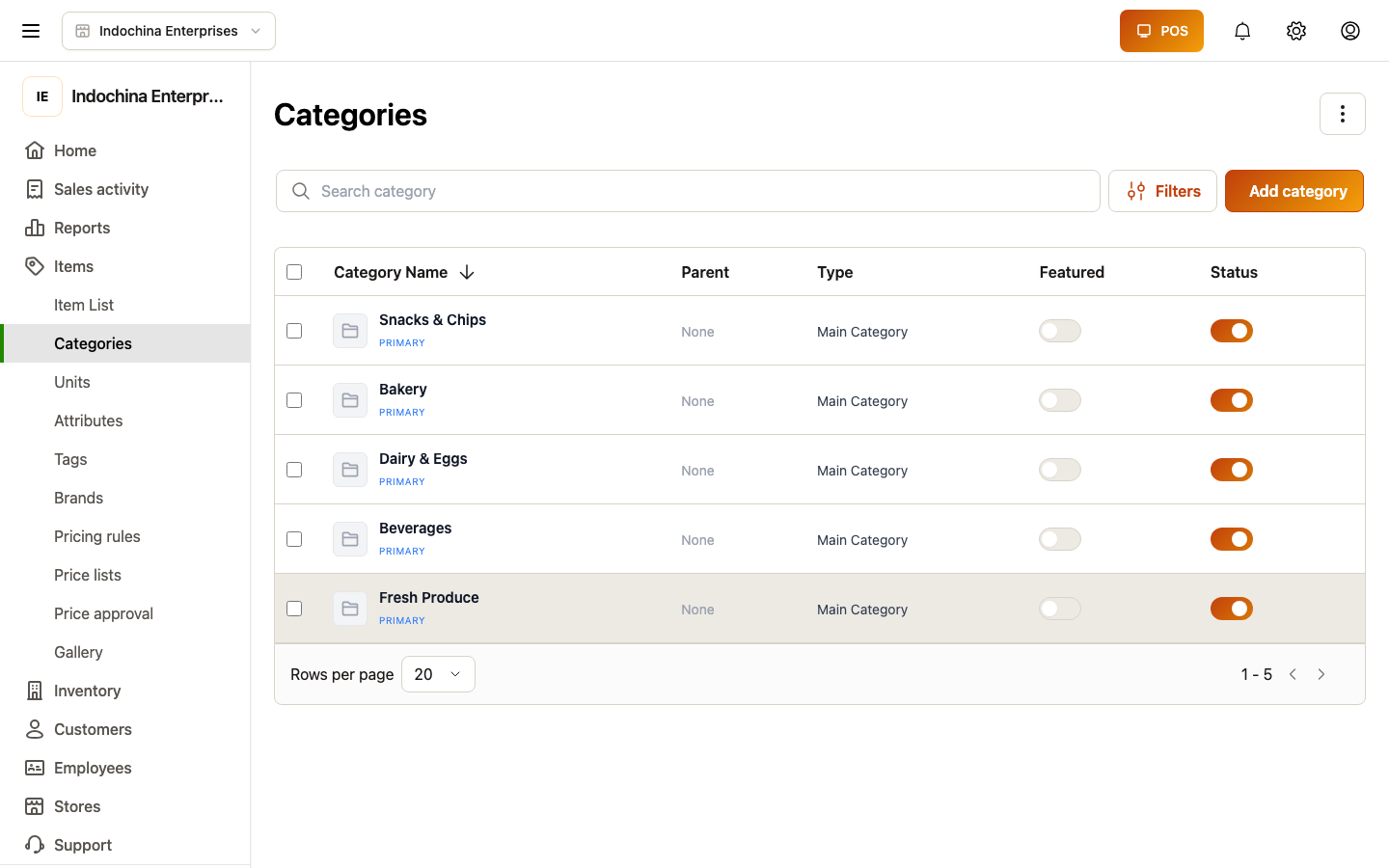
- Categories — like Beverage, Snacks. Used in reports.
- Units — kg, pack, each, hour. Each product picks one.
- Attributes — values customers pick (color: red, blue). Use them for variants.
- Tags — free labels for store filtering.
Suppliers
Section titled “Suppliers”A list of who you buy from. Add the supplier first, then link them to a purchase lot later (see Inventory).
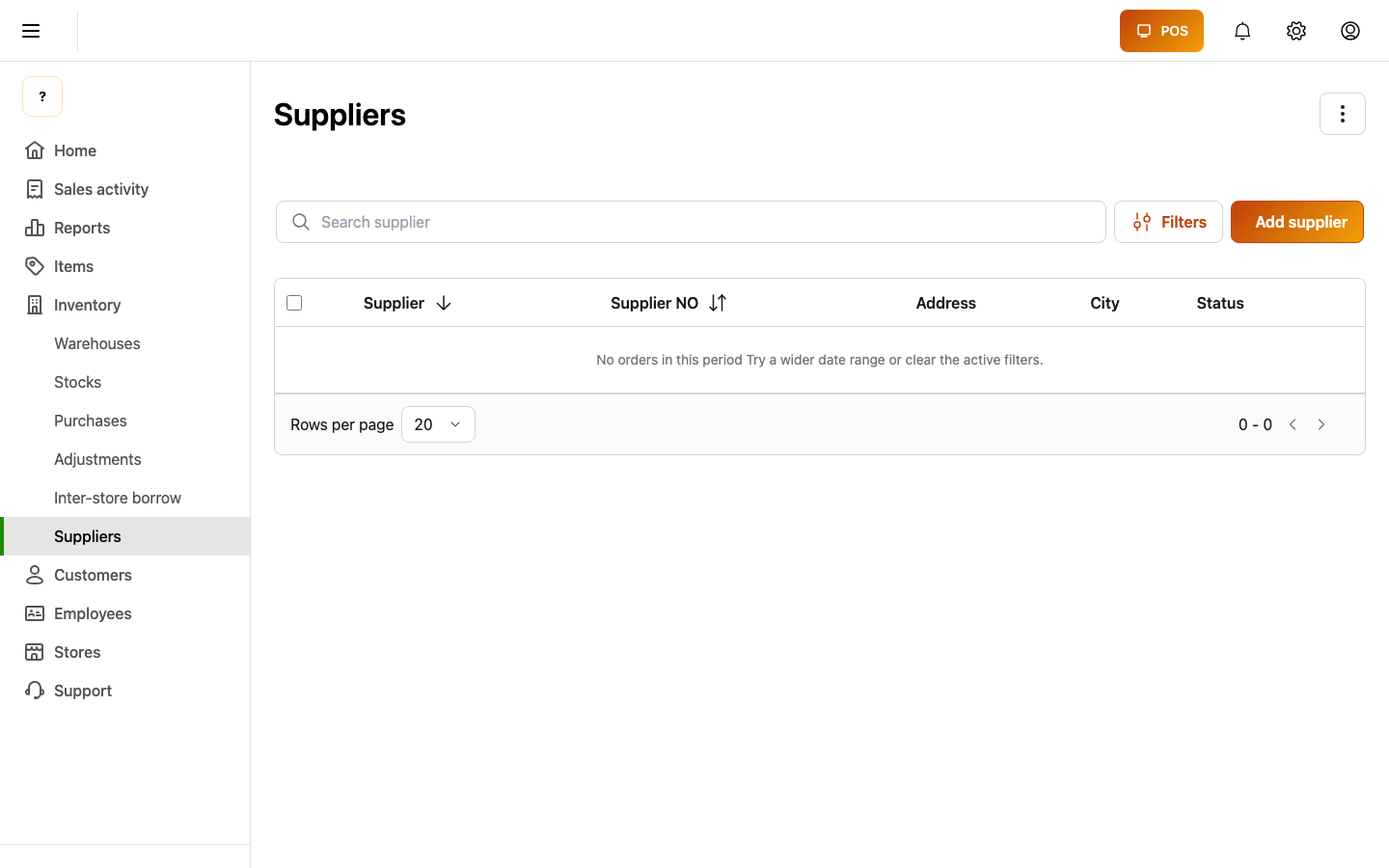
Supplier detail shows purchased lots and total spend.
Banners, gallery, taxes, smart import
Section titled “Banners, gallery, taxes, smart import”Catalog also includes extras most stores only need occasionally:
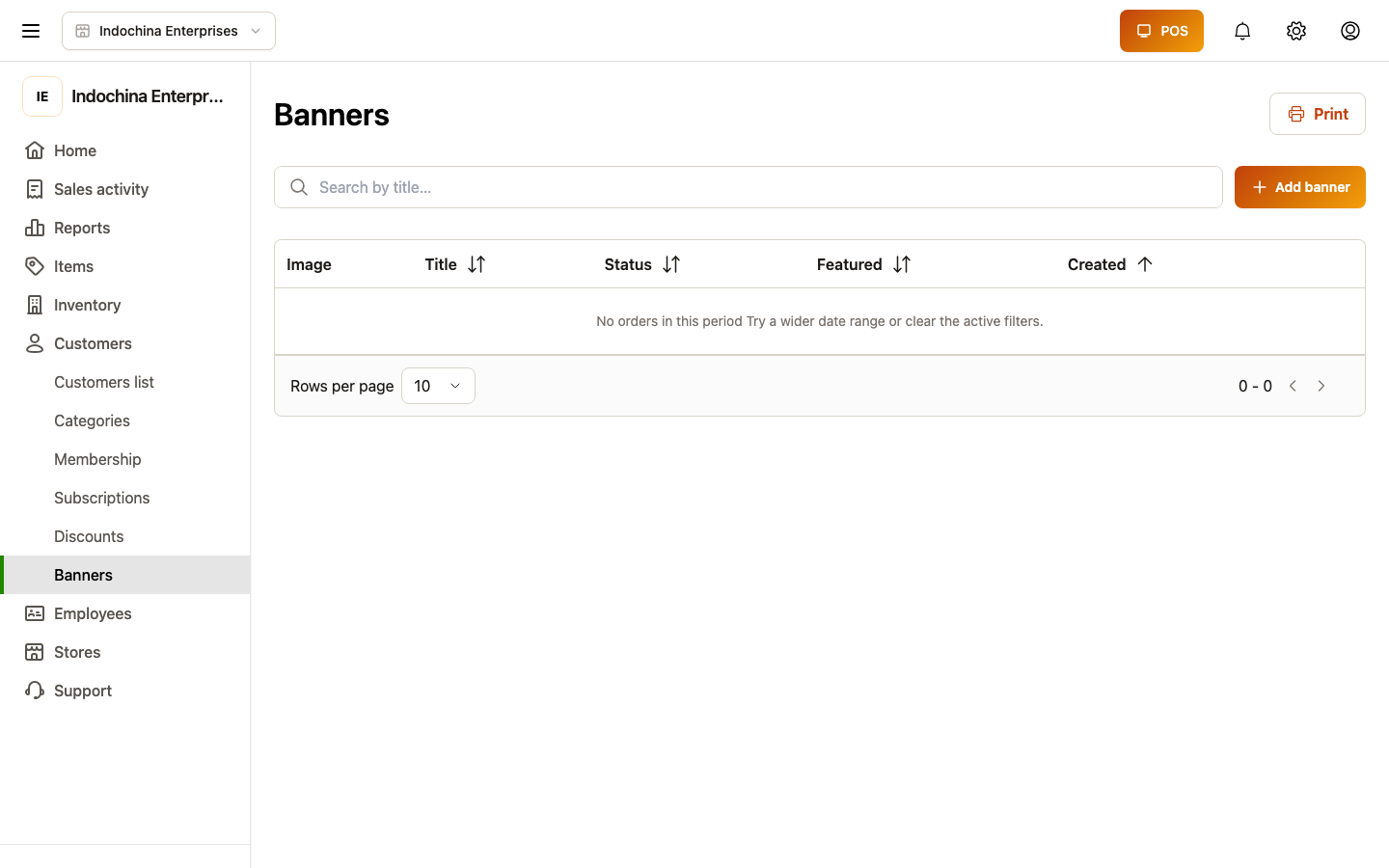
- Banners — promotional headers that appear on POS.
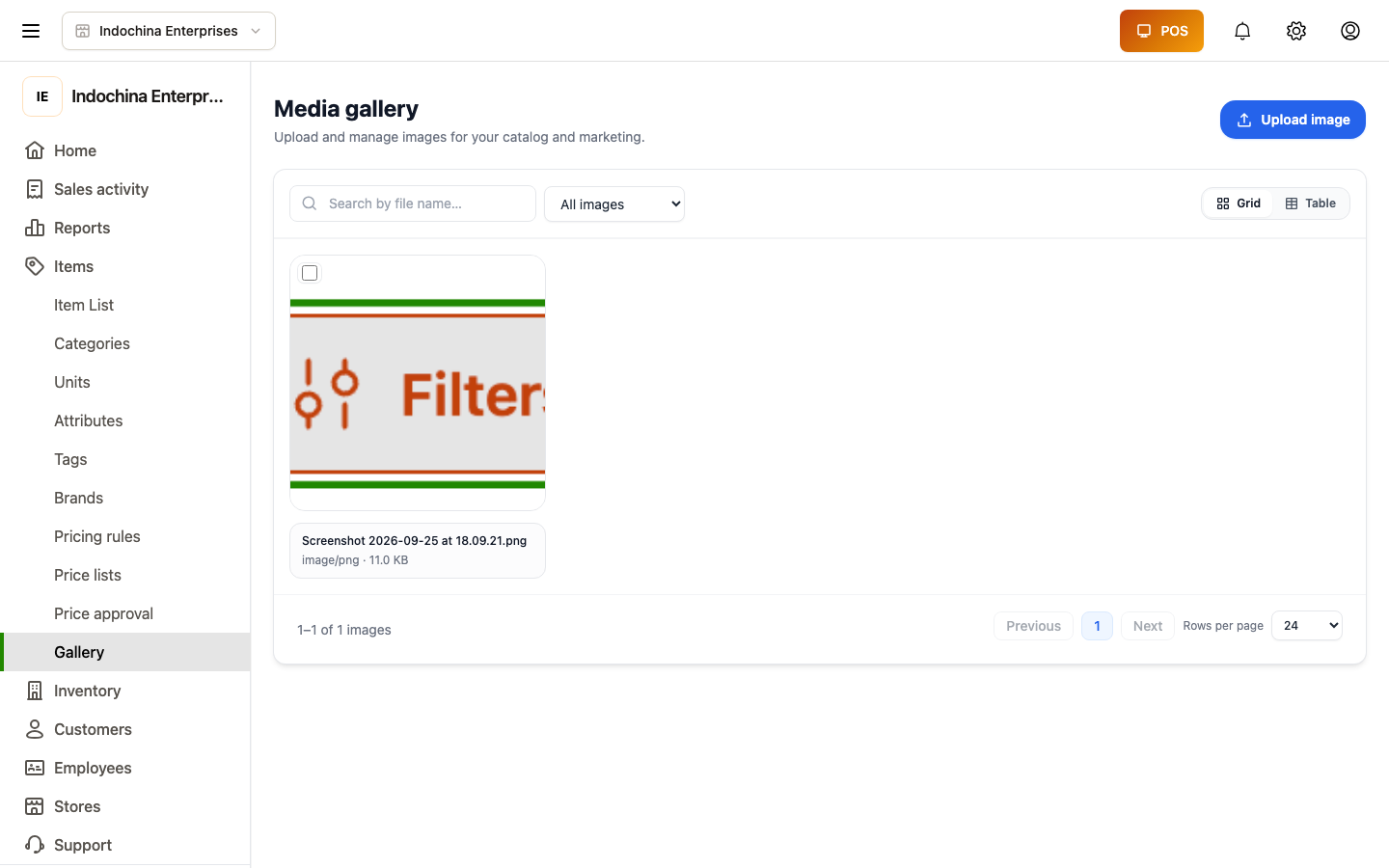
- Gallery — image library to attach to products.
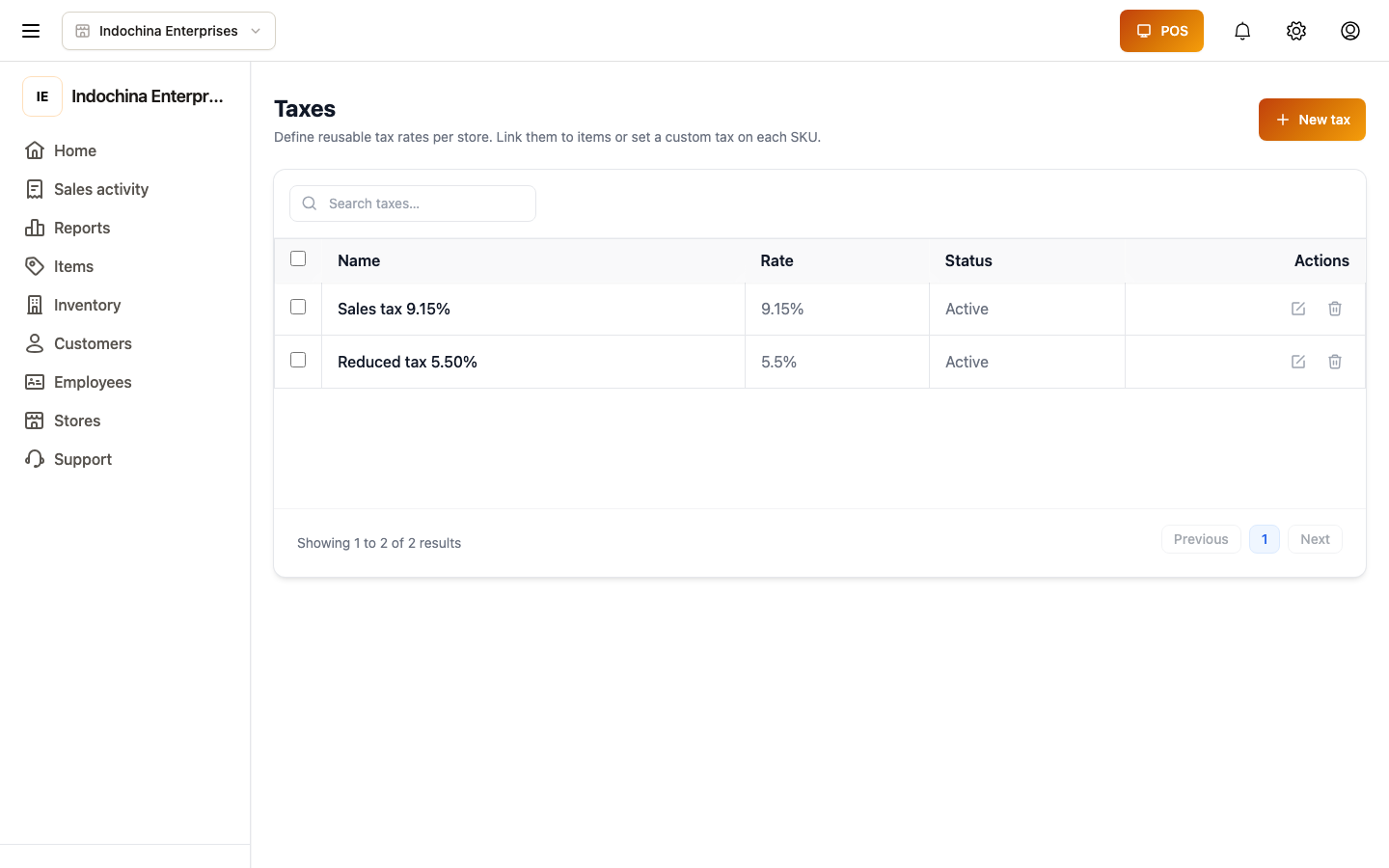
- Store taxes — tax profiles you assign to products.
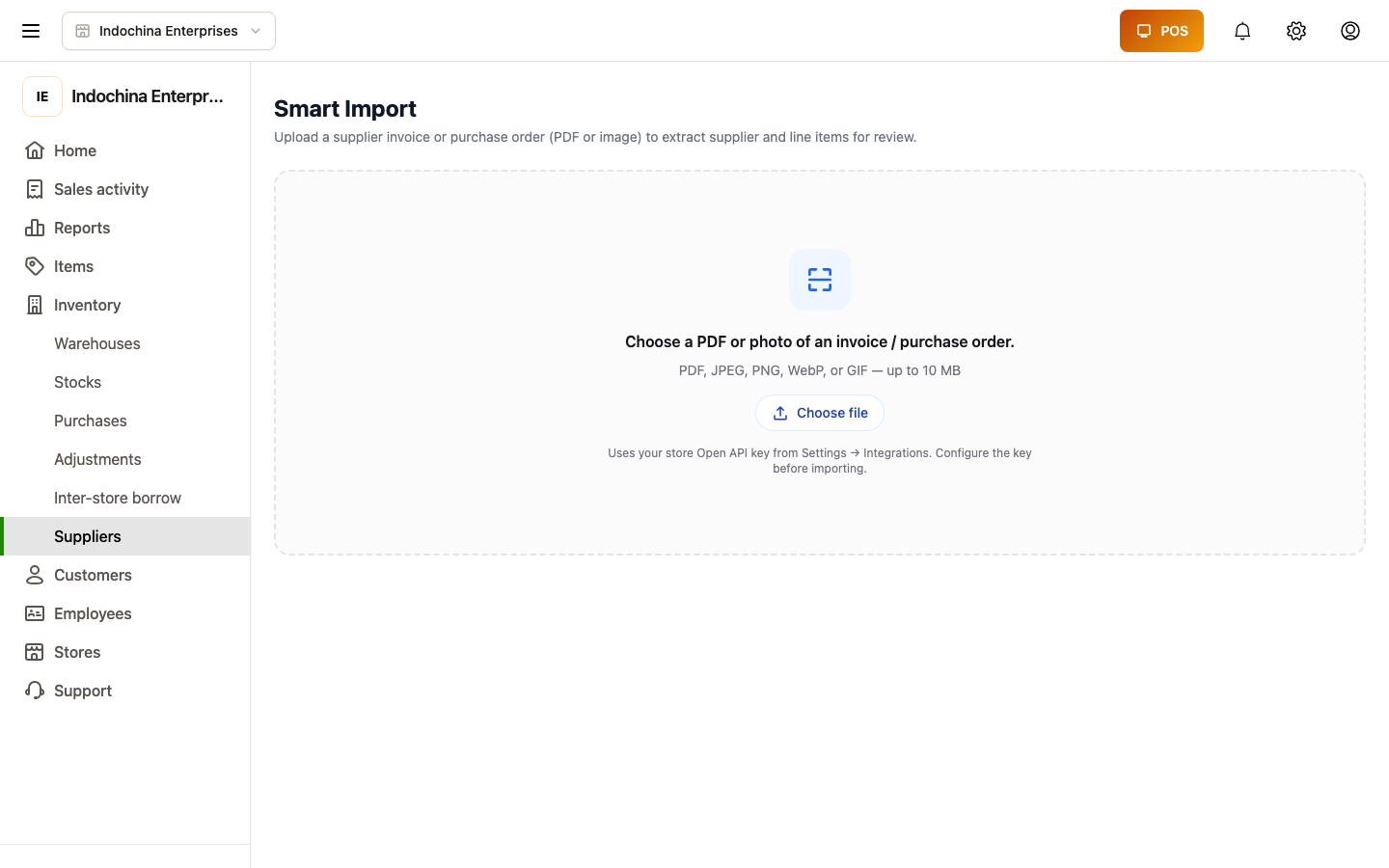
- Smart import — CSV / Excel import for bulk product create.
Price approvals
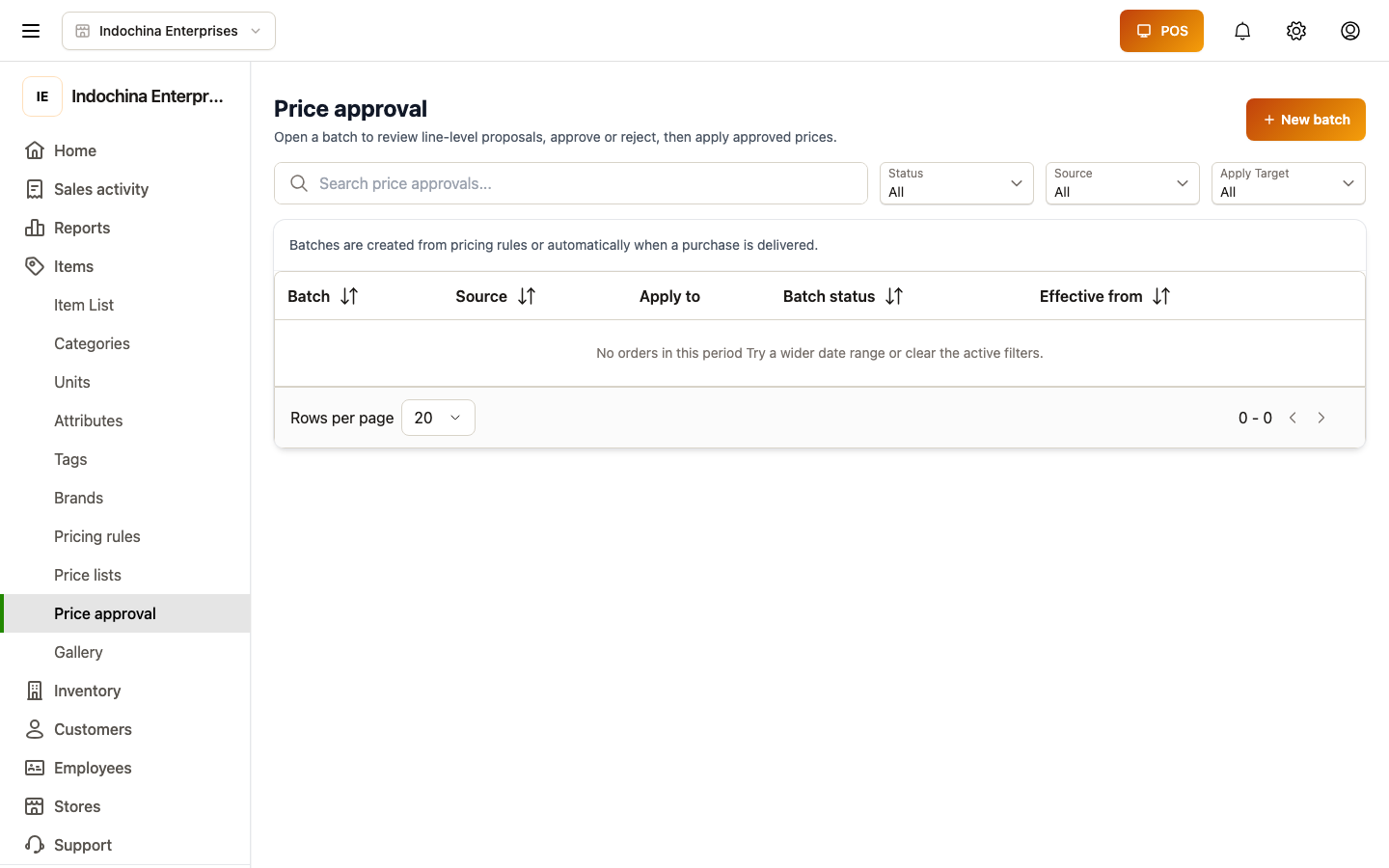
Section titled “Price approvals”When a product’s selling price changes, the change may need approval (per store policy). Pending proposals live here until an owner approves.
What about stock?
Section titled “What about stock?”Stock is not owned by products on this screen. It’s tracked per warehouse via Inventory → Stocks. The number on the product list is just an aggregated read cache.
If you change a product’s selling price, stock does not move. If you need to adjust stock, go to Inventory → Adjustments.
Common questions
Section titled “Common questions”Product not showing in POS. Check the product is Active (not Draft / Archived) and has a positive price and category. POS only shows active items.
Need to mass-update prices. Open the products list, filter, select multiple rows, and use the bulk actions toolbar — there’s a percentage / fixed price update tool.
Photo not visible in POS. Upload the image in Edit product → Images. Image dimensions around 600×600 work best.
Barcodes clash with another product. Open both products and edit the barcodes to be unique. The system will warn you when you save a duplicate.
Related
Section titled “Related”- Inventory — warehouses, lots, stock movements.
- Price lists — alternate price books.
- Inventory stock model — why stock numbers in this view are not the source of truth.