Orders
Nội dung này hiện chưa có sẵn bằng ngôn ngữ của bạn.
What you’ll find here
Section titled “What you’ll find here”The Orders area on the vendor dashboard covers everything after a customer sale — including manual orders you create on behalf of a customer (wholesale orders, delivery orders, phone orders).
- List — every order across stores, with filters and tabs.
- Detail — one order, its lines, payments, delivery details, and refund actions.
- Create — a manual order entry screen for retail and wholesale.
The same actions work whether the order was placed at the lane (POS) or typed in here.
List — finding an order
Section titled “List — finding an order”Open Sales activity → Orders. At the top:
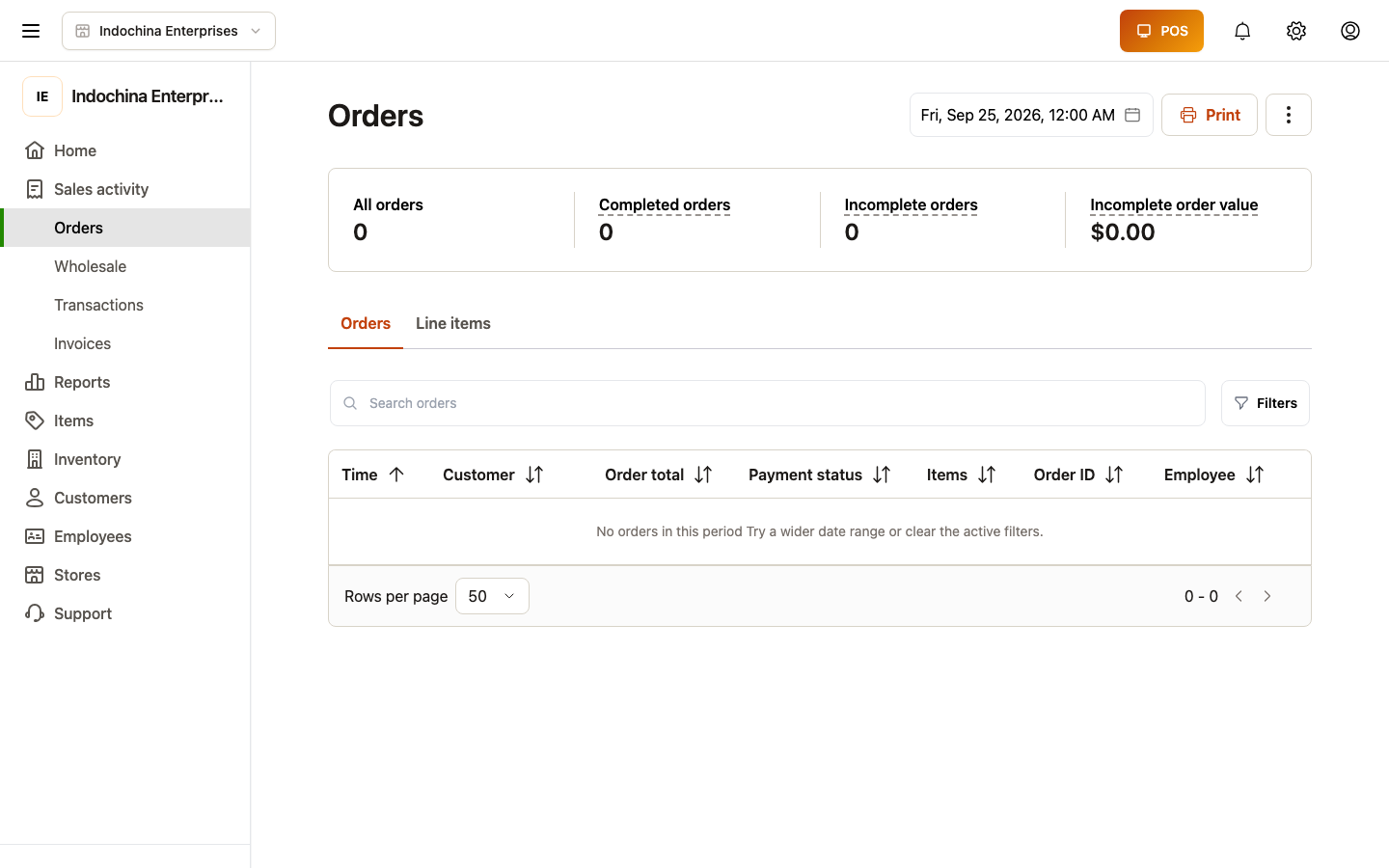
- Search — type an order id, customer name/phone/email, or scan a barcode with the camera icon (or a USB wedge scanner on most keyboards). Search matches order id, receipt barcode, and customer fields.
- Date range — Today, This week, This month, or custom Range (store timezone).
- Status tabs — All, Paid, Pending, Cancelled, Returns.
- Order type — Retail / POS, Wholesale, Delivery, etc.
- Sort — newest, oldest, or by amount.
Click any row to open the detail.
Detail — what’s on one order
Section titled “Detail — what’s on one order”The order detail screen shows:
- Header — order id, customer, status, created date, channel, store, cashier when applicable.
- Lines — items, qty, unit price, line total, taxes, discount, comments.
- Totals — subtotal, tax, discount, shipping, paid, balance / debt.
- Delivery — address, partner, COD, dispatch state when applicable.
- Activity log — who did what and when (status changes, refunds, finance actions).
- Payments — tender breakdown (cash / card / other), with a REF when card.
Refunds & returns
Section titled “Refunds & returns”There is one refund flow regardless of channel. From order detail, click Request return / refund, then choose which lines. You’ll:
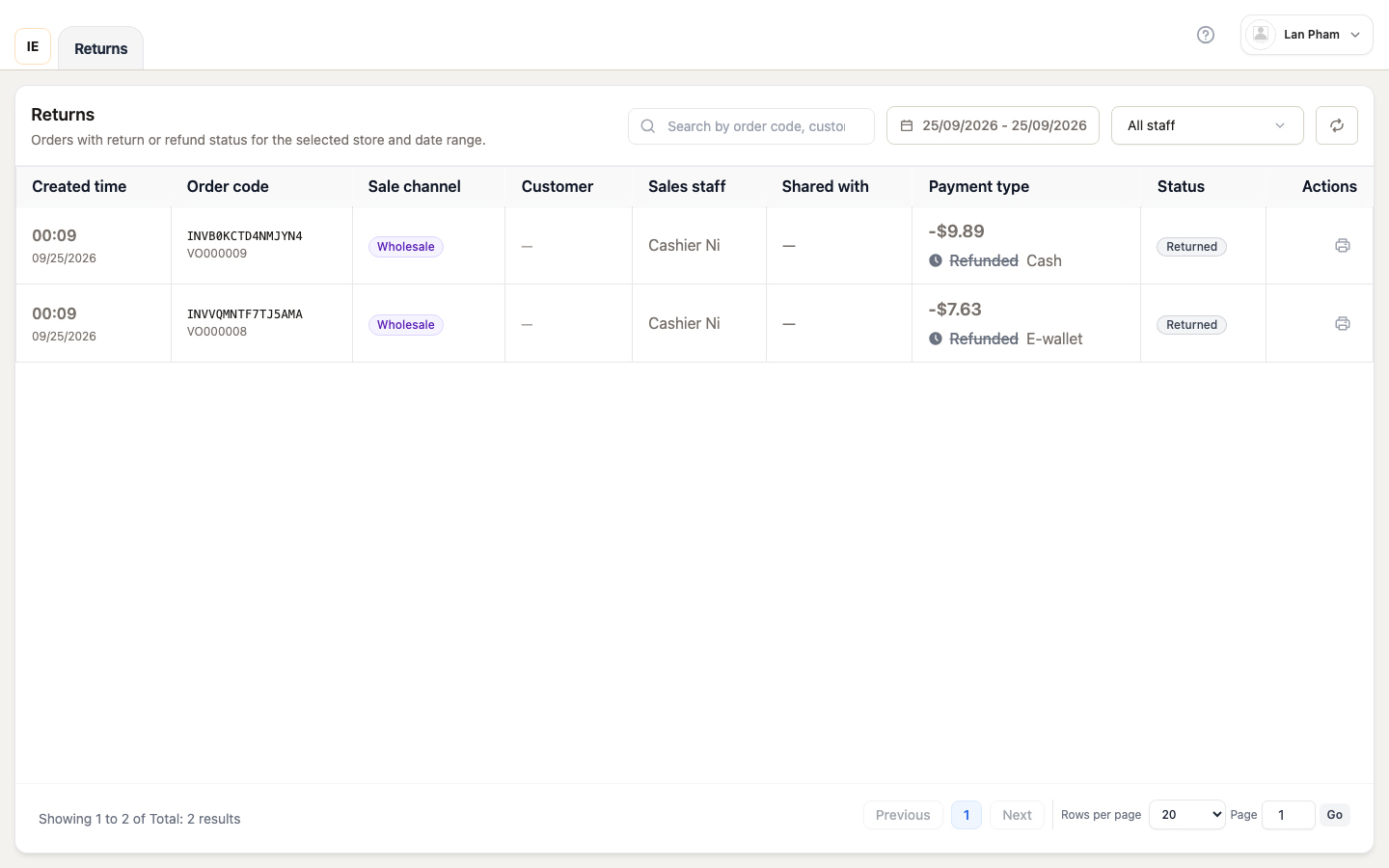
- Pick the lines to return (full or partial).
- Add a reason.
- Submit — order moves to Return requested.
- Someone with finance access approves or rejects the refund (Finance → Refunds, or in the same order detail).
- Once approved, refund settles, inventory is restocked to the store’s warehouse, and the order closes the return path.
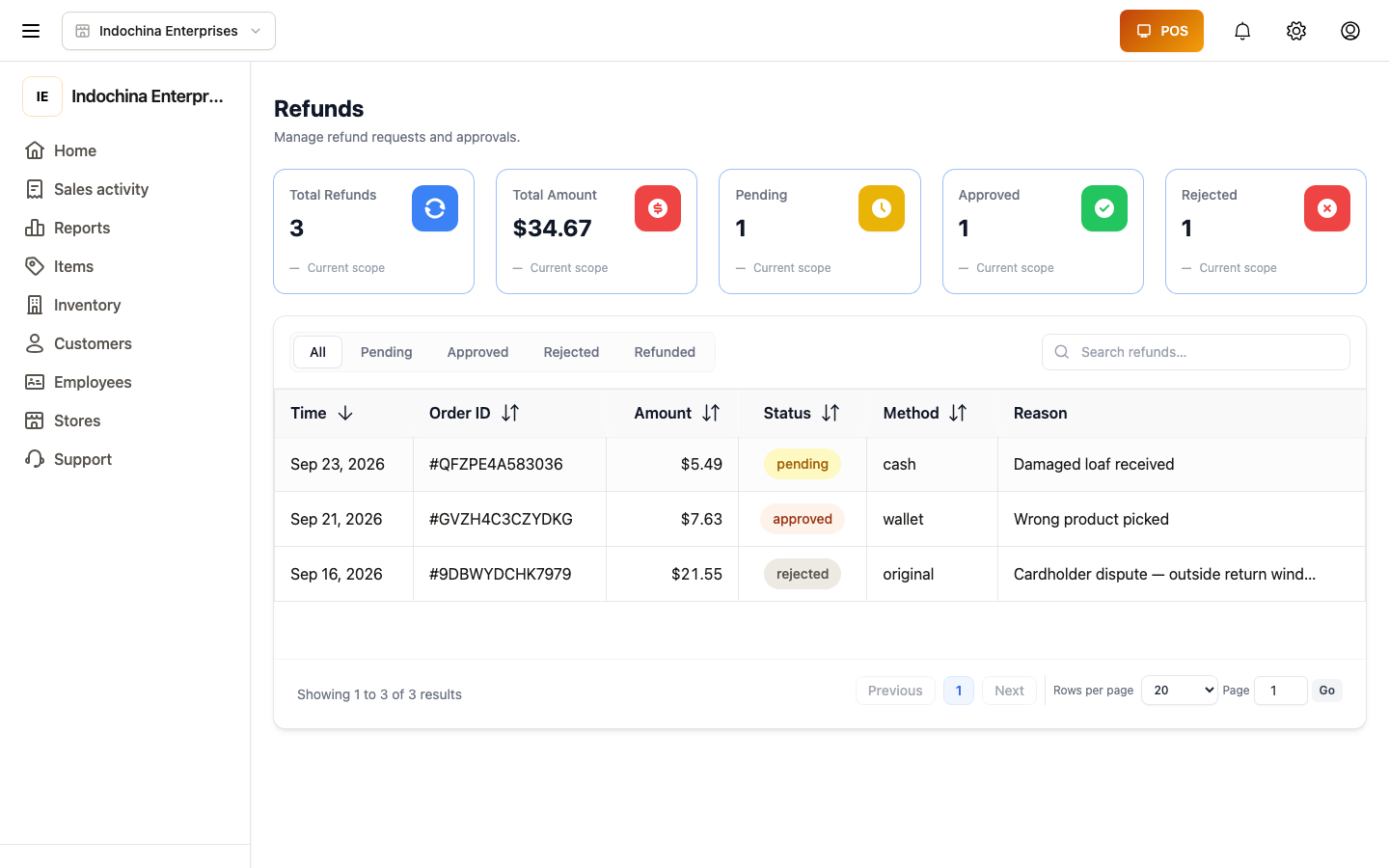
Refund settlement touches real money — only managers with the finance module should approve.
Deliveries
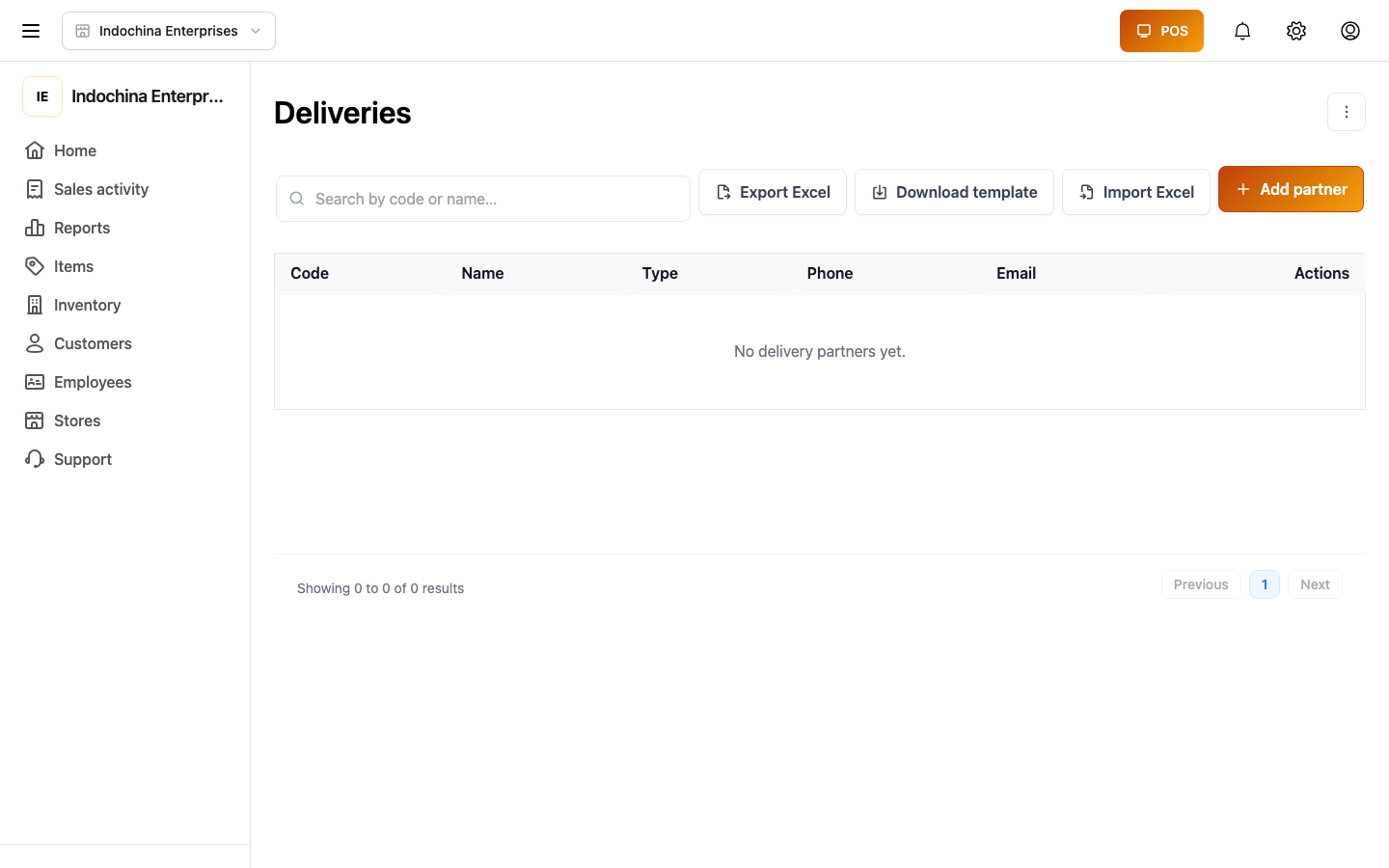
Section titled “Deliveries”For orders that need dispatch (delivery partners or self-delivery), use Sales activity → Deliveries.
Deliveries (outstanding)
Section titled “Deliveries (outstanding)”If you sell delivery orders, the Sales activity → Deliveries list groups orders awaiting dispatch. Click a row for details, contact info, and partner handoff.
Manual order — create from the dashboard
Section titled “Manual order — create from the dashboard”Sometimes orders arrive by phone, WhatsApp, or in person when the lane is busy. Click New order (top right of the list). The manual entry screen behaves like POS:
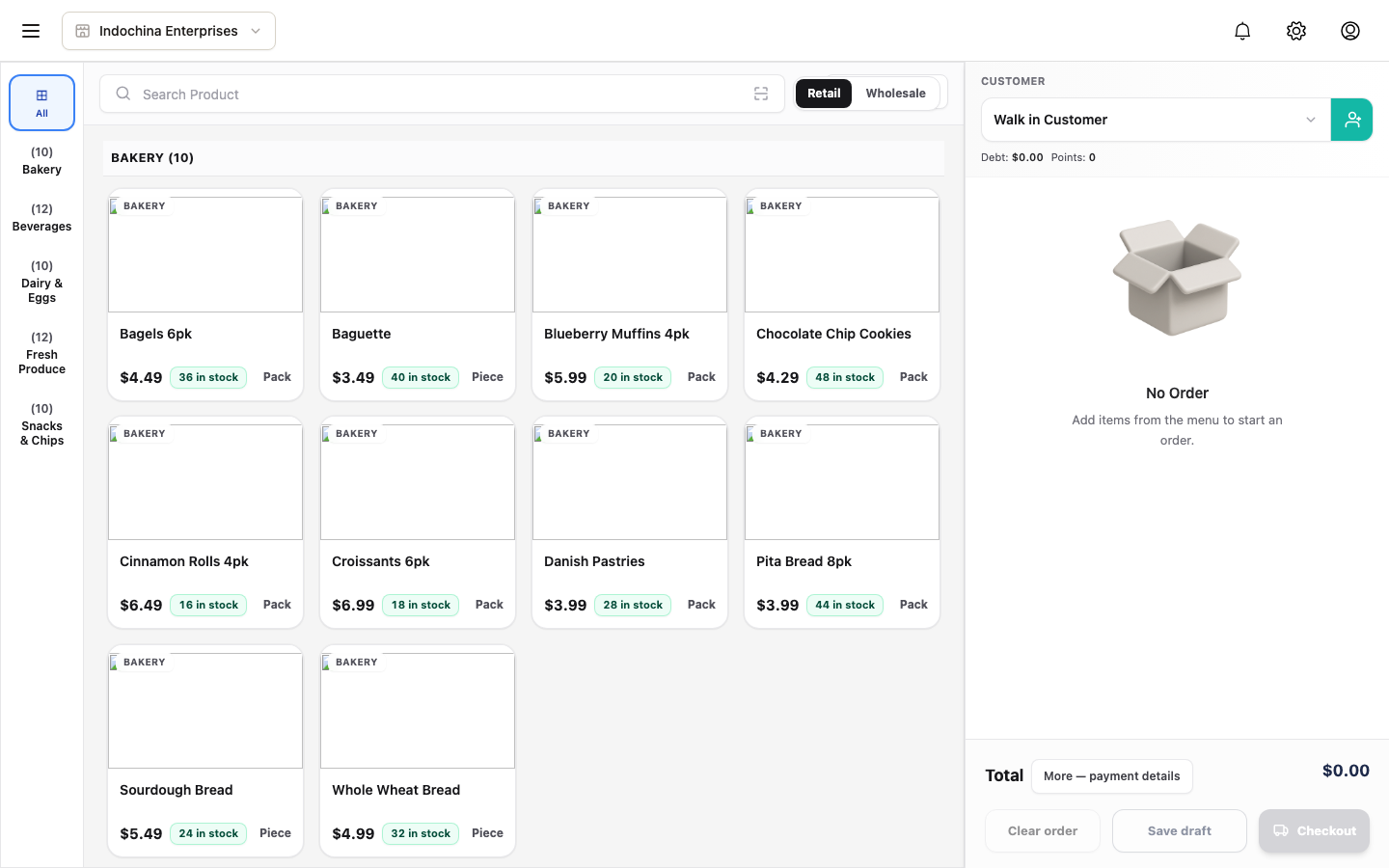
- Pick retail or wholesale.
- Add lines by search / scan.
- Choose customer.
- Apply discount / coupon.
- Pick fulfillment mode (pickup or delivery).
- Pick payment method: cash, card, debt (Khách nợ), or mixed.
- Save draft (open the order later) or Checkout (finalize now).
Wholesale orders let the buyer pay later based on the credit policy for that customer / category / store. The screen warns or blocks when debt would exceed limits — see Customers → Wholesale credit.
Common questions
Section titled “Common questions”I can’t find an order from a different store. Use the store filter at the top, or switch stores in the top bar.
Draft vs. submitted order? A draft is a hold — no inventory is allocated and no one is notified. Submitted orders start the fulfillment flow and may trigger customer / delivery notifications.
Approved a refund by mistake? Re-open the refund row from Finance → Refunds and reject it before settlement completes. Once status is refunded, the only way to fix it is a new sale.
Order shows the wrong totals. Open the detail and check the Activity log for the latest price / discount change. Use Stock → Inventory adjustments to investigate inventory side-effects.
Related
Section titled “Related”- Sales, POS & receivables procedures — end-to-end cashier playbook.
- Cashier help center — cashier-side sale workflow.
- Customers — wholesale credit policy and debt limits.
- Finance — refunds, receivables, settlement.