Employees and stores
Nội dung này hiện chưa có sẵn bằng ngôn ngữ của bạn.
What you’ll find here
Section titled “What you’ll find here”- Stores — your physical locations.
- Employees — staff accounts (cashiers, sales staff, managers).
- Roles — what each employee can do.
| Area | Who can edit |
|---|---|
| Stores | Owners; staff with store module at write level. |
| Employees | Owners; staff with employee module at manager level. |
| Roles | Owners only. |
Stores
Section titled “Stores”Open Stores. Each row is a store with name, address, currency, time zone, and config flags.
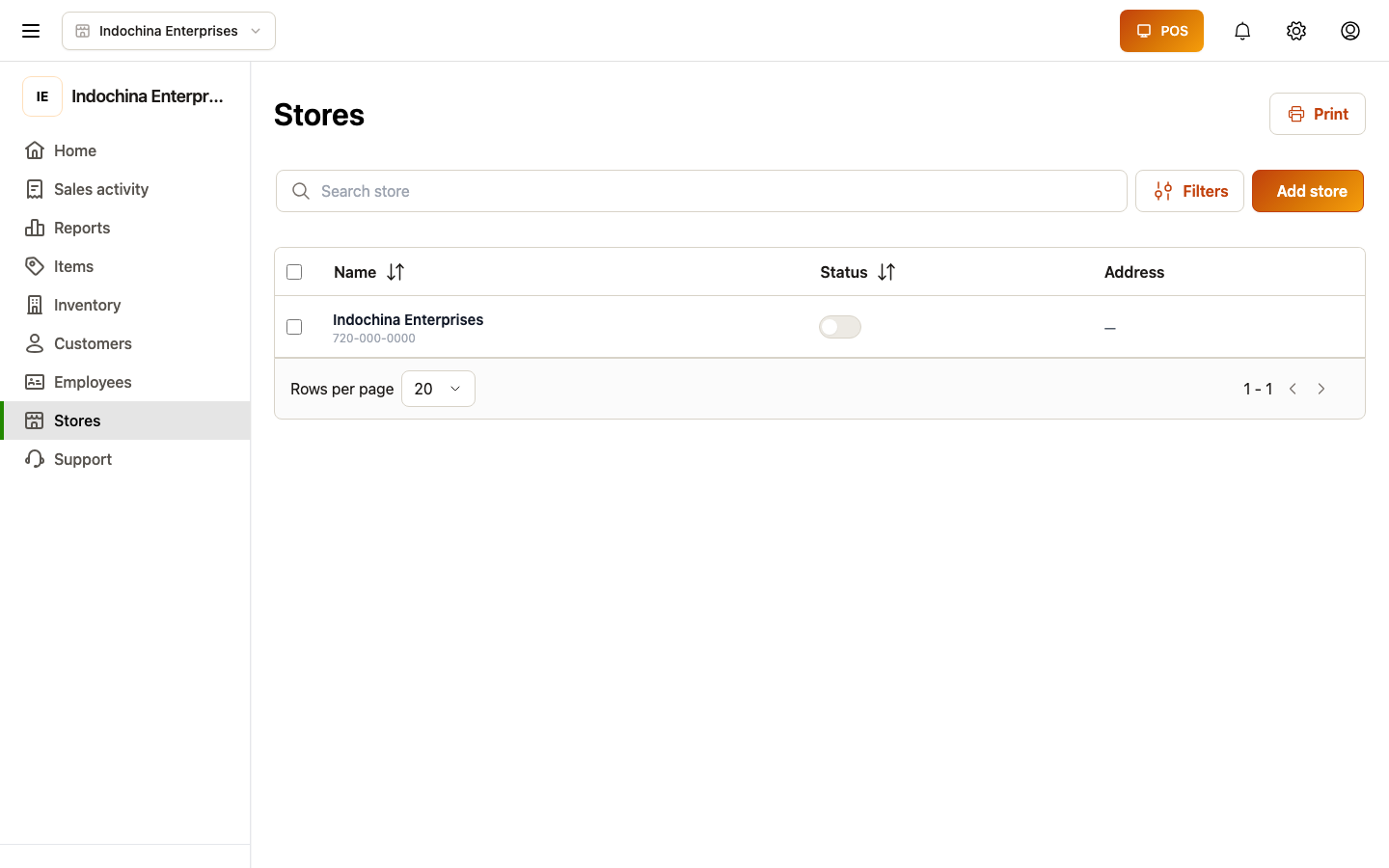
Create a store
Section titled “Create a store”- + New store — name, address, phone.
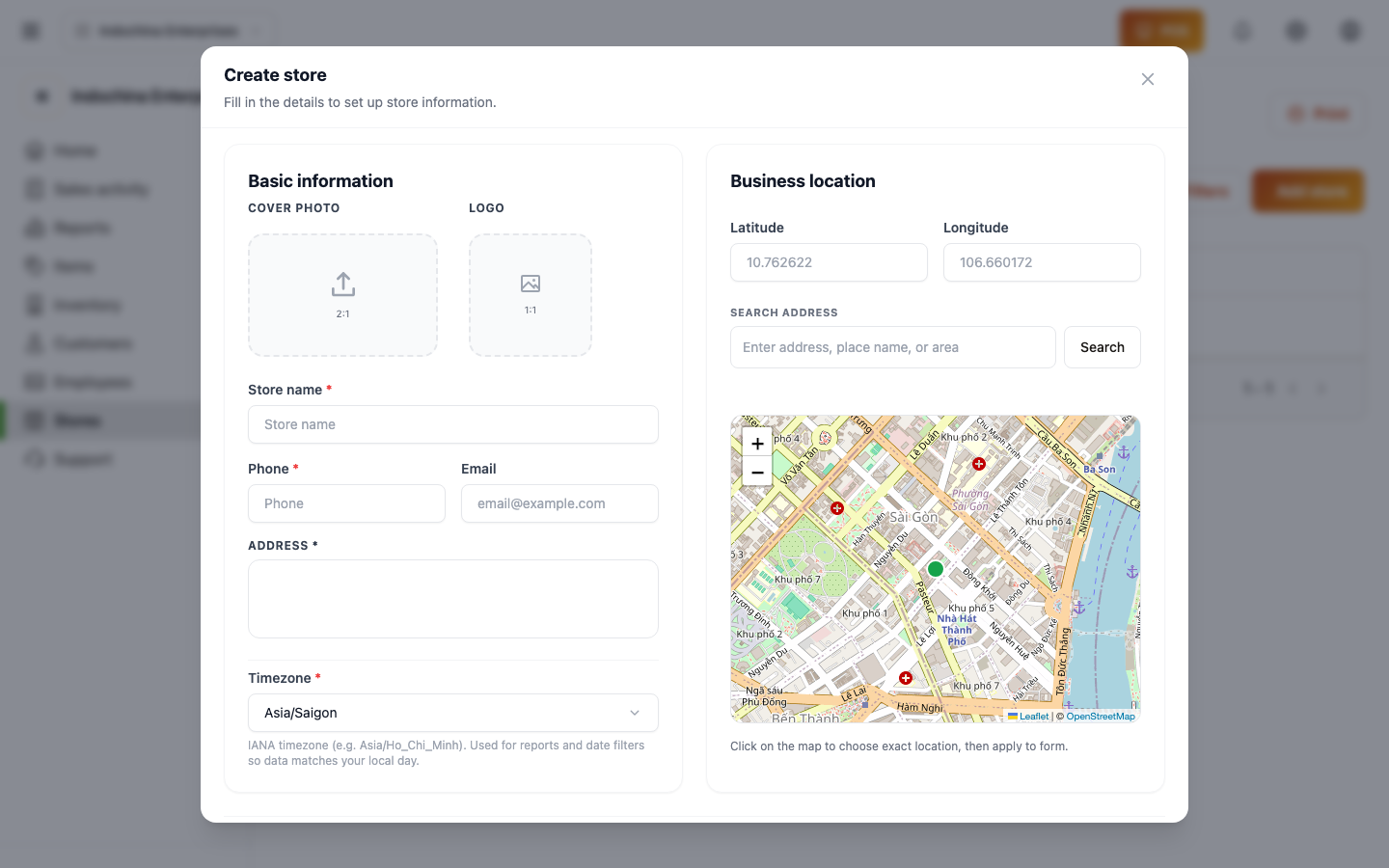 2. Pick a currency and time zone — they affect finance reports and order timestamps.
3. Save. New stores get a default warehouse automatically.
2. Pick a currency and time zone — they affect finance reports and order timestamps.
3. Save. New stores get a default warehouse automatically.
Edit a store
Section titled “Edit a store”Click a store row → Edit. Common things to update:
- Address / phone — appear on receipts.
- Currency / time zone — be careful — changing these affects reports going forward, not historical dates.
- Configuration — opens the four inner tabs (General, Ops & sale, Documents, POS). These control behavior across the app — for a full audit see Store configuration settings checklist.
Pin an employee to one store
Section titled “Pin an employee to one store”From the employee profile, set Fixed store. That employee will see only this store in the top bar.
Employees
Section titled “Employees”Open Employees. The list shows everyone at your store, their role, and status.
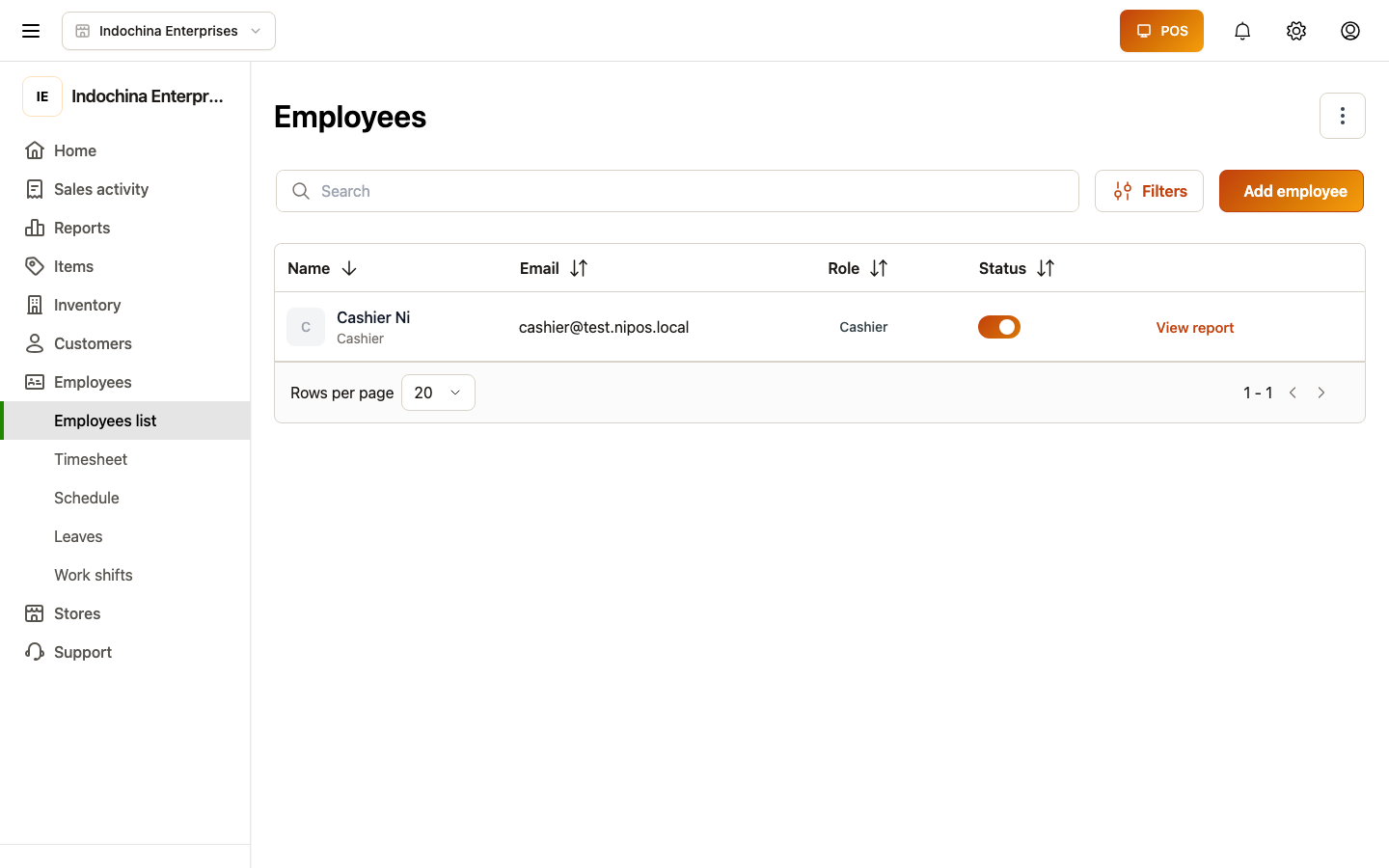
Add a new employee
Section titled “Add a new employee”- + New employee — name, email, phone.
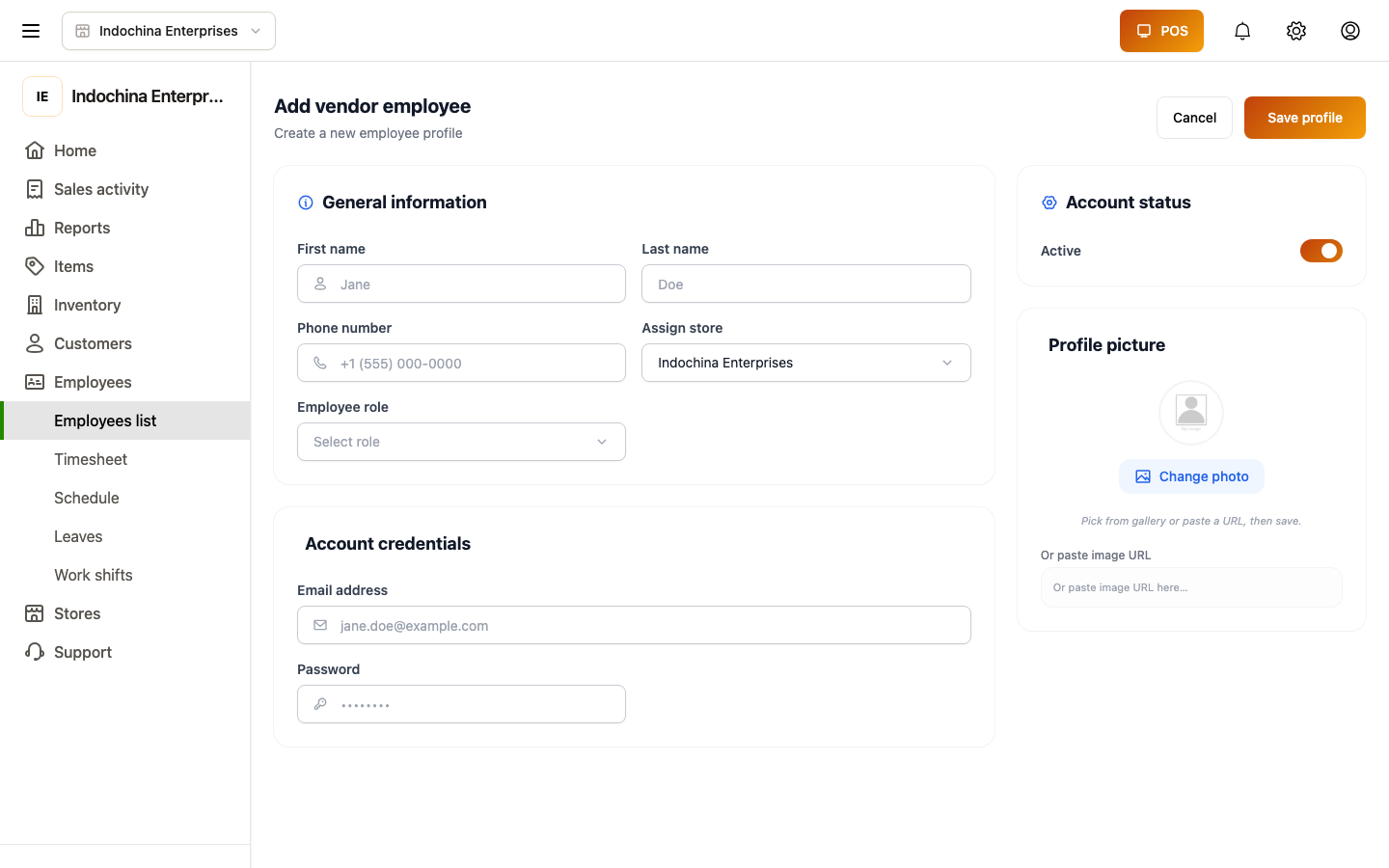 2. Pick a store (the home store if they work at multiple, otherwise their fixed store).
3. Pick a role preset — Admin, Manager, Employee, or Cashier. Each preset has standard permissions you can tune later.
4. Save.
2. Pick a store (the home store if they work at multiple, otherwise their fixed store).
3. Pick a role preset — Admin, Manager, Employee, or Cashier. Each preset has standard permissions you can tune later.
4. Save.
The system emails them a temp password (or your owner-defined invite link). They sign in and change it.
Adjust an employee’s role
Section titled “Adjust an employee’s role”Click the employee → Edit role. You can:
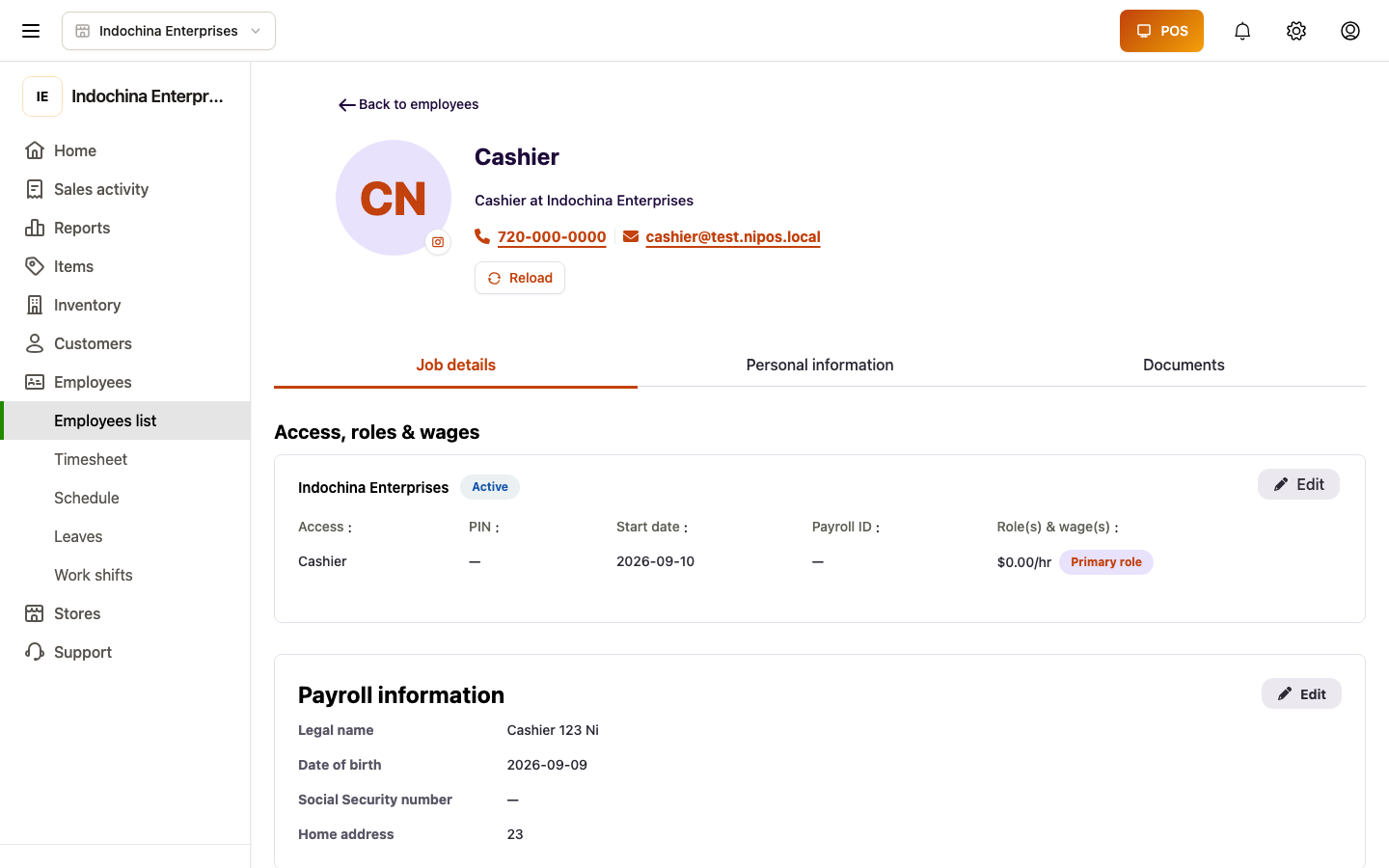
- Switch to another preset.
- Or pick a custom role (created under Roles) — useful when an employee needs exactly Inventory read + Orders write but nothing else.
Removing modules takes effect on their next page load / token refresh.
Block an employee
Section titled “Block an employee”To revoke access without deleting history:
- Open profile → Block → confirm.
They can no longer sign in. Their historical activity remains visible.
My profile (Personal information)
Section titled “My profile (Personal information)”Open My profile from the account menu. The page renders the same 1:1 layout as the employee detail screen with three tabs:
- Job details — read-only for owners (you cannot self-edit your own role / wage / start date / PIN).
- Personal information — editable Contact information (name, personal email, mobile, emergency contact) and Security (custom ID + password change) cards.
- Documents — upload / delete onboarding docs.
Why “Save” no longer 404s for owner accounts
Section titled “Why “Save” no longer 404s for owner accounts”Before this fix, the Personal information and Payroll cards posted to
PATCH /api/v1/vendor/vendor-employees/{id} where {id} was the
vendor id returned by GET /api/v1/vendor/vendor-employees/me/employee-detail.
Owners are stored in the vendors table — not in vendor_employees — so
that PATCH would return 404 Vendor employee not found.
The Profile page now posts to the dedicated self-update endpoint:
PATCH /api/v1/vendor/vendor-employees/me/employee-detail- Employees — writes the same editable fields to their own
vendor_employeesrow. - Owners — writes the owner-side columns (
f_name,l_name,phone,email,image) directly to thevendorsrow. Detail-only fields (payroll address, emergency contact, wage / schedule toggles, PIN) are ignored because they have no equivalent column onvendors.
For owners, password change is still routed through the dedicated Change password flow under the account menu — the Security card on the Profile page renders read-only because the password endpoint validates against the vendor_employees row.
Managers (owners only)
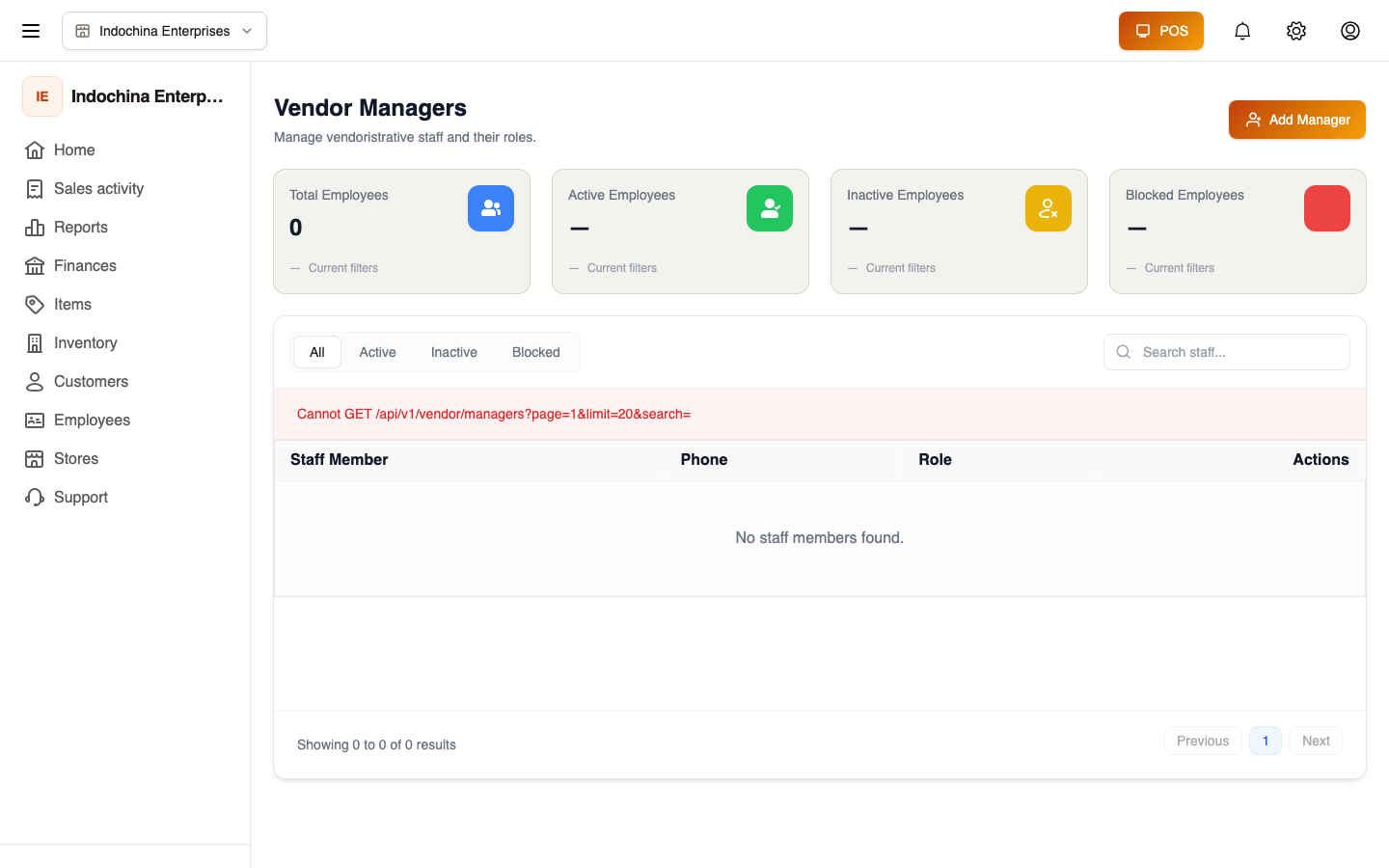
Section titled “Managers (owners only)”Managers are owners who can step in for another store in your vendor group. Owners add / remove managers from this list.
Roles (owners only)
Section titled “Roles (owners only)”Open Roles. Built-in presets come with every store:
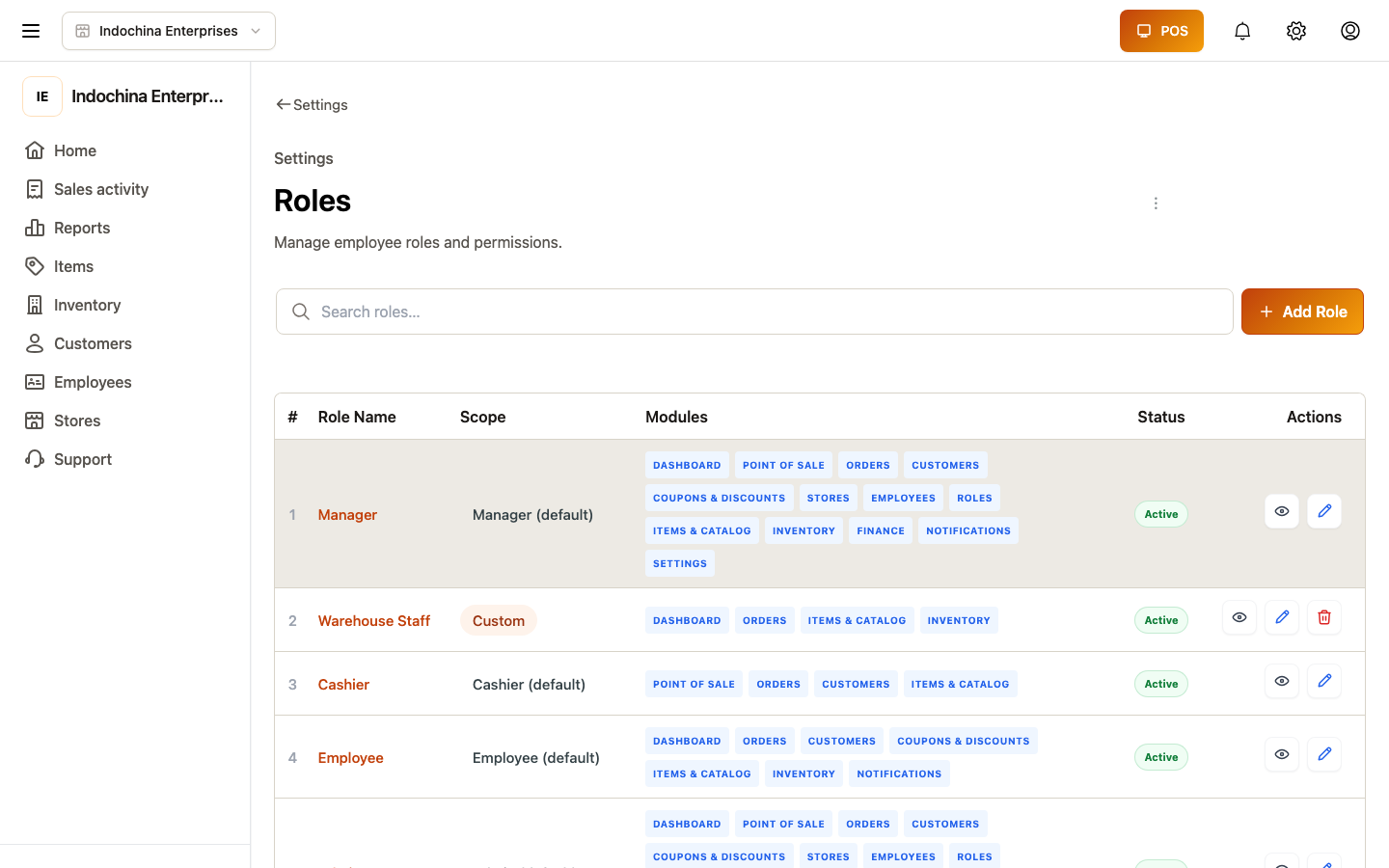
- Admin — full access, except role-management side.
- Manager — operations, inventory, employees, finance.
- Employee — POS, orders, basic inventory.
- Cashier — POS / lane only.
You can also create a custom role with exactly the modules + levels you want.
Create a custom role
Section titled “Create a custom role”- + New role — name, store, optional description.
- For each module, pick the level:
- None — no access.
- Read — view only.
- Write — create / edit.
- Manager — full CRUD including delete + role assignment.
- Save.
Assign this role from an employee profile.
Default level for read lets them see the screen but not edit. Write is needed to create orders, edit products, etc. Manager is required for delete and most staff-management tasks.
Common questions
Section titled “Common questions”An employee can’t see Orders / POS. Their role doesn’t have the order module. Add it (owner) or ask your owner to do so.
“Roles” link is missing for a manager. Only owners see it. Use Employees to manage staff.
Employee sees the wrong store. Their Fixed store is set. Clear it (owner) if they need to switch stores via the top bar.
Bulk update staff. Currently one at a time — open each profile, edit role, save. For a new hire surge, your owner can copy-paste from a CSV (managed elsewhere; ask support).
Related
Section titled “Related”- Sign-in & account — what your login unlocks.
- Roles — module levels and presets in detail.
- POS / Checkout — what cashiers need.