Inventory
What you’ll find here
Section titled “What you’ll find here”Inventory is where you track on-hand quantity, receive new stock from suppliers, and adjust when something doesn’t match a count.
- Warehouses — physical or logical places you keep stock (Main store, Backroom, Warehouse A).
- Stocks — the on-hand qty of each item × each warehouse.
- Lots — purchase receipts from a supplier (received on a date, with a cost).
- Adjustments — manual changes when counts drift (damage, loss, found stock).
Most days you’ll only touch Lots (when a supplier delivers) and Adjustments (when a count goes off).
Warehouses
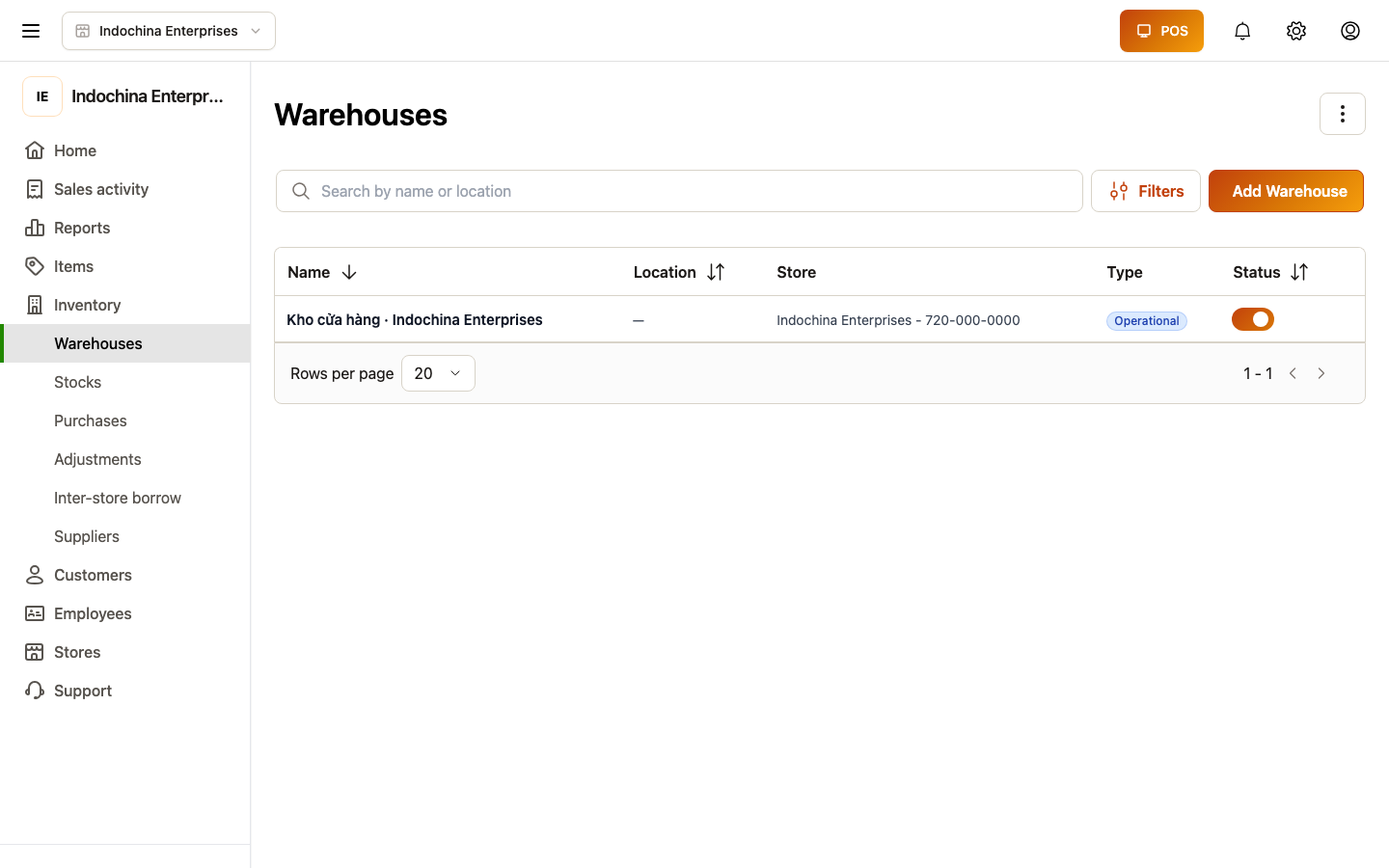
Section titled “Warehouses”Open Inventory → Warehouses.
| Action | When to do it |
|---|---|
| Create a warehouse | When you add a new storage location. Give it a clear name and (optionally) an address. |
| Set as default | The default is where returns are restocked and where many receipt flows default to. |
| Disable | Hides it from new operations but keeps history. |
Each store has at least one warehouse. Multi-lane stores can also create a “Lane drawer” warehouse — used by work shifts for register floats.
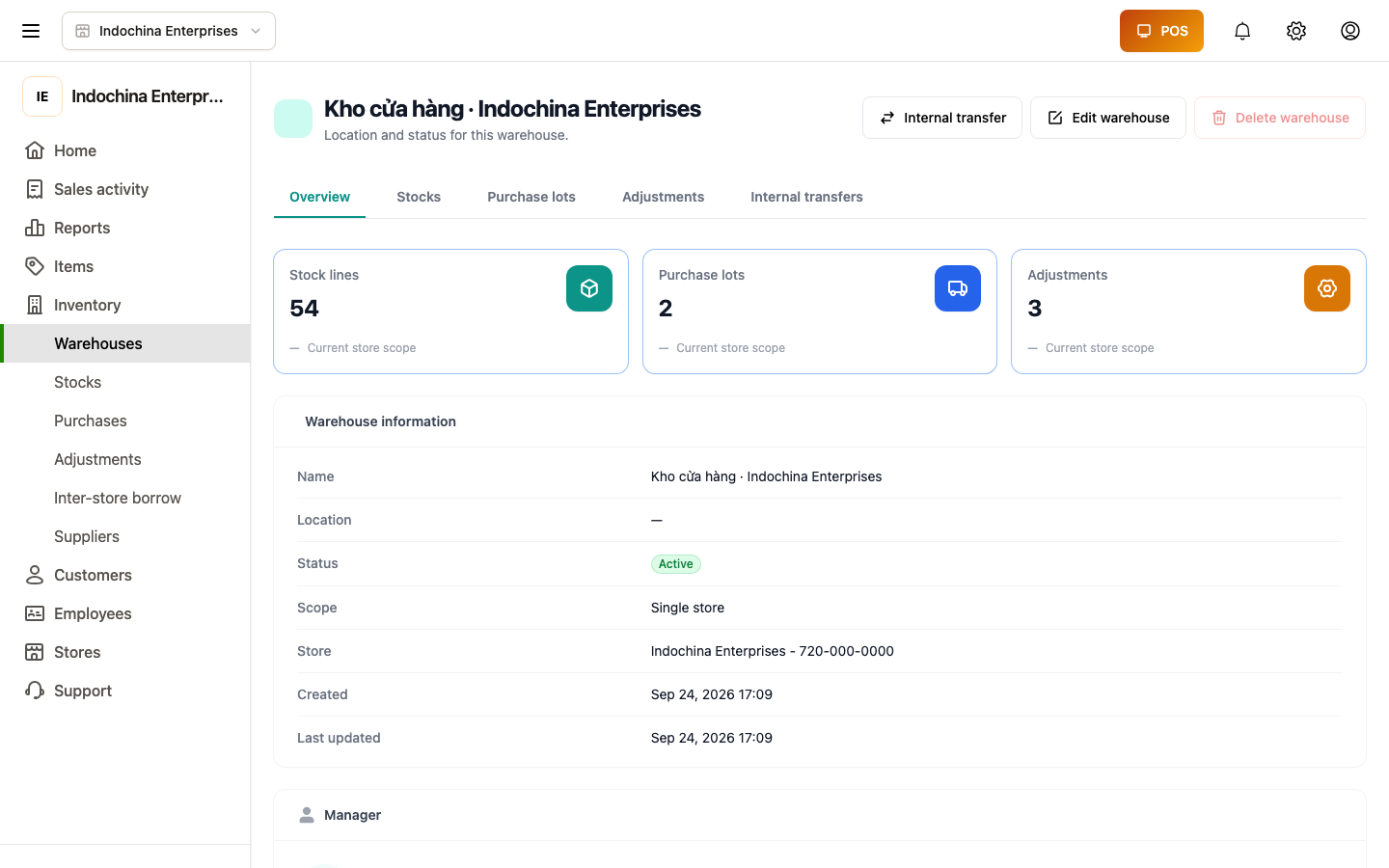
Click any warehouse to see stock counts, recent movements, and configured rules.
Stocks
Section titled “Stocks”Open Inventory → Stocks. The table shows warehouse × product × variation with on hand, on order, and min/max.
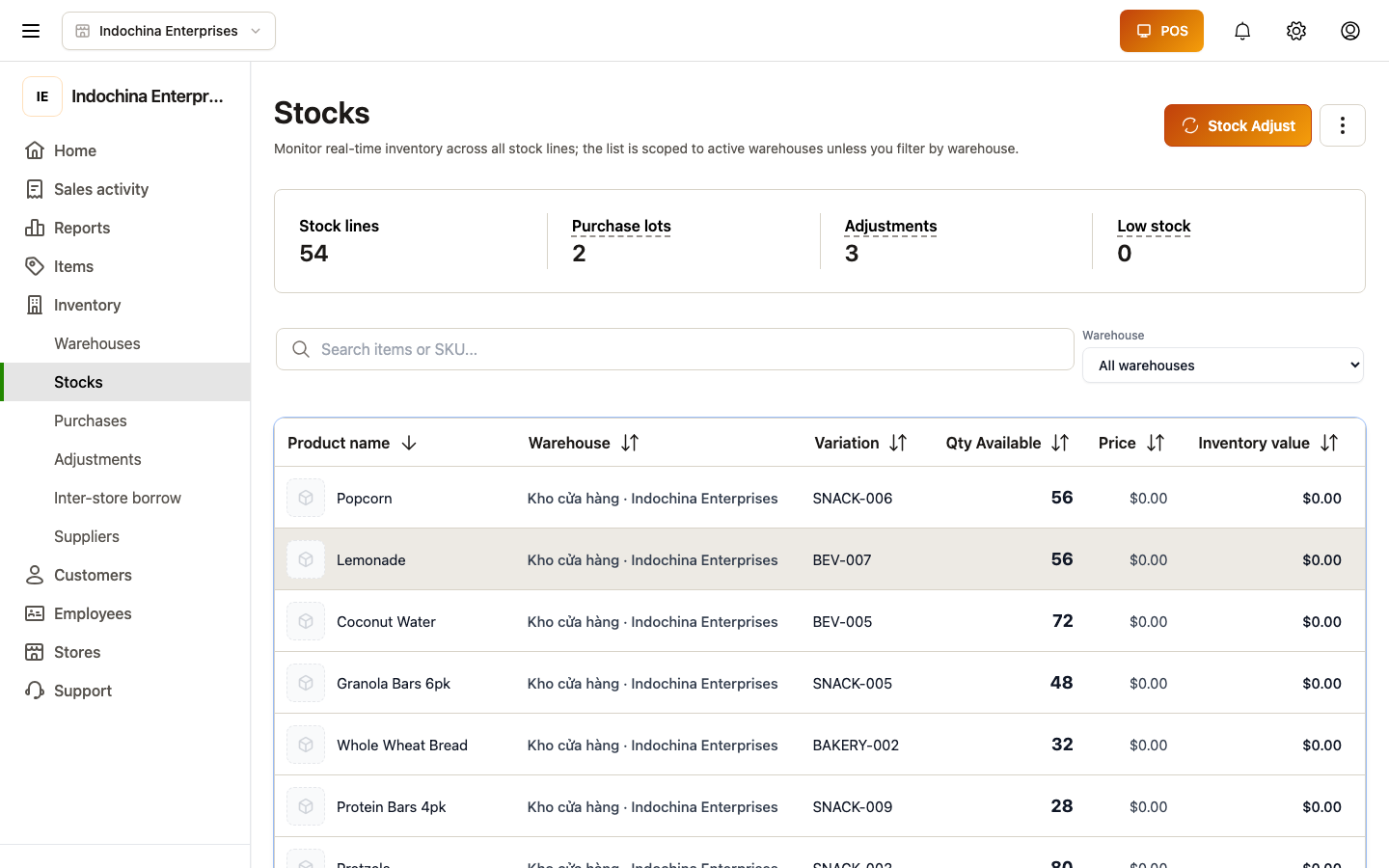
- On hand is the only reliable number. Use it for replenishment decisions.
- Use filters: by product, by warehouse, by stock range (low / out / over max).
To investigate a number that looks wrong, open the row to see the stock movement log — every increment / decrement with source (sale, refund, lot receipt, adjustment).
Receiving a purchase lot
Section titled “Receiving a purchase lot”When a supplier delivers:
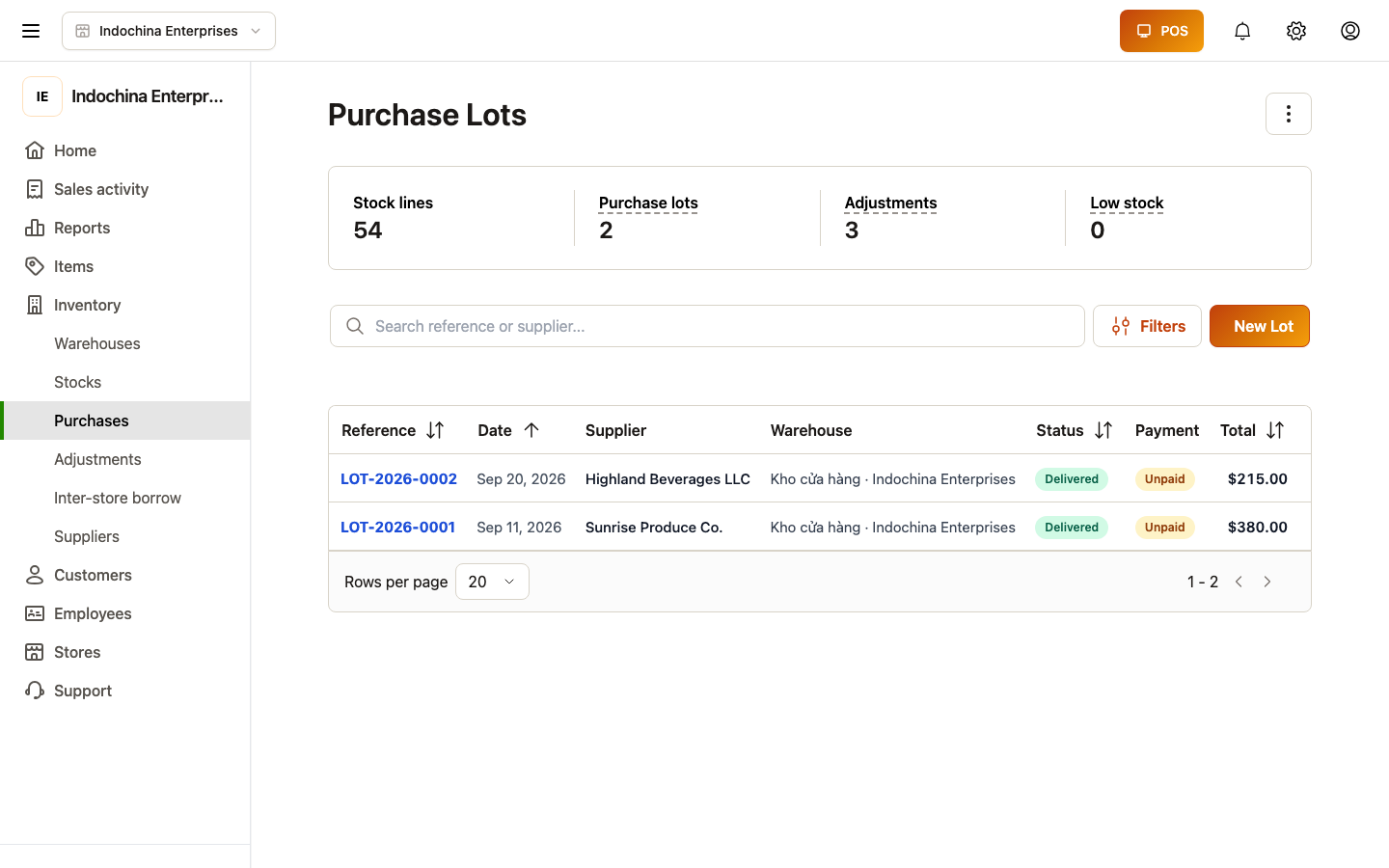
- Open Inventory → Lots → Receive lot (or + New lot).
 2. Fill in:
- Supplier
- Warehouse receiving the stock (usually your main store)
- Lines — search products, enter qty + unit cost. Variants supported.
- Save. Lots begin in Draft (no stock yet).
- Once you’ve counted what actually arrived and confirmed the supplier invoice, mark the lot Delivered. Stock is added to the warehouse, and the supplier cost is recorded to the product’s purchase-cost history.
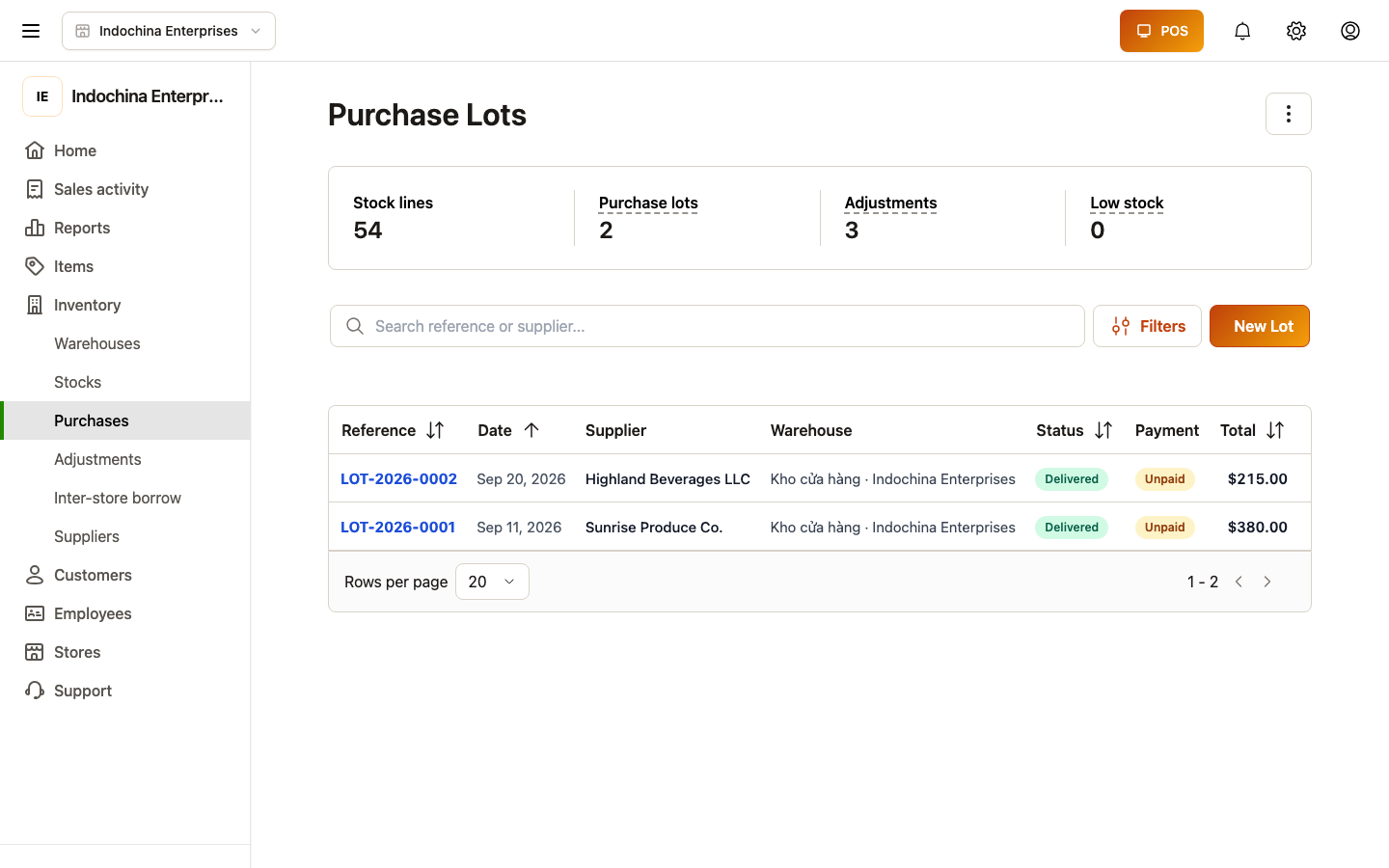
If the supplier sent less (or more) than ordered, edit the qty lines before marking Delivered.
Stock adjustments
Section titled “Stock adjustments”Open Inventory → Adjustments → + New adjustment.
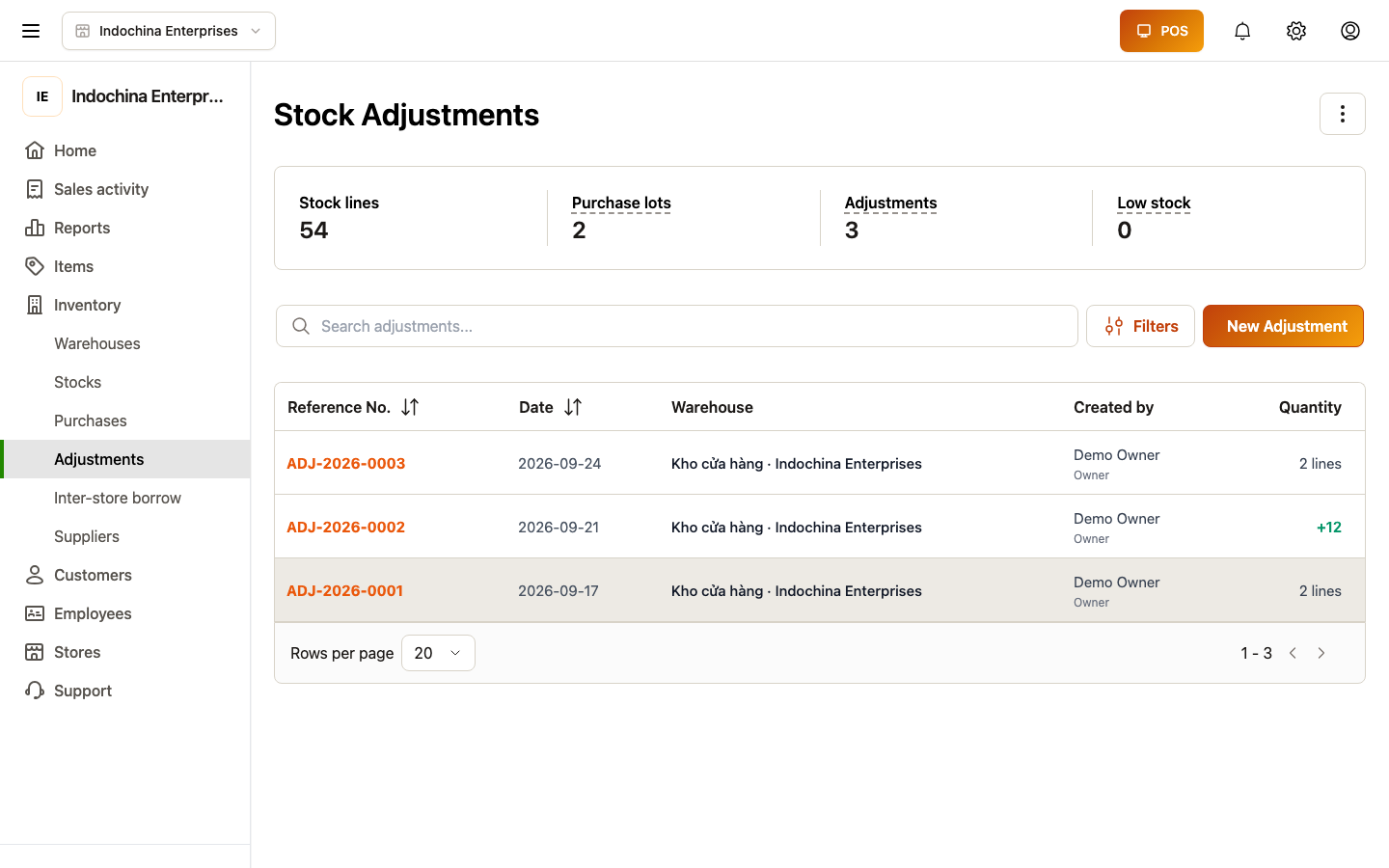
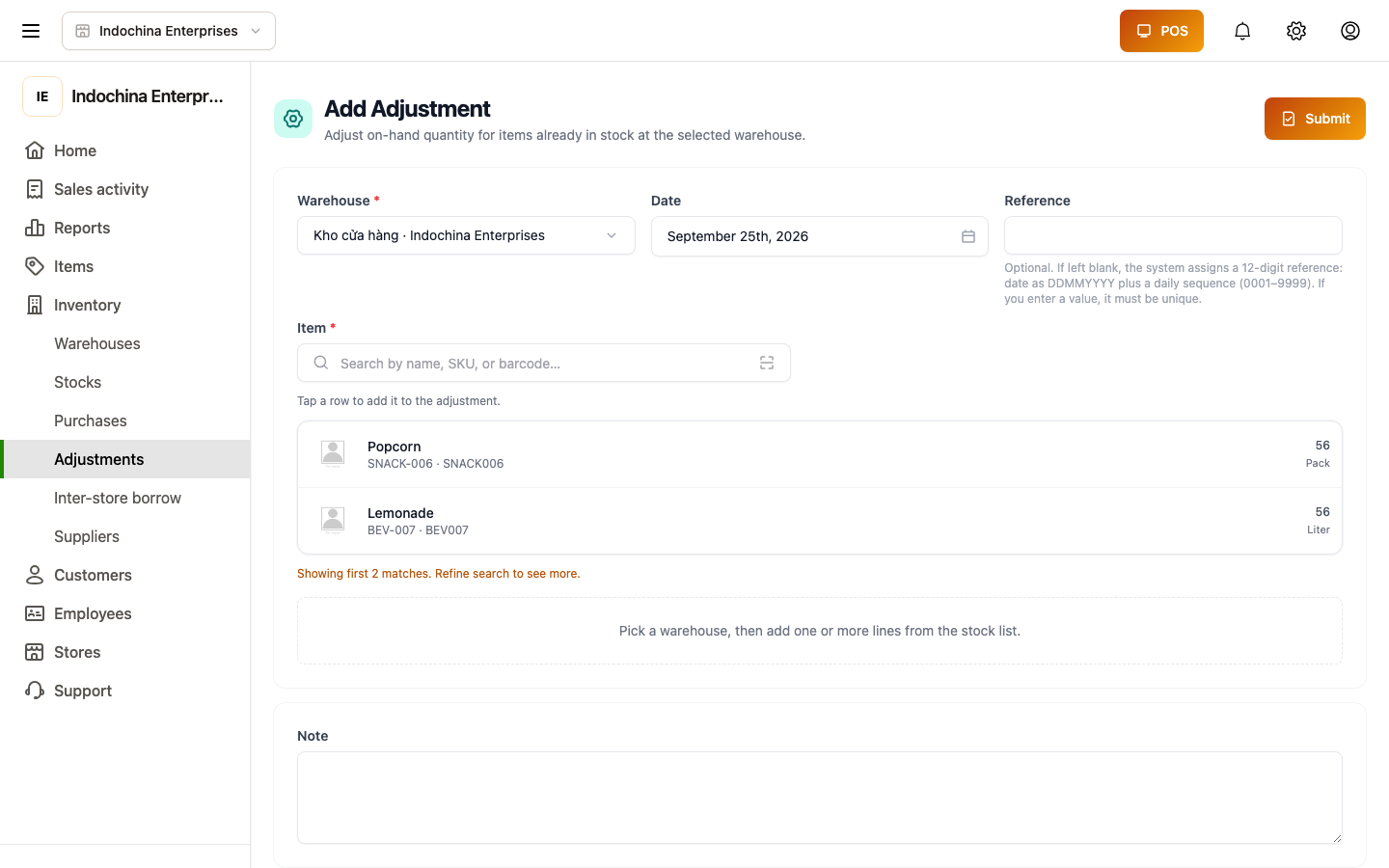
Pick:
- Reason — Damage, Loss, Found, Manual count correction, etc.
- Warehouse — where stock moves.
- Lines — products + signed qty (+ to add, − to remove).
Save. The on-hand quantity is updated immediately, and the stock movement log records who did it and why.
Adjustments are auditable. Use them sparingly — investigate recurring patterns (the same product always “missing” suggests a process issue).
Internal transfers
Section titled “Internal transfers”Move stock between warehouses (e.g. backroom → floor) from Inventory → Transfers → + New transfer.
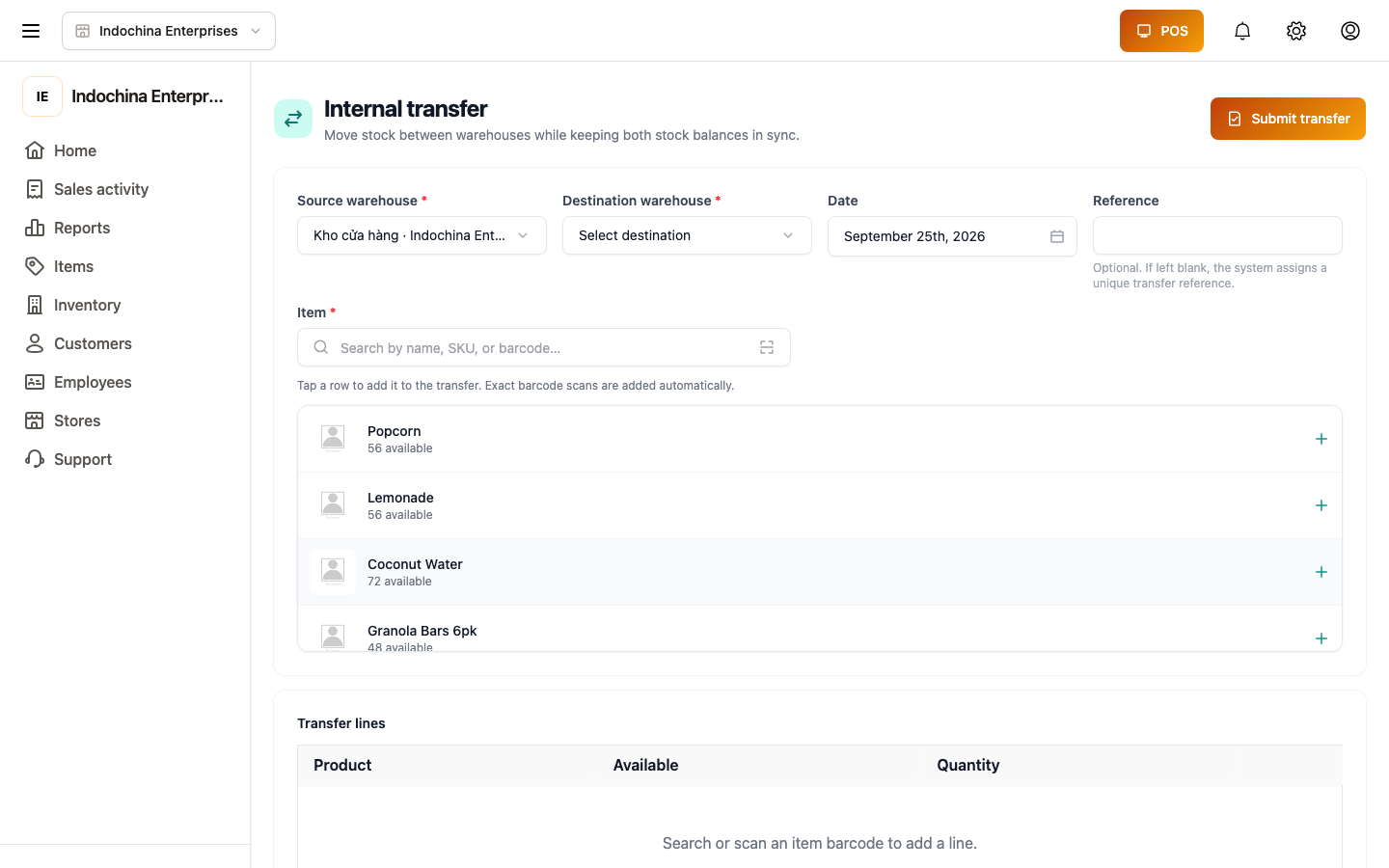
You’ll pick source warehouse, destination warehouse, the products/qtys, and a reason. The transfer is two-step: draft (nothing moves), then post (stock exits source, arrives at destination in the same moment).
Inter-store borrow
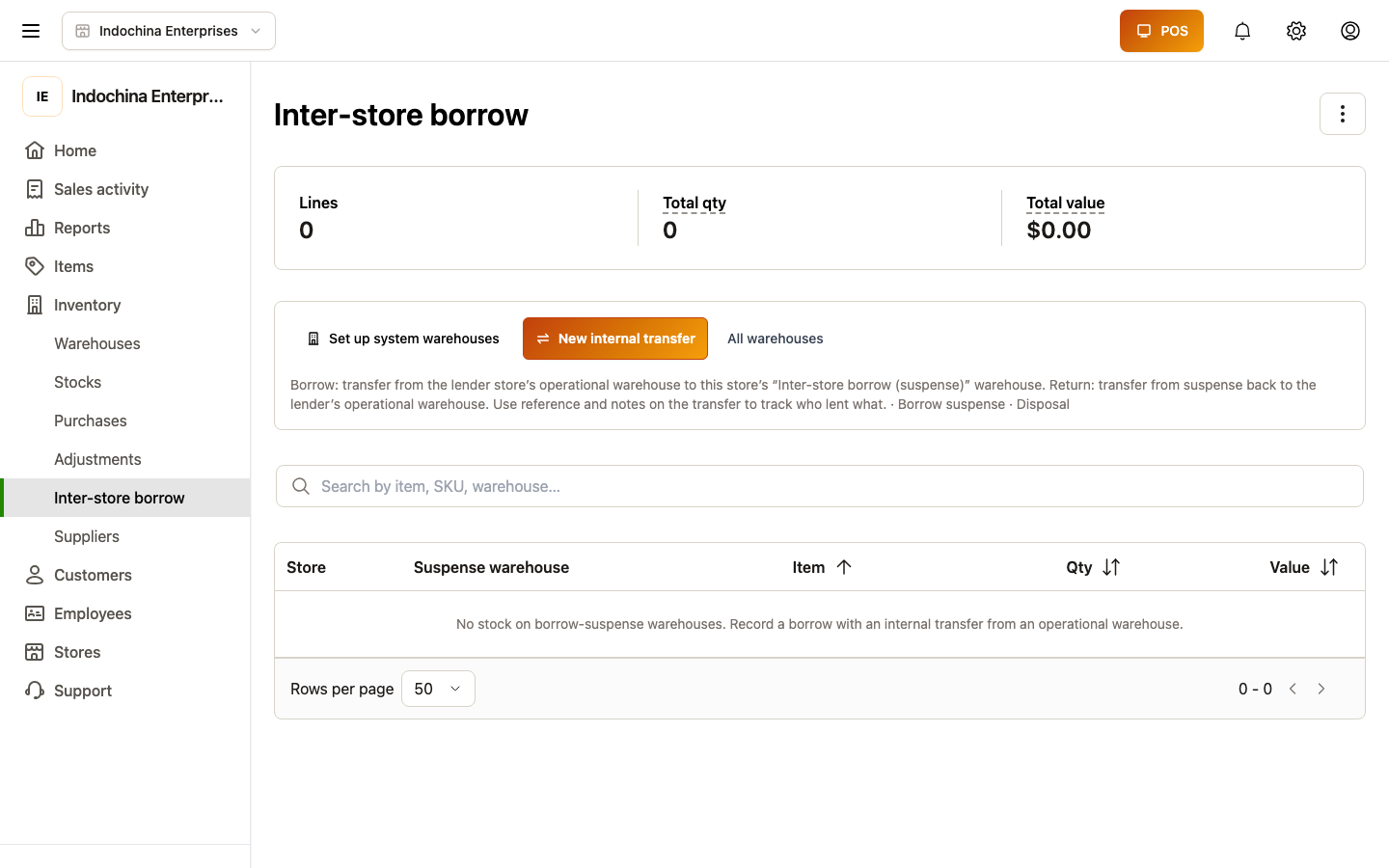
Section titled “Inter-store borrow”When a store needs to borrow stock from another store (same vendor), open Inventory → Inter-store borrow → + New borrow.
Why my numbers don’t match the product list
Section titled “Why my numbers don’t match the product list”The number you see on Items → Products is a read cache — useful for quick scanning, but not the source of truth. The authoritative on-hand is Stocks.
If you want to fix a number on the product list, do it via an adjustment (Inventory) — not by editing the product.
Common questions
Section titled “Common questions”I sold something but the stock didn’t drop. The sale may have been a draft, or the product may be marked don’t track stock. Check Inventory → Stocks and the movement log.
Negative stock shown. Either the sale bypassed stock tracking or an adjustment is missing. Either reconcile via an adjustment, or allow it if your store config permits negative stock.
Lot is “Delivered” but stock didn’t move. Re-open the lot. If the Delivered transition failed (e.g. warehouse was inactive), the lot stays in Draft — mark Delivered again after fixing the warehouse.
Related
Section titled “Related”- Inventory stock model — why
stocksis the source of truth. - Catalog and products — product set-up and history.
- Orders — what consumes stock when you sell.