Price lists
What is a price list?
Section titled “What is a price list?”A price list is a named price book you can attach products to. Use them when:
- You sell retail and wholesale at different prices.
- Different stores should charge differently.
- You want to run a promo price without changing catalog prices.
- You need contract pricing for B2B customers.
Each product can sit on many lists. At checkout, the list picked for the sale channel wins.
Open Items → Price lists.
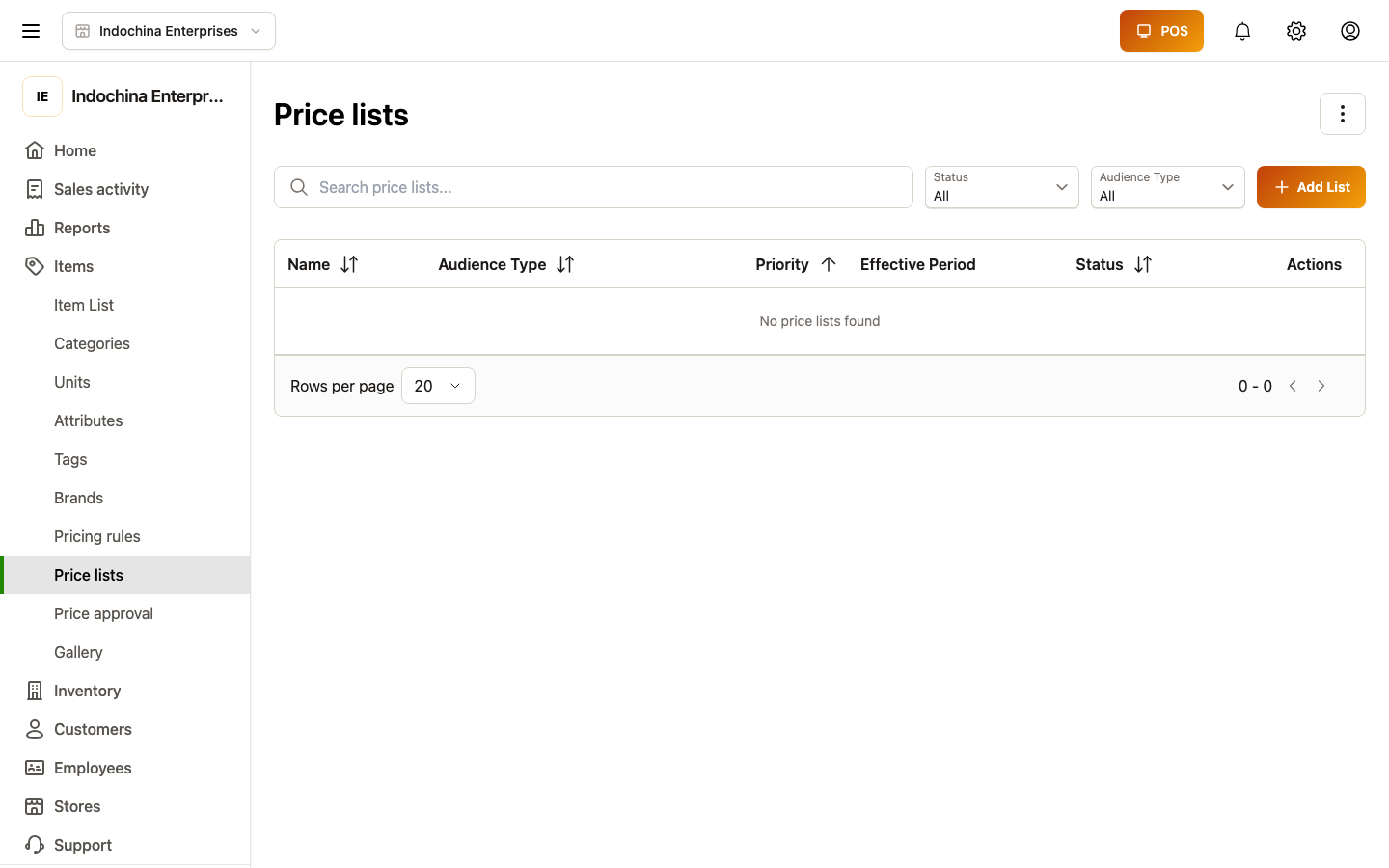
Create a price list
Section titled “Create a price list”- + New price list.
- Give it a clear name (e.g. Wholesale 2026, VIP Tier 2, Spring promo).
- Pick the audience:
- Retail and wholesale (default)
- Retail only
- Wholesale only
- (Optional) Pick a store or leave vendor-wide.
- Save.
Add products with prices
Section titled “Add products with prices”Open a list. In the Items tab:
- + Add products — search for products or paste SKUs.
- For each line, set:
- Retail price (when audience includes retail).
- Wholesale price (when audience includes wholesale).
- Optionally a min quantity for the price to kick in.
- Save.
You can also bulk-import via CSV: see your store admin for the latest template.
How it reaches the lane / create-order
Section titled “How it reaches the lane / create-order”POS and “create order” pick lists based on the sale channel:
- POS lane = retail channel → uses retail prices from the list.
- Wholesale create-order = wholesale channel → uses wholesale prices.
If a product isn’t on the chosen list, the catalog default price is used.
- Don’t duplicate retail prices. Make the retail list first, then duplicate to a wholesale list and edit only the wholesale column.
- Remove a product from a list by editing the line. The product keeps its catalog price.
- Pause a list by setting its status to Inactive. Products revert to catalog prices.
Common questions
Section titled “Common questions”Customer sees catalog price, not the list. The list may be set to Inactive, or the sale channel may not match the audience (e.g. wholesale lane trying to use a retail-only list).
Edited a list but checkout still shows old price. The list is cached briefly for performance. Reload the lane to refresh.
Two variants of the same SKU look the same price. Variants need separate lines on the list — open the variant in the product detail to confirm the variant key.
Related
Section titled “Related”- Catalog and products — product basics.
- Orders — creating a wholesale order.