Sign-in and account
I. Overview
Section titled “I. Overview”The Sign-in feature lets you and your staff access the LionPOS store-management system quickly and securely from any device. It is the very first step before you can use any module (sales, inventory, reports, …).
Key benefits of Sign-in on LionPOS:
- Access and manage every part of your business: Once signed in, you have full access to the system — products, stock, customers, and detailed financial reports — so you can keep an eye on your business any time, from anywhere.
- Secure your business data: LionPOS uses fine-grained role + module + store permissions, so every user only sees what they are allowed to. Passwords are securely hashed on the server, and sessions use expiring JWTs.
- Sign in from the surface you work on: The web portal at https://sutupos.com/ handles every auth flow described below — store Owner, store Staff, password reset, and account management. The dedicated LionPOS Cashier desktop app uses a separate entry point (see IV. On a POS device).
II. Basic operations (on a computer)
Section titled “II. Basic operations (on a computer)”The examples below mirror real usage scenarios on a web browser (Chrome / Edge / Safari …).
1. Sign in to your account
Section titled “1. Sign in to your account”-
Scenario: You need to access your LionPOS account from a web browser on your computer.
-
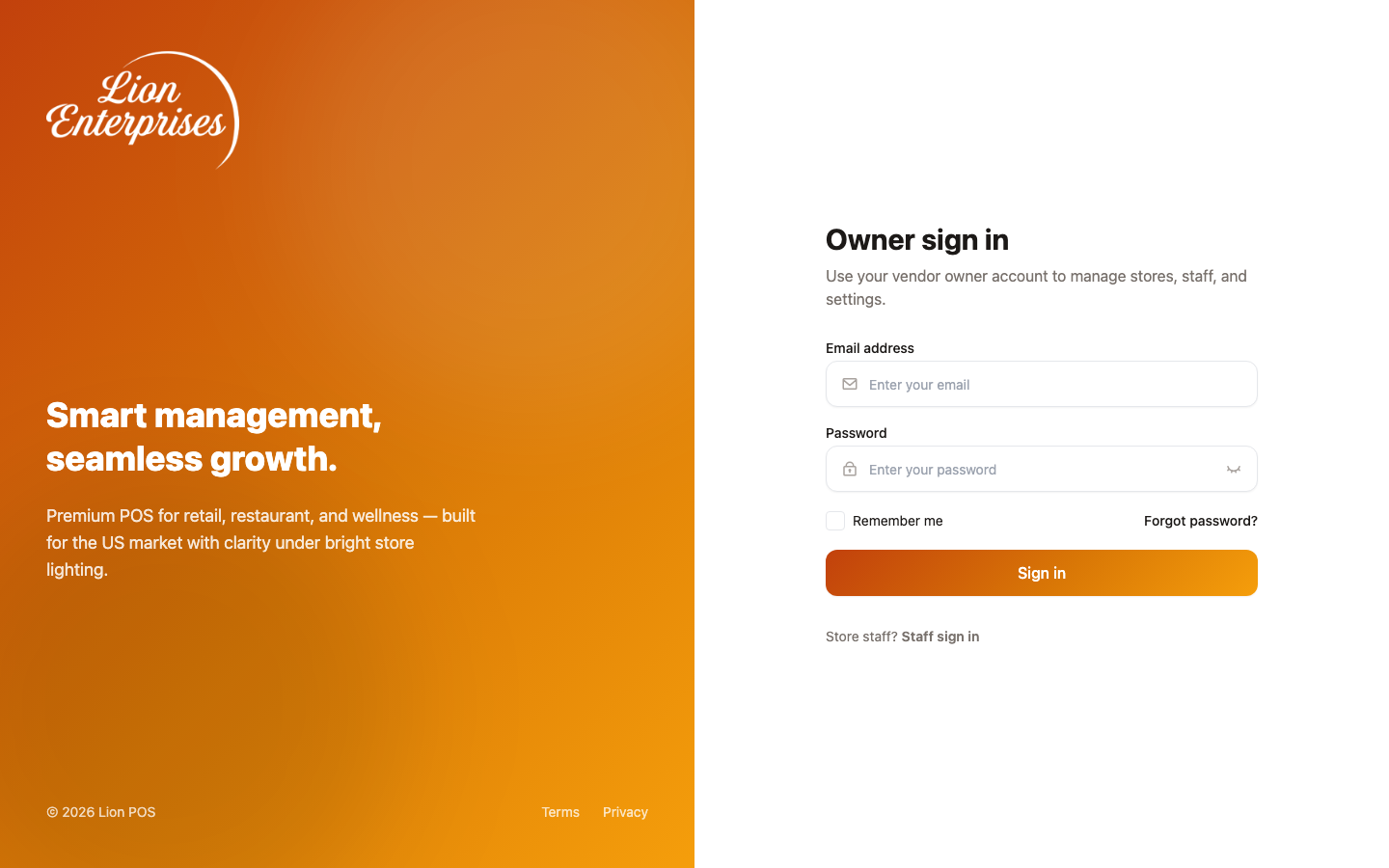
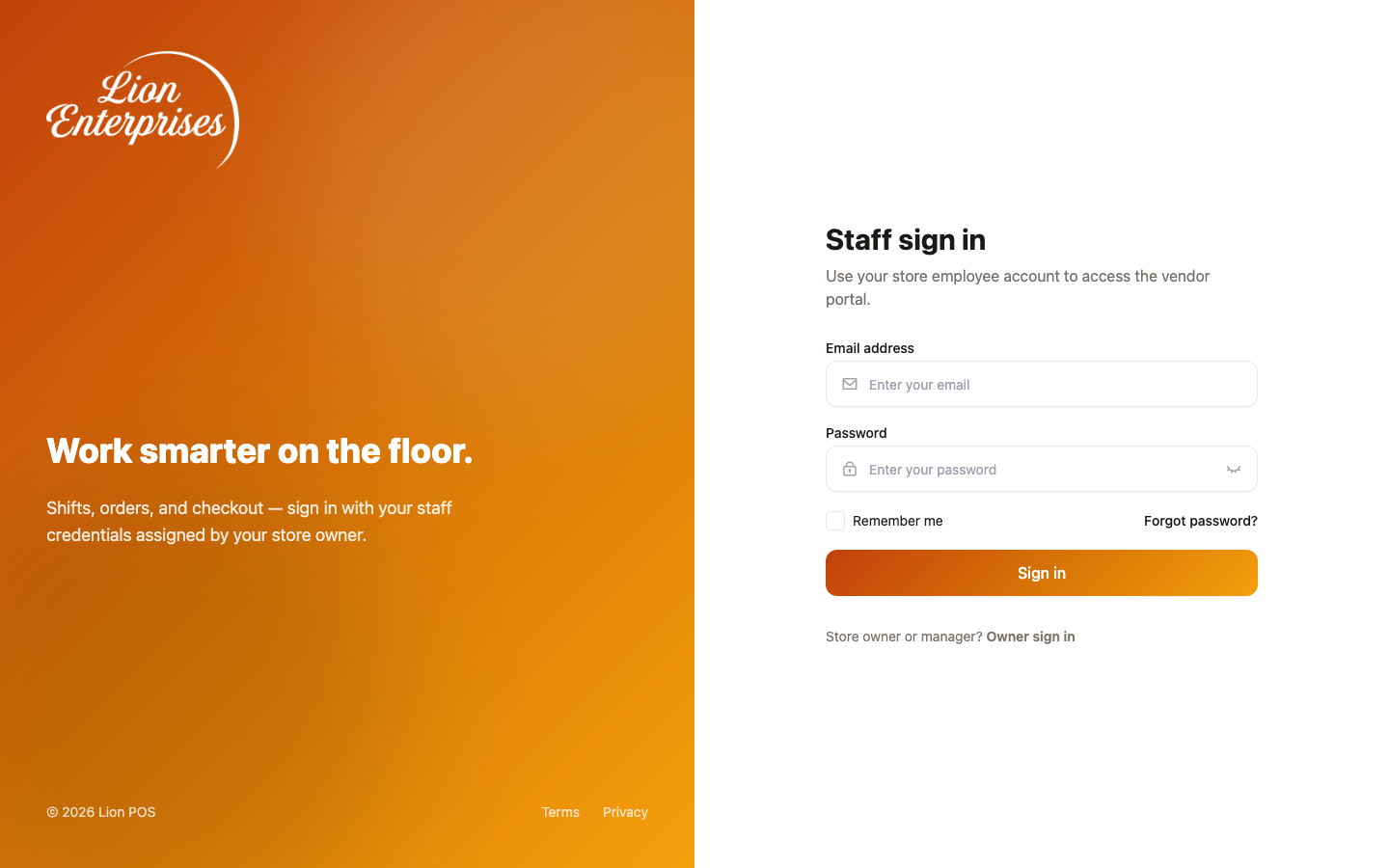
There are two sign-in entry points on the web portal, depending on your role:
Entry point URL For Owner (store account) /vendor-loginThe store owner — has full admin rights on the store that was registered. Staff (shift employee) /loginSales / cashier staff — only sees the modules they are allowed to. -
Steps (Method 1 — via the LionPOS home page):
- Open the home page at https://sutupos.com/.
- Click the “Sign in” button in the top-right corner.
- Pick the entry point that matches your role (Owner / Staff).
- Enter your email and password → click “Sign in”.
-
Steps (Method 2 — go straight to the entry point):
- Open a browser and type one of the URLs from the table above directly into the address bar.
- On the sign-in screen, enter your email and password → click “Sign in”.
2. Recover your password
Section titled “2. Recover your password”-
Scenario: You or one of your staff has forgotten the password and needs to reset it.
-
The recovery flow has three screens (
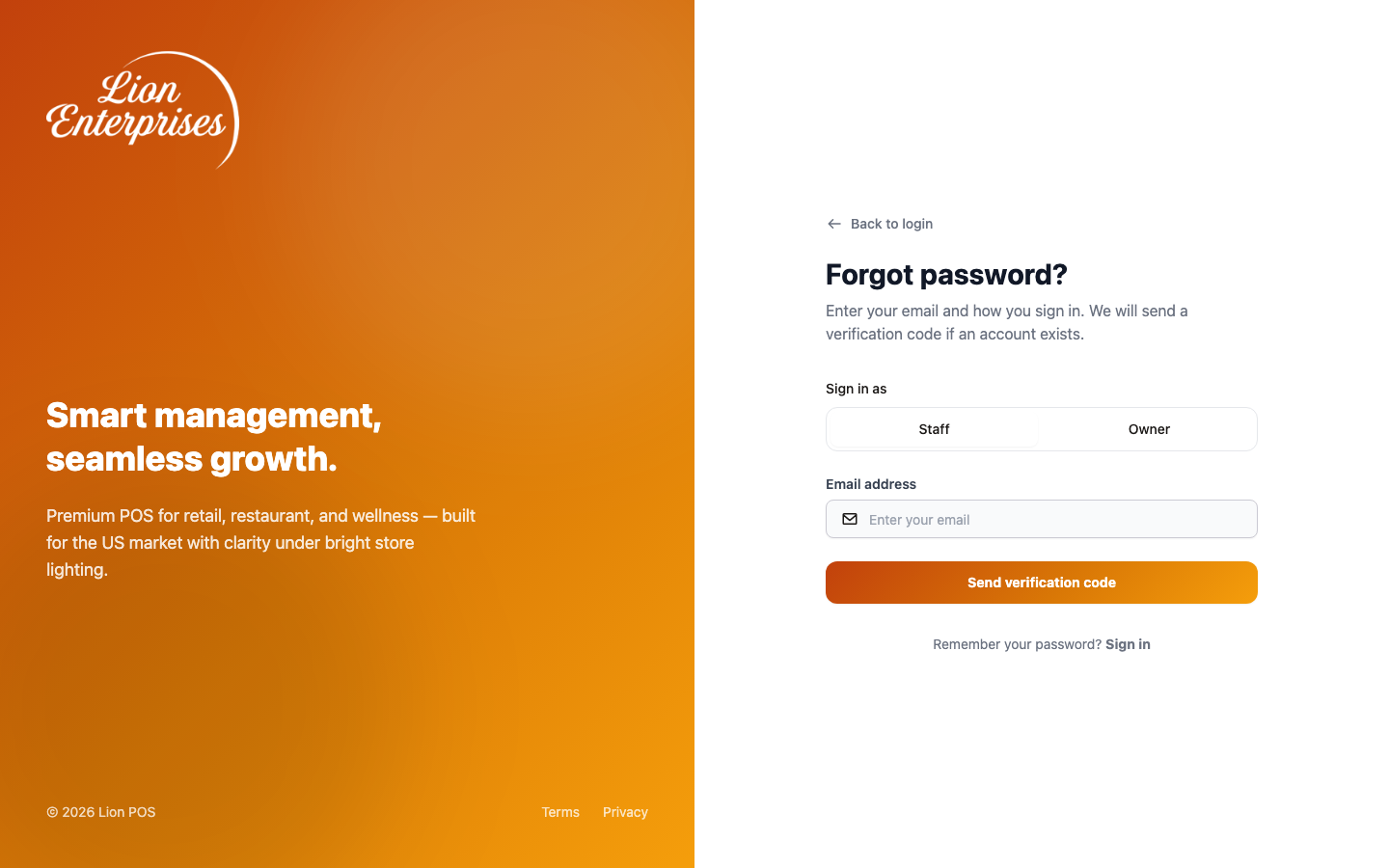
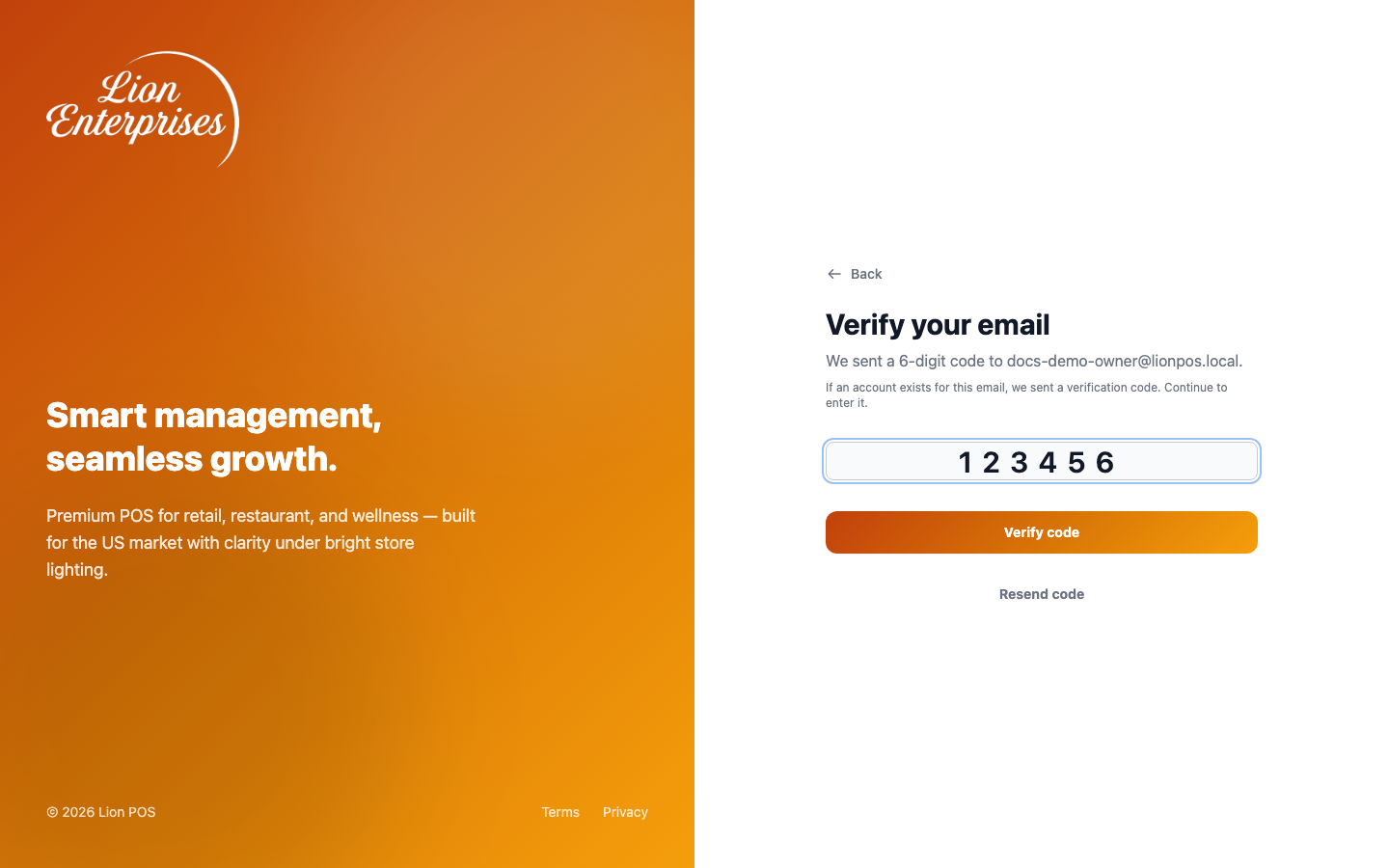
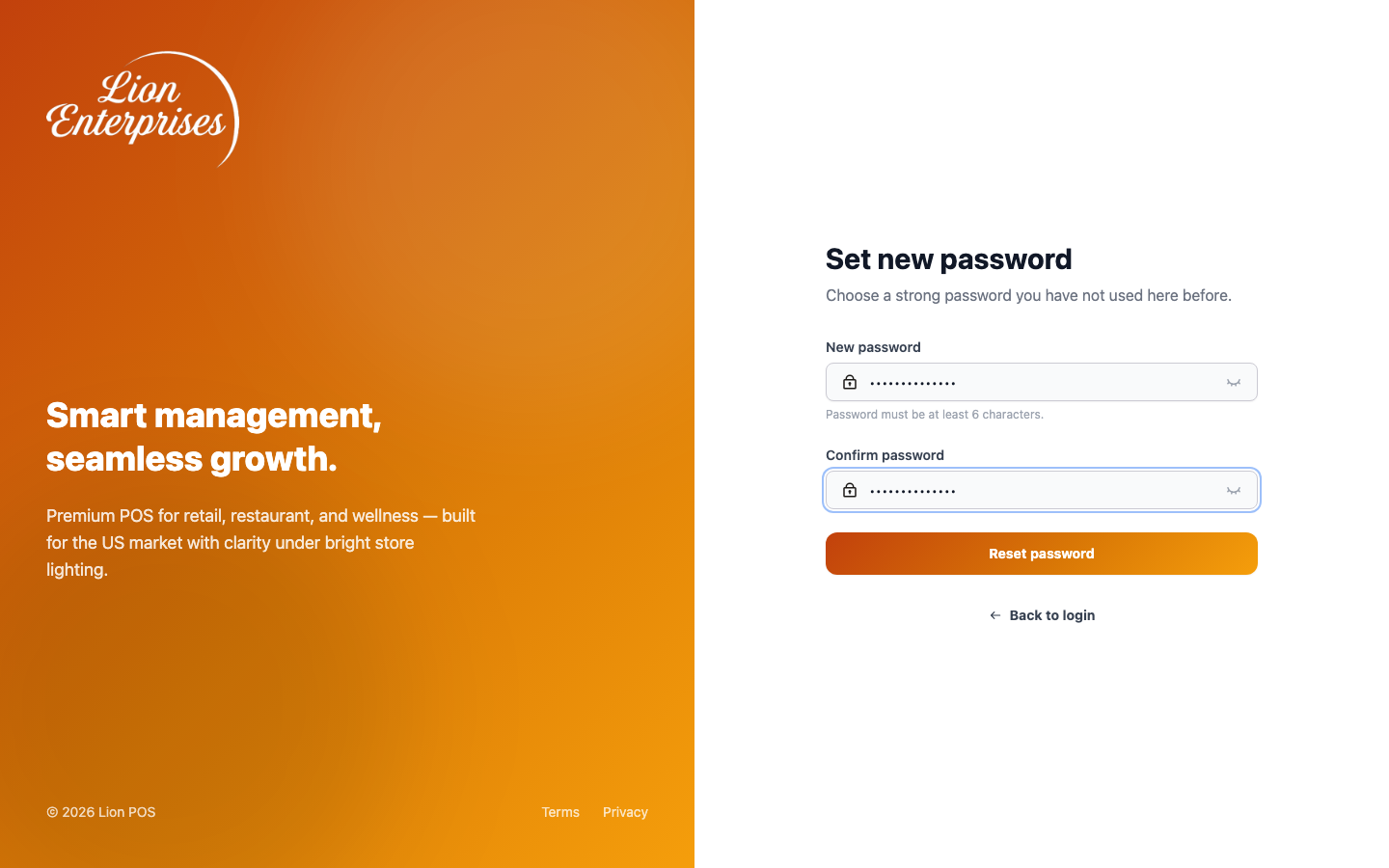
/forgot-password→/verify-otp→/reset-password). The flow is shared between Owner and Staff; the recovery session stores the chosenvendor_type(owner/employee) and routes the user back to the matching sign-in page when the reset is complete.# Screen URL What to do 1 Forgot password /forgot-password?type=owner(Owner) or?type=employee(Staff)Enter the registered email, pick the account type → click “Send verification code”. 2 Verify email /verify-otpEnter the 6-digit code emailed to you. A “Resend code” button is available if you don’t receive it. 3 Set a new password /reset-passwordEnter a new password (minimum 6 characters) and confirm it → click “Reset password”. The app automatically routes you back to the sign-in screen that matches your account type.
-
For a store Owner account:
- On the
/vendor-loginscreen, click “Forgot password” — the link goes to/forgot-password?type=owner. - Enter the Owner’s email and click “Send verification code”.
- Open the email, copy the 6-digit OTP code, paste it into the “Verify your email” screen → click “Verify code”.
- On the “Set new password” screen, enter a new password (≥ 6 characters) and confirm the password → click “Reset password”.
- The app routes you back to
/vendor-login— sign in with your new password.
- On the
-
For a Staff account:
- On the
/loginscreen, click “Forgot password” — the link goes to/forgot-password?type=employee. - Enter the staff member’s email — the system sends an OTP to the registered email.
- Follow steps 3 → 5 above. When reset is complete, the app routes you back to
/login.
- On the
3. Sign out
Section titled “3. Sign out”-
Scenario: You want to leave your LionPOS account on a computer.
-
Two places host the sign-out control — pick whichever surface you’re already on:
From the top-right account menu (web portal):
- Click your avatar at the top-right of the dashboard.
- The dropdown shows two items: My Profile (→
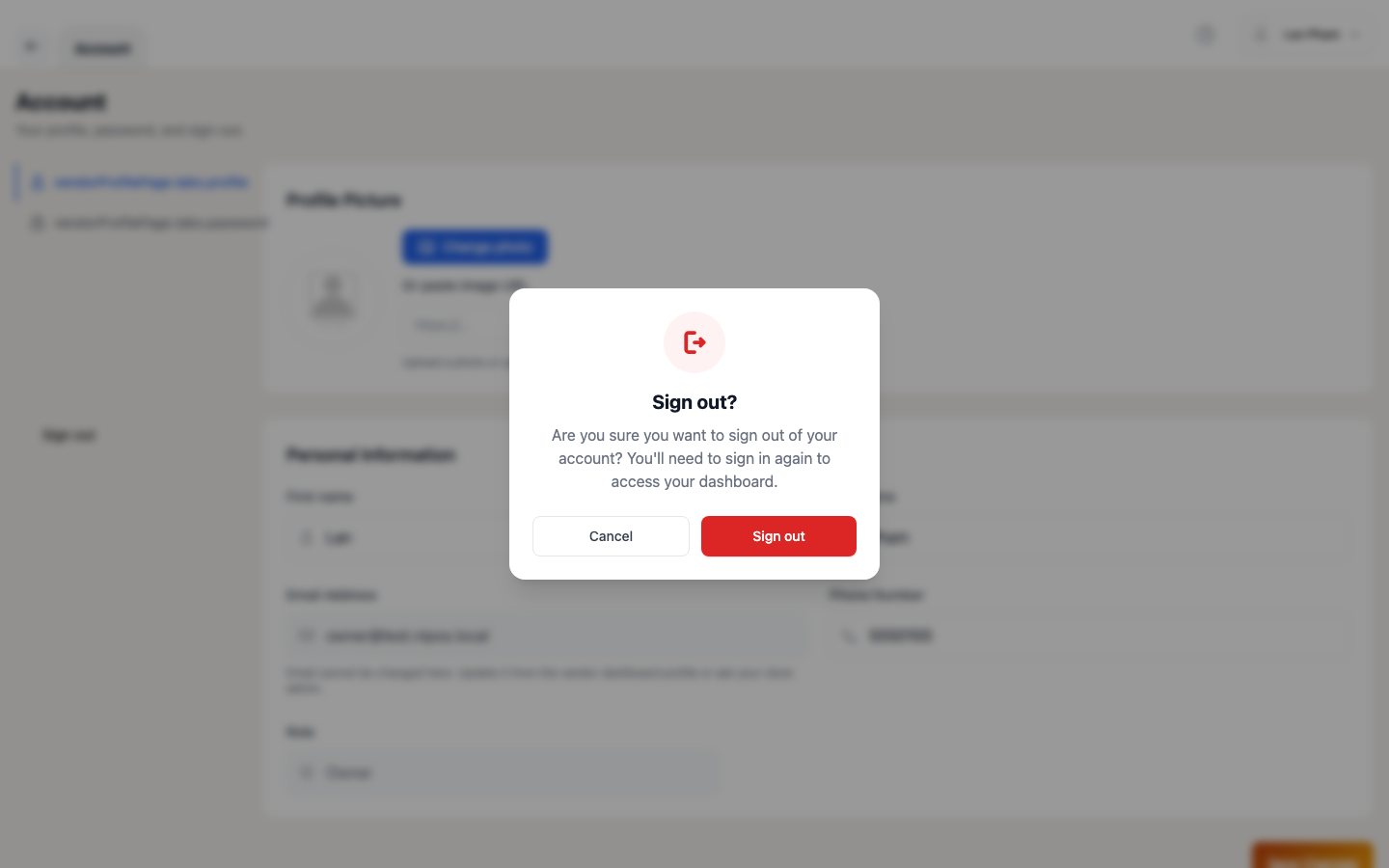
/dashboard/profile) and Sign out. - Click “Sign out” → a confirmation dialog appears → click “Sign out” again to confirm.
From the POS workspace (Cashier surface):
- Open Settings → Profile (or go to
/point-of-sale/settings/profiledirectly). - At the bottom of the left rail, click the “Sign out” button → a confirmation dialog appears → click “Sign out” to confirm.
III. Manage your account
Section titled “III. Manage your account”After signing in, the Profile page is the single place to view your personal information and update your password. There are three tabs:
1. Profile page
Section titled “1. Profile page”- URL:
/dashboard/profile - Who can open it: both Owner and Staff. The page is mounted for every authenticated vendor user, with
useMeEndpointon the personal card so owners (who are not stored invendor_employees) can save their own info.
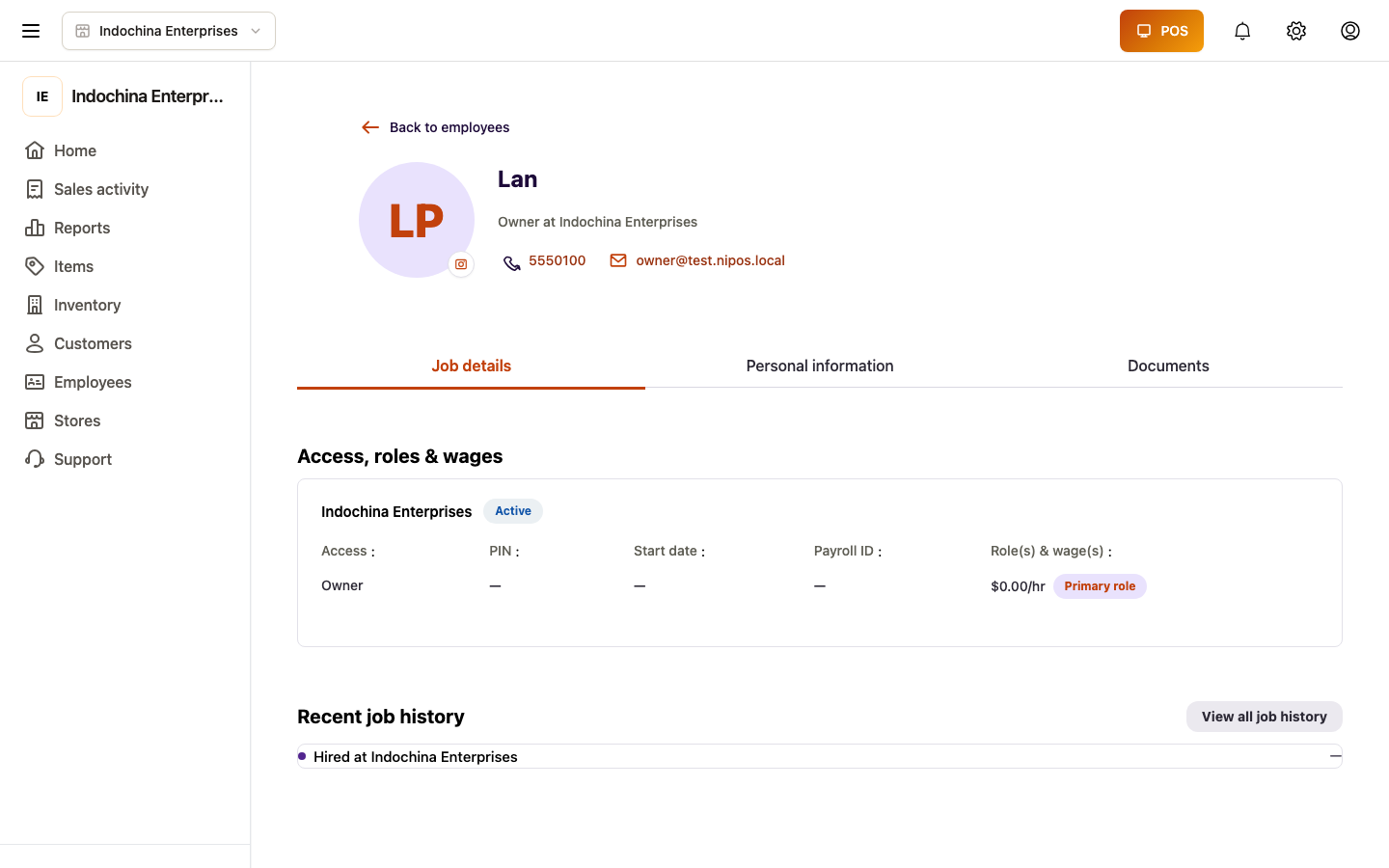
The page has three sections, switched by the underline tabs at the top:
| Tab | What it shows |
|---|---|
| Job details (default) | Role, assigned store(s), access & roles, jobs & wages, recent job history. |
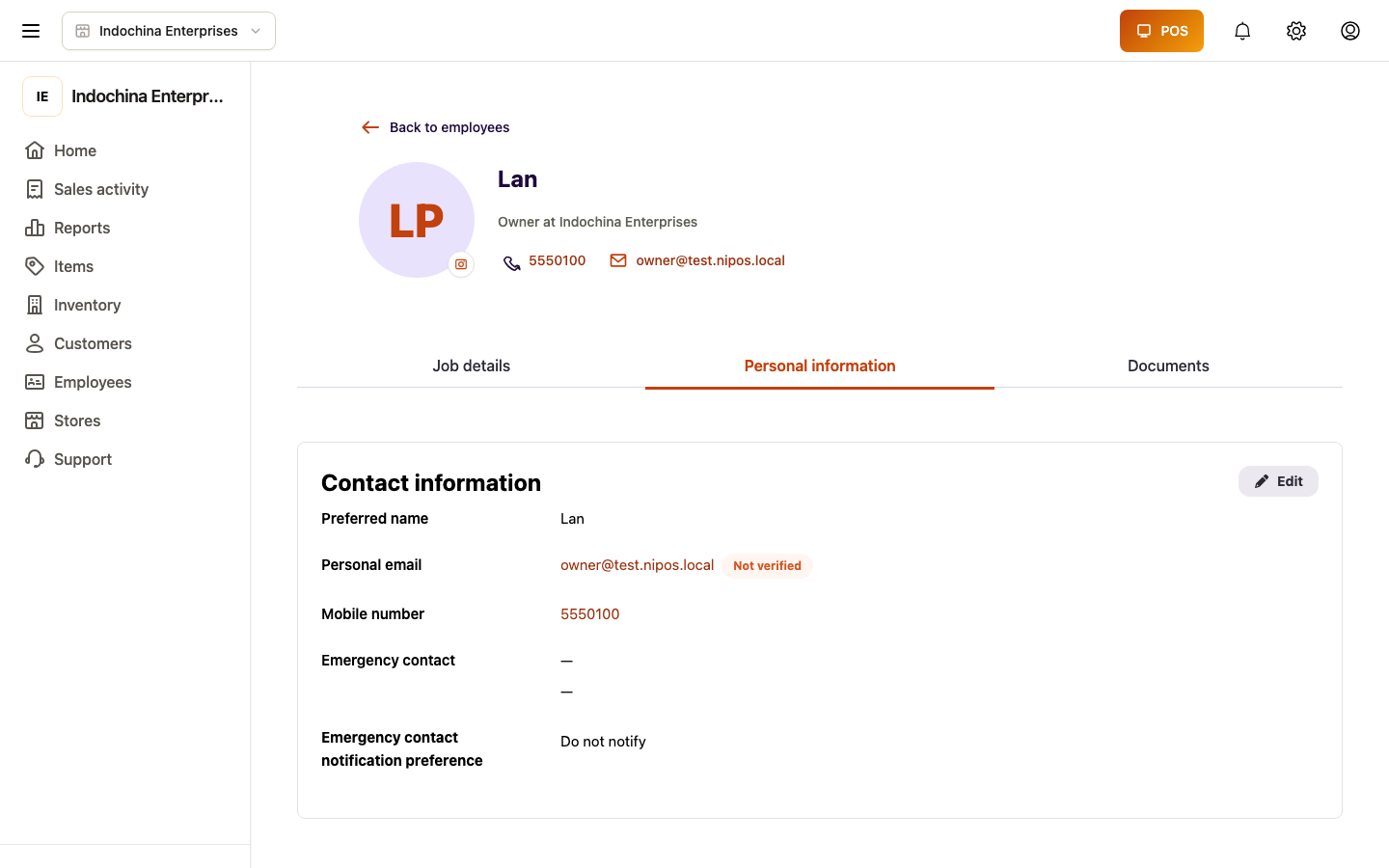
| Personal information | Avatar + cover photo, first/last name, email (read-only for cashiers; editable for owners), phone, role label. The Security card sits in this tab too — see below. |
| Documents | Uploaded supporting files; the vendor can upload and delete their own documents. |
-
Steps (from the dashboard):
- Click your avatar at the top-right → choose “My Profile” (or go to
/dashboard/profile). - The default tab is Job details. Click another tab in the underline bar to switch.
- Click your avatar at the top-right → choose “My Profile” (or go to
-
To update your personal information:
- Open the Personal information tab.
- Update First name, Last name, Email (if editable), or Phone.
- Optionally change the avatar by clicking “Change photo” (owners) or pasting an image URL (cashiers).
- Click “Save changes” at the bottom.
2. Change your password
Section titled “2. Change your password”The system exposes two surfaces for changing your password, depending on your role and where you are.
From the POS workspace (works for both Owner and Cashier):
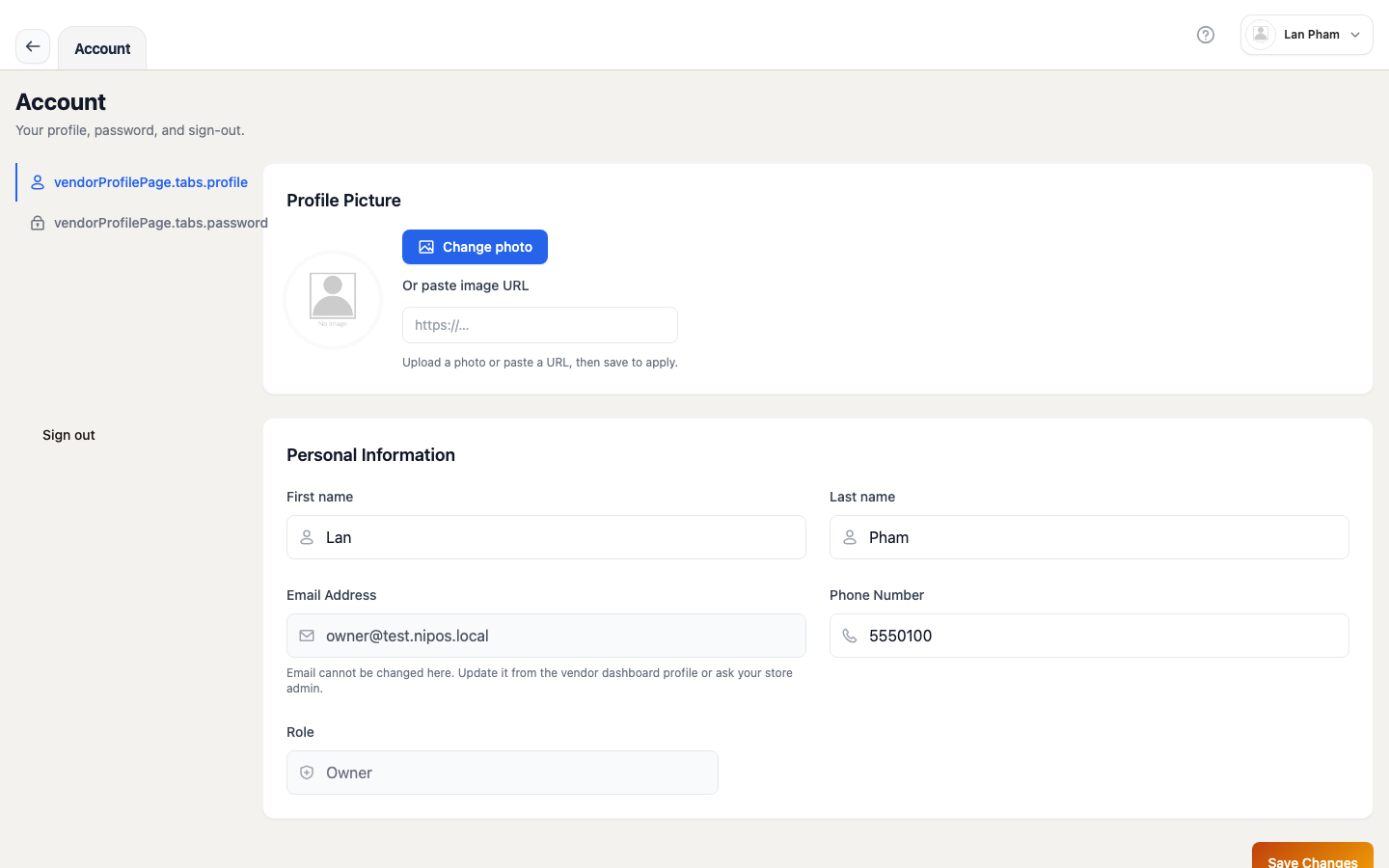
- Open the POS workspace and go to Settings → Profile (
/point-of-sale/settings/profile). - The page has two tabs: Account (your profile info) and Password.
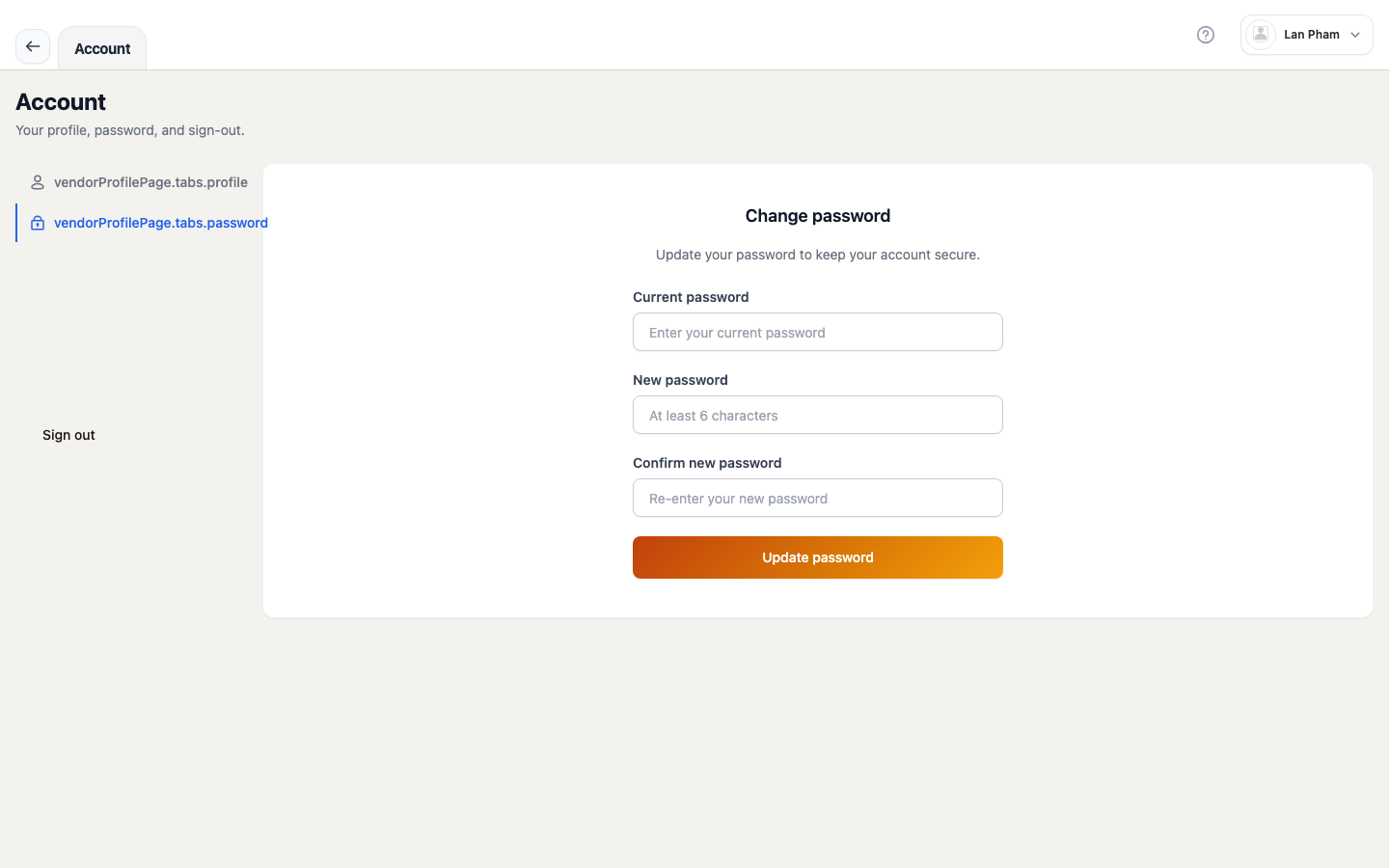
- Click the Password tab.
- Enter your current password, then your new password (≥ 6 characters), then confirm the new password.
- Click “Update password” → a success toast confirms the change.
From the Profile page (Staff / Employee only):
The Personal information tab on /dashboard/profile also exposes a Security card with an inline password-change form (current + new password). For an Owner this card is rendered read-only — the owner must use the POS workspace Settings → Profile → Password tab above (the password-change endpoint targets the vendors row, not vendor_employees, so the inline form would fail for them).
IV. On a POS device
Section titled “IV. On a POS device”1. Sign in on a POS
Section titled “1. Sign in on a POS”- Steps:
- Open the LionPOS Cashier desktop app (or open
/loginin a browser on a touch-screen POS). - On the staff sign-in screen, enter your email and password → click “Sign in”.
- Once signed in, the app routes straight to the POS Workspace (
/point-of-sale/sale) to start selling.
- Open the LionPOS Cashier desktop app (or open
2. Recover your password on a POS
Section titled “2. Recover your password on a POS”- Steps:
- On the cashier app’s staff sign-in screen, tap “Forgot password” — it routes to the cashier-specific forgot-password page (
/cashier-login/forgot-password), which uses theemployeevendor_typeunder the hood. - Enter the staff email → click “Send verification code”.
- The system sends a 6-digit OTP to the registered email.
- Enter the OTP → set a new password (≥ 6 characters) → click “Reset password”.
- The app routes you back to the cashier sign-in screen.
- On the cashier app’s staff sign-in screen, tap “Forgot password” — it routes to the cashier-specific forgot-password page (
3. Sign out on a POS
Section titled “3. Sign out on a POS”- Steps:
- On the POS Workspace, open Settings → Profile (or
/point-of-sale/settings/profile). - Click the “Sign out” button at the bottom of the left rail.
- Confirm “Sign out” in the dialog.
- On the POS Workspace, open Settings → Profile (or
V. Support
Section titled “V. Support”Wishing you a productive business with LionPOS!
Contact support
Section titled “Contact support”- Support email: support@sutupos.com
- Supported industries: Retail, F&B, Salon / Spa, Hotel, Mini-mart
Related articles
Section titled “Related articles”- Register an account — create a new store on the 14-day free trial.
- First store setup — a 5-minute checklist right after registration.
- Employees and stores — add staff, assign roles, and issue a temporary password.
- Roles — which module lets you do what.