Sales, POS & debt — procedures
Purpose
Section titled “Purpose”This page gives staff and owners a single runbook for the most common operational flows. Use it as a checklist when something is unusual, or to train a new cashier or manager.
Each section has 3-7 steps, what to click, and what to look for. Where the flow goes deeper, the page links to the topic-specific guide.
1. Take a sale at the lane
Section titled “1. Take a sale at the lane”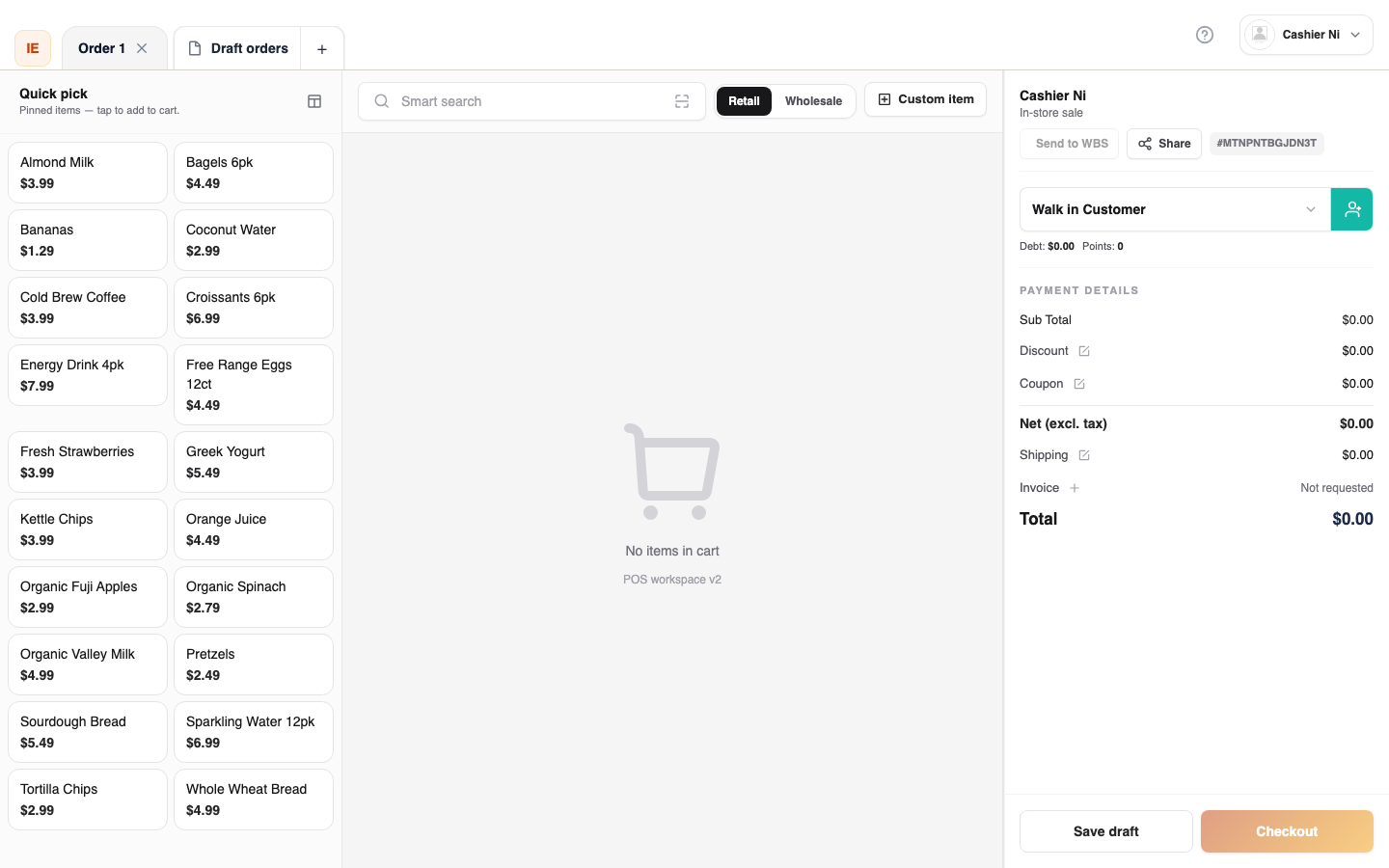
- Sign in, pick store, open a work shift.
- Open POS Workspace → Sale or Classic POS.
- Add items — search, scan (USB wedge / camera), or browse.
- Optional: attach a customer (search by phone / email).
- Optional: apply a coupon / discount.
- Choose payment method — cash / card / mixed / debt.
- Pay → confirm on the terminal → print receipt → hand over to customer.
- The order appears in Orders on the dashboard.
For step-by-step cashier copy, see the Cashier help center.
2. Manual order (phone / pickup / delivery)
Section titled “2. Manual order (phone / pickup / delivery)”- Orders → + New order.
- Pick retail or wholesale.
- Search and add items, choose customer.
- Fulfillment: pickup or delivery (delivery asks for recipient, address, partner, COD).
- Payment:
- Cash / card → finalize immediately.
- Debt (Khách nợ) → only for a known customer (not guest). Sets up a receivable.
- Save draft → open later without finalizing (does not allocate stock).
- Submit → order is awaiting confirmation (stock moves).
For wholesale credit checks, watch the credit status banner — warnings / blocks come from the customer’s credit policy (Customers).
3. Process a return / refund
Section titled “3. Process a return / refund”- Find the order in Orders → list (search by id, customer, or scan barcode).
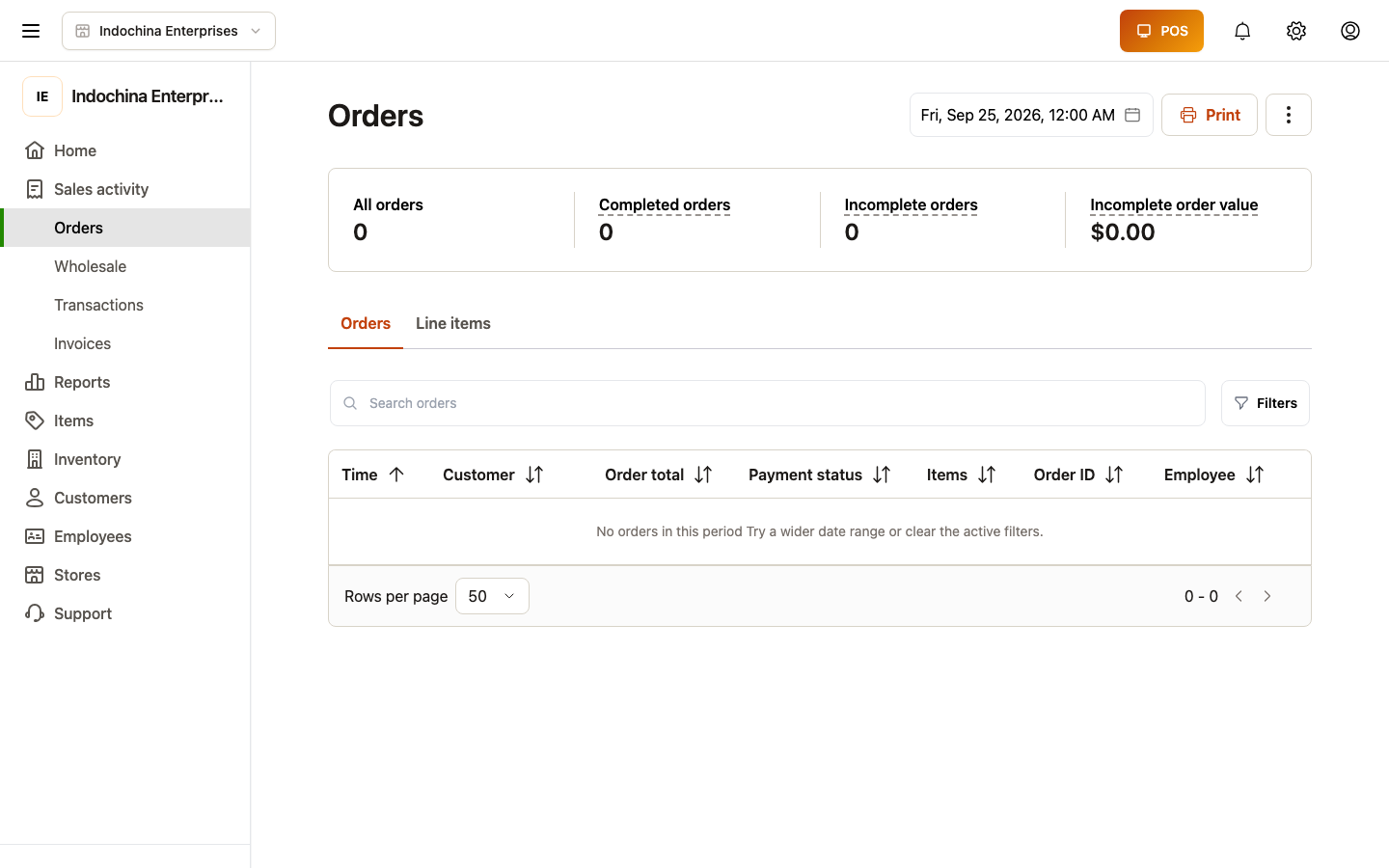
- Open order detail → Request return / refund.
- Pick which lines to return, add a reason.
- Submit → status flips to return requested.
- Finance / manager approves or rejects (Finance → Refunds).
- On approval, stock returns to the default warehouse, payment reverses (card return / wallet credit / cash).
Refunds touch real money — only managers with finance write should approve. See Orders.
4. Customer debt (Khách nợ)
Section titled “4. Customer debt (Khách nợ)”When to use
Section titled “When to use”A known customer wants to buy now and pay later.
Capture a debt sale
Section titled “Capture a debt sale”- Add customer to the cart.
- Choose Khách nợ (debt) as payment method.
- Submit — backend records
is_debt, opens a receivable with a deadline (default +10 days; store-configurable).
Track debt
Section titled “Track debt”- Finance → Receivables — every open balance with overdue flags.
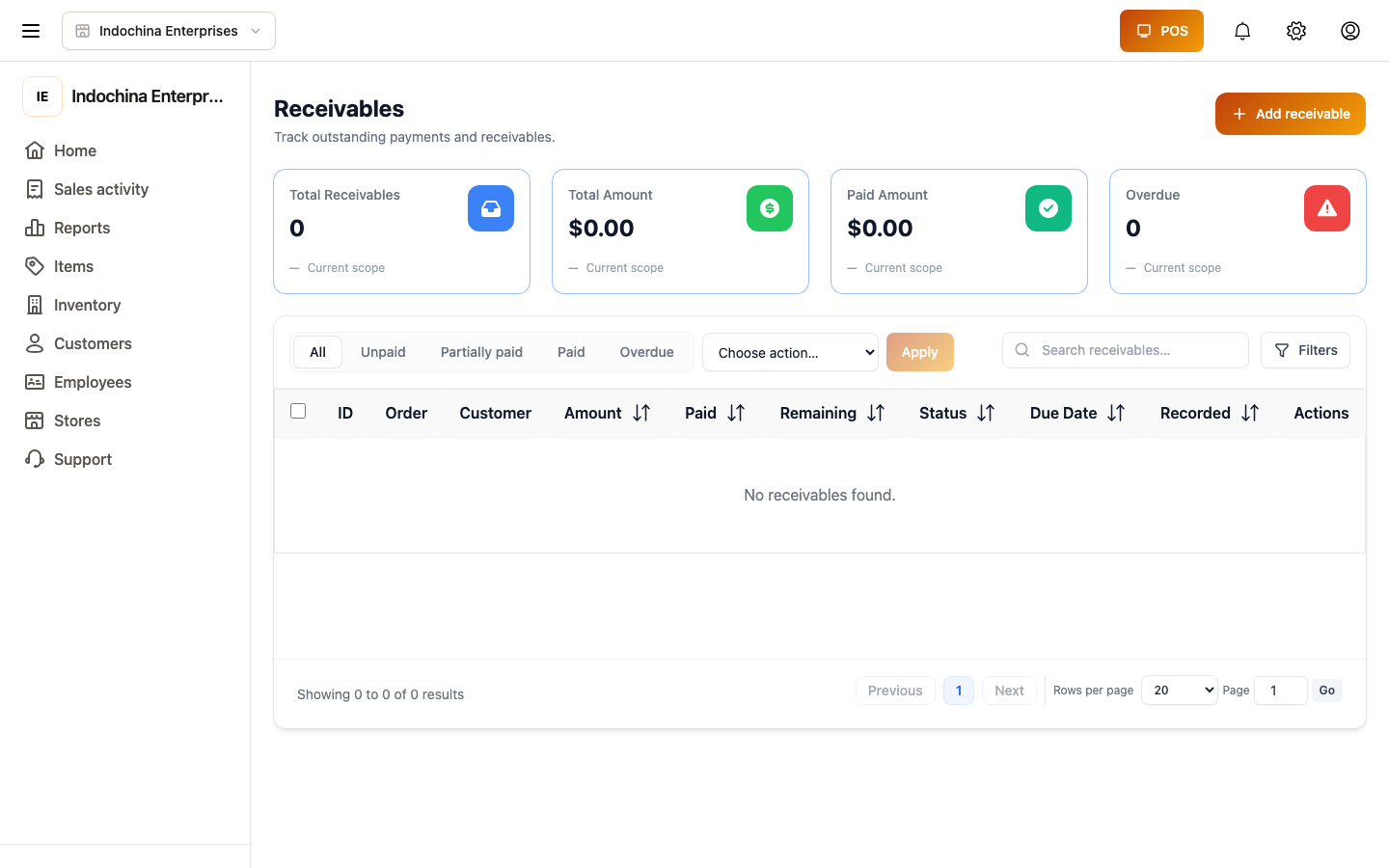
- Customer → Debt tab — single-customer view, payment history.
Collect payment
Section titled “Collect payment”- Cash / card / bank / wallet — record from the receivable row.
- Wallet top-up — add credit to the customer’s wallet from their profile.
If the customer overpays, the excess becomes wallet credit automatically.
5. Open and close a shift
Section titled “5. Open and close a shift”- Work shifts → + Open shift.
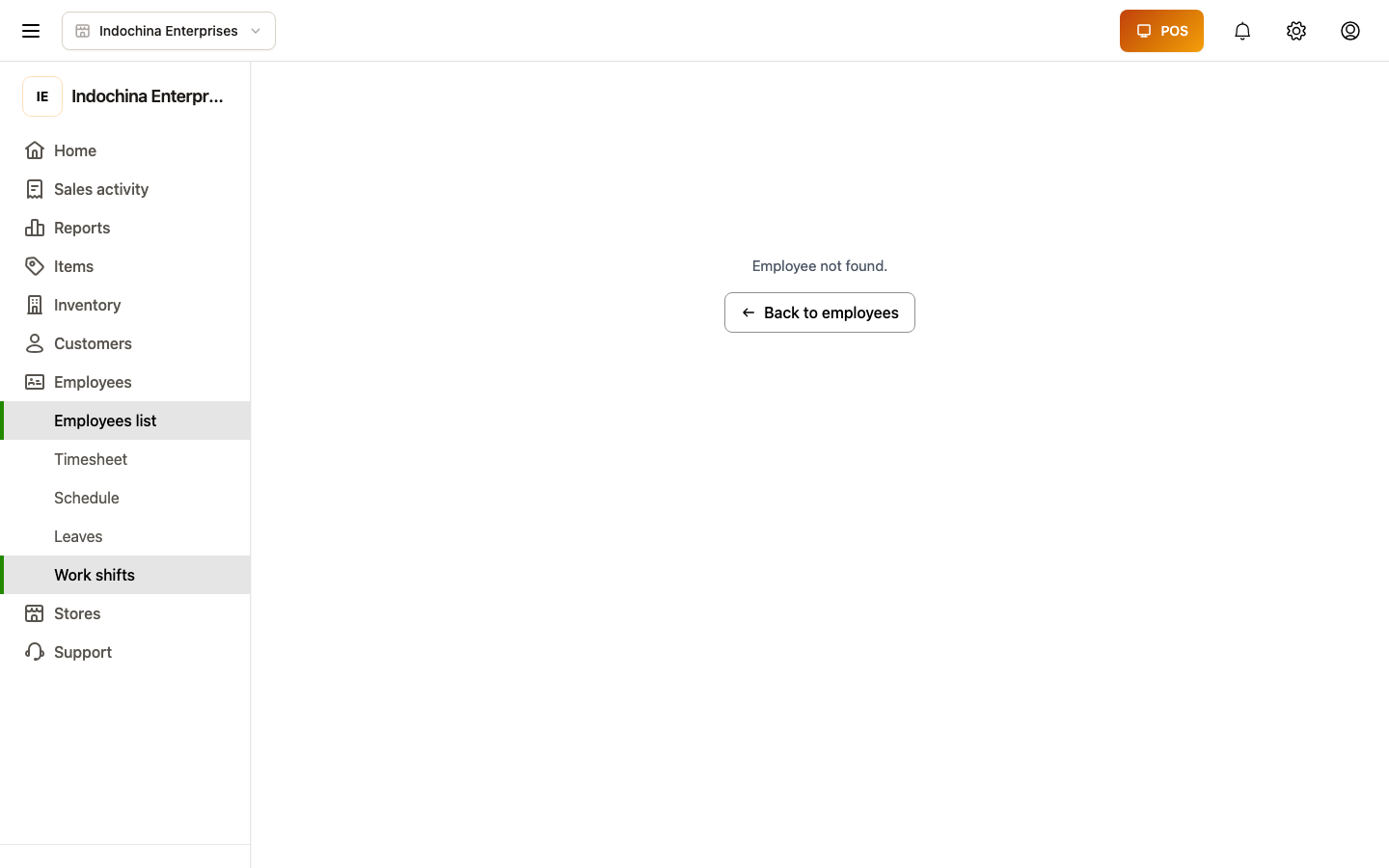
- Pick lane, set opening cash / slip counts → save.
- Sell as usual. All orders attribute here.
- Work shifts → close at end of session.
- Count cash, confirm slips, choose handover basis (Drawer or Ledger).
- (Optional) Close payment terminal batch — waits for the terminal to settle.
Want the shift to hand over to a partner? See Work shifts.
6. End-of-day reconciliation
Section titled “6. End-of-day reconciliation”- Close any open shifts.
- Open Finance → Reports → Finance report for the day.
- Compare:
- Cash on hand (shift closing totals) vs. Cash sales in the report.
- Card totals vs. Terminal batch settlement.
- Investigate any difference using Transactions (filter by tender) and the shift activity log.
- Record any expenses not yet logged (petty cash, supplier payment, etc.).
- Snapshot / export the day if your policy requires.
7. Customer disagrees with their balance
Section titled “7. Customer disagrees with their balance”- Open Customers → find them → Debt tab.
- Show the open receivables with deadlines.
- Compare to the timeline (orders + payment events).
- If a payment was missed, record payment now.
- If everything looks correct but the customer disputes, open a support ticket with order ids.
Quick reference — what shows where
Section titled “Quick reference — what shows where”| Task | Screen |
|---|---|
| Ring up a sale | POS Workspace or Classic POS |
| Add / edit customer | Customers |
| Check today’s orders | Orders |
| Refund or return | Orders → detail → Request return |
| Track cash drawer | Work shifts |
| Track customer debt | Finance → Receivables |
| Reconcile end-of-day | Finance → Reports |
| Change who’s allowed what | Employees → pick → Role (owner) |
| Configure hardware | Settings → Devices |