Finance
What you’ll find here
Section titled “What you’ll find here”Finance is where money moves. Owners and managers use it to see how the store is doing, follow up on unpaid balances, and approve refunds.
- Transactions — every payment in and out (sales, refunds, expenses).
- Expenses — non-sale outflows (rent, utilities, supplies).
- Refunds — pending / approved / refunded customer refunds awaiting your call.
- Invoices — printable / downloadable tax invoices for customers.
- Receivables — outstanding customer debt (Khách nợ).
- Reports — sales overview, sales report, finance report.
Most days you’ll open Sales overview and Receivables.
Sales overview
Section titled “Sales overview”The home for daily sales. Pick a date range (store timezone) and see:
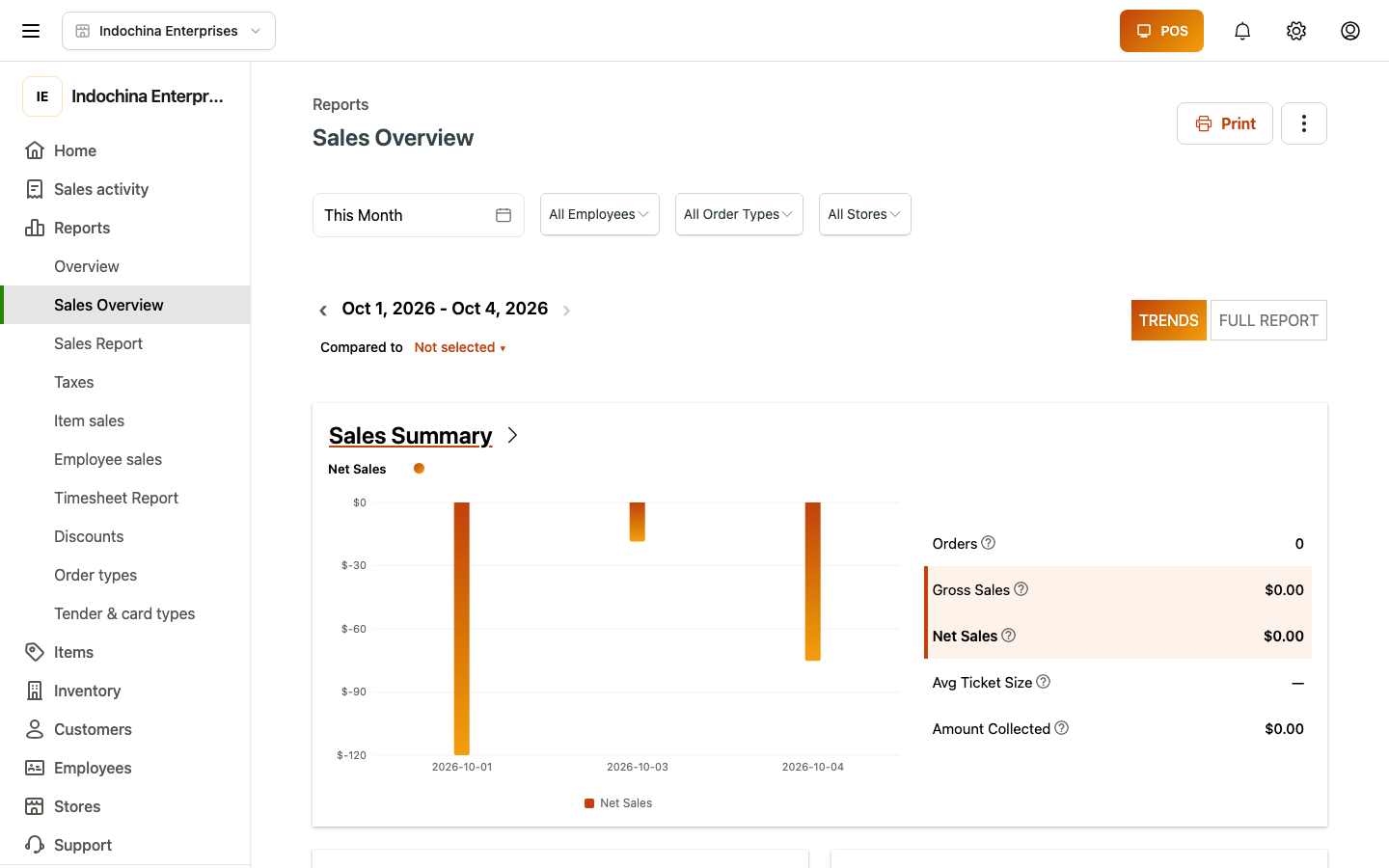
- Net sales, gross sales, discounts, refunds, tax.
- Order count, average order size.
- Tender mix — Cash / Card / Other for the period.
- Comparison to prior period (last 7d if you picked this week, etc.).
Drill into any chart to see the underlying orders.
Sales report
Section titled “Sales report”Deeper than the overview. Pick a date range and slice by:
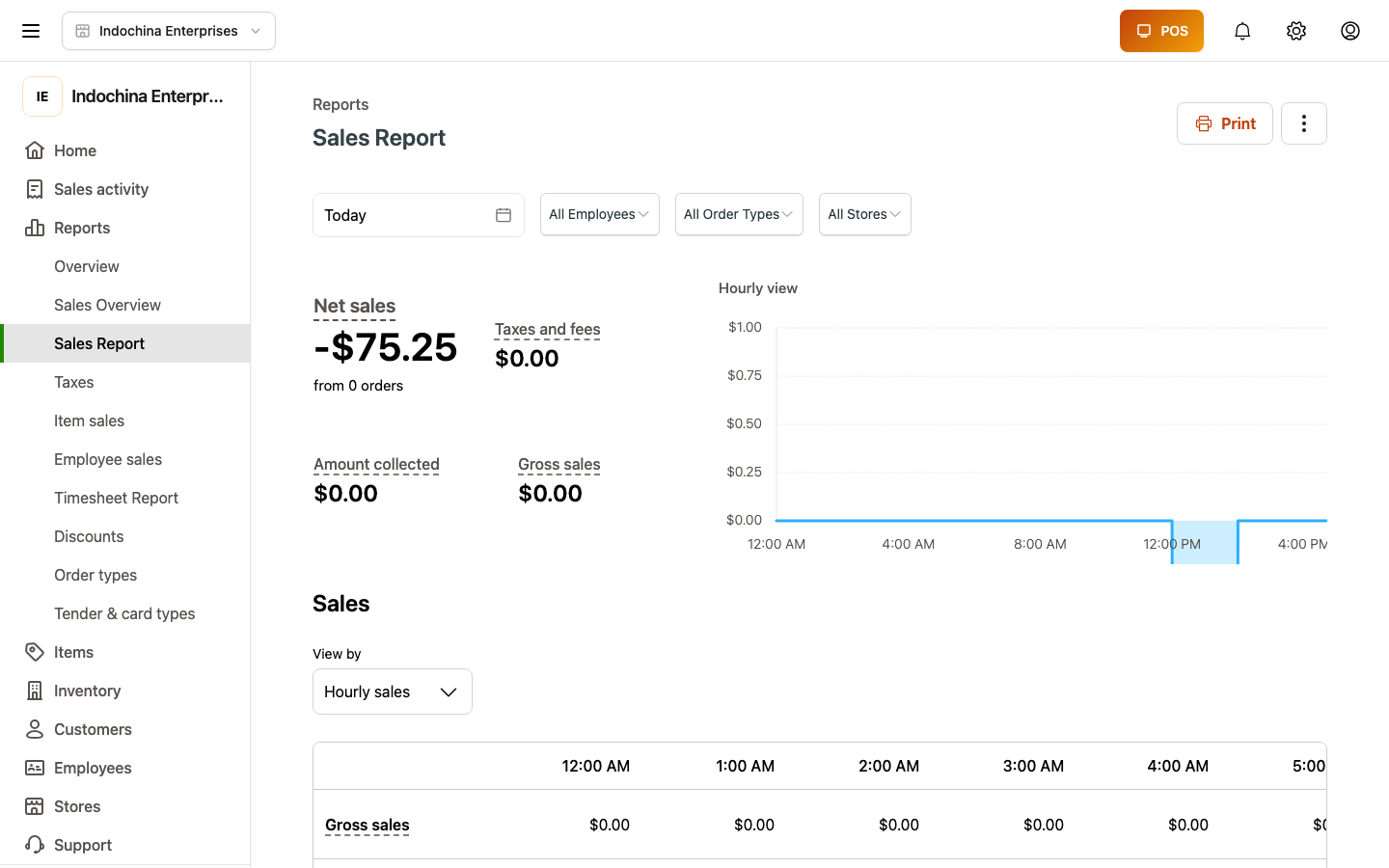
- Product / category — what’s selling.
- Tender — how customers paid.
- Cashier — who’s selling what.
- Hour / day / week — when.
Export to Excel for offline analysis.
Refunds queue
Section titled “Refunds queue”Refunds start as return requested from Orders → order detail. They appear here as a queue.
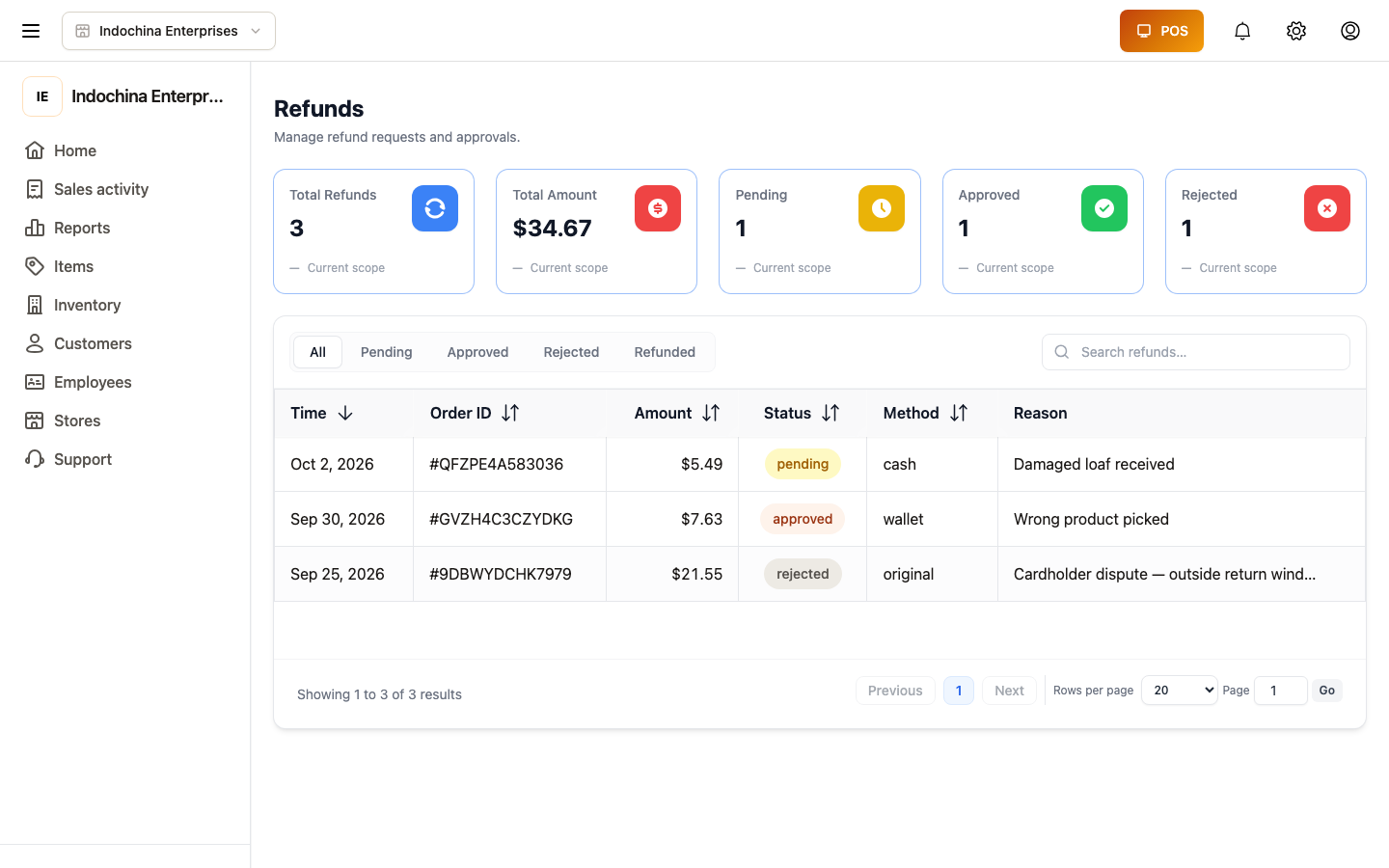
- Pending — needs approval (or rejection). Pick the refund, look at the order, hit Approve or Reject.
- Approved → refunded — when you mark a refund refunded it triggers stock restock, wallet credit (where applicable), and terminal card reversal.
- Cancelled — refund request was withdrawn by the cashier / customer.
Only users with the finance module can approve.
Receivables (customer debt)
Section titled “Receivables (customer debt)”Open Finance → Receivables. Each row is a customer with outstanding debt.
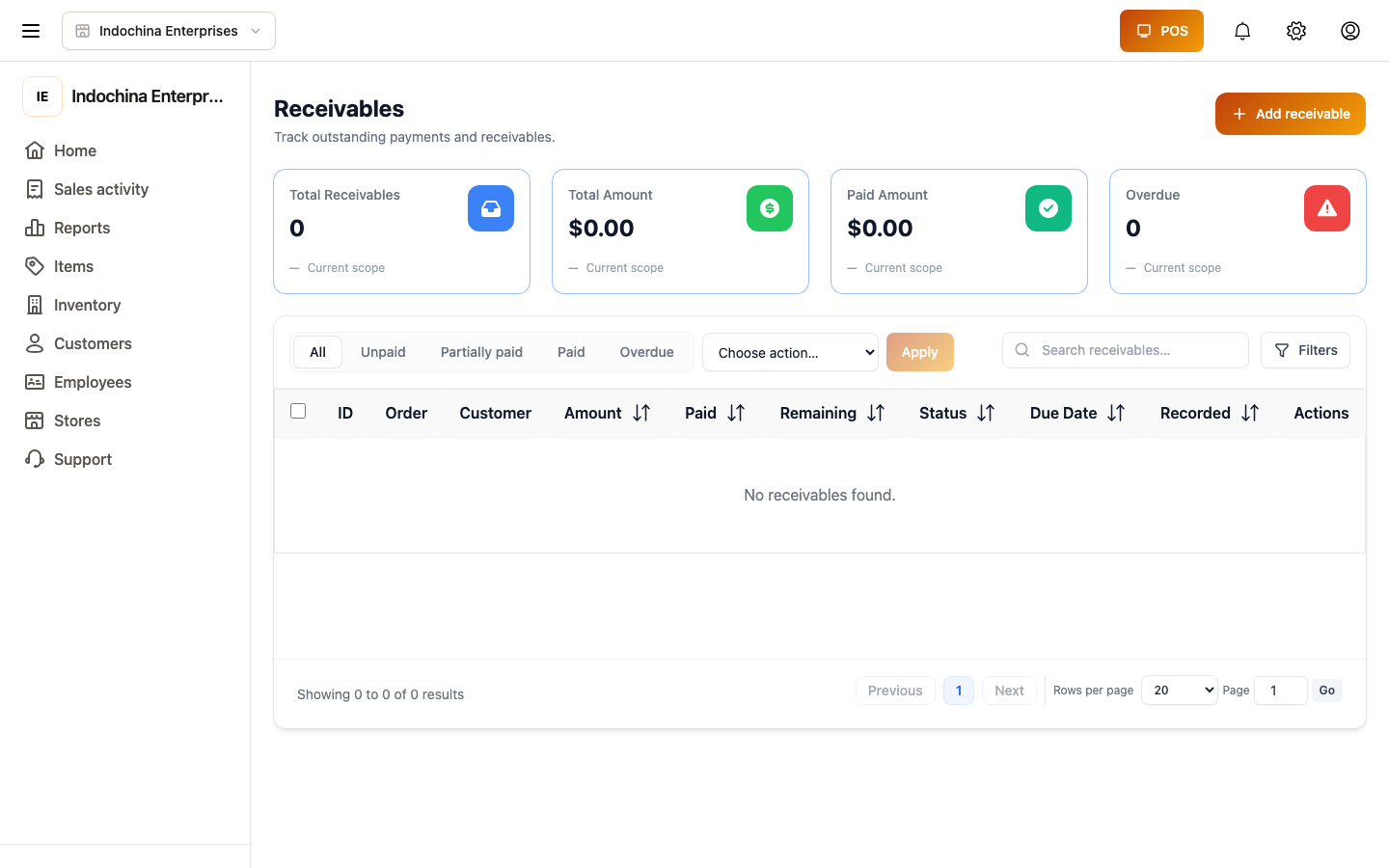
| Field | What it means |
|---|---|
| Customer | Who owes. |
| Total open | Sum of unpaid debt orders. |
| Overdue | Anything past its due date (per customer / category / store policy). |
| Last activity | Most recent payment / order. |
Click a row to see the debt orders (payable now, in N days, or on day X of next month).
To collect payment, open the receivable and click Record payment — same form as for a manual order payment.
Expenses
Section titled “Expenses”Track spend that isn’t a sale.
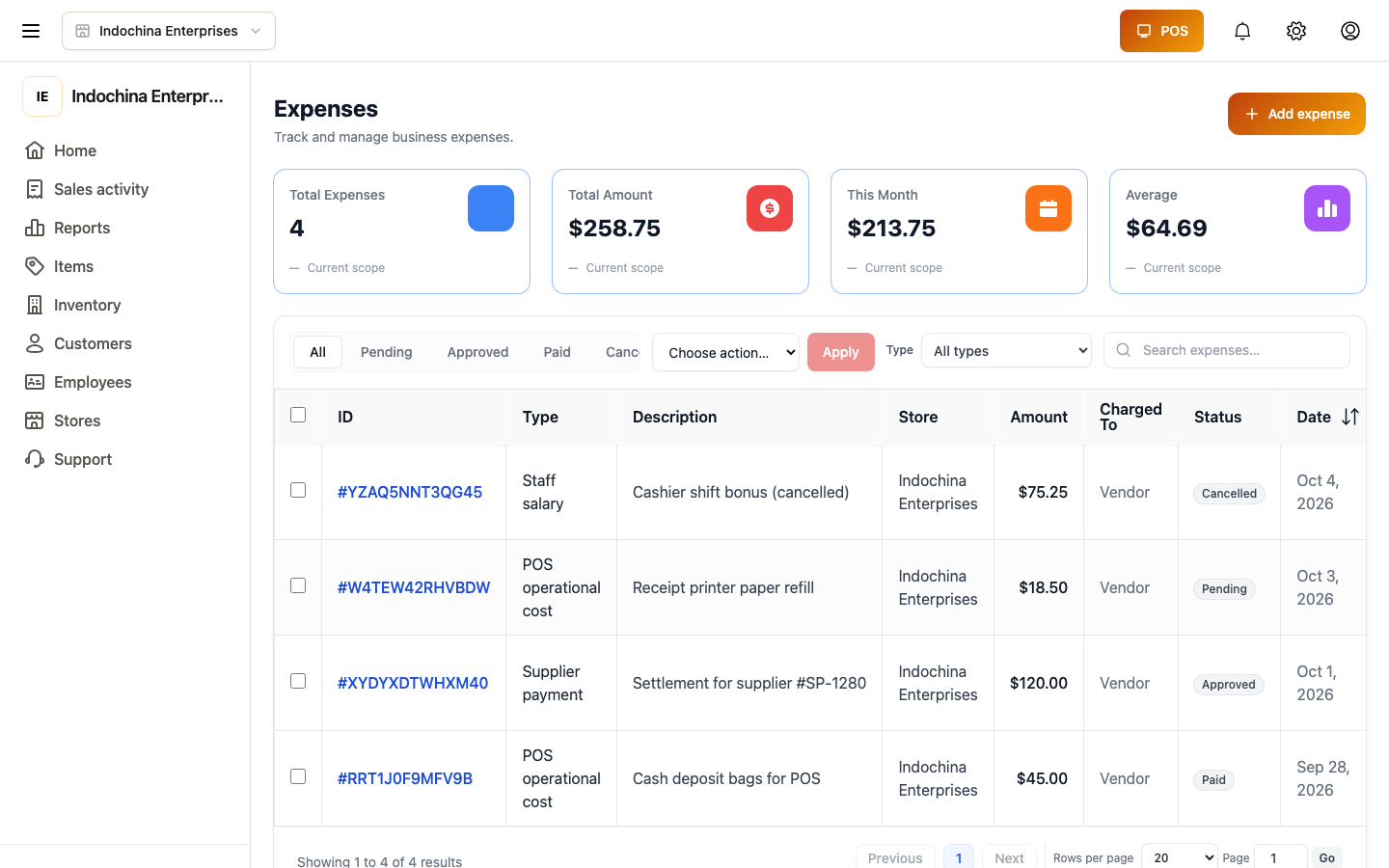
- + New expense — pick category (rent, salary, utilities, other), upload a receipt, choose the cash/bank account.
- Saves immediately. Affects cash-on-hand totals in reports.
Invoices
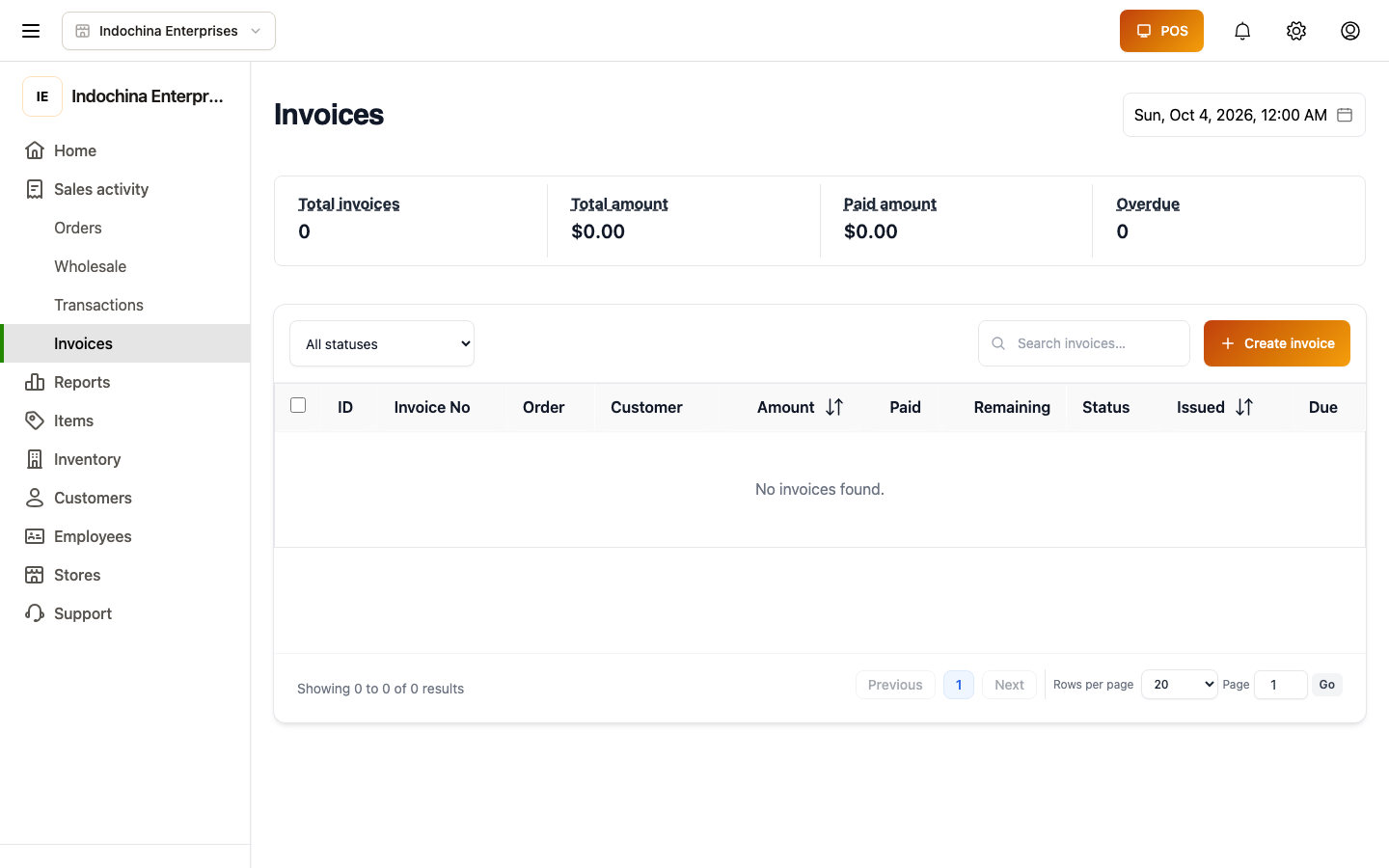
Section titled “Invoices”Generate a tax invoice for any paid order. From an order detail, click Generate invoice — fill customer billing fields (name, address, tax code). The invoice row is created and printable as PDF.
Transactions
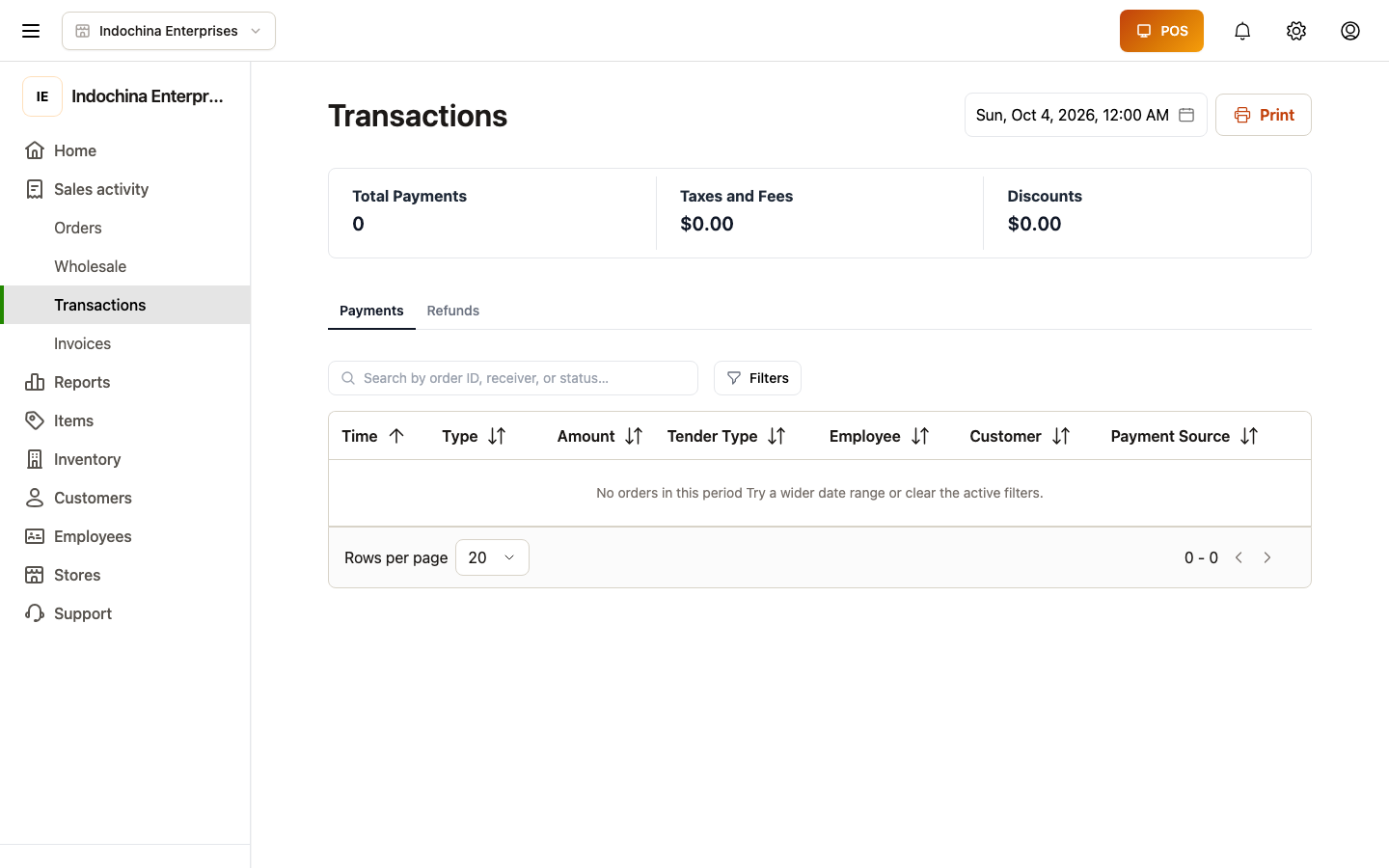
Section titled “Transactions”Every payment in and out flows through here — sales, refunds, manual adjustments. Useful for cash-up reconciliation.
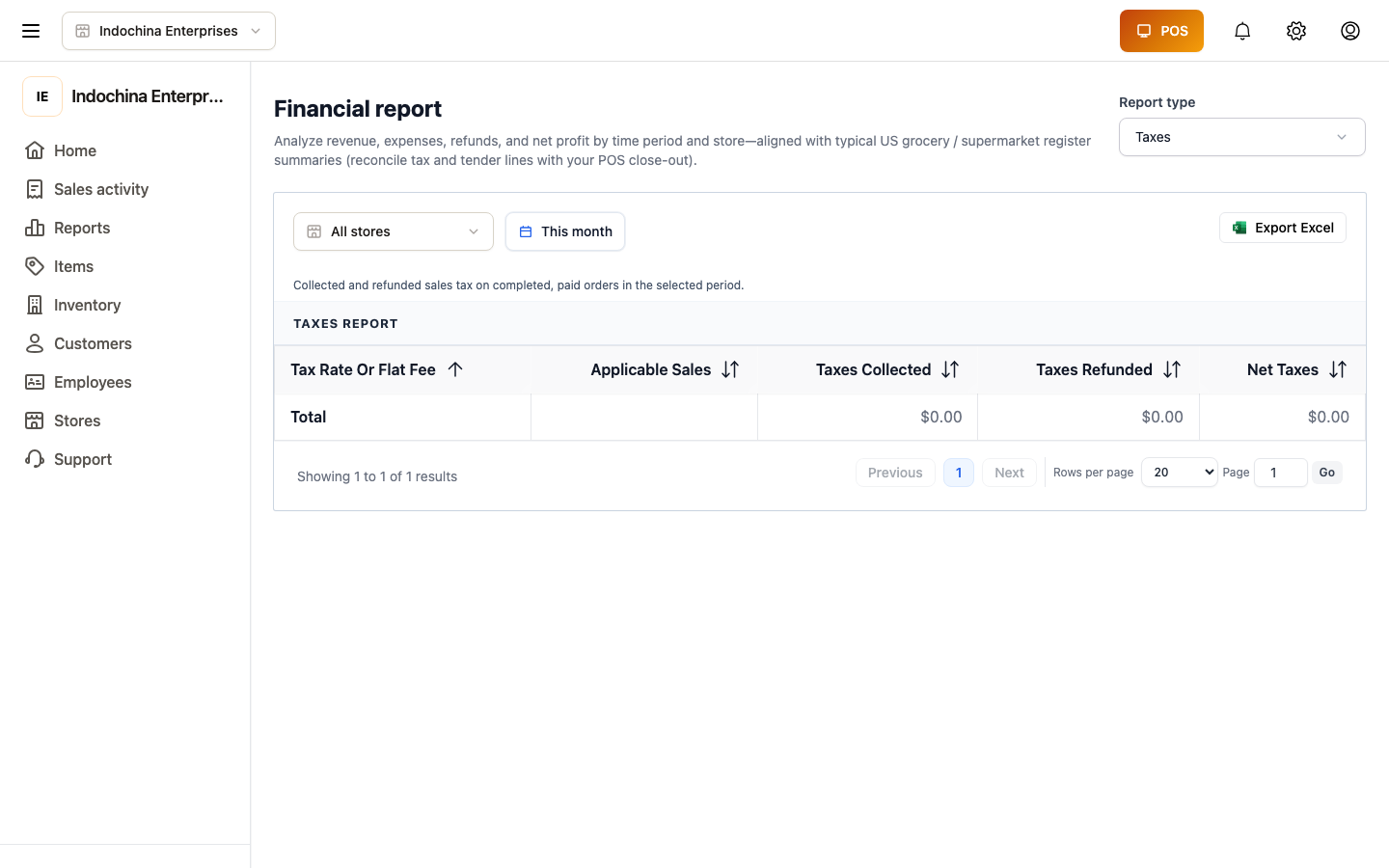
Reports — finance report
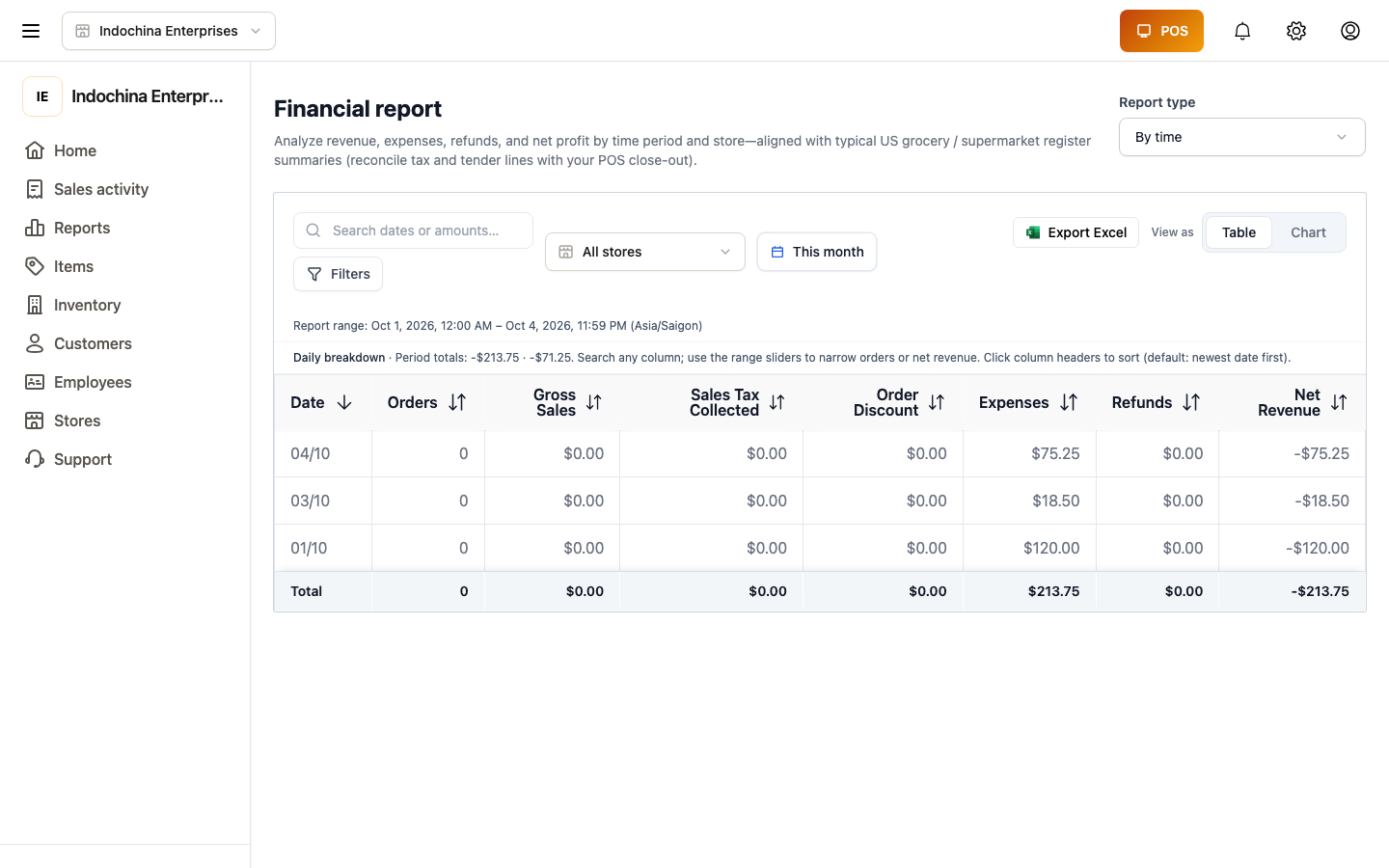
Section titled “Reports — finance report”The detailed P&L: gross, discounts, taxes, refunds, COGS, net. Pick a date range (store timezone) and export to Excel / PDF for your accountant.
Other finance views
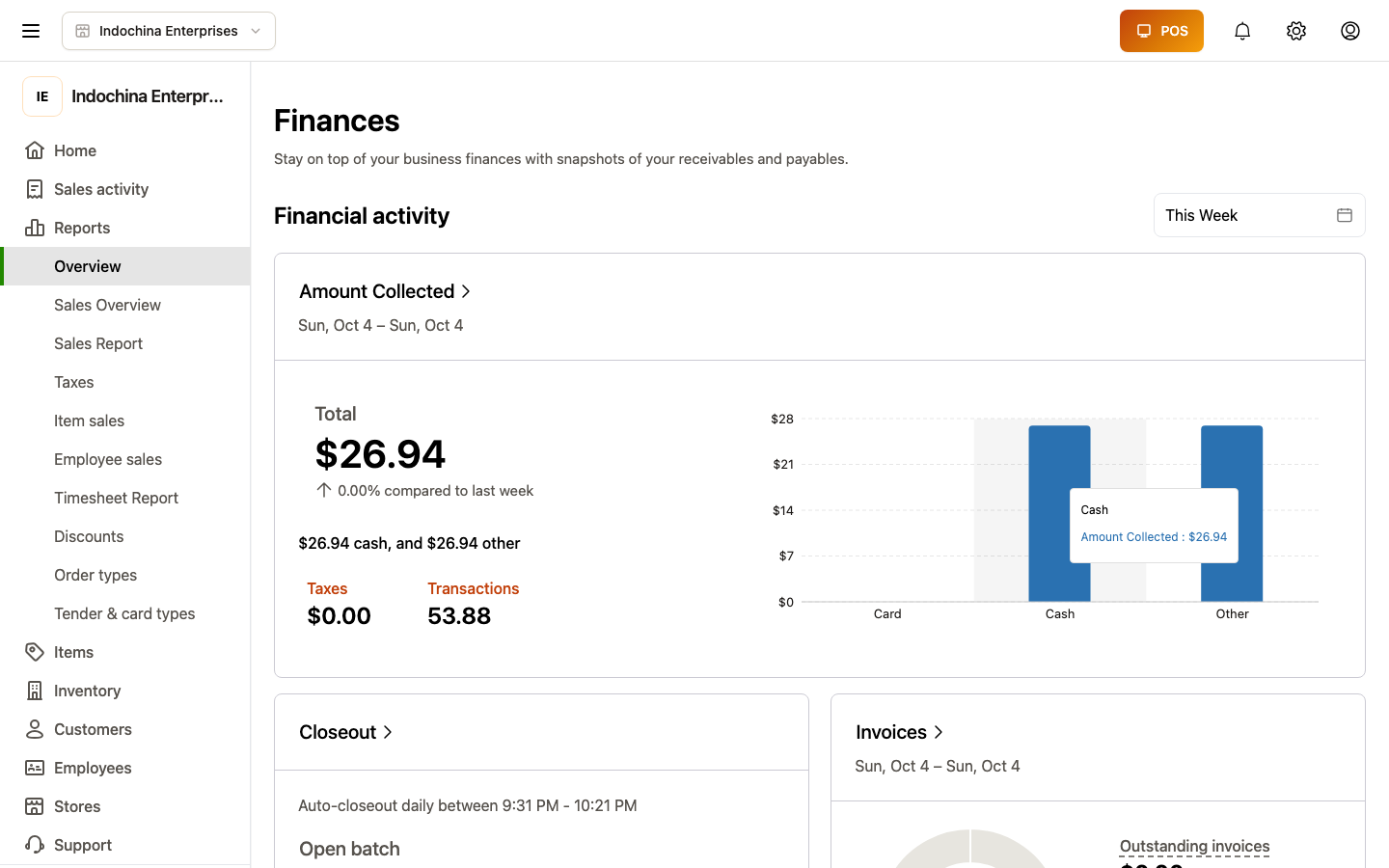
Section titled “Other finance views”- Finance overview — landing dashboard for the finance module (KPIs).
- Finances legacy — older dashboard kept for legacy data.
Common questions
Section titled “Common questions”My numbers don’t match the cashier’s drawer at end of day. Open Transactions, filter by Today and cash, then total. Compare with the shift’s closing cash. Differences usually mean: a tip / tip-adjustment, an unrecorded expense, or an unpaid delivery / COD order.
Refund won’t approve. Make sure the order is in delivered / completed status (not pending) and the refund request is well-formed. If you can’t tell, contact support — don’t try to flip status flags manually.
Receivable shows but customer says they paid. Search for the order id in Transactions. Manual wallet adjustments also show up here.
Related
Section titled “Related”- Orders — order detail, returns, activity log.
- Work shifts — end-of-day drawer reconciliation.
- Sales, POS & receivables procedures — end-to-end playbook.