Barcode Labels
Overview
Section titled “Overview”The Barcode Labels page (/point-of-sale/barcode) provides a workbench for creating and printing barcode labels for products in the catalog.
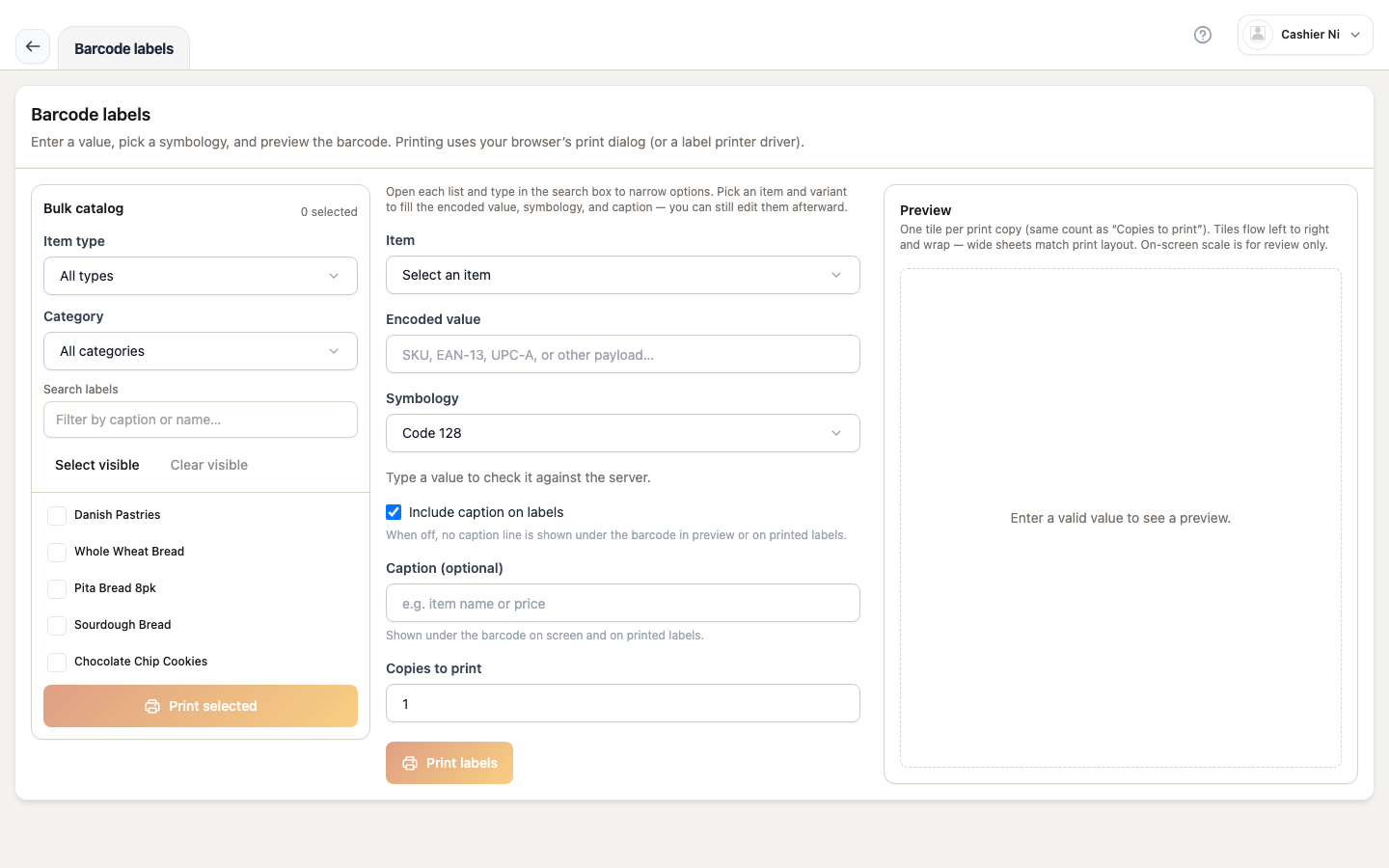
Page layout
Section titled “Page layout”┌──────────────────────────────────────────────────────────┐│ Product search | Add to batch | Clear batch │├──────────────────────────────────────────────────────────┤│ Label batch builder ││ - Product | SKU | Barcode | Quantity | Remove │├──────────────────────────────────────────────────────────┤│ Label template preview ││ - Size: 50x30mm | 40x25mm | Custom ││ - Content: Barcode + Name + Price | Barcode only │├──────────────────────────────────────────────────────────┤│ Print button │└──────────────────────────────────────────────────────────┘How to generate labels
Section titled “How to generate labels”Step 1: Search and add products
Section titled “Step 1: Search and add products”- Use search input to find products by name, SKU, or barcode
- Results appear in dropdown
- Click product to add to batch
- Set quantity of labels for each product
- Repeat for additional products
Step 2: Configure label template
Section titled “Step 2: Configure label template”Label size options:
- 50x30mm — Standard retail barcode label
- 40x25mm — Smaller label for compact products
- Custom — Enter width x height in mm
Label content options:
- Full — Barcode + Product name + Price
- Barcode only — Just the barcode graphic
- Name + Price — Product info without barcode (shelf tags)
Step 3: Preview
Section titled “Step 3: Preview”Preview panel shows:
- Label dimensions (actual size)
- Layout with product data
- How labels will appear when printed
Step 4: Print
Section titled “Step 4: Print”- Click “Print labels” button
- Print dialog opens
- Select label printer from dropdown
- Confirm print settings
- Labels sent to printer
Label batch table
Section titled “Label batch table”Columns
Section titled “Columns”| Column | Content | Editable |
|---|---|---|
| Product | Product name + thumbnail | No |
| SKU | Stock keeping unit | No |
| Barcode | Barcode value | No |
| Quantity | Number of labels to print | Yes (input) |
| Actions | Remove from batch button | Yes |
Batch actions
Section titled “Batch actions”- Adjust quantity: Change number in quantity column
- Remove product: Click trash icon to remove from batch
- Clear all: Button at top clears entire batch
Barcode formats
Section titled “Barcode formats”System automatically detects barcode format:
- EAN-13 — 13-digit European Article Number
- UPC-A — 12-digit Universal Product Code
- Code 128 — Alphanumeric barcode
- Code 39 — Legacy format
If product has no barcode, system generates one based on SKU or product ID.
Printer requirements
Section titled “Printer requirements”Compatible printers
Section titled “Compatible printers”- Thermal label printers: Brother QL series, Zebra, Dymo
- Desktop bridge required: Vendor Desktop app to communicate with USB printer
- Network printers: Some models support direct network printing
Printer setup
Section titled “Printer setup”- Connect label printer to computer via USB
- Install printer drivers
- Open Vendor Desktop → Settings → Label Printer
- Select printer from list
- Test print to verify
Label templates
Section titled “Label templates”Standard templates
Section titled “Standard templates”System includes pre-configured templates:
- Retail shelf tag — Product name, price, barcode
- Warehouse label — SKU, barcode, location
- Small product sticker — Barcode only, compact
Custom templates
Section titled “Custom templates”Create custom templates:
- Navigate to Settings → Barcode Templates
- Click “New template”
- Configure layout, fields, dimensions
- Save template
- Select from Barcode page dropdown
Bulk operations
Section titled “Bulk operations”Print entire category
Section titled “Print entire category”- Filter by category
- Add all products to batch
- Set uniform quantity
Restock workflow
Section titled “Restock workflow”When restocking inventory:
- Import products from purchase order
- Batch generates labels automatically
- Print and apply to products
Permissions
Section titled “Permissions”| Action | Required permission |
|---|---|
| View barcode page | pos read |
| Generate labels | pos write |
| Configure templates | settings read |
Offline behavior (Desktop)
Section titled “Offline behavior (Desktop)”Generate labels offline
Section titled “Generate labels offline”Label generation works offline:
- Uses cached product catalog
- Templates stored locally
- Preview rendered client-side
Printing offline
Section titled “Printing offline”Requires Desktop app:
- Direct USB printer connection
- No network required
- Labels queued if printer unavailable
Troubleshooting
Section titled “Troubleshooting”Printer not detected
Section titled “Printer not detected”Causes:
- Printer not connected
- Desktop bridge not running
- Driver not installed
Solution: Check USB connection, restart Desktop app, install drivers.
Barcode not scanning
Section titled “Barcode not scanning”Causes:
- Barcode format mismatch
- Label printed too small
- Barcode damaged or smudged
Solution: Verify barcode format, increase label size, reprint.
Labels misaligned
Section titled “Labels misaligned”Causes:
- Wrong label size selected
- Printer calibration off
- Label paper loaded incorrectly
Solution: Select correct template, calibrate printer, check paper loading.
Product not found in search
Section titled “Product not found in search”Causes:
- Product inactive
- SKU/barcode mismatch
- Catalog not synced
Solution: Activate product, verify SKU, sync catalog from server.