Settings — Label printer, scale, cash drawer
import { Aside } from ‘@astrojs/starlight/components’;
3 devices in one page
Section titled “3 devices in one page”| Device | When to use | Path | Source |
|---|---|---|---|
| Label printer | Shelf / barcode labels | /point-of-sale/settings/label-printer | settings-label-printer-page.tsx |
| Weighing scale | Weighted goods (produce, meat, fish) | /point-of-sale/settings/scale (<DeviceSettings hardwareFocus="scale">) | DeviceSettings.tsx |
| Cash drawer | Auto-open on cash tender | /point-of-sale/settings/cash-drawer (<DeviceSettings hardwareFocus="cash-drawer">) | DeviceSettings.tsx |
Visual reference
Section titled “Visual reference”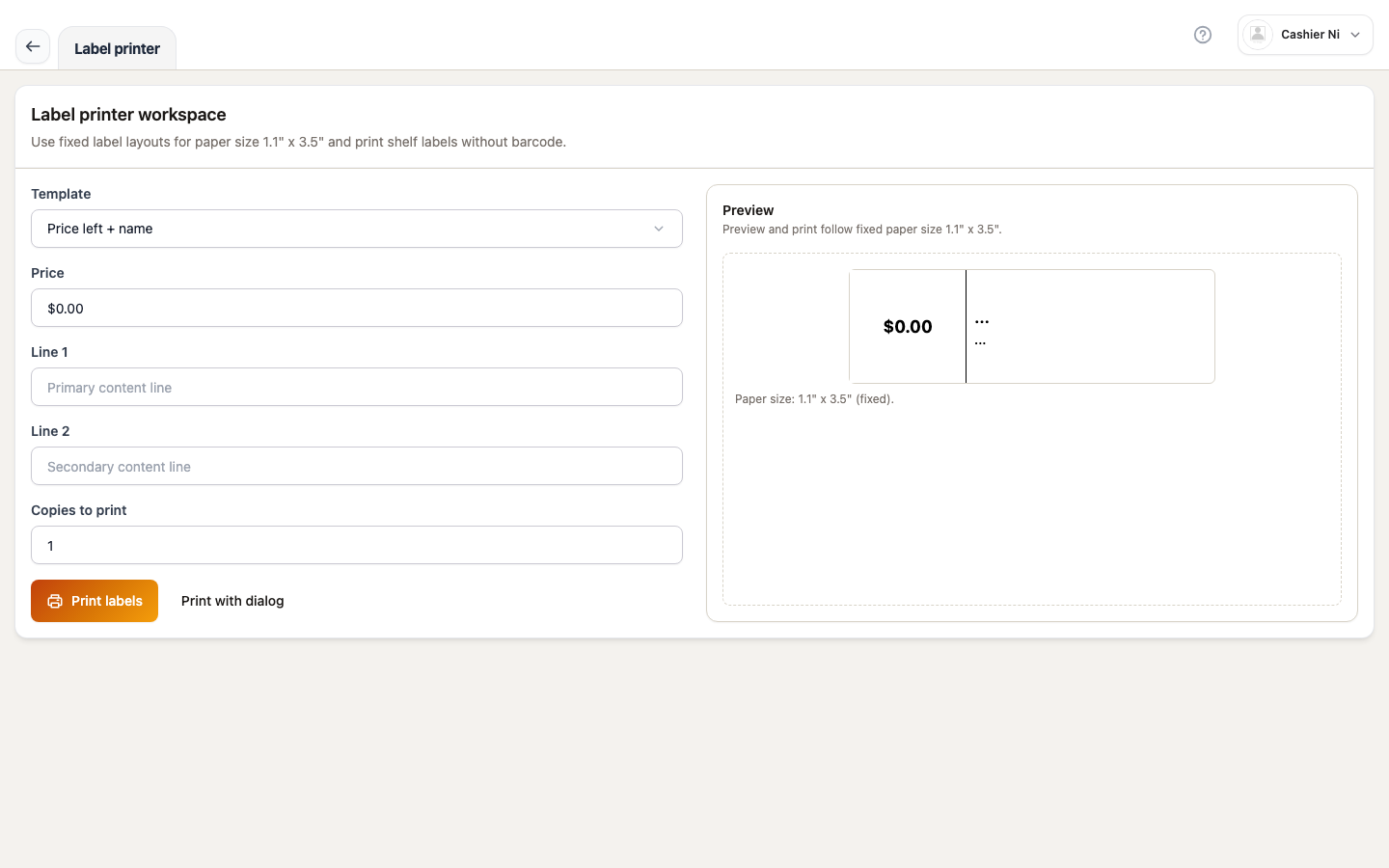 Image: label printing workbench — pick template (
price_left / boxed_price_per_lb), system printer, preview area, Print button. Spec owner: cashier-screenshots.spec.ts → "settings — label printer (workbench)".
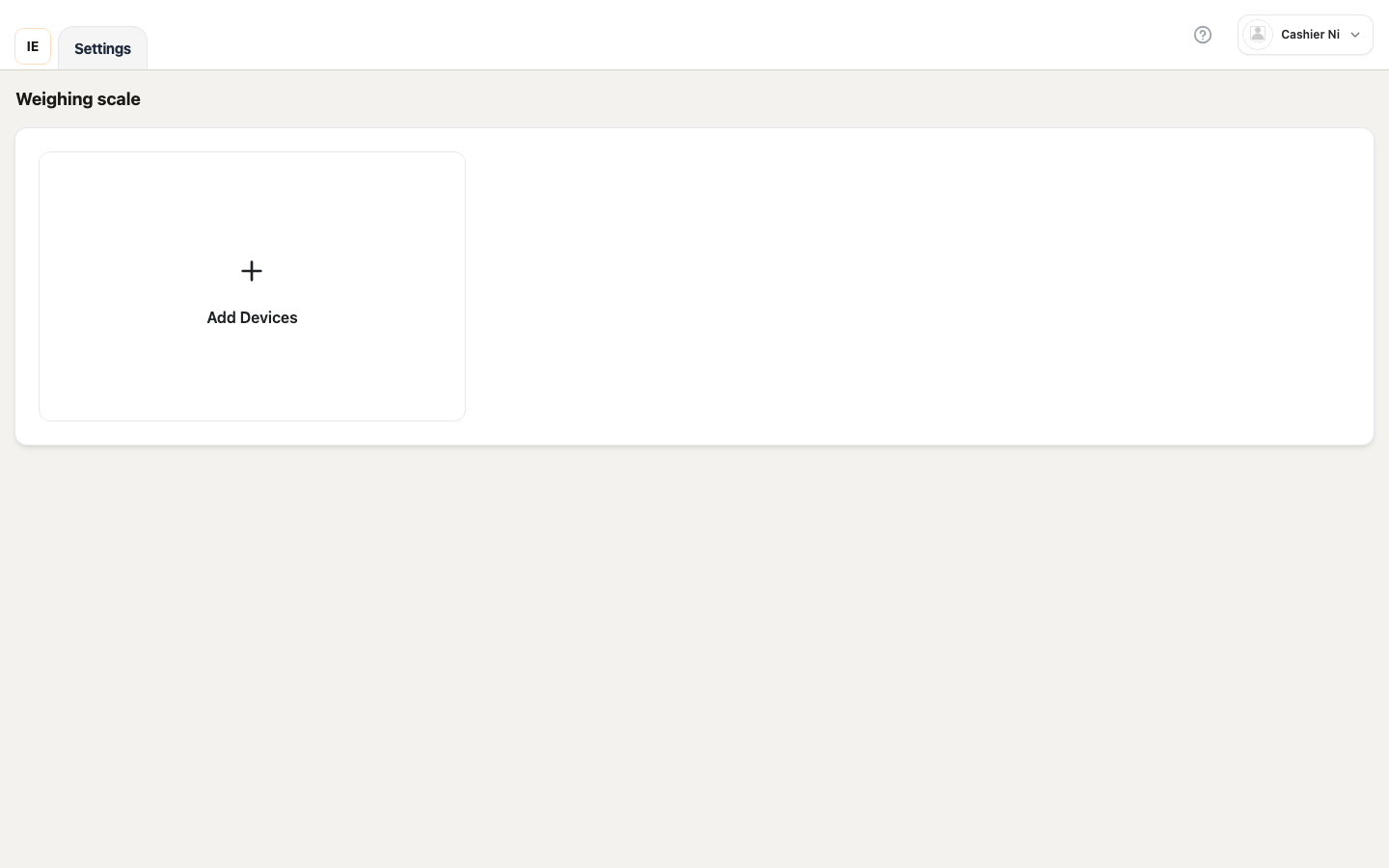 Image: scale config — USB Serial / HID, “Local ready” badge when the config is valid. Spec owner:
 cashier-screenshots.spec.ts → "settings — scale".
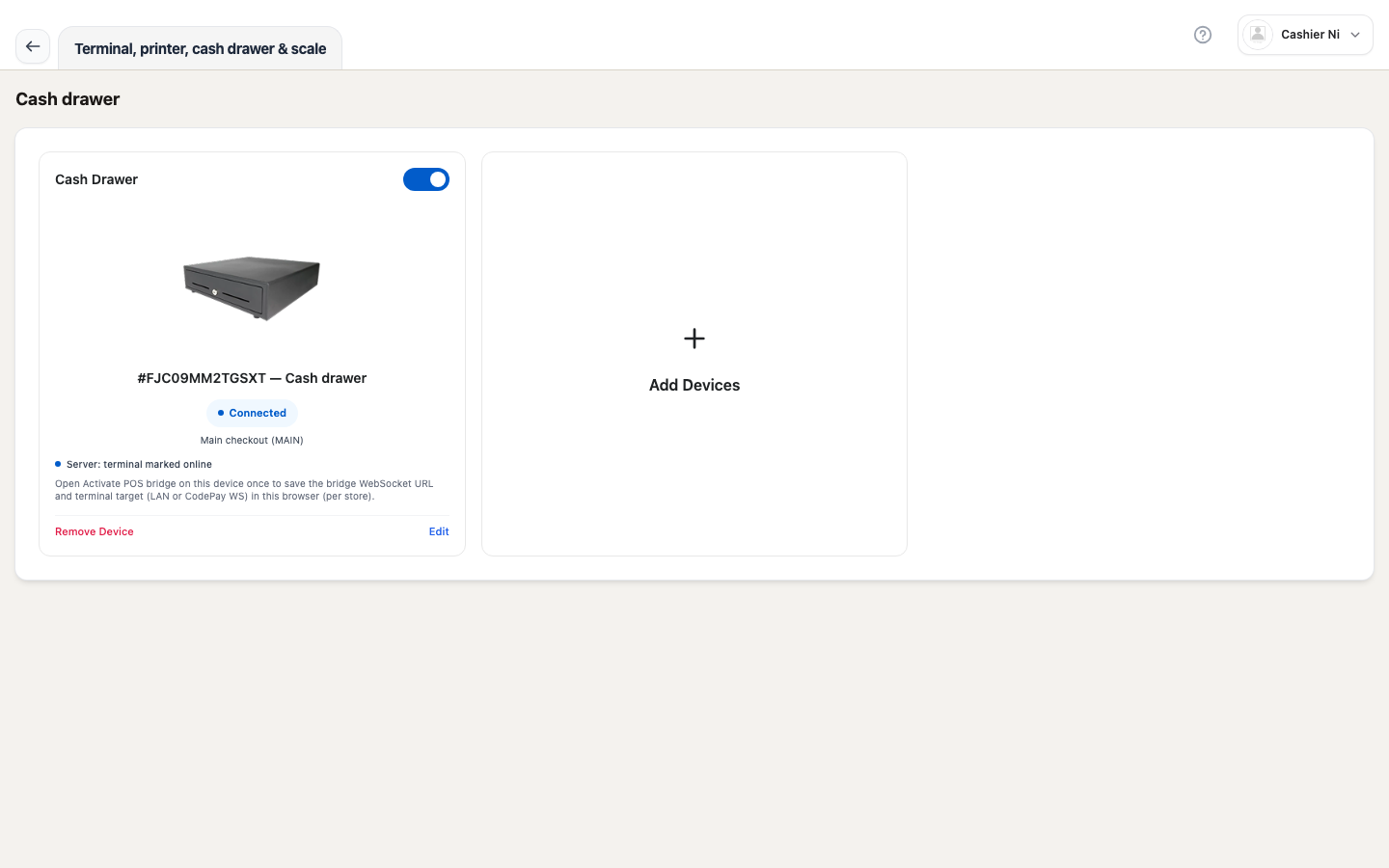 Image: cash drawer — subtype of the receipt printer, “Local ready” badge, test popup. Spec owner:
 cashier-screenshots.spec.ts → "settings — cash drawer".
1. Label printer
Section titled “1. Label printer”When to use
Section titled “When to use”Print shelf / barcode labels for new products or after a stocktake. Common in grocery, mini-mart, cosmetics.
Configure (5 steps)
Section titled “Configure (5 steps)”- Settings → Label printer (
/point-of-sale/settings/label-printer) — Vendor Desktop only. - Make sure an active store is selected on the top bar — otherwise the form is hidden and you only see the “Pick store” message.
- Pick a label template (
templateKey):price_left— price in a square box on the left, content on the right.boxed_price_per_lb— content inside a frame, for items priced per pound.
- Pick a system printer (
printerName) from thesystemPrintersQuerydropdown — Electron callselectronApi.listPrinters(). Leave blank to print via the OS default printer. - Fill price + 2 content lines + copies (1–100). Click Print to use Electron
printHtml, or Print with dialog to open the browser’s print dialog (fallback).
Source: settings-label-printer-page.tsx. Constants:
LABEL_PAPER_WIDTH_IN = 3.5; // ~ 89mmLABEL_PAPER_HEIGHT_IN = 1.1; // ~ 28mmLABEL_PRINTER_MIN_COPIES = 1;LABEL_PRINTER_MAX_COPIES = 100;LABEL_PRINTER_MAX_CONTENT_LINE_LENGTH = 64;LABEL_PRINTER_MAX_PRICE_LENGTH = 24;Expected outcome
Section titled “Expected outcome”Toast “Print command sent” when Electron prints successfully. On failure, the fallback print dialog opens and an error toast with the reason (printFailedWithReason) is shown.
Common issues
Section titled “Common issues”| Symptom | Fix |
|---|---|
| Form hidden, only the “Pick store” message shows | No active store selected on the top bar |
| No printers in the dropdown | Vendor Desktop lacks permission to access system printers — grant in OS |
Toast Print failed: … | Read the reason in the toast; try Print with dialog |
| Label cut off at the edge | Driver may not support the 3.5in × 1.1in paper size |
2. Weighing scale
Section titled “2. Weighing scale”When to use
Section titled “When to use”Stores sell by weight — produce, meat, fish. Each time the cashier scans a weighted SKU, the system reads kg from the scale and multiplies by the unit price.
Configure (4 steps)
Section titled “Configure (4 steps)”- Settings → Scale (
/point-of-sale/settings/scale). - Click + Add device → choose Weighing scale (
weighing_scale). - Pick a connect method:
USB Serial(RS-232 over USB) — default baud rate frompos-scale-serial.constants.ts.USB HID— no driver needed, plug-and-play.
- Pick a scale model (
model) — USB Serial presets useisUsbSerialScaleModelPreset(...). Enable the device.
Source: device-scale-settings-form.tsx, pos-scale-serial-config.ts.
When is the scale ready?
Section titled “When is the scale ready?”localScaleReady === true when:
- Valid USB Serial model + valid scaleConfig JSON + valid baud rate.
The card shows a green “Local ready” pill + a “Local hint” — scales don’t need bridge pairing.
Common issues
Section titled “Common issues”| Symptom | Fix |
|---|---|
| Scale not responding | Check cable / USB port; try another port |
| Weight doesn’t update when you place an item | Scale may not be in data-send mode — see the scale’s manual |
| “Local ready” pill never turns green | Missing baud rate / scaleConfig — re-check the form |
3. Cash drawer
Section titled “3. Cash drawer”When to use
Section titled “When to use”After a cash tender the drawer pops open so the cashier can give change.
Configure (3 steps)
Section titled “Configure (3 steps)”- Settings → Cash drawer (
/point-of-sale/settings/cash-drawer). - The drawer is a subtype of receipt printer — configure the receipt printer first (
CASH_DRAWER_PRINTER_TYPE). - Connect the drawer to the receipt printer via an RJ12 cable (common).
- Click Test on the drawer card — the drawer popping means it’s good.
localCashDrawerReady === true when the config is valid + paired with a receipt printer.
Common issues
Section titled “Common issues”| Symptom | Fix |
|---|---|
| Drawer doesn’t open after cash tender | Check the RJ12 cable; enable “Open on cash tender” in the form |
| Manual test works, real sale doesn’t | The tender must be cash — card doesn’t open the drawer |
| Drawer opens but closes immediately | Likely a mechanical jam — service the drawer |