POS Workspace tour
What is the POS Workspace?
Section titled “What is the POS Workspace?”The POS Workspace (/point-of-sale/*) is the mobile-friendly, fullscreen POS interface. It works on tablets, touch screens, and phones in addition to desktop.
It’s the same checkout engine as classic POS, but laid out with tabs at the bottom (mobile) or a collapsible sidebar (desktop). Beyond the main sale screen, the workspace bundles many tools a cashier needs in one place.
Most of what you do on a lane is the same as Classic POS. This page is a tour of the extra tabs the workspace exposes.
What’s in the workspace
Section titled “What’s in the workspace”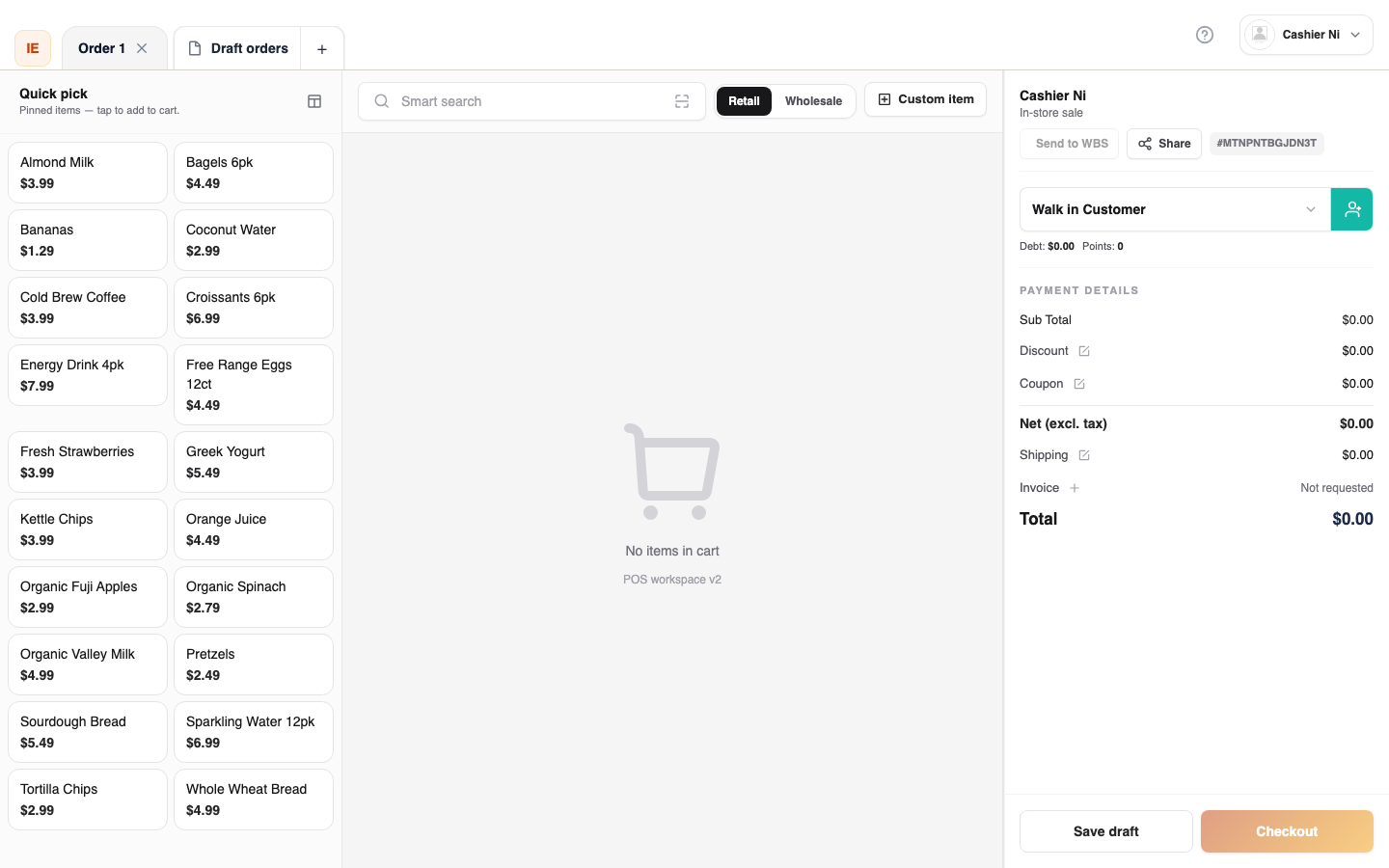
| Tab | Purpose |
|---|---|
| Sale | The main checkout — identical to classic POS. |
| Items | Browse the catalog by category / search / filter. Add to cart. |
| Customers | Look up a CRM customer, loyalty, wallet, debt. |
| Orders | The lane’s recent orders, draft orders, status. |
| Returns | Process a return / refund without leaving the workspace. |
| More → Barcode labels | Print shelf labels. |
| More → Work shifts | Open / close the cashier drawer. |
| More → Warehouse board | Pick items for orders waiting in the back room. |
| More → Reports | Daily sales summary. |
| More → Settings | Hardware, store, profile, theme. |
If you spend your shift on a single lane, you’ll mostly use Sale, Customers, and Returns. The rest are quick access to save you a trip back to the dashboard.
Differences from Classic POS
Section titled “Differences from Classic POS”| Feature | Classic POS | POS Workspace |
|---|---|---|
| Layout | Fullscreen, lane-centric | Tabbed, mobile-friendly |
| Settings hub | Via dashboard | In-app hub |
| Multi-tab carts | Single active sale at a time | Multiple tabs (Shift+F8 for new) |
| Drafts | Save draft to come back later | Same, plus named drafts on disk |
| Best screen | Desktop monitor | Tablet, small screen, or desktop |
You can switch between the two — settings and hardware pairings are shared.
When to use which?
Section titled “When to use which?”- Use Classic POS (
/pos) when your lane is a large monitor and you don’t browse the catalog much. - Use POS Workspace when staff use tablets or handhelds, when multiple cashiers share a station, or when you want one-stop access to returns / drafts / settings.
Most stores use both — the manager uses the workspace from a tablet; dedicated lanes use classic POS.
- Bottom tab order matters. Drag-and-drop is on by default in Settings → POS. Reorder to put your most-used tab first.
- Sale is sticky. Returning to Sale from another tab keeps your open cart.
- Settings → Mobile enables mobile-friendly number pads, slip previews, etc. for handhelds.
Common questions
Section titled “Common questions”Where is “Barcode labels”? In the More menu, or via Settings → Barcode labels. For quick access, drag the entry to the bottom nav.
I’m on the workspace but can’t take a card payment. Pair your card terminal in Settings → Devices. It’s the same pairing screen as classic POS.
Draft order disappeared after closing the app. Drafts are saved per device. Check the Draft orders panel inside Sale — server-saved drafts sync across devices.
Related
Section titled “Related”- POS / Checkout — overview, classic vs workspace.
- Cashier help center — full cashier step-by-step.