Step 4 — Process a return
I. Goal
Section titled “I. Goal”You can refund a customer from the original order, restock the items, and see the refund show in the day’s finance report.
II. Pre-flight: do you have an order to refund?
Section titled “II. Pre-flight: do you have an order to refund?”Refund screens — Finance → Refunds (/dashboard/finance/refunds) and POS Workspace → Returns (/point-of-sale/returns) — are date-filtered to “today” by default. If you just finished onboarding, those pages will look empty even after a smoke-test sale, because the order you placed hasn’t been paid, and only paid orders show up in the returns list.
Do this in order:
- Place a real sale first — follow Step 3 — Take your first sale, pick Cash, click Confirm. The order is now
paidand visible everywhere. - Open Sales activity → Orders (
/dashboard/orders) → confirm the order row shows statuspaid(notdraft, notpending). - Now open Finance → Refunds (
/dashboard/finance/refunds) — your order will be there in the Pending tab, ready to refund.
If you only ran a wholesale quotation or a draft, that order will not show in the refund screens — finalize the payment first.
III. Where to do it
Section titled “III. Where to do it”Three entry points, all backed by the same refund pipeline:
| Path | When to use |
|---|---|
Sales activity → Orders (/dashboard/orders) → open order → “Refund” | Cashier / store owner initiates from the dashboard. Best for full-history lookups. |
POS Workspace → Returns (/point-of-sale/returns) | At the counter — when the customer brings items back, same day, no scrolling through history. |
Finance → Refunds (/dashboard/finance/refunds) | Owner / accountant approving pending refunds that a cashier submitted. Two-step workflow. |
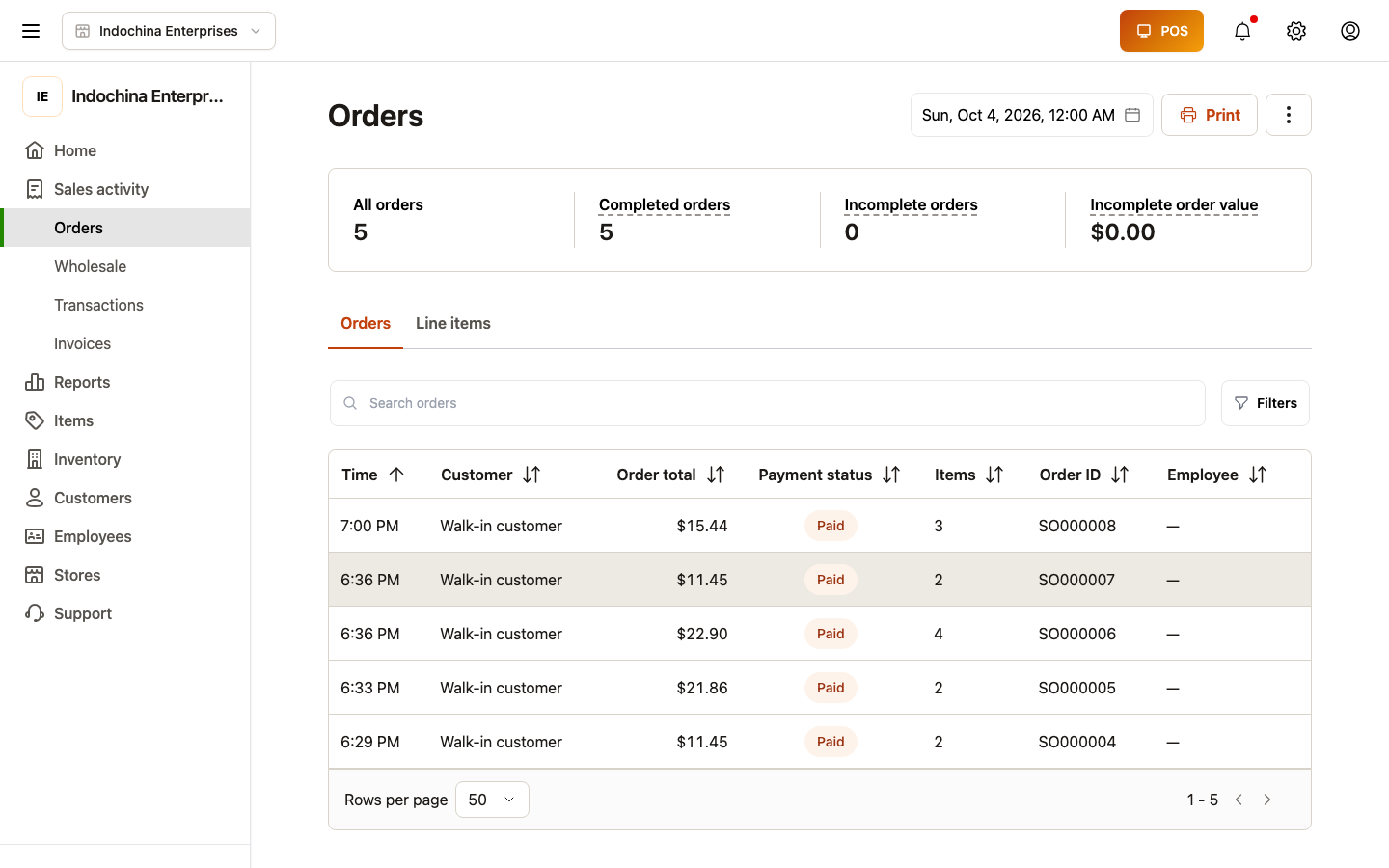 Sales activity → Orders — the main entry point for finding an order to refund. Click any paid order to open its detail and start the refund.
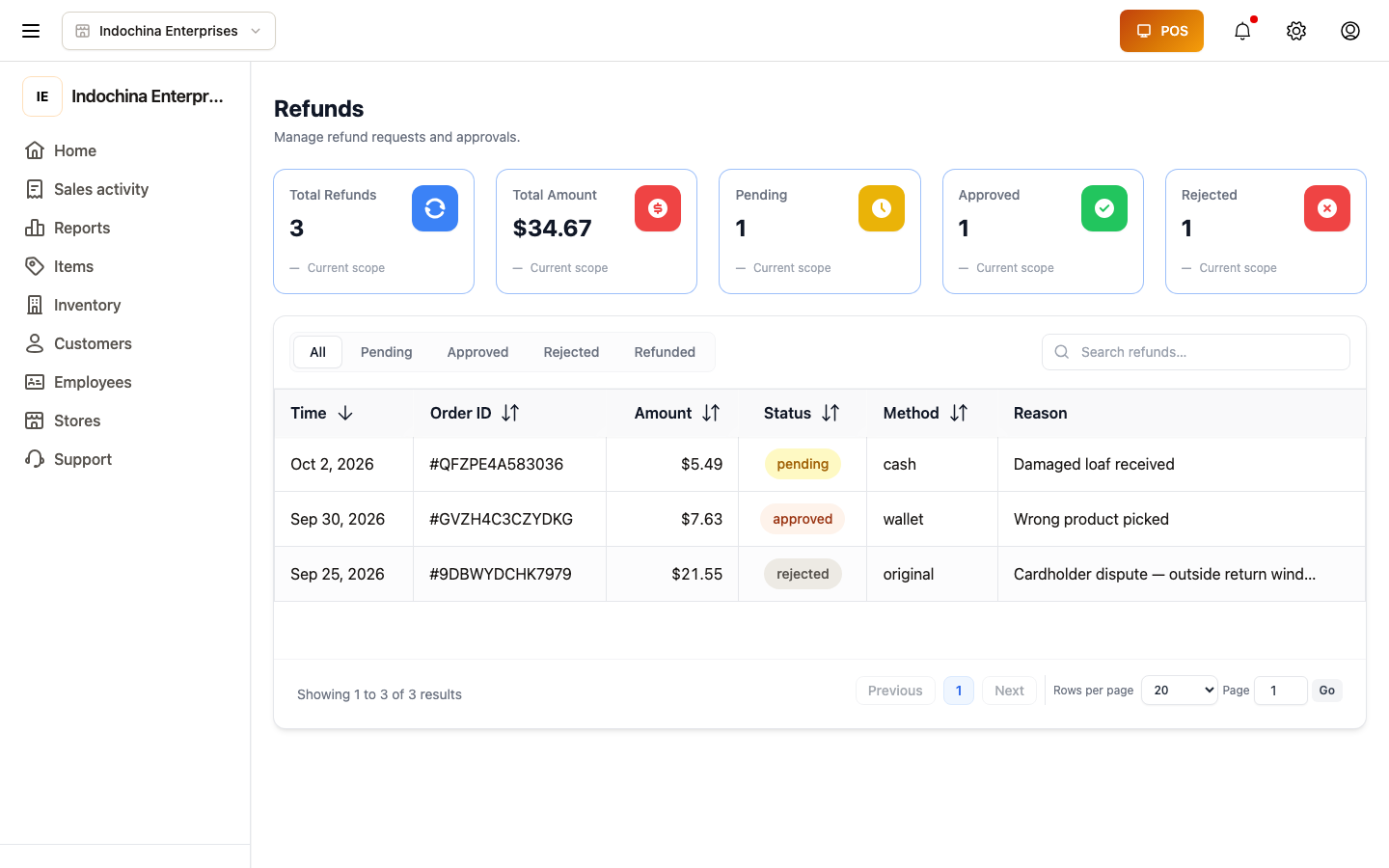 Finance → Refunds — pending refunds show here after the cashier submits. Owner reviews and approves / rejects.
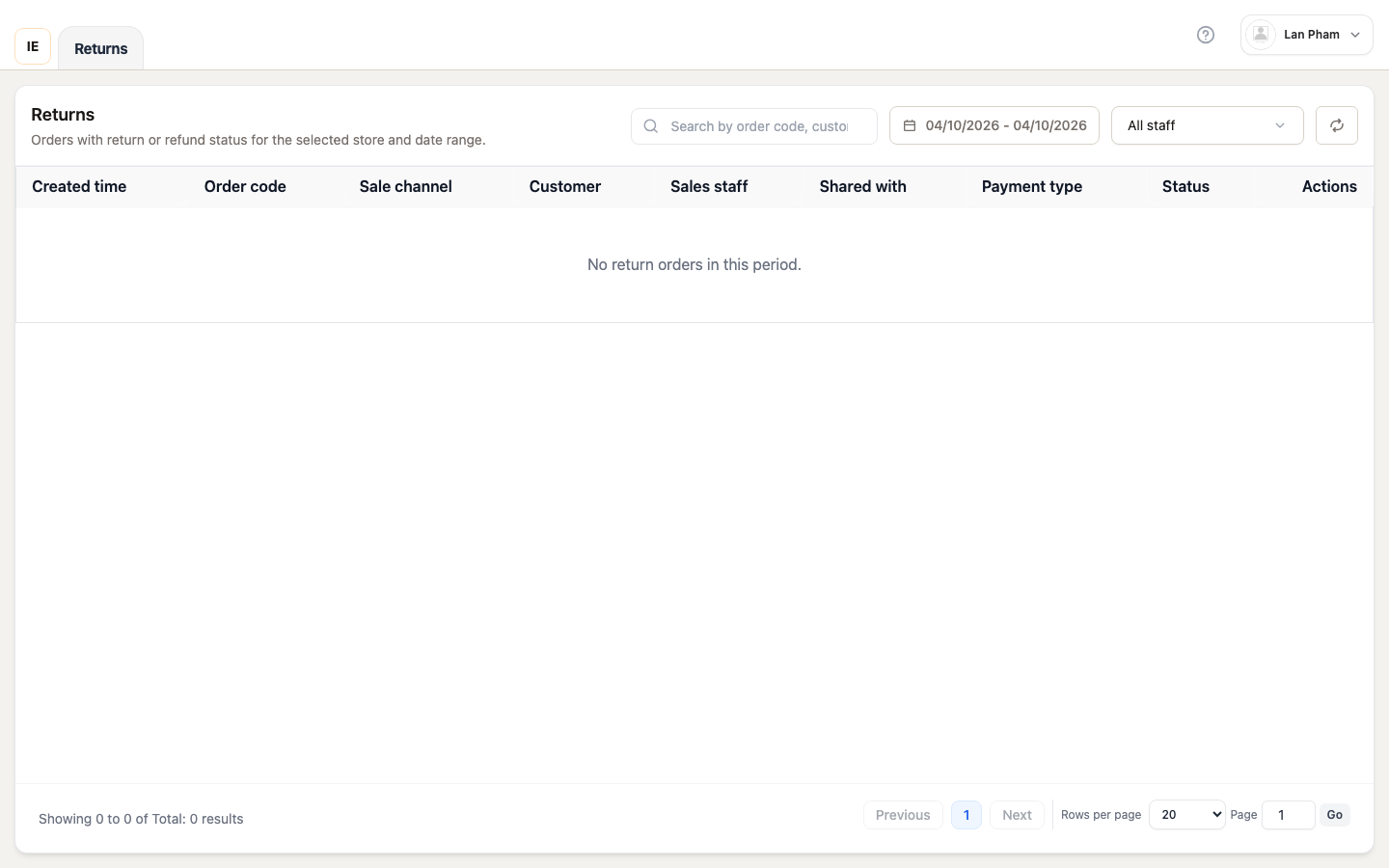 POS Workspace → Returns — the same-day, at-counter flow. Defaults to today’s date range.
IV. Full vs partial refund
Section titled “IV. Full vs partial refund”| Mode | What happens | Stock |
|---|---|---|
| Full | The whole order is reversed. | All items return to stock. |
| Partial | Pick the line(s) + qty to refund. | Only refunded lines restock. |
The system auto-fills the refund amount from the order’s lines. You can edit it if you need to refund less (e.g. partial refund with a restocking fee).
V. Procedure
Section titled “V. Procedure”From Orders → open order:
- Find the order — by id / phone / barcode / scan.
- Click Refund → choose Full or Partial.
- (Partial) Pick line + qty.
- Pick the refund method (cash / void card / wallet / bank).
- (Optional) Pick a reason — used in refund-reason reports.
- Confirm → the refund enters the Finance → Refunds → Pending queue.
The owner opens Finance → Refunds → opens the row → clicks Approve (or Reject with a reason). On approval, the refund posts to Transactions as a negative-money entry, the customer’s wallet (if any) is credited, and the order status moves to refunded.
VI. Auto-restock
Section titled “VI. Auto-restock”Items qualify for auto-restock when:
- They were sold within the last X days (default 7 — configurable per store).
- They are not damaged / not perishable.
For damaged goods, see Inventory → Adjustments — write the items down instead of restocking.
VII. Loyalty & membership
Section titled “VII. Loyalty & membership”If the original order accrued loyalty points, the refund automatically reverses the points. Membership benefits do not auto-refund for that period unless you manually revoke them in Membership subscriptions.
VIII. Where the refund shows up
Section titled “VIII. Where the refund shows up”Once approved:
- Finance → Refunds — moves from
PendingtoApproved. - Finance → Transactions — negative-money entry, method matches the refund method.
- Order timeline — who, when, how much, which reason.
- Sales overview — the day’s Refunds tile drops.
- Customer profile (if a customer was attached) — wallet credited if
refund to walletwas chosen.
IX. Checklist before moving on
Section titled “IX. Checklist before moving on”- You placed at least one paid order today (smoke-test sale is fine).
- The order appears in Finance → Refunds → Pending after you submit the refund.
- After approval, a partial refund only restocks the refunded qty.
- The refund shows in Finance → Transactions as a negative number.
- The receipt re-prints with a “Refund” header (if a printer is paired).
X. Next step
Section titled “X. Next step”→ Step 5 — Manage customer debt: step 5.
XI. Related articles
Section titled “XI. Related articles”- Orders — finding the original order
- Finance → Refunds — approving pending refunds
- Inventory → Adjustments — for damaged goods
- POS Workspace — Returns tab