Store & Lane Selection
Overview
Section titled “Overview”Before processing sales, you must select:
- Store — which location’s catalog and prices to use
- Lane (if multi-lane store) — which POS register/terminal for shift tracking
Store selection
Section titled “Store selection”Store selector location
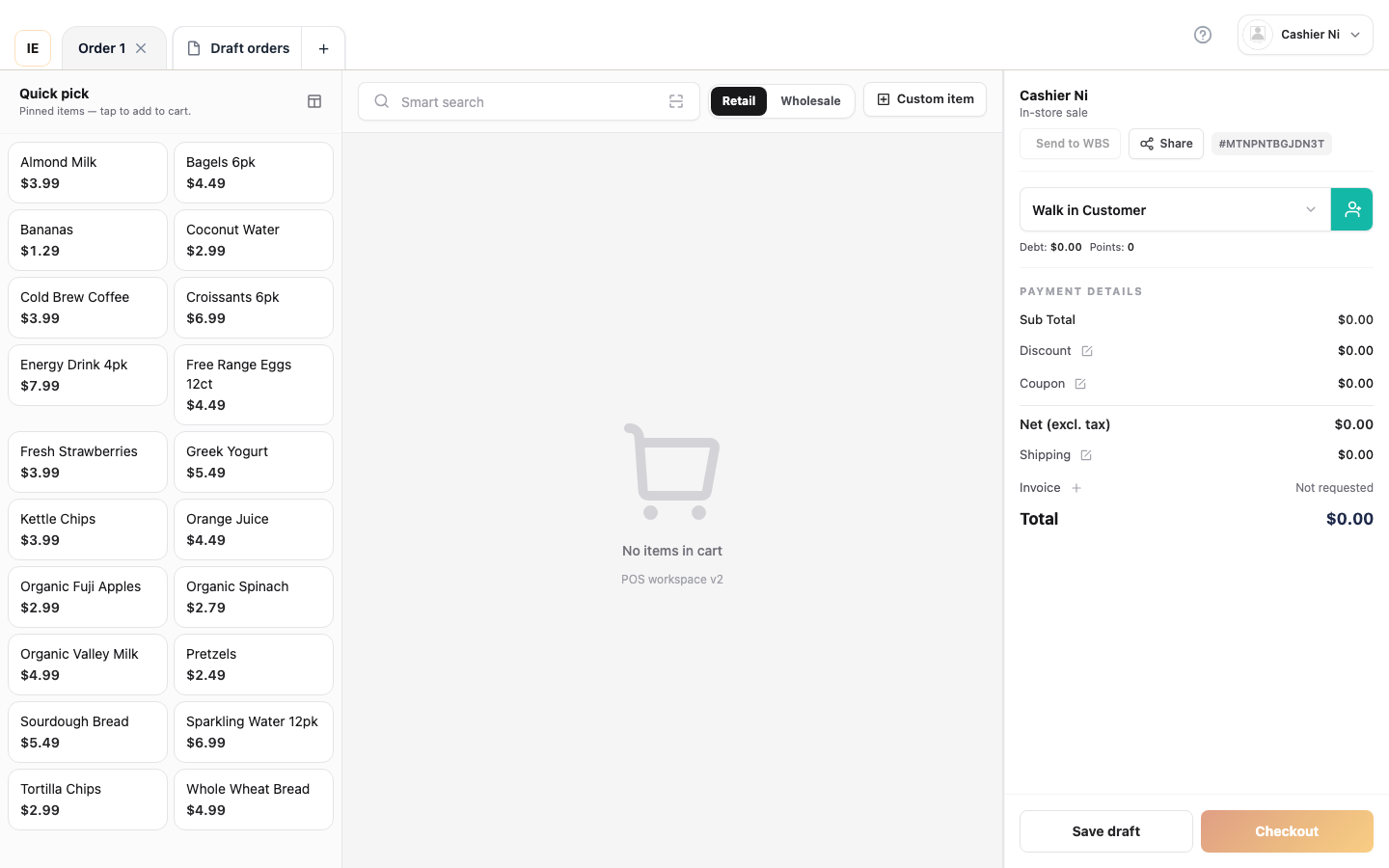
Section titled “Store selector location”Top bar, immediately after the navigation toggle. Shows:
- Current store name (or “Select store” if none)
- Store switcher dropdown (click to change)
Lane-required banner
Section titled “Lane-required banner”When work shifts are enabled and lane is unset:
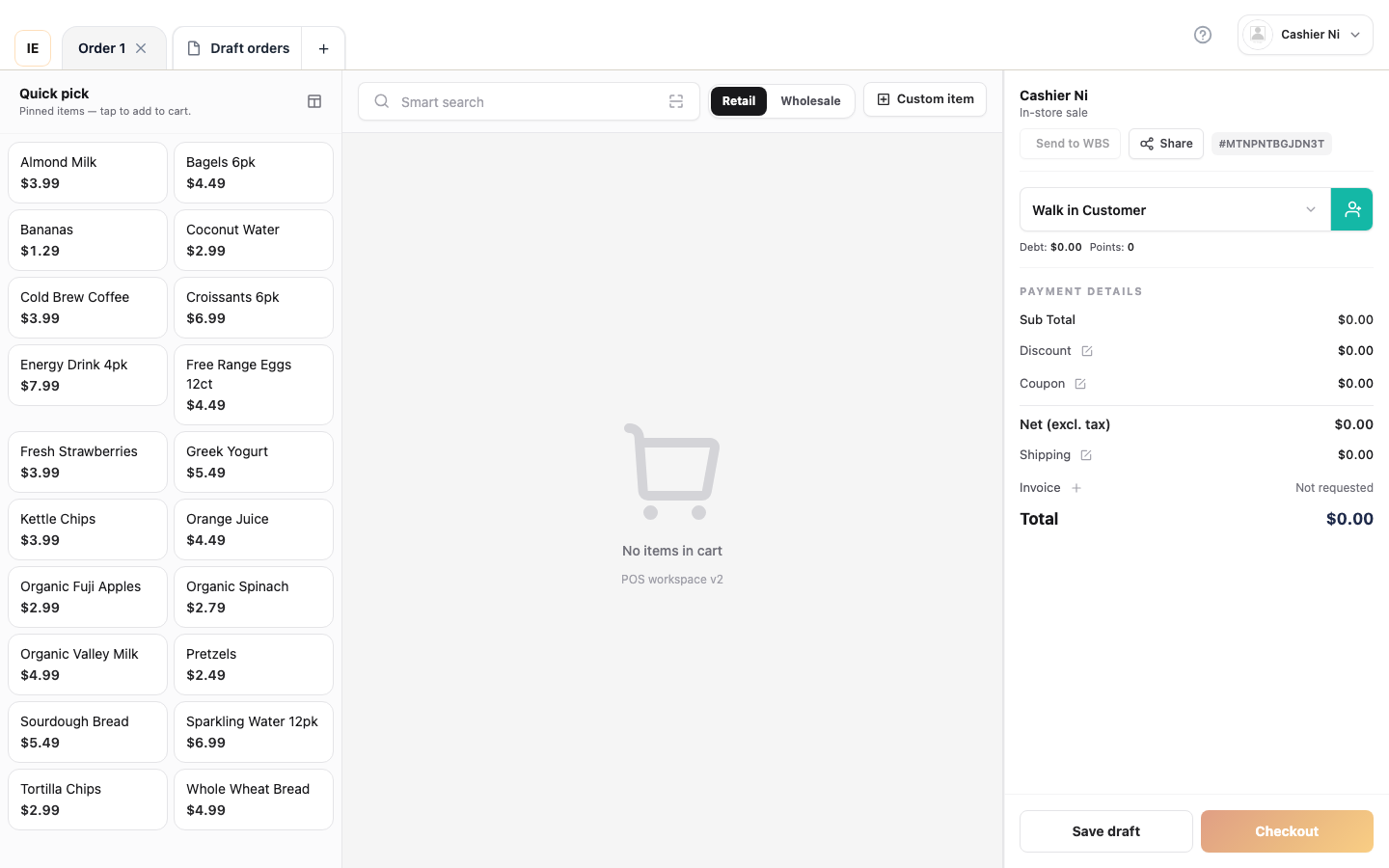
Yellow banner blocks checkout until a lane is chosen.
How selection works
Section titled “How selection works”For employees:
- If employee profile has
store_idset → auto-selected, dropdown shows only that store - If no
store_id→ can choose from assigned stores
For owners/managers:
- All owned stores appear in dropdown
- Selection persists in browser session
Selection impact
Section titled “Selection impact”Changing store affects:
- Catalog: Products, prices, stock availability
- Customers: Store-specific customer list
- Orders: Filter order history to selected store
- Reports: Sales summary for selected store only
Lane selection
Section titled “Lane selection”When lane is required
Section titled “When lane is required”Multi-lane stores (stores with 2+ active POS registers) require lane selection for:
- Work shift tracking: Open/close shift tied to lane
- Hardware routing: Receipt printer, cash drawer, card terminal assigned per lane
- Order attribution: Orders tagged with
vendor_pos_register_id
Lane selector
Section titled “Lane selector”Location: Top bar, after store selector (only shown when required)
States:
- Auto-selected: Employee with
pos_register_idin profile → no picker, shows lane label - Single-lane store: No picker shown, lane auto-applied
- Multi-lane (owner): Dropdown picker, persists in Zustand store (
useVendorPosLaneStore)
Setting your lane
Section titled “Setting your lane”- Click lane selector in top bar
- Choose from active lanes (inactive lanes hidden)
- Selection persists per store (stored in
laneByStoreIdmap)
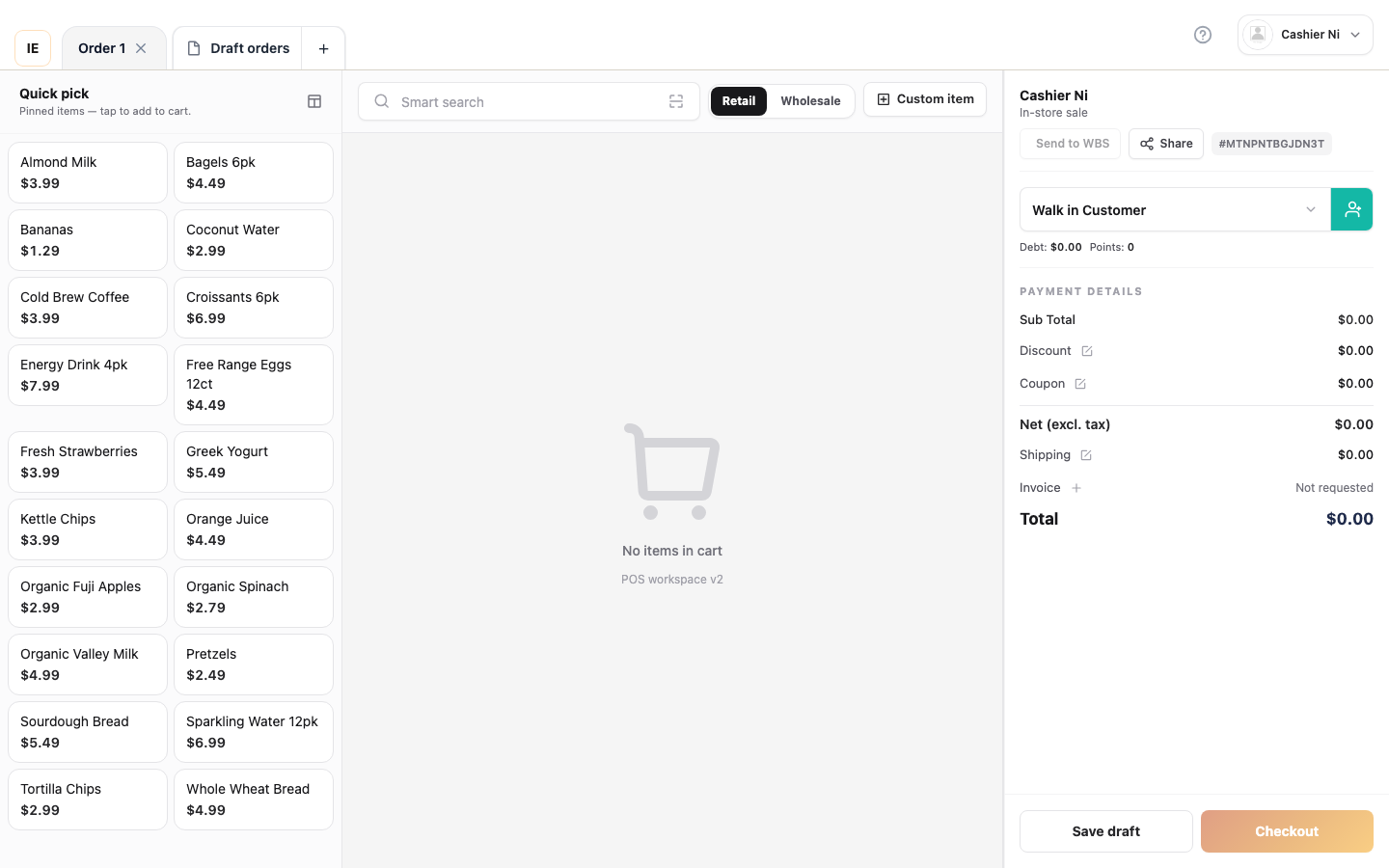
Alternative: From Settings hub, open “Checkout Lane” card to pick lane.
Lane vs. register ID terminology
Section titled “Lane vs. register ID terminology”| Term | Meaning |
|---|---|
| Lane | Physical checkout counter/station |
| POS register | Software entity (vendor_pos_registers table), mapped 1:1 to lane |
pos_register_id | Database column, used in API calls as vendor_pos_register_id |
| Lane label | Display name (e.g., “Lane 1”, “Express”, “Self-checkout”) |
Blocked actions without selection
Section titled “Blocked actions without selection”Missing store
Section titled “Missing store”- Sale workspace: Shows “Select a store to begin” banner
- Orders: Empty state: “Pick a store”
- Customers: No data loaded
- Reports: Cannot generate report
Missing lane (multi-lane store)
Section titled “Missing lane (multi-lane store)”If work shifts are enabled and lane unset:
- Sale page: Yellow banner: “Select checkout lane to continue”
- Payment blocked: Cannot open checkout modal
- Shift operations: Cannot open/close shift
Troubleshooting
Section titled “Troubleshooting”Lane selector not appearing
Section titled “Lane selector not appearing”Cause: Store has only 1 active lane Solution: No action needed, lane auto-applied
Lane dropdown empty
Section titled “Lane dropdown empty”Cause: No active lanes configured for store Solution:
- Go to Dashboard → Settings → POS Registers
- Create/activate at least one register for the store
- Return to Cashier, refresh if needed
Cannot change store
Section titled “Cannot change store”Cause: Employee locked to specific store
Solution: Only owner can reassign employee’s store_id via Dashboard → Employees → Edit
Work shifts and lanes
Section titled “Work shifts and lanes”When work shifts are enabled in store configuration:
-
Opening a shift:
- Must select lane first
- Shift tied to selected lane + current employee
- Only one open shift per lane at a time
-
During shift:
- Lane selector becomes read-only (cannot switch while shift open)
- All orders tagged with shift ID + lane ID
-
Closing shift:
- Report shows totals for shift + lane combination
- After close, can switch to different lane
See Work Shifts for details.