Sale — Barcode Scan
Overview
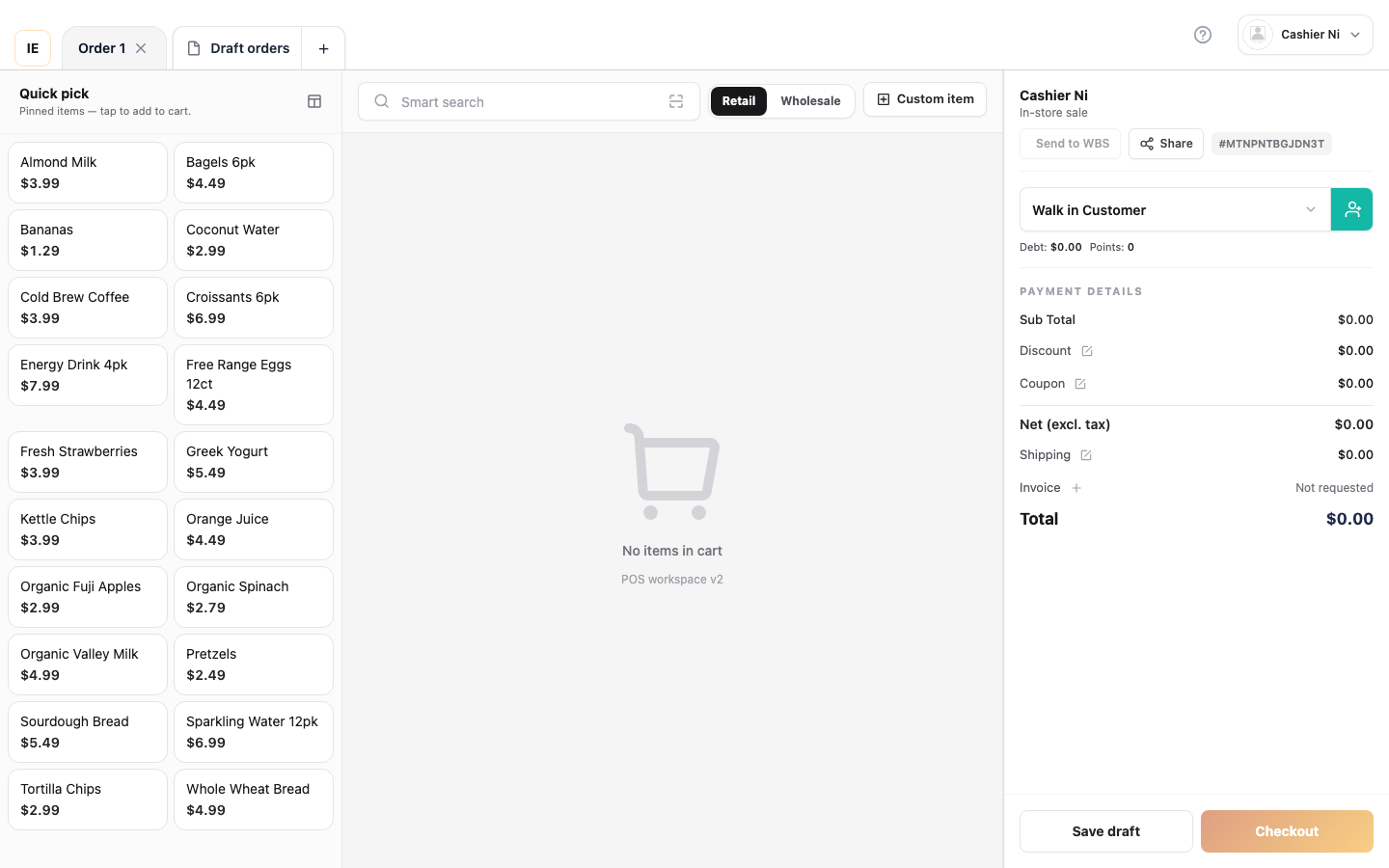
Section titled “Overview”Add lines fast via barcode on the Sale screen.
Scan modes
Section titled “Scan modes”| Mode | When to use |
|---|---|
| USB scanner (keyboard wedge) | Most lanes — scan into search box or hook into a global wedge |
| Camera scan | Tablet / phone without a wedge |
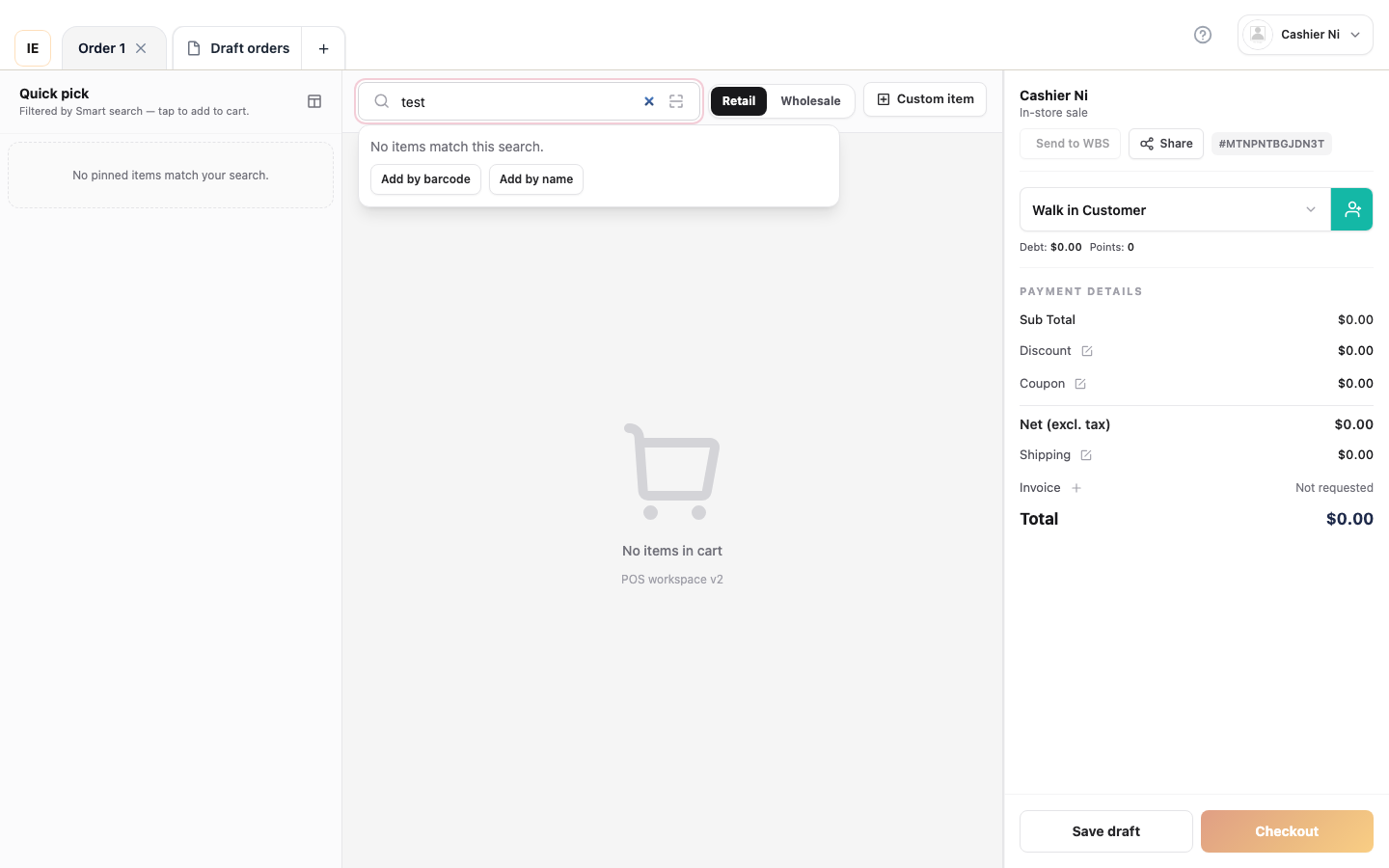
| Manual entry | Type SKU or barcode in the search box |
- Open Sale.
- Focus the search box (optional with a wedge) or open Scan.
- Scan the product barcode.
- If the item has variants, pick the SKU in the dialog.
- The line adds with qty 1 — adjust quantity if needed.
Weight / grocery codes
Section titled “Weight / grocery codes”Internal EAN-13 codes decode price / qty per the store’s prefix rules — see Grocery POS architecture.
Stock rules
Section titled “Stock rules”- If qty exceeds stock and negative stock is disallowed → the line is blocked with a stock warning.
- Case / pack SKUs can roll up to the selling unit from the parent variant.
Expected result
Section titled “Expected result”The right product (and variant) with the right price.
Common issues
Section titled “Common issues”| Symptom | Fix |
|---|---|
| Code not recognised | Check the catalog barcode field; try the Items screen |
| Double scan | Debounce — wait for the line to appear before the next scan |