Timesheets and time cards
What you’ll find here
Section titled “What you’ll find here”Timesheets shows when each employee clocked in / out, took breaks, and earned tips. Use it to:
- See who is on shift right now.
- Review a single day across the team.
- Add or correct a time card manually (forgot to clock in / out).
- Spot issues: late, absent, missed clock-out, overtime.
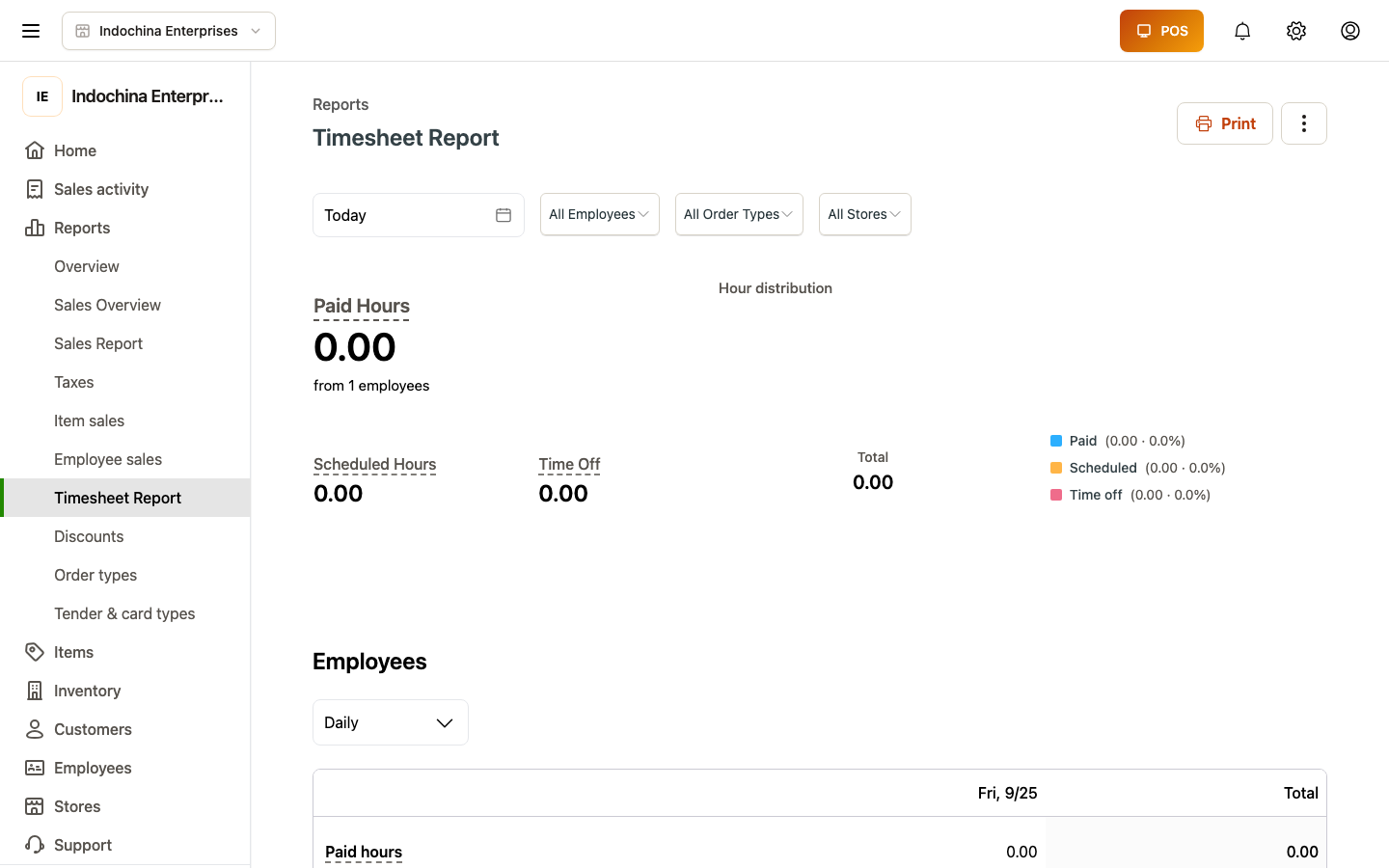
Open HR → Timesheets. Pick Day or Pay period.
Day view — what you see
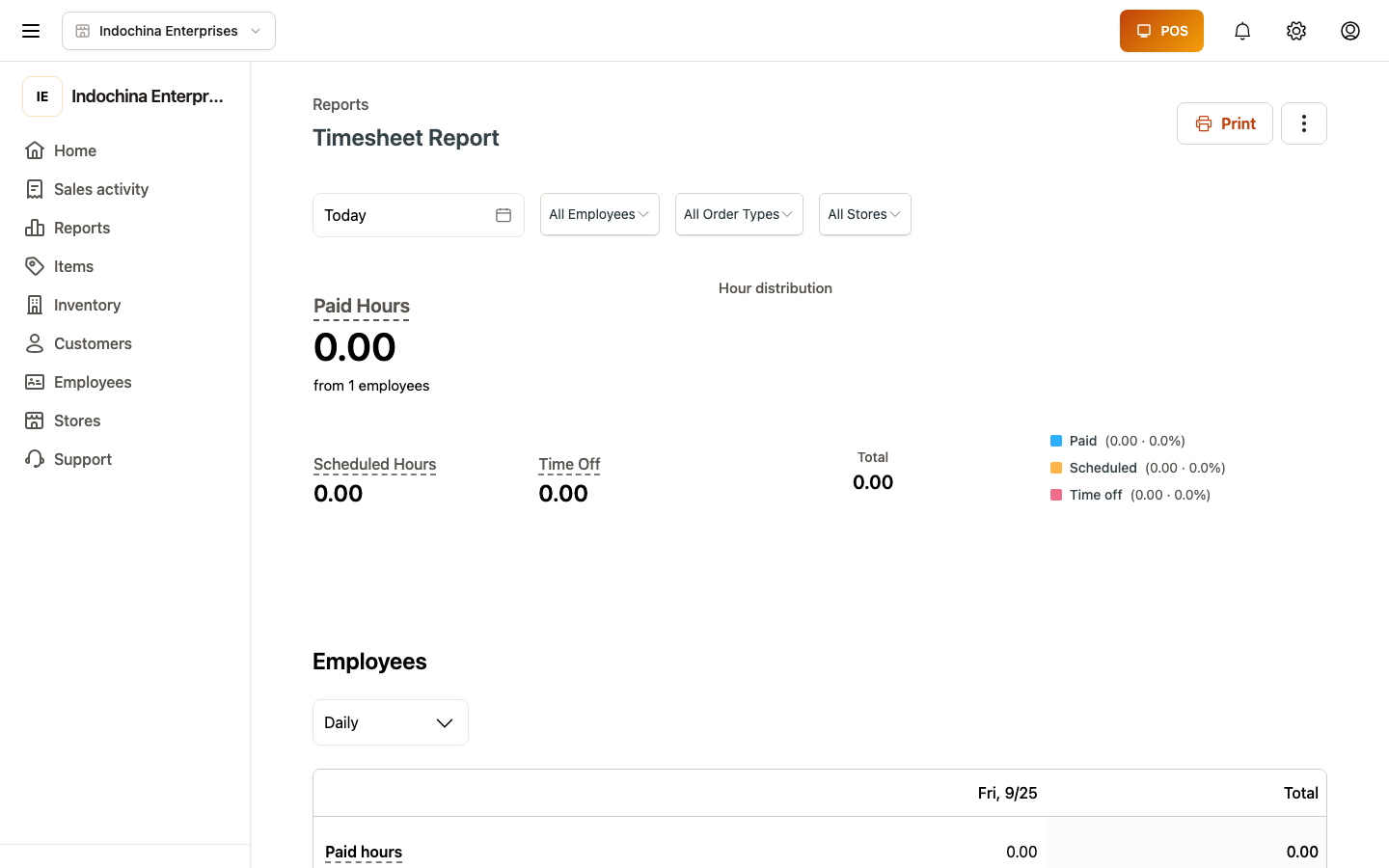
Section titled “Day view — what you see”By default shows today (store timezone). At the top:
- Date picker.
- Filters drawer — team members, roles, Issues.
- Tabs — All and Needs review.
Each row is an employee for that day:
- Clock in / out with worked hours.
- Break minutes (split into paid / unpaid).
- Tips — cash and credit.
- Issues badge if anything is flagged.
Clicking a row opens Add / Edit time card with the full breakdown.
Pay-period view
Section titled “Pay-period view”Switch the toggle to Pay period, then pick the period (week / biweekly / monthly per your store config). Useful for payroll prep.
Add or edit a time card
Section titled “Add or edit a time card”From any row, click Edit time card (or + Add time card for a missing day).
| Field | What to enter |
|---|---|
| Employee | Who’s missing / correcting. |
| Role | Their role for that day (optional — defaults to current role). |
| Clock in / out | Times and dates. |
| Breaks | One row per break — paid or unpaid, start, end. |
| Cash tips / Credit tips | Tip amounts received during the shift. |
| (optional) evidence | Photo or GPS check-in (manual cards often have none). |
Saving writes the time card and adds it to the audit log.
Quick actions on a row
Section titled “Quick actions on a row”- Resolve issue — acknowledge a flag without opening the edit modal.
- Delete time card — only when an attendance day already exists. Audit-logged.
Filter by issue
Section titled “Filter by issue”Use the right-hand Filters drawer to narrow:
- All — every time card that day.
- Needs review — rows with one of: late, absent (stored), uninformed, overtime, missed clock-out, pending leave.
You can also pick a single issue (e.g. only late) to focus on one problem.
Leaves and time off
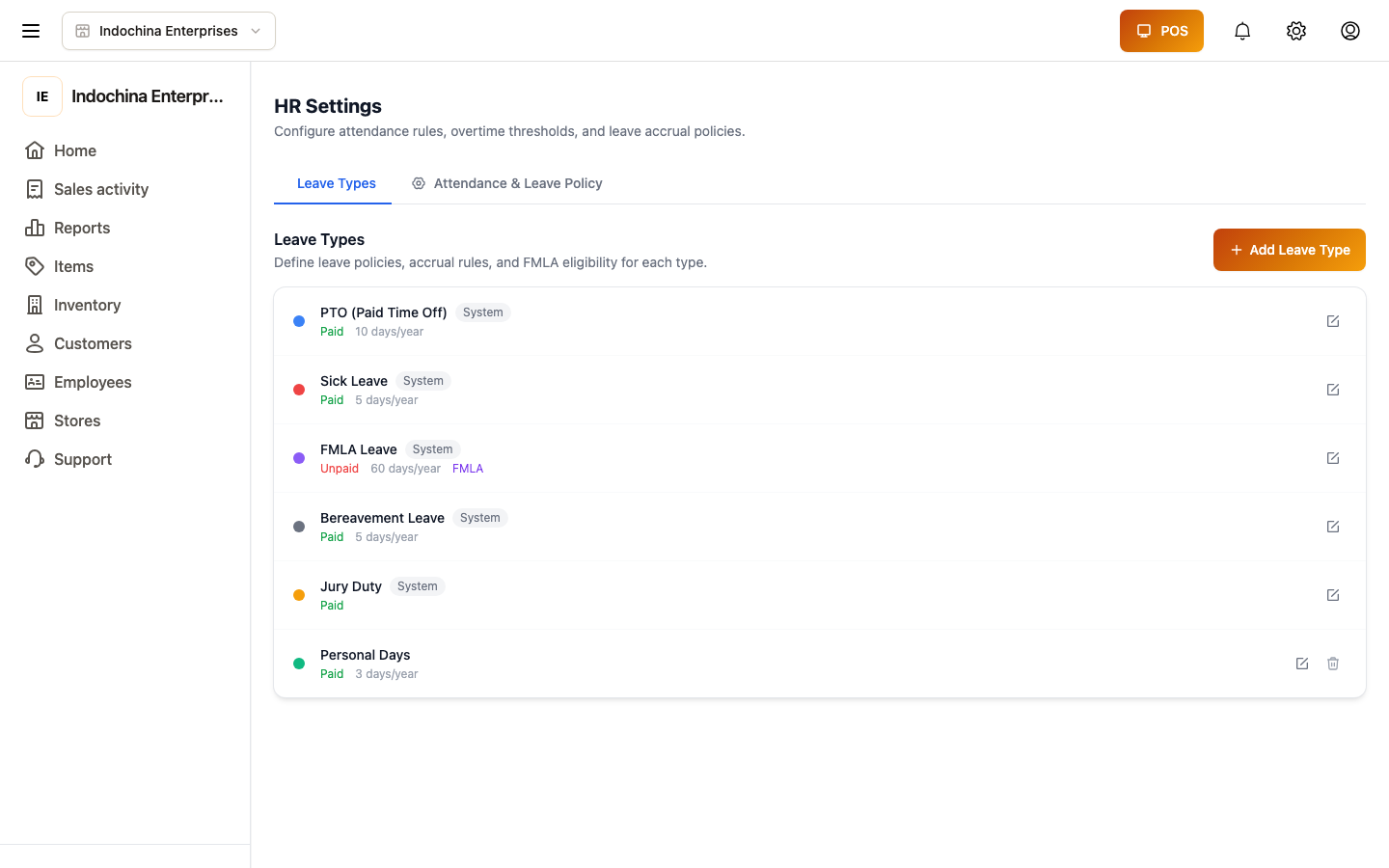
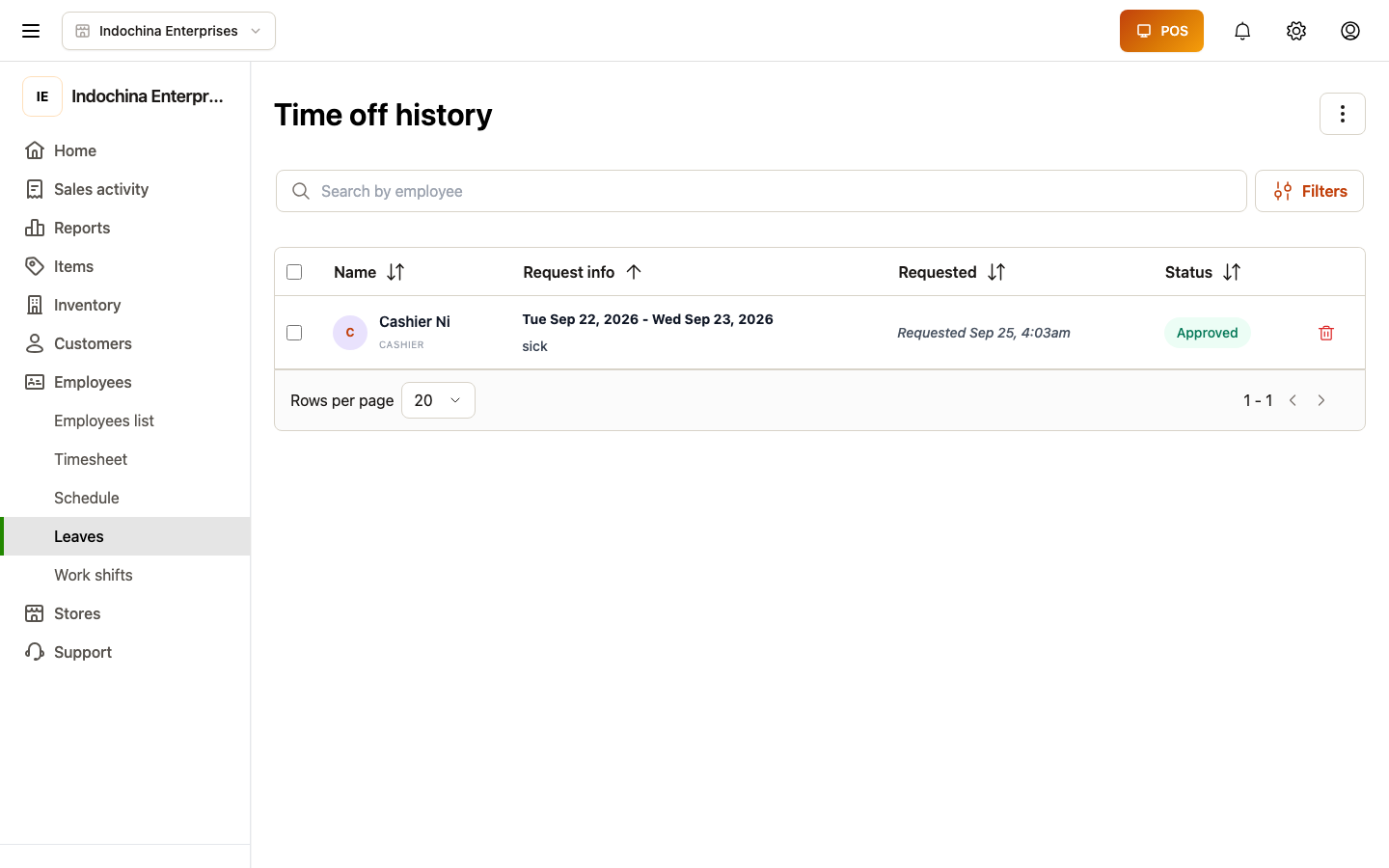
Section titled “Leaves and time off”Managers review leave requests alongside timesheets — for absences with pay, sick days, or unpaid time off. Open HR → Leaves to see the queue.
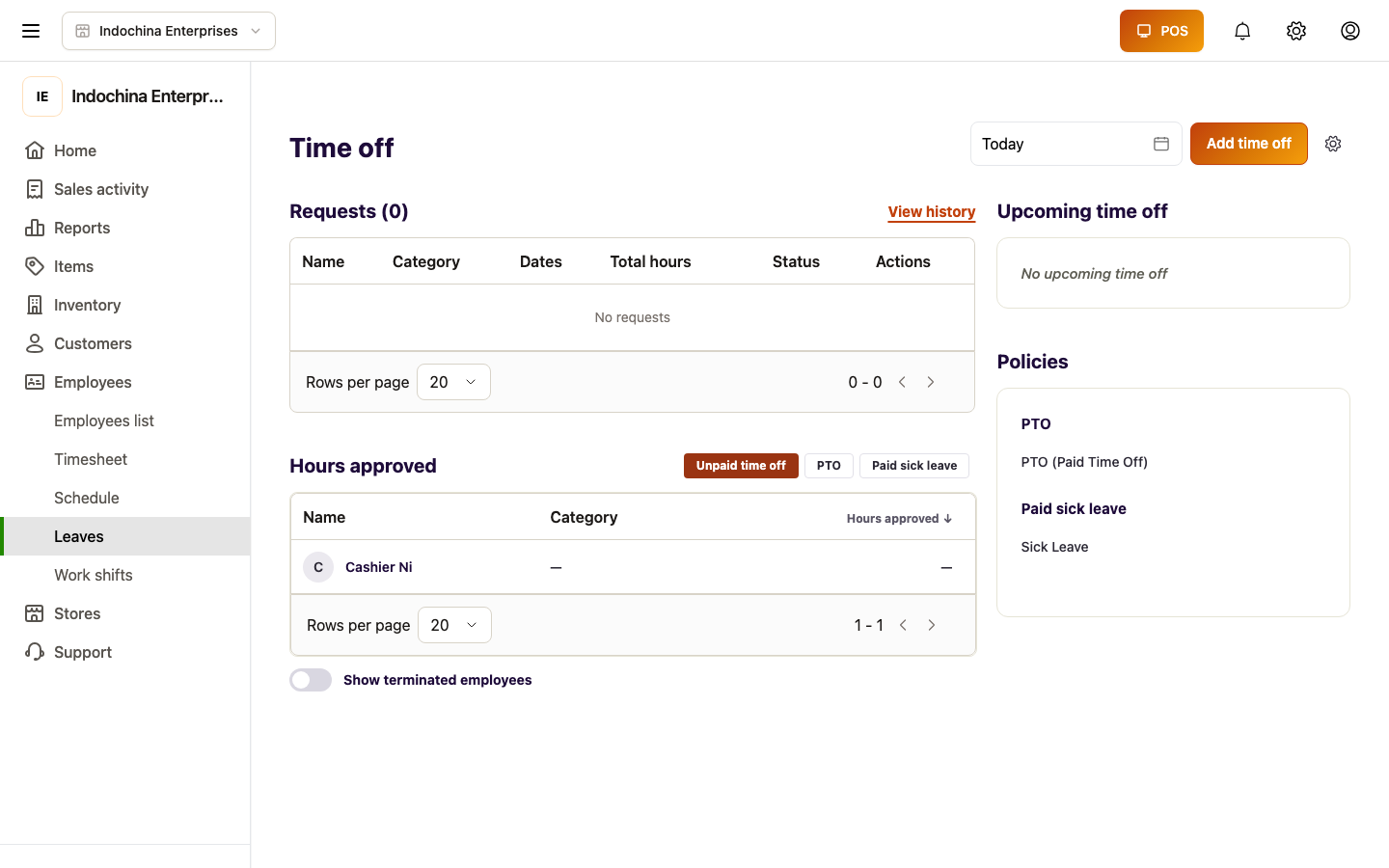
Each row has a status: pending, approved, rejected, or cancelled. Approving moves the request onto the employee’s calendar; rejected ones stay in the list with a reason.
Common questions
Section titled “Common questions”An employee shows “Needs review — absent” but they were here. Edit the time card and add the clock-in / clock-out. Save — the issue clears.
Break minutes are negative. Total worked hours subtract unpaid breaks. If someone forgot to clock back in, edit the break row.
Tips missing from a card. Add them via Edit time card → Tips. The amount rolls into the Cash / Credit tips summary.
Pay period doesn’t match payroll. Ask your owner to confirm the pay period start in Stores → Configuration.
Related
Section titled “Related”- Employees and stores — role and store assignment.
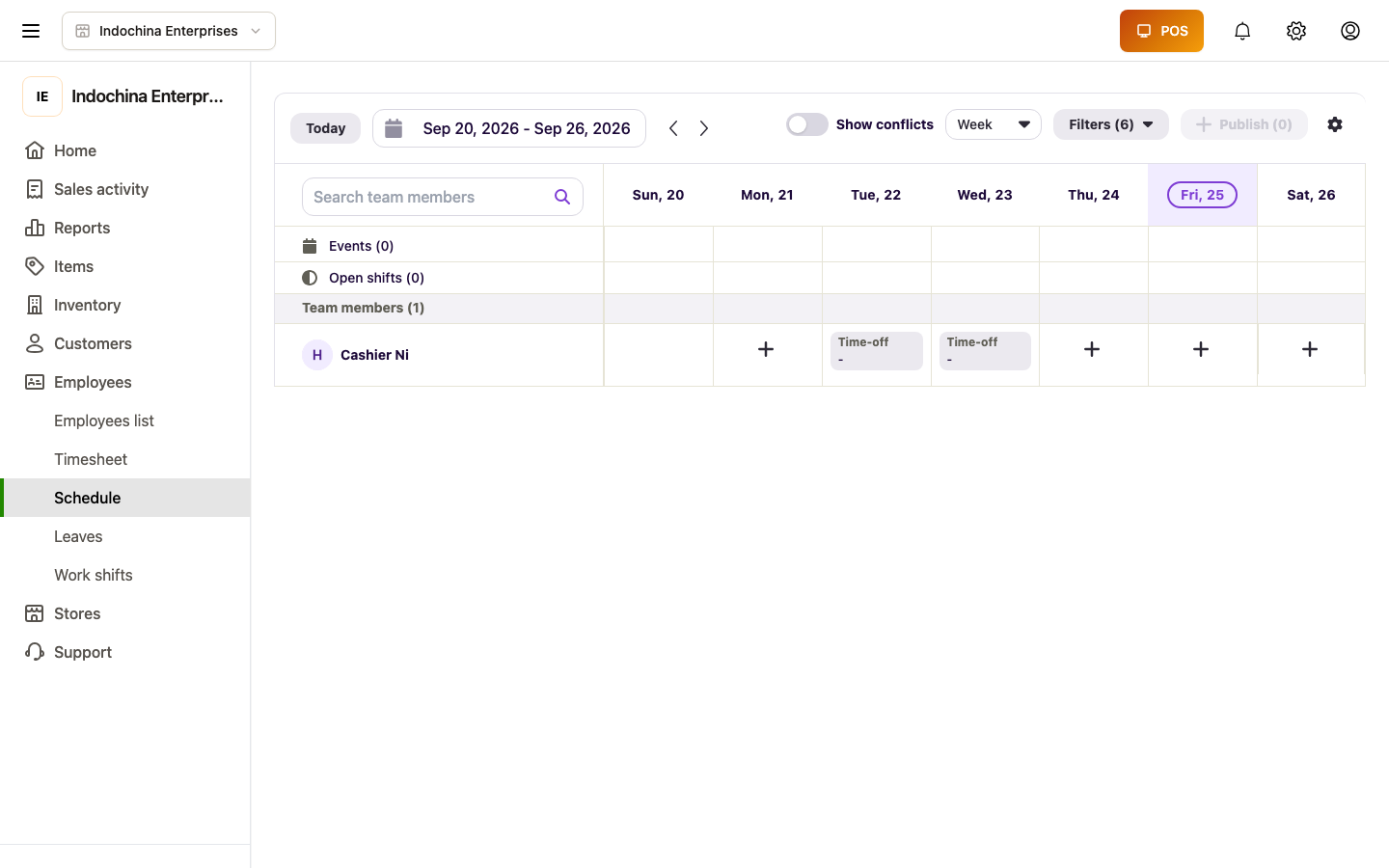
- Work shifts — drawer / lane sessions (separate from timecards).
- HR Dashboard & Schedule — schedule planning and shift templates.