Merchant Panel — at a glance
What is the Merchant Panel?
Section titled “What is the Merchant Panel?”The Merchant Panel (/dashboard/*) is the store-facing web app for owners and employees of an LionPOS store. From here, staff and owners handle day-to-day operations: ringing up sales, managing orders, editing the catalog, tracking inventory, reviewing finances, and managing staff.
The same login also unlocks the POS / Cashier workspace (/point-of-sale/* and /pos) — see the Cashier help center for cashier-focused steps.
Two kinds of screens
Section titled “Two kinds of screens”The vendor web has two layouts:
| Layout | Where you see it | What it looks like |
|---|---|---|
| Dashboard | Most /dashboard/* pages | Left sidebar with all areas, top bar with store selector + notifications + profile. |
| Fullscreen | /pos, /point-of-sale/*, /dashboard/orders/create | No sidebar. Built for in-lane speed. |
Dashboard home
Section titled “Dashboard home”When you sign in you land on /dashboard — the home view for the store you have selected.
- Period filter at the top — Today, This week, This month, or custom Range. Dates follow the store’s timezone, not your computer’s clock.
- KPI tiles — Net sales, paid orders, average order size, with comparison to the previous period of equal length.
- Summary cards — Open orders, discounts, refunds.
- Top items & tender mix — best-selling products and how customers paid (Card / Cash / Other).
Sidebar — what each section covers
Section titled “Sidebar — what each section covers”The sidebar is grouped by purpose. Items shown depend on what you’re allowed to access.
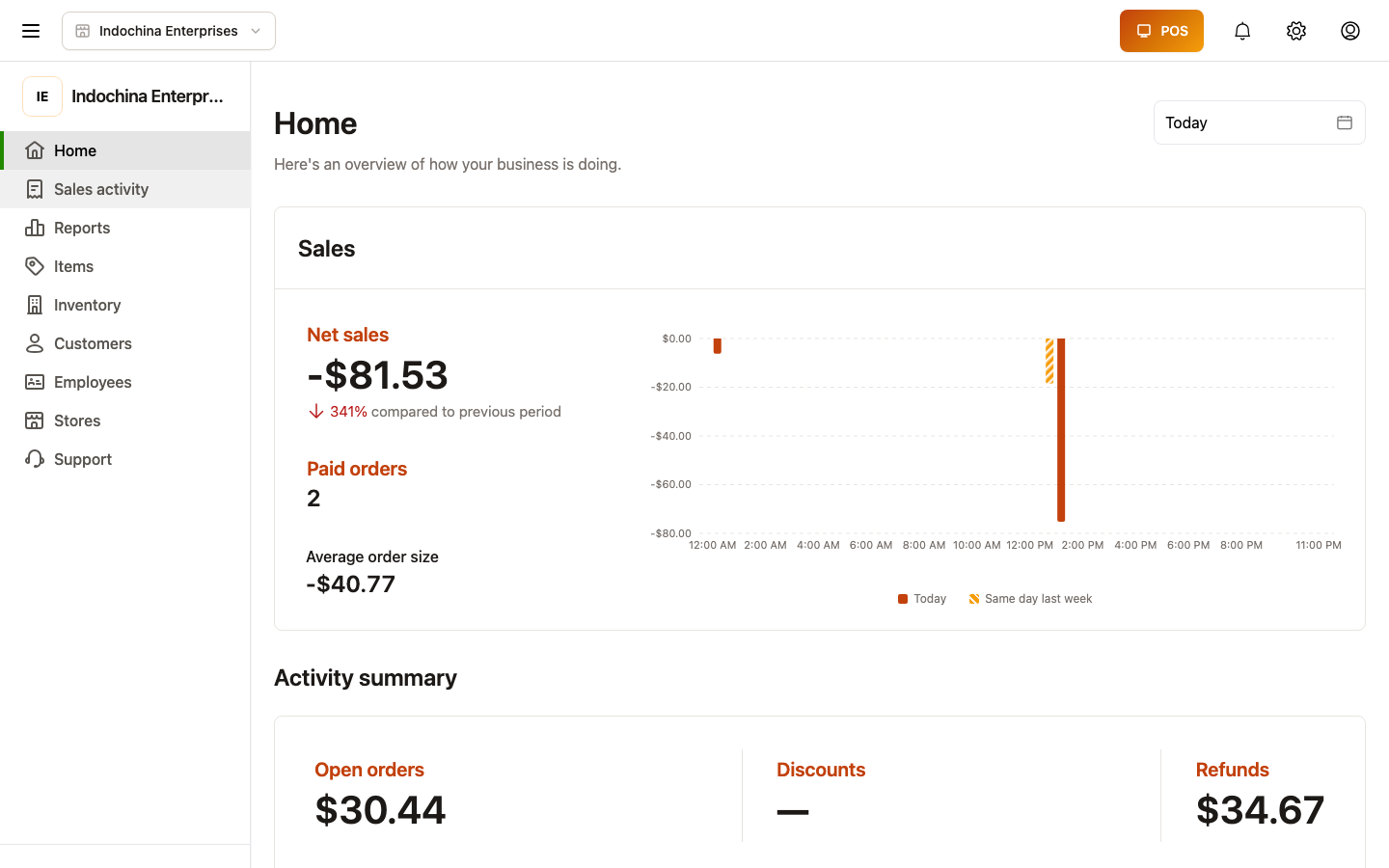
- Sales activity — Orders, create order, work shifts, deliveries.
- Reports — Sales overview, sales report, finance report.
- Finances — Transactions, expenses, refunds, invoices, receivables.
- Items — Products, categories, units, attributes, tags, suppliers, gallery.
- Inventory — Warehouses, stocks, lots, adjustments, transfers.
- Customers — Customer list, profiles, categories, memberships.
- Employees — Employees, roles, timesheets, availability.
- Stores — Stores list (for owners with multiple stores).
- Support — Tickets with the operations team.
A search box at the top of the sidebar opens a command palette with every visible screen plus account/profile/terminals entries.
Store selector — what it does
Section titled “Store selector — what it does”The dropdown in the top bar picks the active store. Almost every list, dashboard tile, and report respects this choice:
- Switching stores refreshes home KPIs, order lists, inventory, finance, etc.
- If your account is pinned to one store, the selector is disabled and you always see that store’s data. Set this in Employees and stores.
Access basics
Section titled “Access basics”- Owners see every area they have permissions for. Owner-only areas (like Roles and Managers) only show for owners.
- Employees see only the modules they have been granted. If a link is missing in the sidebar, the screen is gated — see your manager or Roles.
To change what an employee can see, go to Employees → pick a person → Role.
Where to next?
Section titled “Where to next?”| I want to… | Open |
|---|---|
| Learn how to sign in | Sign-in & account |
| Use the lane / start a sale | Cashier help center |
| See today’s orders | Orders |
| Manage inventory | Inventory |
| Run a finance report | Finance |
| Add a new employee | Employees and stores |
| Configure store, printers, devices | Notifications, help & settings |