Returns & Refunds
Overview
Section titled “Overview”The Returns page (/point-of-sale/returns) provides a dedicated interface for processing product returns and customer refunds.
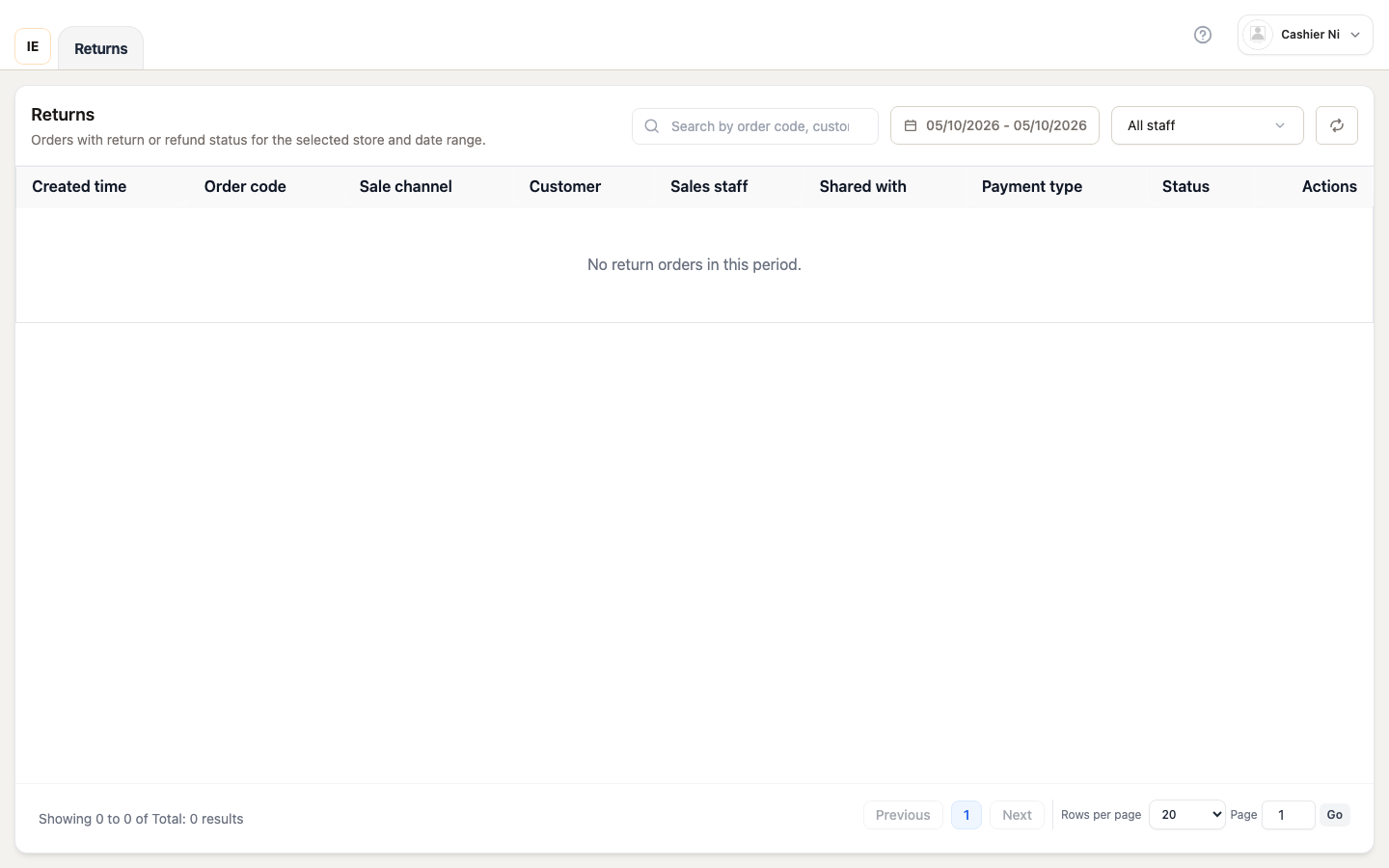
Page layout
Section titled “Page layout”┌──────────────────────────────────────────────────────────┐│ Search | Date range | Status filter | Refresh │├──────────────────────────────────────────────────────────┤│ Returns table ││ - Return # | Date | Original order | Customer | Amount ││ - Status | Items returned | Refund method ││ - Actions: View detail | Print receipt │└──────────────────────────────────────────────────────────┘How to process a return
Section titled “How to process a return”Step-by-step guide
Section titled “Step-by-step guide”Step 1: Find the order
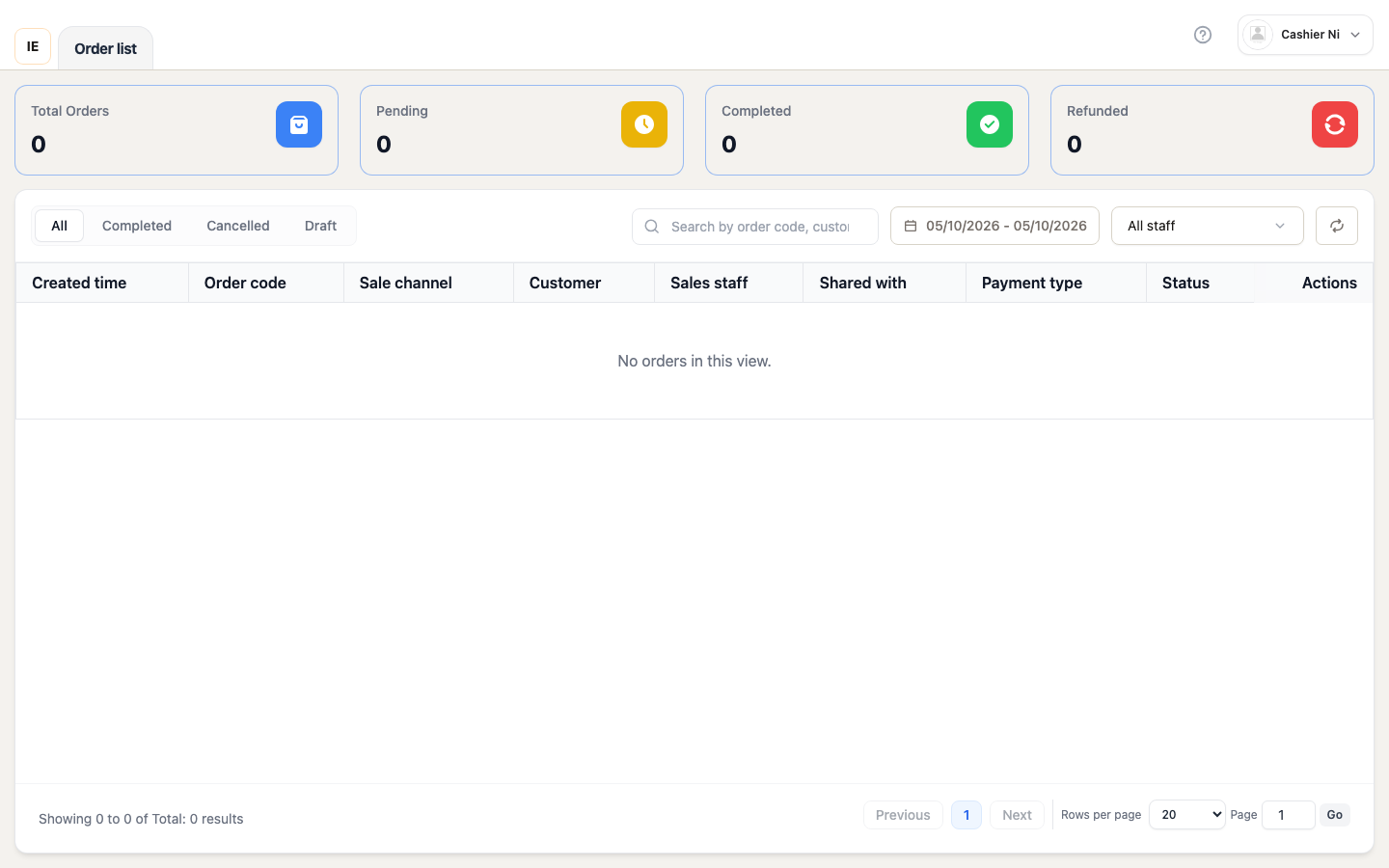
Section titled “Step 1: Find the order”Navigate to Orders page (/point-of-sale/orders):
- Use Completed tab to find paid orders
- Search by order number, customer name, or date range
- Find the order you want to return
- Click Return/Refund icon in row actions
Step 2: Return modal opens
Section titled “Step 2: Return modal opens”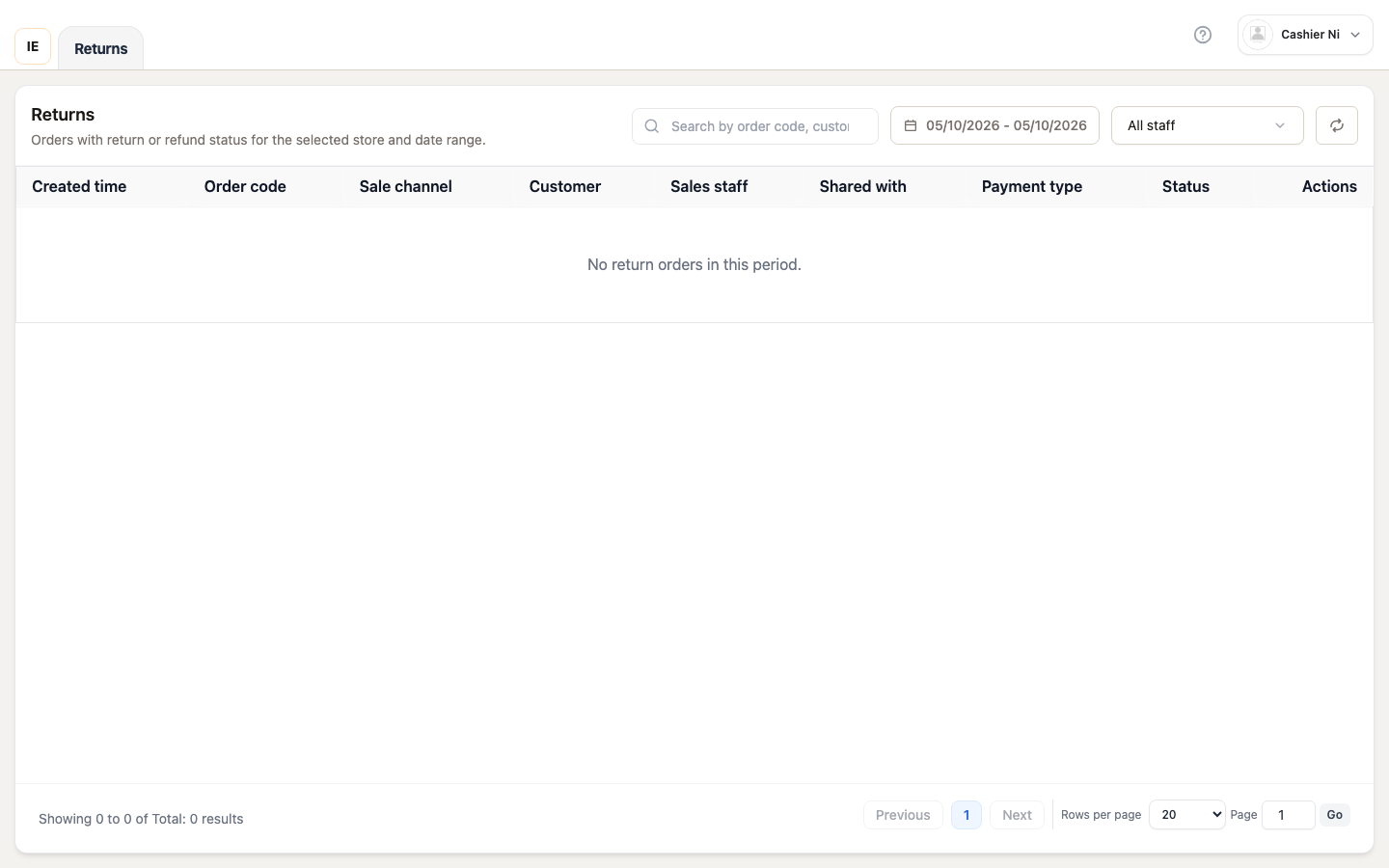
Modal displays:
- Order details (number, date, total)
- Line items with checkboxes
- Customer information
- Return policy validation
⚠️ Customer requirement: Returns require a linked customer.
If order is walk-in (no customer):
- Customer assignment panel appears
- Search by name, phone, or email
- Select customer to continue
- Required for refund processing (store credit, loyalty points)
Step 3: Select items to return
Section titled “Step 3: Select items to return”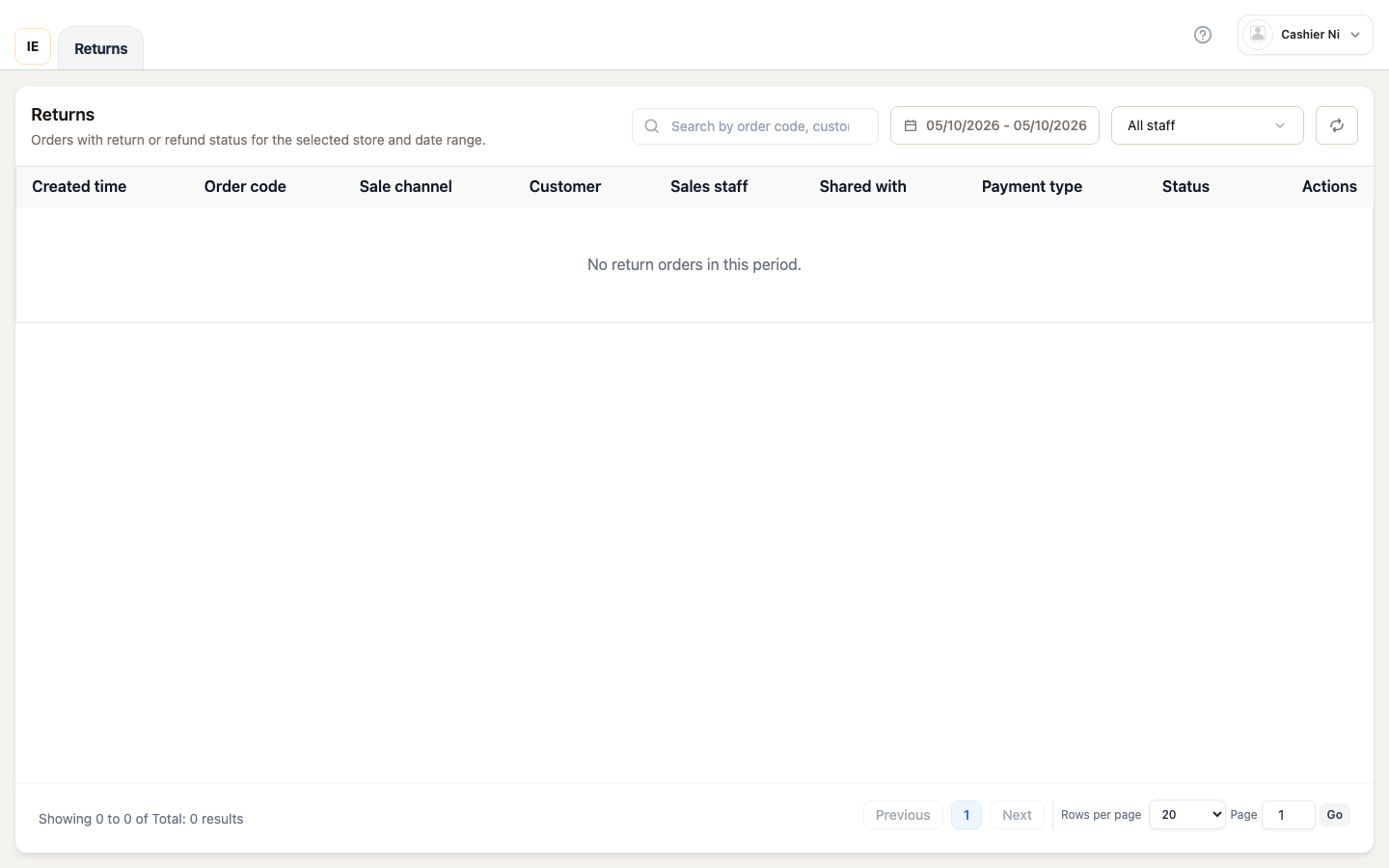
Item selection:
- ✅ Catalog items: Show checkbox (can be returned)
- ⚠️ Non-catalog items: Show warning (cannot be returned)
- Select all: Check master checkbox at top
- Partial returns: Check only specific items
Refund preview (updates in real-time):
Refund Preview───────────────Merchandise $45.00Tax $ 3.38───────────────Total $48.38Step 4: Fill refund form
Section titled “Step 4: Fill refund form”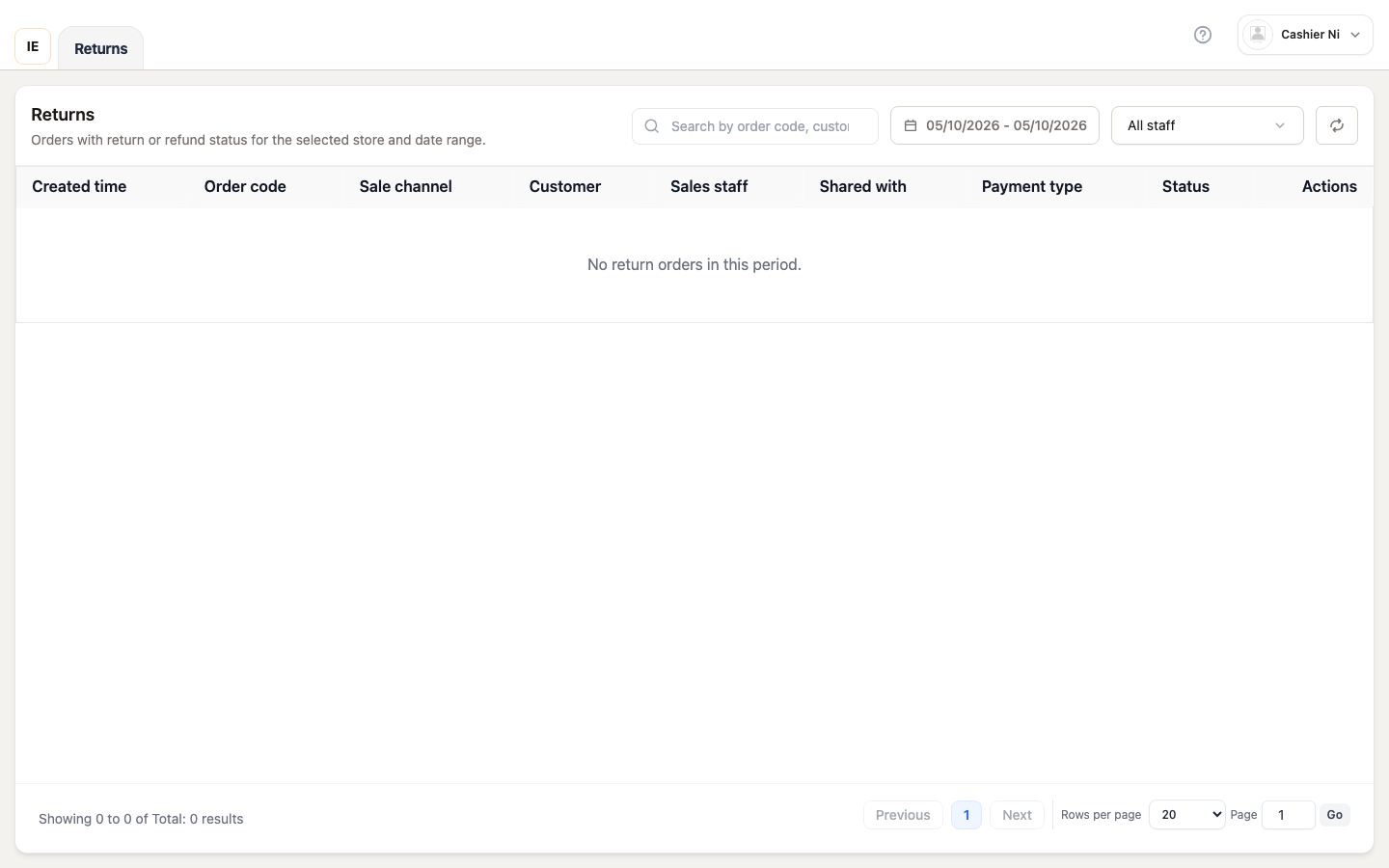
Required fields:
-
Refund reason (dropdown):
- Damaged or defective product
- Wrong item received
- Not as described
- Customer changed mind
- Other (custom text input)
-
Refund method (select one):
Method Description When to use Wallet E-wallet refund (MoMo, ZaloPay) Customer has digital wallet Manual Cash refund at counter Immediate cash return Original Refund to original payment Card reversal, same method -
Customer note (optional):
- Additional details about return
- Appears on return receipt
Step 5: Process return
Section titled “Step 5: Process return”Click “Process Return” button:
- Button shows spinner during processing
- Server validates return policy
- Creates return order (negative totals)
- Processes refund via payment gateway
- Adjusts inventory (adds items back)
Success indicators:
- ✅ Green toast: “Return processed successfully”
- Modal closes automatically
- Orders list refreshes
- Return appears in Returns page
Immediate effects:
- Refund issued to customer (wallet/card/cash)
- Inventory updated (if stock tracking enabled)
- Customer account updated (loyalty points adjusted)
- Return receipt printed (if auto-print enabled)
Return policy rules
Section titled “Return policy rules”Return window:
- Store-configurable (default: 30 days)
- Orders older than limit are blocked
- Error message shows: “Return window expired. This order is 45 days old (limit: 30 days)”
Auto-approve (POS only):
- Returns immediately approve + refund
- No manager approval needed
- Instant customer refund at counter
Blocked returns:
- ❌ Order already fully refunded
- ❌ Return window expired
- ❌ Order not completed (draft/cancelled)
- ❌ Quick return disabled in store settings
Where returns appear
Section titled “Where returns appear”After processing, returns are visible in:
- Returns page (
/point-of-sale/returns) — Dedicated returns table - Orders page — Original order shows “Refunded” status badge
- Customer account — Return history, adjusted points
Returns table
Section titled “Returns table”The Returns page shows all processed returns:
Columns
Section titled “Columns”| Column | Content |
|---|---|
| Return # | Return order number (barcode format) |
| Date | Return processed timestamp |
| Original order | Link to original sale order |
| Customer | Customer name (or ”—” for walk-in) |
| Items | Count of returned items (e.g., “3 items”) |
| Amount | Refund amount (negative, e.g., ”-$48.38”) |
| Method | Refund method (Wallet, Manual, Original) |
| Status | Return processing status |
Filters
Section titled “Filters”Search:
- Return number, customer name, original order number
- Debounced 350ms
Date range:
- Today, Yesterday, Last 7 days, Last 30 days
- Custom date picker
Status filter:
- All / Completed / Pending / Cancelled
Status badges
Section titled “Status badges”| Status | Color | Meaning |
|---|---|---|
| Completed | Green | Return processed, refund issued |
| Pending | Yellow | Awaiting manager approval |
| Cancelled | Red | Return cancelled/voided |
Row actions
Section titled “Row actions”- View detail — Opens return receipt preview modal
- Print receipt — Sends return receipt to configured printer
- View original order — Navigates to original order in Orders page
Return receipts show:
- Return order number
- Original order reference
- Returned items with quantities
- Refund amounts (merchandise + tax)
- Refund method
- Customer signature line (if applicable)
Refund methods explained
Section titled “Refund methods explained”1. Wallet (E-wallet)
Section titled “1. Wallet (E-wallet)”When to use: Customer paid with digital wallet (MoMo, ZaloPay, VNPay)
How it works:
- Refund goes to customer’s wallet account
- Processed through payment gateway
- Usually instant (within minutes)
- Customer receives notification from wallet app
Requirements:
- Internet connection (online only)
- Customer’s wallet account active
- Original payment was via wallet
2. Manual (Cash)
Section titled “2. Manual (Cash)”When to use: Quick cash refund at counter
How it works:
- Cashier hands cash to customer immediately
- No payment gateway involved
- Works offline (Desktop app)
- Fastest refund method
Use cases:
- Original payment was cash
- Customer prefers cash over card refund
- Card terminal offline/unavailable
3. Original payment method
Section titled “3. Original payment method”When to use: Refund to same payment method as original order
How it works:
- Cash → Cash: Manual cash refund
- Card → Card: Card terminal processes reversal
- Wallet → Wallet: Gateway refunds to same wallet
- Mixed payment: Proportional refund to each method
Card refunds:
- Requires card terminal connected
- Customer may need to present card (or tap/chip)
- Takes 3-7 business days to appear on statement
- Terminal shows “Refund approved” confirmation
Important: Card refunds cannot be processed offline (need terminal + network)
Inventory impact
Section titled “Inventory impact”When return is processed:
- Stock tracking enabled: Returned items added back to inventory
- Stock tracking disabled: No inventory adjustment
- Inventory log records return transaction
Permissions
Section titled “Permissions”| Action | Required permission |
|---|---|
| Process return | pos write |
| View returns | pos read |
| Void return | settings read (manager) |
Offline behavior (Desktop)
Section titled “Offline behavior (Desktop)”Returns while offline
Section titled “Returns while offline”Returns can be processed offline:
- Return goes to local outbox
- Auto-syncs when connection restored
- Appears in Returns table immediately (local-first)
Limitations
Section titled “Limitations”- Card refunds require online connection (terminal needs network)
- Store credit requires online (customer account must be updated)
- Cash/exchange returns work fully offline
Troubleshooting
Section titled “Troubleshooting”Cannot process return
Section titled “Cannot process return”Error: “Return window expired”
Cause: Order older than store’s return policy limit (e.g., 30 days)
Solution:
- Check order date in Orders list
- Contact manager to override policy (if applicable)
- Offer store credit or exchange as alternative
Error: “Customer required for return”
Cause: Order has no linked customer
Solution:
- Use customer assignment panel in return modal
- Search by name, phone, or email
- Select customer to continue
Error: “Cannot return non-catalog items”
Cause: Item not linked to catalog (custom line item)
Solution:
- Only catalog-linked items can be returned
- Contact manager for manual adjustment
Card refund failed
Section titled “Card refund failed”Symptom: Terminal shows error during refund
Causes:
- Terminal disconnected from Desktop bridge
- Card declined by bank
- Network timeout
- Wrong card presented
Solution:
- Check terminal connection in Settings → Card Terminal
- Retry transaction with same card
- Try different card
- Offer cash or wallet refund as alternative
- If repeated failure, contact support
Return not appearing in Returns page
Section titled “Return not appearing in Returns page”Cause 1: Date range filter
Solution: Expand date range to include return date
Cause 2: Offline and not synced (Desktop)
Solution:
- Check outbox banner for pending sync
- Wait for auto-sync (every 5 minutes)
- Click manual sync button
Cause 3: Browser cache
Solution: Click Refresh button or press F5
Inventory not adjusted
Section titled “Inventory not adjusted”Cause: Stock tracking disabled for product
Solution:
- Check product settings in Items page
- Enable “Track stock” if needed
- Contact manager for manual inventory adjustment
Common scenarios
Section titled “Common scenarios”Scenario 1: Customer lost receipt
Section titled “Scenario 1: Customer lost receipt”What to do:
- Go to Orders page
- Search by customer name or date
- Find order in table
- Verify with customer (items, date, amount)
- Process return normally
No receipt required — system has full order history.
Scenario 2: Partial return
Section titled “Scenario 2: Partial return”Example: Customer bought 5 items, returns 2
Steps:
- Open return modal
- Check only the 2 items being returned (uncheck others)
- Refund preview shows partial amount
- Process return
Original order remains valid for other items.
Scenario 3: Defective product
Section titled “Scenario 3: Defective product”Steps:
- Process return normally
- Select reason: “Damaged or defective product”
- Add details in customer note (e.g., “Screen cracked on arrival”)
- Refund via customer’s preferred method
- Tag returned product for inspection/disposal
Scenario 4: Wrong item shipped
Section titled “Scenario 4: Wrong item shipped”Steps:
- Process return for wrong item
- Select reason: “Wrong item received”
- Issue refund
- Start new sale for correct item
- Customer pays only if price difference
Tip: Use Manual refund for immediate cash, then ring up correct item.