Warehouse Pick Board
Overview
Section titled “Overview”The Warehouse Pick Board (/point-of-sale/warehouse-board) displays orders that require items to be picked from the warehouse before checkout or shipment. This feature bridges the cashier and warehouse teams.
Orders arrive on this board when:
- Cashier creates a sale with items in the cart
- During checkout, cashier clicks “Send to WBS” (Warehouse Boarding System) button
- Order is saved and queued for warehouse picking
- Warehouse staff sees the order appear on the Pick Board
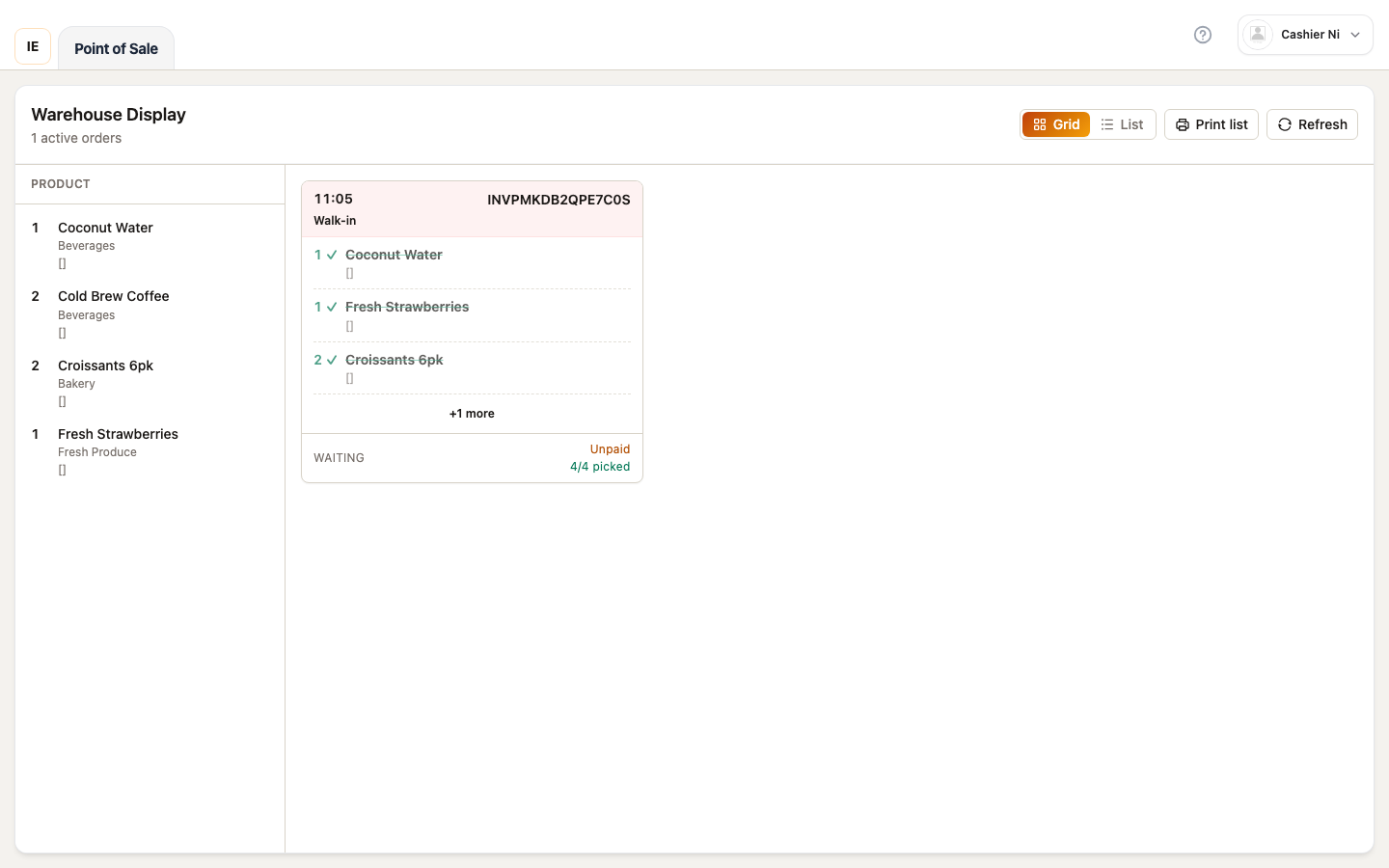
Active pick board showing queued orders awaiting warehouse fulfillment.
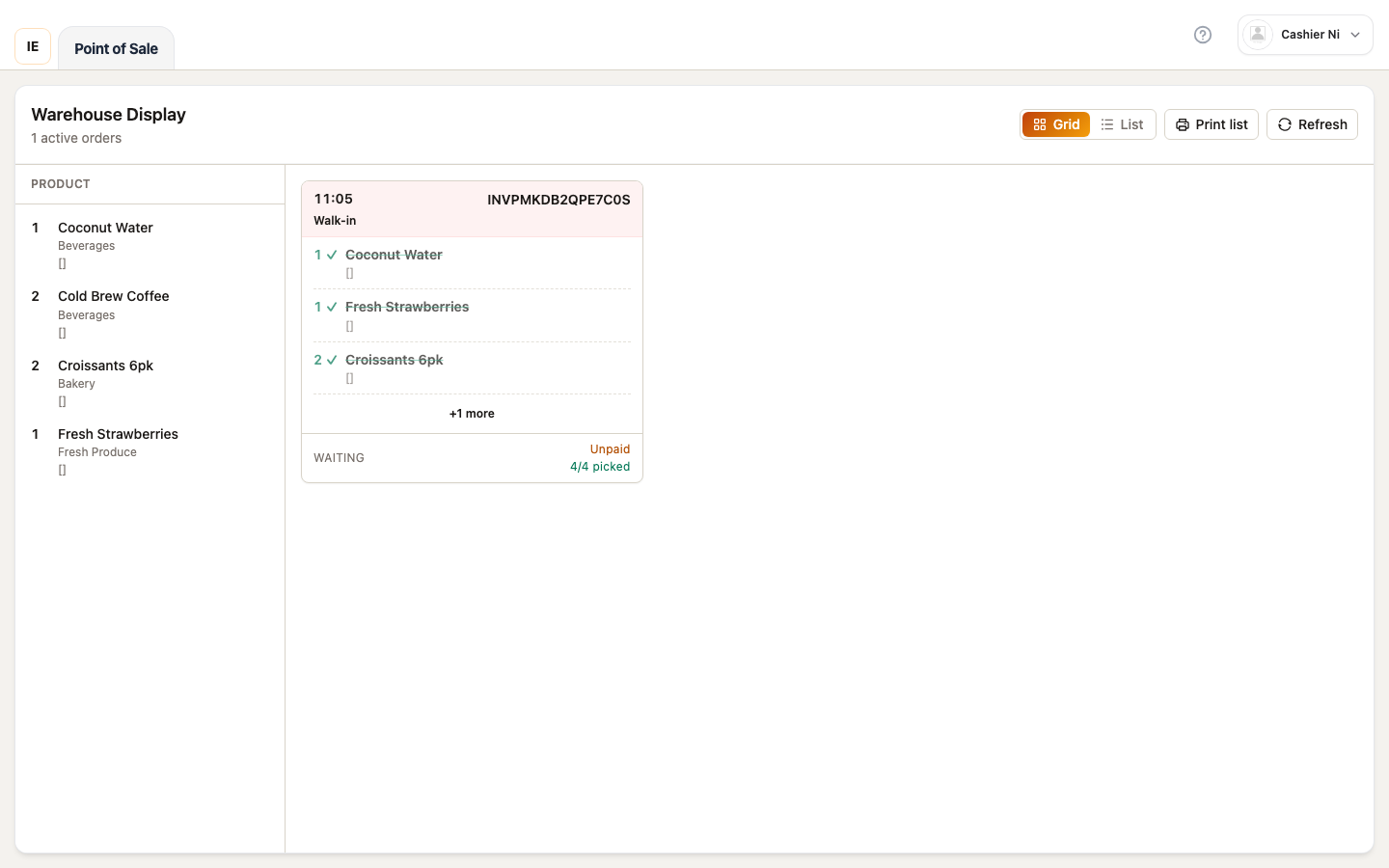
Empty state when no orders are pending pick.
When warehouse picking is used
Section titled “When warehouse picking is used”Enabled when:
- Store has dedicated warehouse/backroom inventory
- Products marked with
warehouse_onlyor low front-counter stock - Orders placed for pickup/delivery that need warehouse fulfillment
- Cashier explicitly sends order to warehouse via “Send to WBS” button during checkout
Typical workflow:
- Cashier creates sale with items (any items can be sent to warehouse)
- At checkout, cashier clicks “Send to WBS” instead of regular payment
- Order appears on Warehouse Board (status: Pending Pick)
- Warehouse staff picks items, scans barcodes
- Order moves to Ready status
- Cashier completes checkout/handoff when items are ready
How orders arrive at Warehouse Board
Section titled “How orders arrive at Warehouse Board”From Sale Workspace
Section titled “From Sale Workspace”When a cashier wants to send an order to the warehouse:
- Add items to cart — Any products can be sent to warehouse
- Click “Send to WBS” button — Located in cart panel, above the “Pay” button
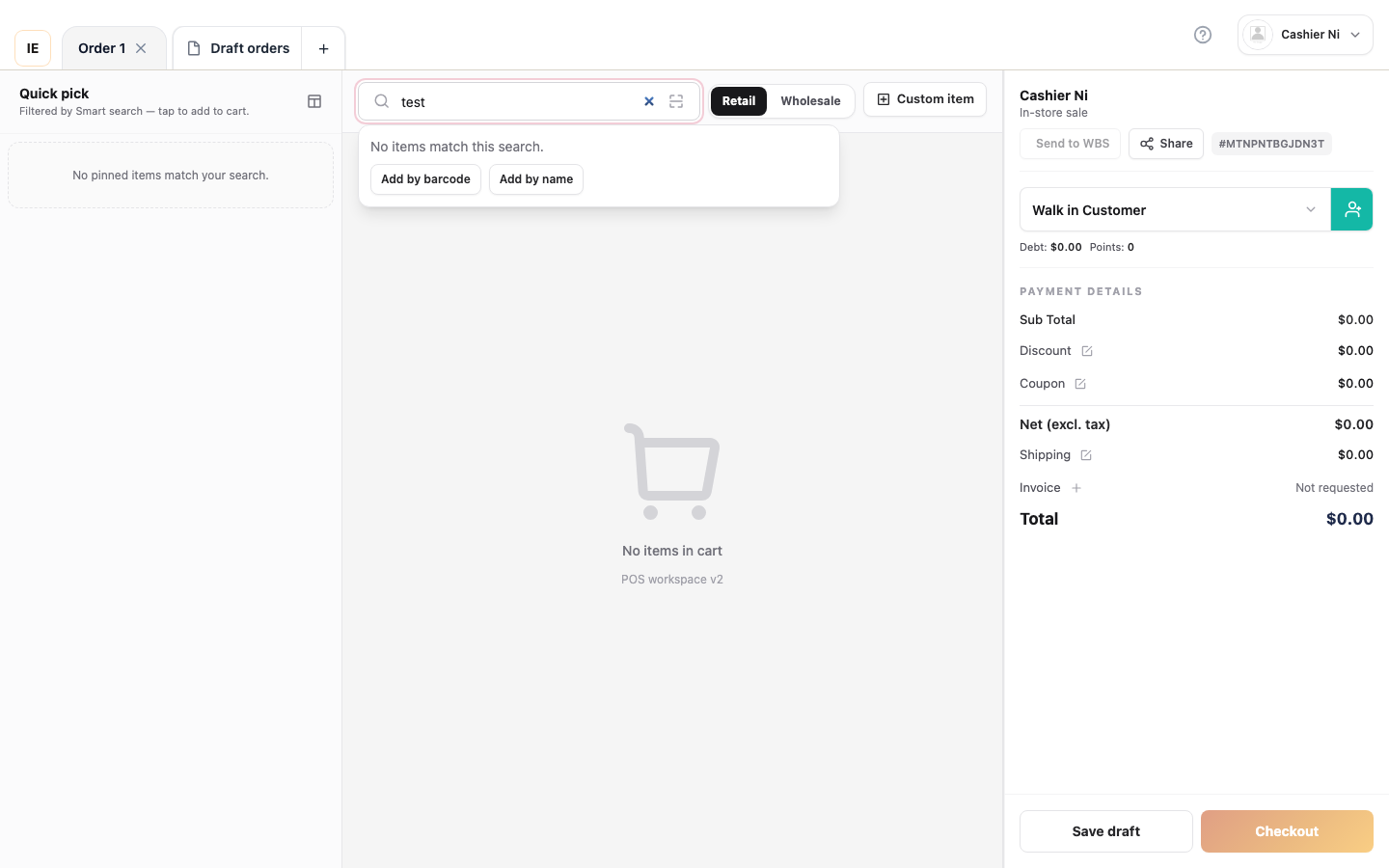
“Send to WBS” button in the cart panel sends the order directly to warehouse for picking.
- Order is queued:
- Cart is saved with current items and quantities
- Order appears immediately on Warehouse Board
- Sale workspace clears, ready for next customer
- Toast confirmation: “Order sent to warehouse pick board”
Button location:
- In the cart panel (right side of sale workspace)
- Above the “Pay” button
- Only visible in retail workspace (not wholesale-dedicated)
- Disabled when cart is empty or order is already being sent
Button states:
- Normal: Shows warehouse icon 🏢 + “Send to WBS”
- Sending: Shows loading spinner + “Sending…”
- Disabled: Grayed out when no items in cart
Order states after sending
Section titled “Order states after sending”- Pending Pick — Warehouse hasn’t started picking yet
- In Progress — Warehouse staff opened the pick list
- Ready — All items picked, ready for customer pickup/checkout
- Completed — Order fulfilled and archived
Page layout
Section titled “Page layout”
┌──────────────────────────────────────────────────────────┐│ Filter toolbar: Status tabs | Date range | Search │├──────────────────────────────────────────────────────────┤│ Pick orders table ││ - Order # | Customer | Items count | Status | Priority ││ - Click row → Expand pick details │├──────────────────────────────────────────────────────────┤│ Expanded row: Pick list ││ ┌────────────────────────────────────────────────────┐ ││ │ SKU | Product name | Qty needed | Picked | Actions │ ││ │ Barcode scanner input │ ││ │ [Mark as picked] [Cancel item] │ ││ └────────────────────────────────────────────────────┘ │└──────────────────────────────────────────────────────────┘Status tabs
Section titled “Status tabs”| Status | Meaning | Action required |
|---|---|---|
| Pending Pick | Warehouse items not yet picked | Pick items from warehouse |
| Partial | Some items picked, others pending | Complete remaining picks |
| Ready | All items picked, ready for checkout | Complete sale at POS |
| Completed | Order fulfilled and handed off | Archive (auto after 24h) |
| Cancelled | Order cancelled before fulfillment | No action |
Pick workflow (warehouse staff)
Section titled “Pick workflow (warehouse staff)”Step 1: Find order
Section titled “Step 1: Find order”- Open Warehouse Board
- Filter by Pending Pick tab
- Locate order by:
- Order number (if known)
- Customer name
- Oldest first (default sort)
Step 2: View pick list
Section titled “Step 2: View pick list”- Click order row to expand
- Pick list shows:
- Product name & SKU
- Quantity needed
- Warehouse location (if configured)
- Current picked quantity
Step 3: Pick items
Section titled “Step 3: Pick items”Manual entry:
- Locate product in warehouse
- Click + button to increment picked count
- Repeat until
Picked = Qty needed
Barcode scanning:
- Focus barcode scanner input field
- Scan product barcode
- System auto-increments picked count
- Beep confirmation (if audio enabled)
Step 4: Mark order ready
Section titled “Step 4: Mark order ready”- When all items picked → Mark as Ready button activates
- Click button
- Order moves to Ready tab
- Cashier notified (if integrated messaging enabled)
Step 5: Handle exceptions
Section titled “Step 5: Handle exceptions”Product not found in warehouse:
- Click Report issue on item
- Options:
- Out of stock → Removes item, refunds customer
- Wrong SKU → Opens search to substitute
- Needs manager → Flags for review
Partial fulfillment:
- Pick available quantity
- Update
Pickedto actual (e.g., 3 of 5) - System marks order Partial
- Cashier sees adjusted total at checkout
Checkout flow with warehouse items
Section titled “Checkout flow with warehouse items”For cashier
Section titled “For cashier”Before warehouse pick:
- Add items to cart (including warehouse items)
- Click Checkout
- Modal shows warning: “Warehouse items not picked”
- Options:
- Wait for pick → Order saved as draft, appears on Warehouse Board
- Remove warehouse items → Continue without them
- Cancel → Return to cart
After warehouse pick:
- When order status = Ready, checkout proceeds normally
- No blocking message
- Complete payment as usual
Warehouse item indicator
Section titled “Warehouse item indicator”In sale workspace cart, warehouse items show badge:
- 🏢 Warehouse (blue badge)
- Quantity grayed out until picked
- Click badge → Opens Warehouse Board in new tab
Priority orders
Section titled “Priority orders”Mark order as priority:
- In Warehouse Board, click order
- Click Set priority button (flag icon)
- Priority orders:
- Highlighted in yellow
- Sorted to top of Pending Pick list
- Optional: Alert sound when new priority order arrives
Use cases for priority:
- Customer waiting at counter
- Time-sensitive delivery
- VIP/wholesale orders
Keyboard shortcuts
Section titled “Keyboard shortcuts”| Key | Action |
|---|---|
F6 | Open Warehouse Board |
F7 | Focus barcode scanner input |
Enter | Mark current item as picked (when focused) |
Shift + Enter | Mark entire order ready |
Esc | Close expanded pick list |
Barcode scanner integration
Section titled “Barcode scanner integration”Supported scanners
Section titled “Supported scanners”- USB barcode scanners (keyboard wedge mode)
- Bluetooth scanners paired to lane PC
- Mobile app camera scanner (in Vendor Desktop mobile)
Scanner configuration
Section titled “Scanner configuration”- Plug in USB scanner (or pair Bluetooth)
- Scanner acts as keyboard input
- Focus warehouse board pick list
- Scan product → Auto-increments picked count
- Beep/vibration confirms successful scan
Troubleshooting:
- Scan doesn’t register → Focus barcode input field first
- Wrong product increment → Verify barcode matches SKU in pick list
- Scanner lag → Check USB connection or Bluetooth pairing
Multi-location warehouses
Section titled “Multi-location warehouses”If store has multiple warehouse zones:
Pick list shows location code:
SKU-001 | Product A | Qty: 5 | Location: A-12 | Picked: 0How to use:
- Sort pick list by location (if enabled)
- Navigate warehouse by zone
- Pick all items in zone before moving
Configuration:
- Managed in Admin Panel → Products → Warehouse Locations
- Not editable from POS workspace
Offline mode
Section titled “Offline mode”When offline:
- Warehouse Board shows local cached orders only
- Picked items saved locally
- On reconnect → Syncs picks to server
- Warning: Multiple staff picking same order offline can cause conflicts
Best practice:
- Ensure one picker per order
- Sync frequently (click Refresh when online)
Reports & analytics
Section titled “Reports & analytics”Warehouse pick metrics (visible to managers):
- Average pick time per order
- Items picked per hour (picker performance)
- Most frequently picked products
- Out-of-stock events by SKU
Access via Sales Reports → Warehouse tab.
Mobile warehouse app
Section titled “Mobile warehouse app”For dedicated warehouse staff:
- Use Vendor Desktop mobile (iOS/Android)
- Navigate directly to Warehouse Board
- Camera barcode scanner built-in
- Push notifications for new priority picks
Setup:
- Download Vendor Desktop mobile from App Store/Play Store
- Login with employee account
- Go to Settings → Default screen → Warehouse Board
- Enable notifications for new picks
Troubleshooting
Section titled “Troubleshooting”“Order stuck in Pending Pick”
Section titled ““Order stuck in Pending Pick””Cause: Warehouse staff hasn’t marked as picked.
Fix:
- Check if picker opened the order
- Verify items are actually available
- If blocker → Use Report issue to flag
“Picked count exceeds needed”
Section titled ““Picked count exceeds needed””Cause: Barcode scanned multiple times by mistake.
Fix:
- Click - button to decrement
- Or click Reset to clear picked count
- Re-scan correctly
“Checkout blocked by warehouse pick”
Section titled ““Checkout blocked by warehouse pick””Cause: Order has unpicked warehouse items.
Fix:
- Go to Warehouse Board
- Complete pick
- Return to sale workspace
- Checkout proceeds
“Scanner not working”
Section titled ““Scanner not working””Cause: USB not connected or input field not focused.
Fix:
- Check USB cable connection
- Click barcode input field to focus
- Test scan on any barcode
- If still failing → Check scanner battery (Bluetooth) or try different USB port
Related
Section titled “Related”- Sale Workspace — Create orders with warehouse items
- Items Catalog — Check which products are warehouse-only
- Orders — View completed warehouse picks
- Reports — Warehouse pick performance metrics