Orders List
Overview
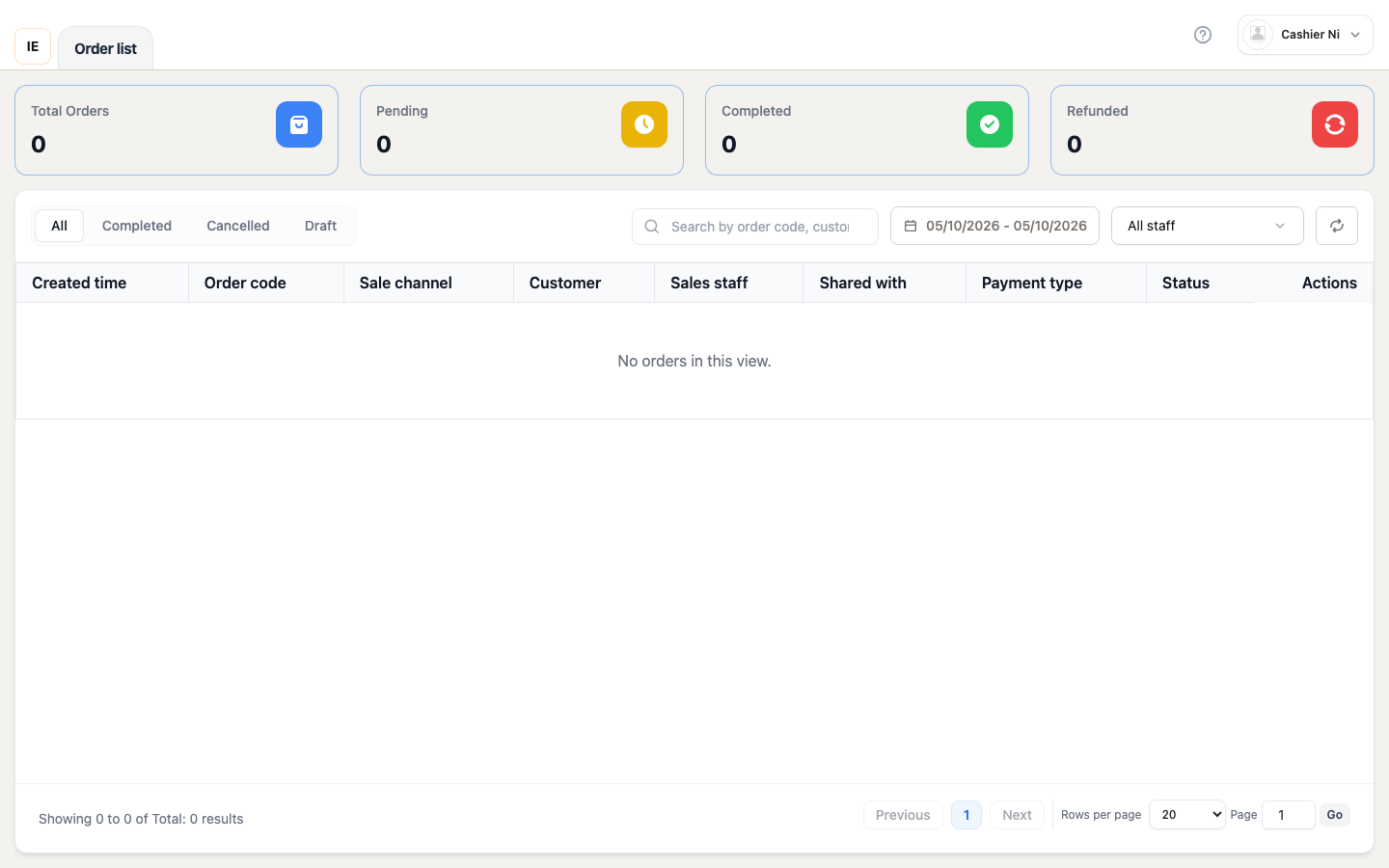
Section titled “Overview”The Orders page (/point-of-sale/orders) displays order history for the selected store, with filters, search, and quick actions.
Page layout
Section titled “Page layout”┌──────────────────────────────────────────────────────────┐│ Stats cards: Total orders | Revenue | Avg order | Returns │├──────────────────────────────────────────────────────────┤│ Status tabs: All | Completed | Cancelled | Draft │├──────────────────────────────────────────────────────────┤│ Search | Date range | Staff filter | Sync | Refresh │├──────────────────────────────────────────────────────────┤│ Orders table ││ - Order # | Time | Customer | Items | Total | Status ││ - Actions: Print | Return | Assign customer | Edit │└──────────────────────────────────────────────────────────┘Overview stats
Section titled “Overview stats”Four stat cards at top:
- Total orders: Count for selected date range + filters
- Total revenue: Sum of completed orders (includes tax)
- Average order value: Revenue / order count
- Returns: Count of return/refund orders
Stats update when filters change.
Tax calculation
Section titled “Tax calculation”Orders display tax based on item tax settings:
Taxable items (9.15% sales tax):
- Example: Organic Valley Milk ($4.99) → Tax: $0.46
- Tax appears on receipt as separate line item
Non-taxable items (0% tax):
- Example: Sourdough Bread ($5.49) → Tax: $0.00
- Common for grocery staples (bread, produce, etc.)
Mixed cart example:
Organic Valley Milk $4.99 Tax (9.15%) $0.46Sourdough Bread $5.49 No tax $0.00───────────────────────────Subtotal $10.48Tax $0.46───────────────────────────Total $10.94Receipt shows tax breakdown per taxable item + total tax line.
Status tabs
Section titled “Status tabs”Tab filters
Section titled “Tab filters”| Tab | Shows | Screenshot |
|---|---|---|
| All | All order statuses (completed, pending, draft, cancelled) | |
| Completed | Paid and finalized orders | 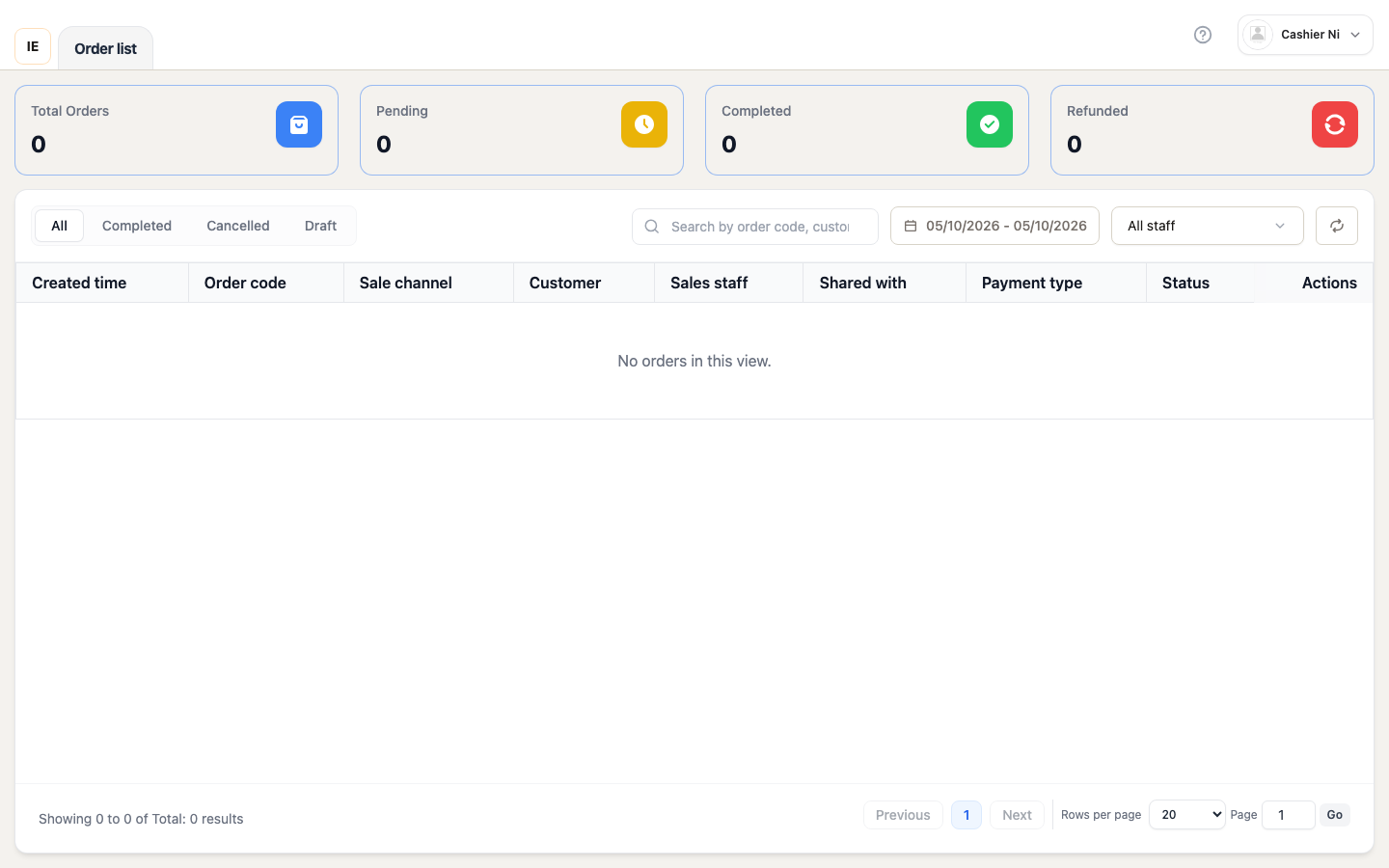 |
| Cancelled | Voided/cancelled orders | 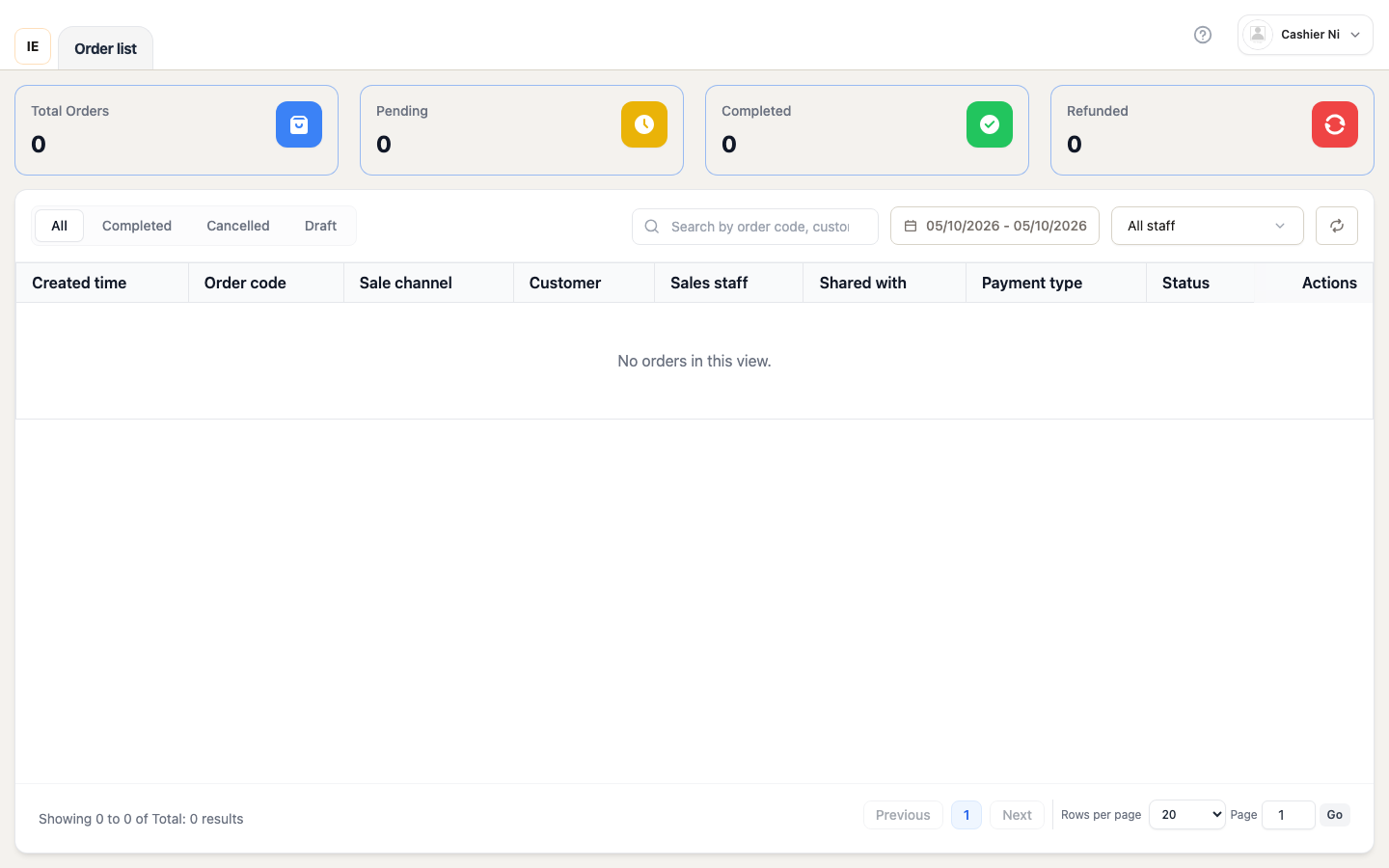 |
| Draft | Unsaved drafts + named drafts + offline orders | 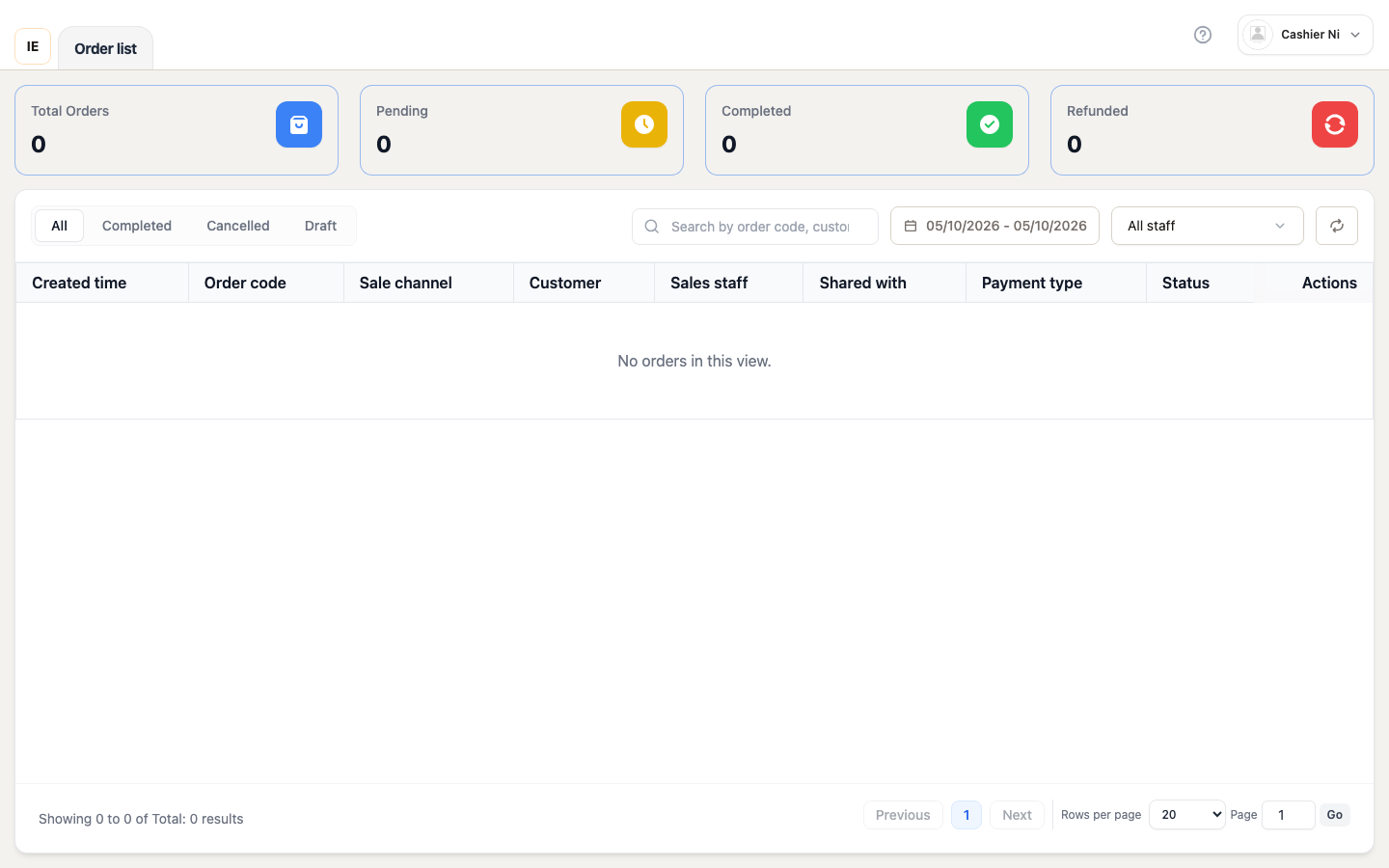 |
Click tab to filter. URL param ?listStatus=<value> persists selection across page refreshes.
All tab
Section titled “All tab”Shows every order regardless of status:
- Completed orders (green badge)
- Pending payments (yellow badge)
- Draft orders (gray badge)
- Cancelled orders (red badge)
- Returns (blue badge)
Use this tab to get a complete view of all activity.
Completed tab
Section titled “Completed tab”Shows only paid/finalized orders:
- Includes: Cash, card, wallet, debt payments
- Excludes: Drafts, pending, cancelled
- Use case: Daily revenue review, end-of-shift reconciliation
Cancelled tab
Section titled “Cancelled tab”Shows voided orders:
- Orders cancelled by staff
- Failed payment orders
- Use case: Track cancellation reasons, audit void activity
Draft tab
Section titled “Draft tab”Special behavior — merges three sources:
-
Server drafts: Orders saved with “Save as Draft” button
- Shared across devices (when same employee logs in)
- Can be resumed by any contributor
- Shows owner + contributor names
-
Named drafts: Browser-saved carts (offline-capable)
- Persistent across browser sessions
- Saved in IndexedDB (browser) or SQLite (Desktop)
- Identified by client order ID (barcode format)
-
Outbox orders (Desktop only): Offline orders pending sync
- Created when internet disconnected
- Auto-sync when connection restored
- Shows amber sync button
Draft actions:
- Edit: Resume draft in sale workspace
- Print: Print draft receipt (before payment)
- Delete: Remove draft (confirmation required)
- Sync: Upload to server (named drafts + outbox)
- Share contributors: Add employees to draft
Toolbar filters
Section titled “Toolbar filters”Search input
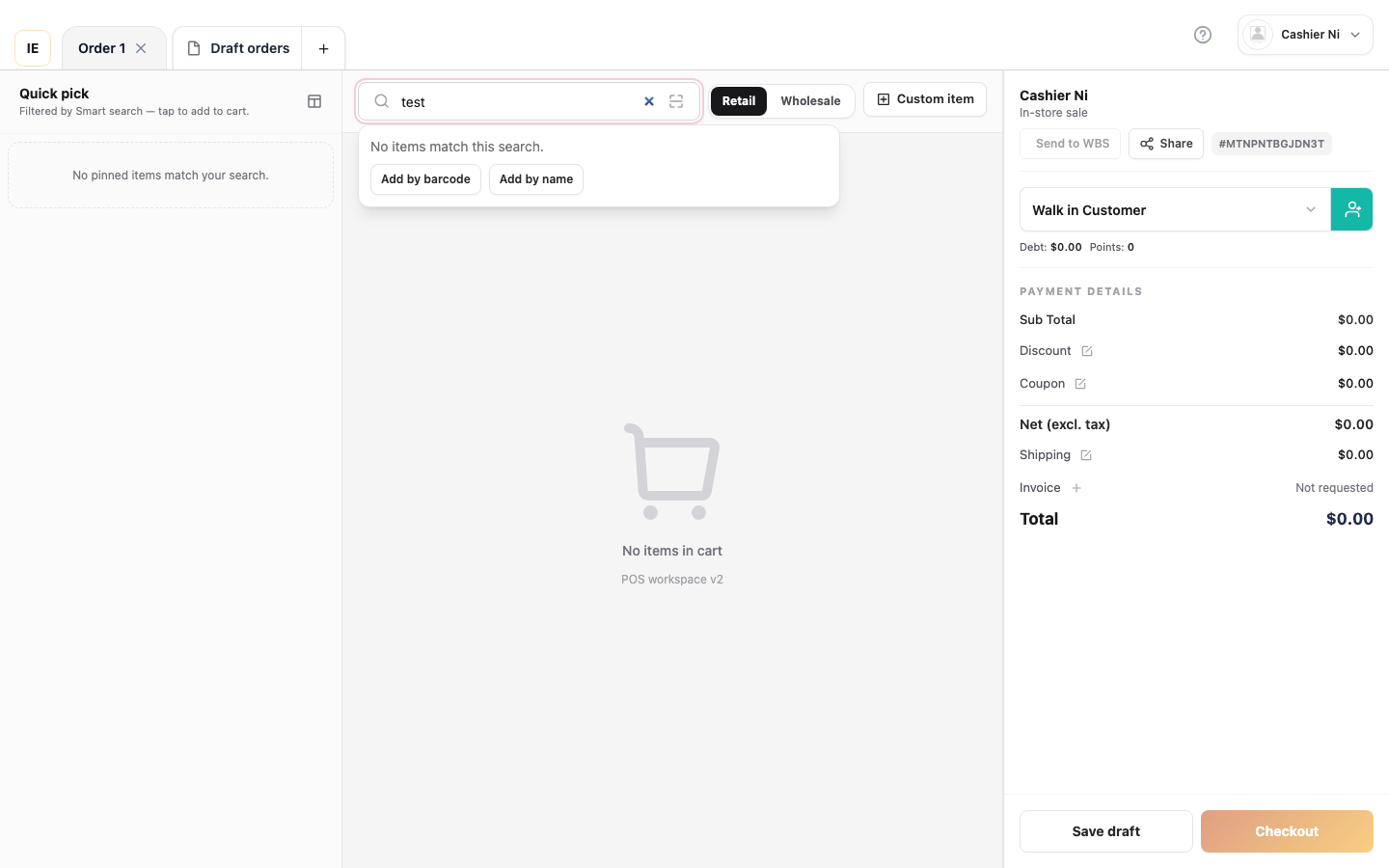
Section titled “Search input”- Searches: Order number, customer name, product name
- Debounced 350ms
- Press
F3to focus - Clear to reset
Date range picker
Section titled “Date range picker”- Default: Today only
- Calendar dropdown: Select
fromandtodates - Custom ranges: Last 7 days, Last 30 days, This month, etc.
- Applies timezone from store configuration
Staff filter
Section titled “Staff filter”- All employees: Shows orders from all staff
- Cashier only: Shows orders processed by POS staff (excludes wholesale, admin-created)
Filter dropdown appears when multiple staff members exist.
Sync control (Desktop only)
Section titled “Sync control (Desktop only)”Shows when offline-capable (localDbEnabled = true):
- “Sync catalog”: Force catalog refresh from server
- Sync status indicator: Shows pending outbox count
- Auto-sync: Background sync runs every 5 minutes when online
Refresh button
Section titled “Refresh button”Circular arrow icon — refetches order list and stats.
Orders table
Section titled “Orders table”Columns
Section titled “Columns”| Column | Content | Sortable |
|---|---|---|
| Order # | Invoice number or client order ID | No |
| Time | Created timestamp (local timezone) | No |
| Customer | Linked customer name (or ”—”) | No |
| Items | Line item count | No |
| Total | Grand total (formatted currency) | No |
| Status | Status badge (colored pill) | No |
| Sync | Sync icon (offline orders only) | No |
| Actions | Row action menu | No |
Status badges
Section titled “Status badges”| Status | Color | Meaning |
|---|---|---|
| Completed | Green | Paid, finalized |
| Draft | Gray | Not yet paid |
| Pending Payment | Yellow | Awaiting card terminal response |
| Cancelled | Red | Voided order |
| Return | Blue | Return/refund processed |
Row actions
Section titled “Row actions”For completed orders:
- Print receipt — Opens print dialog or sends to configured printer
- Return/Refund — Opens return flow modal
- Assign customer — Link order to customer account
- View customer — Opens customer detail modal (if linked)
- Contributors — Manage order contributors (multi-staff orders)
For draft orders:
- Edit — Resume draft in sale workspace
- Print draft — Print draft receipt (if available)
- Delete draft — Remove from list (confirmation required)
- Sync — Upload offline draft to server (Desktop only)
For offline/outbox orders:
- Sync now — Manual sync attempt (shows spinner during sync)
- Delete unsynced — Long-press row to open delete modal
Row click behavior
Section titled “Row click behavior”- Completed order: Opens receipt preview modal
- Draft order: Navigates to sale workspace with draft loaded
- Pending payment: Opens payment status modal
- Wholesale order: Opens dashboard order detail (not POS receipt)
Pagination
Section titled “Pagination”Bottom of table:
- Rows per page: 10, 20, 50, 100 (default: 20)
- Page controls: First, Previous, Next, Last
- Jump to page: Type page number + Enter
- Total count: Shows “X orders” with formatted number
Pagination resets to page 1 when filters change.
Offline behavior (Desktop)
Section titled “Offline behavior (Desktop)”Outbox orders
Section titled “Outbox orders”When offline, placed orders go to local outbox:
- Yellow banner: “X unsynced orders — will sync when online”
- Merged into table: Outbox orders appear on page 1 (before server orders)
- Sync column: Shows sync button per row
- Auto-sync: Background process syncs outbox when connection restored
Named drafts
Section titled “Named drafts”Drafts saved locally appear in Draft tab:
- Stored: IndexedDB (browser) or SQLite (Desktop)
- Client order ID: Used as stable identifier (barcode-compatible)
- Sync to server: Click sync button to convert to server draft/order
Cached orders
Section titled “Cached orders”Desktop caches last 7 days of orders for offline viewing:
- Cache retention:
POS_LOCAL_ORDERS_CACHE_RETENTION_DAYS = 7 - Stale-while-revalidate: Shows cached data while fetching fresh
- Offline hint: Amber banner when viewing cached data offline
Receipt preview modal
Section titled “Receipt preview modal”Click completed order row → opens modal with:
- Receipt HTML: Rendered order receipt
- Print button: Top-right, sends to printer
- Close button: Dismiss modal
- Customer copy only: Merchant copy hidden in POS workspace
Modal uses VendorOrderReceiptPreviewModal component.
Return flow
Section titled “Return flow”How to process a return
Section titled “How to process a return”From completed order row, click Return/Refund icon:
Step 1: Return modal opens
Modal shows:
- Order details (number, date, customer, total)
- Line items with checkboxes
- Customer assignment panel (if needed)
- Return policy validation
Step 2: Customer requirement
⚠️ Returns require linked customer
If order is walk-in (no customer):
- Assign customer panel appears at top
- Search by name, phone, or email
- Select customer → Panel disappears
- Now can proceed with return
Why required: Refunds may issue store credit or update loyalty points.
Step 3: Select items to return
- Checkboxes: Appear for catalog-linked items only
- Select all: Master checkbox at top
- Partial returns: Check some items (not all)
- Non-catalog items: Show amber warning, cannot return
Refund preview (bottom of invoice):
Refund Preview───────────────Merchandise $45.00Tax $ 3.38───────────────Total $48.38Updates in real-time as you check/uncheck items.
Step 4: Fill refund form
Refund reason (required):
- Dropdown: Preset reasons (Damaged, Wrong item, etc.)
- Custom input: Type specific reason when “Other” selected
Refund method (required):
| Method | Description | Use when |
|---|---|---|
| Wallet | Refunds to customer’s e-wallet (MoMo, ZaloPay) | Customer has digital wallet |
| Manual | Cash refund or manual process | Paying cash at counter |
| Original | Refunds to original payment method | Card reversal, same payment |
Customer note (optional):
- Text area for additional details
- Appears on receipt
Step 5: Submit return
Click “Process Return” button:
- Button shows spinner while processing
- Server validates return policy
- Creates return order (negative totals)
- Processes refund via payment gateway
- Adjusts inventory (adds items back to stock)
Success:
- Green toast: “Return processed successfully”
- Modal closes
- Orders list refreshes
- Return appears in Returns page
Return policy rules
Section titled “Return policy rules”Return window:
- Store-configurable (e.g., 30 days)
- If order older than window → blocked with error message
- Example: “Return window expired. This order is 45 days old (limit: 30 days)”
Auto-approve:
- POS returns immediately approve + refund
- No admin approval needed (unlike dashboard returns)
- Instant customer refund at counter
Blocked returns:
- Order already fully refunded
- Return window expired
- Order not completed (draft/cancelled)
- Quick return disabled in store settings
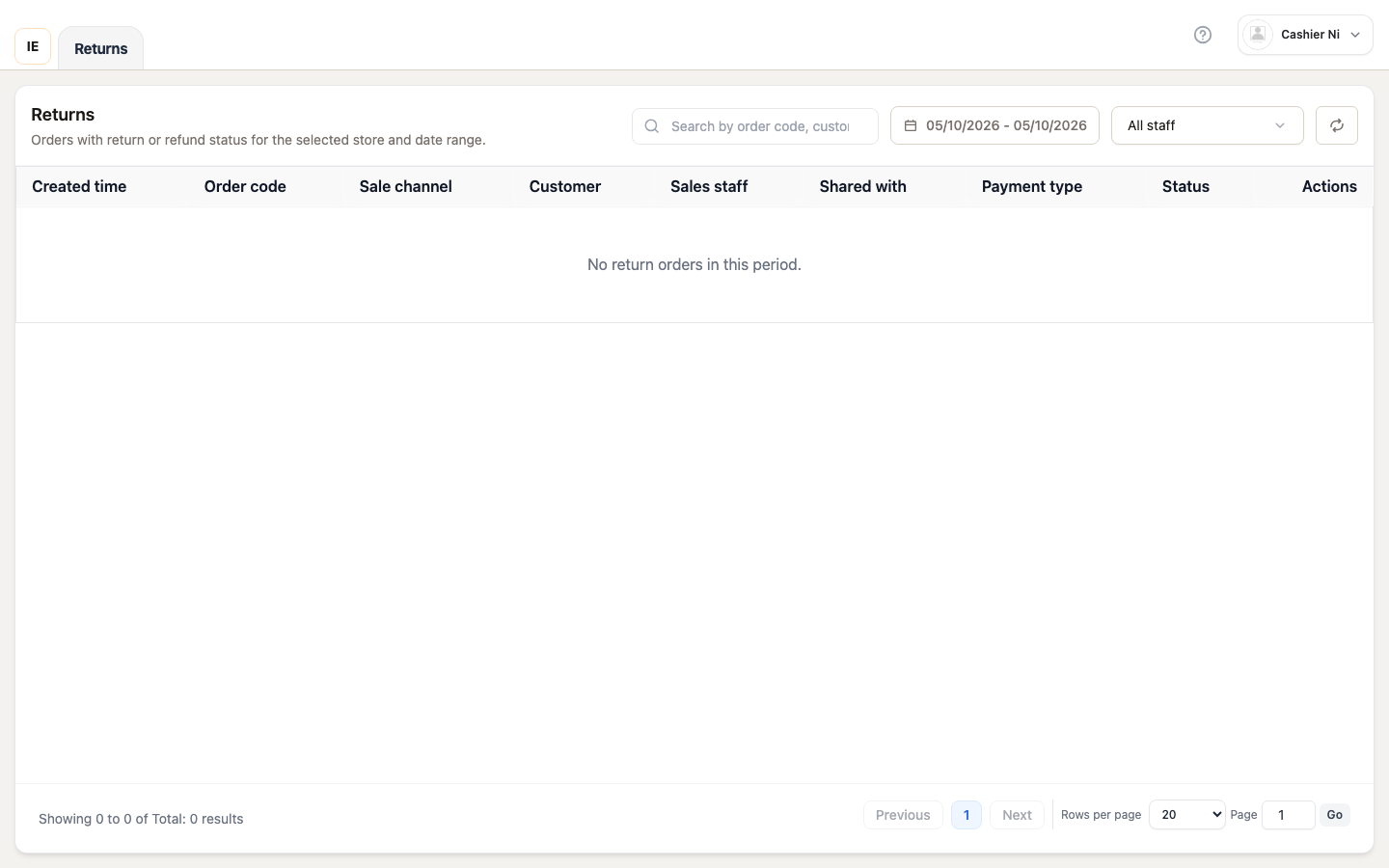
Returns appear in Returns page (/point-of-sale/returns).
Customer assignment
Section titled “Customer assignment”Orders without linked customer can be assigned post-sale:
- Click “Assign customer” in row actions
- Customer search modal opens
- Search by name, phone, or email
- Select customer → Links customer to order
- Updates loyalty points, order history
Troubleshooting
Section titled “Troubleshooting”Orders not loading
Section titled “Orders not loading”Offline (Desktop): Check if showing cached data (amber banner) Online:
- Verify store selected
- Check network connection
- Review error message in table
Cannot sync offline order
Section titled “Cannot sync offline order”Causes:
- Server unreachable (network error)
- Order validation failed (e.g., customer debt blocked)
- Duplicate order (already synced)
Solution: Error toast shows reason. If unrecoverable, long-press row to delete unsynced order.
Receipt won’t print
Section titled “Receipt won’t print”Causes:
- Printer not configured
- Printer offline
- Desktop bridge disconnected
Solution: See Receipt Printer Setup
Keyboard shortcuts
Section titled “Keyboard shortcuts”| Key | Action |
|---|---|
F3 | Focus search input |