Items Catalog
Overview
Section titled “Overview”The Items page (/point-of-sale/items) provides read-only catalog browsing and quick product management for cashiers, showing only active products.
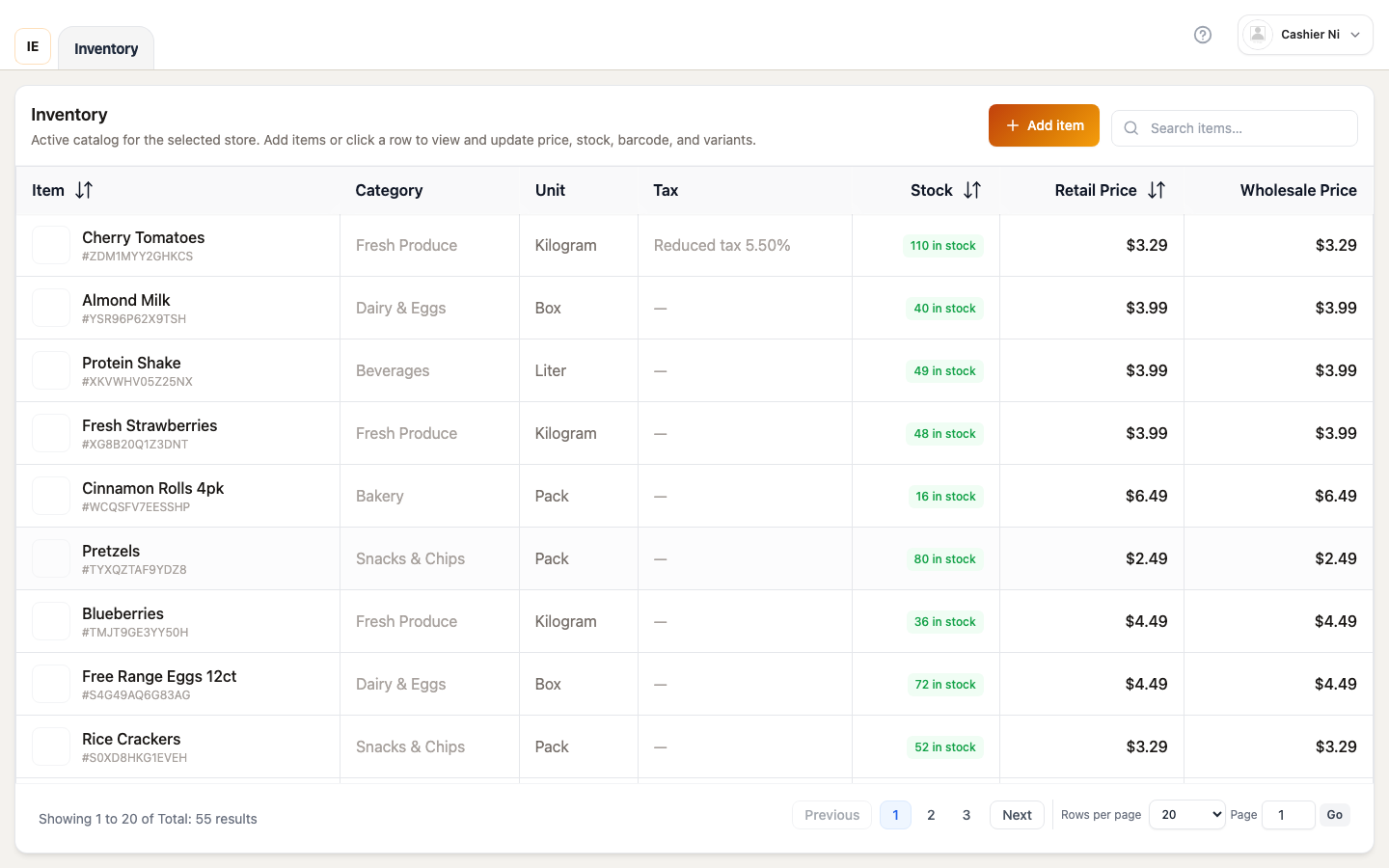
Page layout
Section titled “Page layout”┌──────────────────────────────────────────────────────────┐│ Add item | Search | Sync catalog │├──────────────────────────────────────────────────────────┤│ Items table (sortable) ││ - Product | SKU | Category | Price | Stock | Status ││ - Click row → Edit modal │└──────────────────────────────────────────────────────────┘Toolbar actions
Section titled “Toolbar actions”Quick add product
Section titled “Quick add product”Button: Blue “Add item” button with plus icon
Opens simplified product creation modal:
- Basic info: Name, SKU, category
- Pricing: Base price, unit type
- Stock: Initial quantity (if tracking enabled)
- Status: Auto-set to “active”
Created products immediately appear in table and sale catalog.
Search input
Section titled “Search input”- Searches: Product name, SKU, barcode
- Debounced 350ms
- Full-text search across visible fields
- Clear to reset
Sync catalog (Desktop)
Section titled “Sync catalog (Desktop)”Force refresh catalog from server:
- Click sync icon → fetches latest
items/groupedpayload - Updates local cache (IndexedDB or SQLite)
- Background auto-sync runs every 5 minutes when online
Items table
Section titled “Items table”Columns
Section titled “Columns”| Column | Content | Sortable | Notes |
|---|---|---|---|
| Product | Name + image thumbnail | Yes (name_asc/desc) | Primary identifier |
| SKU | Stock keeping unit | No | Shows ”—” if empty |
| Category | Category name | No | “(No category)” for uncategorized |
| Price | Base unit price | Yes (price_asc/desc) | Formatted currency |
| Stock | Available quantity | Yes (stock_asc/desc) | Only if stock tracking enabled |
| Status | Status badge | No | Always “Active” on this page |
Sorting
Section titled “Sorting”Click column header to sort:
- Name: Alphabetical (A→Z or Z→A)
- Price: Low to high, or high to low
- Stock: Ascending or descending
Default sort: newest (most recently created first).
Sort persists in URL param: ?sort=name_asc
Row click
Section titled “Row click”Opens quick edit modal showing:
- Product name, SKU, category
- Base price (editable)
- Stock quantity (editable if tracking enabled)
- Image thumbnail
- Save/Cancel buttons
Limitations:
- Cannot change variants from this modal
- Cannot edit advanced fields (tax, cost, etc.)
- For full edit, must use Dashboard → Products
Quick edit modal
Section titled “Quick edit modal”Editable fields
Section titled “Editable fields”Name (text input):
- Required, max 200 chars
- Updates product display name
SKU (text input):
- Optional, must be unique
- Updates catalog search index
Price (number input):
- Base price in major currency units
- Applies to default unit/variant
Stock (number input, if tracking enabled):
- Adjusts available quantity
- Creates adjustment record in inventory log
Category (dropdown):
- Select from existing categories
- “(No category)” = unassigned
Save behavior
Section titled “Save behavior”- Validates form (required fields, format)
- API call:
PATCH /vendor/products/:id - Success → Toast, modal closes, table refreshes
- Error → Shows inline errors
Offline behavior (Desktop)
Section titled “Offline behavior (Desktop)”Quick edit unavailable when offline:
- “Offline” badge in modal
- Save button disabled
- Must sync before editing
Quick add modal
Section titled “Quick add modal”Product info:
- Name (required): Display name
- SKU (optional): Unique identifier
- Category (dropdown): Select from store categories
Pricing:
- Price (required): Base price
- Unit type (dropdown): ea, lb, kg, box, etc.
Stock (if tracking enabled):
- Initial stock (number): Starting quantity
- Warehouse (dropdown): Where stock is located
Tax:
- Taxable (checkbox): Whether to apply tax
- Tax rate (auto-filled from store default)
Create behavior
Section titled “Create behavior”- Validates form
- API call:
POST /vendor/productswithstore_id - Success:
- Product created with
status = "active" - Appears in Items table
- Appears in Sale catalog immediately
- Toast: “Product created”
- Product created with
- Error → Shows validation errors
Pagination
Section titled “Pagination”- Default page size: 20 rows
- Options: 10, 20, 50, 100
- Jump to page: Type page number + Enter
- Total: “X items” at bottom
Pagination resets to page 1 when:
- Search query changes
- Sort changes
- Page size changes
Offline behavior (Desktop)
Section titled “Offline behavior (Desktop)”Stale-while-revalidate
Section titled “Stale-while-revalidate”Items page uses same cache as Sale catalog:
- Cache key:
POS_LOCAL_CATALOG_CACHE_KEYS.itemsGrouped - Shows cached products immediately
- Fetches fresh data in background
- Seamless transition when fresh data arrives
Cache transformation
Section titled “Cache transformation”Server payload PosItemsGroupedResponse transformed to:
- Flattened product list (ungrouped)
- Client-side pagination
- Client-side search (filters cached data)
Offline limitations
Section titled “Offline limitations”When offline (Desktop shows amber banner):
- Cannot edit: Quick edit modal disabled
- Cannot create: Quick add button disabled
- Read-only: Viewing cached catalog only
Store-specific filtering
Section titled “Store-specific filtering”Products filtered by:
- Store ID: Only products assigned to selected store
- Status: Only
status = "active"(inactive products hidden)
Employee accounts see only their assigned store’s products.
Integration with Sale workspace
Section titled “Integration with Sale workspace”Products added/edited on Items page immediately affect Sale:
- New products: Appear in catalog grid
- Price changes: Reflected in cart when product added
- Stock changes: Updated in availability checks
No manual refresh needed — queryClient.invalidateQueries() handles sync.
Troubleshooting
Section titled “Troubleshooting”Product not appearing
Section titled “Product not appearing”Not active: Items page only shows status = "active"
Solution: Activate product in Dashboard → Products
Cannot edit price
Section titled “Cannot edit price”Missing permission: Requires catalog write
Offline: Desktop must be online to save changes
Solution: Grant permission or reconnect to network
Stock not showing
Section titled “Stock not showing”Stock tracking disabled: Store configuration has stock tracking off Not an issue: Stock column hidden intentionally
Quick add fails
Section titled “Quick add fails”Causes:
- Duplicate SKU
- Missing required fields
- Validation errors
Solution: Check error message, fix issue, retry